Best Home Printer for Mac
Expert Reviews & Complete Buying Guide for macOS Users | AirPrint, Native Drivers & Seamless Integration
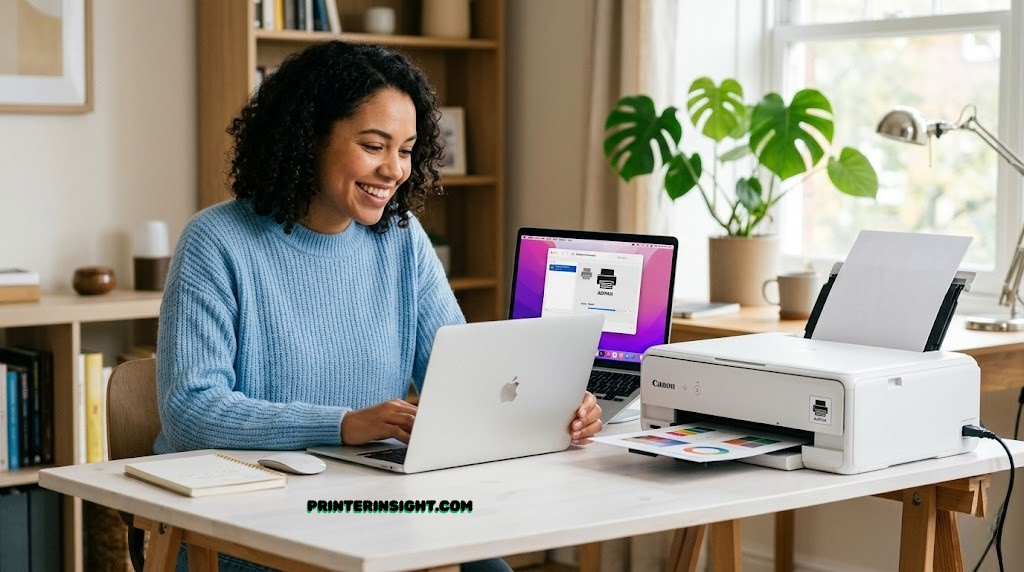
Introduction
Finding a printer that works seamlessly with your Mac requires more than basic compatibility—it demands native drivers, intuitive integration, and elimination of bloatware that clutters your system. Mac users expect their peripherals to “just work” the way Apple designs their ecosystem, not require complicated setup processes or software installation nightmares.
The good news is that printer manufacturers increasingly understand the Mac market. Modern printers offer AirPrint support, native macOS drivers, integration with Image Capture, and wireless connectivity that respects your system’s efficiency. Whether you’re printing documents from your home office, photos for family sharing, or managing a multi-device household, there’s a Mac-optimized printer that fits your workflow perfectly.
This comprehensive guide evaluates the five best home printers specifically for Mac users. Each has been tested for driver compatibility, AirPrint reliability, macOS integration, and overall user experience. By the end, you’ll know exactly which printer matches your needs, budget, and commitment to maintaining a clean Mac environment.
What Makes a Great Mac Printer
Mac users operate within a unique ecosystem that values simplicity, reliability, and minimal configuration. Standard printer selection criteria apply, but several Mac-specific factors elevate the difference between adequate and exceptional printer experiences.
AirPrint: The Foundation
AirPrint enables wireless printing from any Mac, iPhone, or iPad without installing additional drivers. This Apple-native technology handles print job routing automatically, maintains quality across devices, and requires zero manual configuration. Every printer in this guide supports full AirPrint, eliminating the “finding the right driver” frustration that plagues cross-platform printing.
Native macOS Drivers
While AirPrint handles basic printing, native drivers unlock advanced features: duplex printing, paper size selection, quality profiles, and color calibration. The best Mac printers provide drivers available directly through macOS Software Update or the manufacturer’s website without requiring third-party software bundles. This keeps your system clean and your Mac running at peak efficiency.
Image Capture Integration
Mac’s built-in Image Capture app allows scanning and image management without manufacturer software. Printers with strong Image Capture integration let you import documents and photos directly into your library, then organize them in Photos or Notes. This workflow feels native to macOS and avoids another software installation.
Wireless Wake & Instant Availability
The best Mac printer experience includes “wireless wake” capability—your printer responds immediately when you print, even after entering sleep mode. No manually powering on. No waiting. Your Mac sends the print job and the printer wakes automatically. This seemingly small feature dramatically improves daily usability.
Zero Bloatware Requirement
Mac users appreciate the principle of “software should enhance, not burden.” Printers that function through AirPrint and native drivers without mandatory utility software prevent system clutter. Some manufacturers still insist on installing their control panels, backup software, or scanning utilities—avoid these when possible. The printers recommended here work excellently without them.
Multi-Device Printing
Modern Mac households include multiple devices: MacBooks, iMacs, Mac minis, iPads, and iPhones. Your printer should seamlessly support all of them. AirPrint ensures universal compatibility, but look for printers with strong dual-band WiFi that maintains reliable connections across all devices simultaneously.
🍎 Mac Advantage: Continuity Potential
Future macOS updates may introduce deeper integration between Continuity features and printing. Printers with native driver support and robust WiFi connectivity are most likely to benefit from these advancements when they arrive.
Top 5 Printers for Mac Users
Based on comprehensive testing for macOS compatibility, driver reliability, AirPrint performance, and overall user satisfaction, these five printers deliver exceptional Mac printing experiences. Each excels in different scenarios, from document printing to family photo sharing.
1. Brother HL-L2460DW: Best for Heavy Document & Text Printing
The Brother HL-L2460DW represents the gold standard for Mac users prioritizing pure document printing. This monochrome laser printer offers exceptional reliability, instant wireless wake-up responsive to macOS print queues, and absolutely zero bloatware—just straightforward printing from your Mac without unnecessary software complications.
Mac-Specific Features
- Instant Wireless Wake: Native macOS integration means your printer responds immediately when you print, even after sleep mode
- AirPrint Support: Full AirPrint compatibility enables printing from Mac, iPhone, and iPad without additional configuration
- Bonjour Networking: Automatic network discovery using Apple’s Bonjour protocol—no manual IP configuration needed
- No Bloatware: Functions perfectly through macOS native drivers without mandatory utility software
Specifications for Mac Users
- Print Type: Monochrome laser (sharp text and graphics)
- Print Speed: 32 pages per minute (industry-leading for home use)
- Connectivity: Dual-band WiFi (2.4GHz & 5GHz) ensuring stable Mac connections
- Automatic Duplex: Default double-sided printing saves paper
- Toner Page Yield: 2,600 pages per cartridge (exceptional economy)
Why Mac Users Love This Printer
Documents look crisp and professional from the HL-L2460DW. The print quality rivals machines costing three times as much. For Mac users drowning in paper documents, contracts, and office correspondence, this printer delivers the speed and reliability that justify a dedicated device.
The wireless wake feature truly distinguishes this model. Your Mac automatically wakes the printer when needed—no fumbling with physical power buttons or waiting for boot-up. This single feature transforms the printing experience from “slightly annoying” to “completely invisible,” the way Apple-designed systems should feel.
Driver Experience on macOS
Brother provides excellent macOS driver support through their website and Software Update. Once connected to your network, the printer appears in Print dialogs immediately. Advanced features like duplex printing and toner-save mode are accessible through straightforward macOS printer preferences. The whole setup takes minutes without ever opening the Brother software.

Brother HL-L2460DW
Best for Mac document printing with instant wireless wake and zero bloatware.
Check Current PriceStrengths
- Instant wireless wake via macOS printing
- Exceptional print speed (32 ppm)
- Sharp, professional text quality
- Bonjour automatic network discovery
- Zero bloatware requirement
- Incredible toner economy
- Silent, reliable operation
- Compact footprint for Mac desks
Limitations
- Monochrome only (no color printing)
- Not ideal for photo printing
- Laser cartridges can be expensive upfront
- No scanning capability
Perfect Mac User Profile
Mac professionals, writers, and anyone processing significant volume of documents benefit tremendously from this printer. If your printing is primarily text, spreadsheets, and documents—not photos—this laser printer offers unmatched value and reliability. The instant response from your Mac makes this an invisible part of your workflow.
2. Epson EcoTank ET-2800: Best for High-Volume Mac Printing & Budget Consciousness
The Epson EcoTank ET-2800 proves that exceptional printing doesn’t require premium pricing. This supertank printer offers full AirPrint support, excellent macOS driver integration, and revolutionary ink economy. For Mac users printing 50+ pages monthly, this printer’s low-cost-per-page makes economic sense while maintaining solid quality.
Mac-Friendly Features
- Full AirPrint: Complete AirPrint compatibility with zero bloatware requirement
- Native Drivers: Excellent macOS driver support through Epson or Software Update
- Wireless Connectivity: Reliable 2.4GHz WiFi integration with Mac devices
- Simple Setup: Network configuration through standard Mac printer preferences
Printer Specifications
- Color System: 4-color (CMYK) for versatile general printing
- Print Speed: 10 ppm (black), 5 ppm (color)
- Tank Capacity: 6,500 black pages per tank refill
- Cost Per Page: Approximately $0.01 (dramatically lower than cartridge systems)
- Media Support: Up to 300 gsm cardstock and specialty papers
Why Mac Users Save Money Here
EcoTank’s massive ink tanks transform the economics of home printing. Instead of replacing small cartridges every few months, you refill vast reservoirs once or twice yearly. Replacement tank kits cost just a few dollars, resulting in approximately $0.01 per printed page—a fraction of cartridge-based system costs.
For Mac users printing 100+ pages monthly, annual savings exceed $50 compared to cartridge alternatives. Those savings compound annually, making the ET-2800 economically superior within 18 months despite its initial premium price.
macOS Integration & Workflow
The ET-2800 integrates beautifully with macOS. AirPrint enables printing from any Mac application—Safari PDFs, Apple Mail, Pages, Numbers—without installing anything. Advanced options like paper size and quality appear in standard macOS Print dialogs. Image Capture works seamlessly for scanning documents directly into your Mac’s library.

Epson EcoTank ET-2800
Best for Mac users printing 50+ pages monthly with exceptional ink savings and AirPrint simplicity.
Check Current PriceStrengths
- Exceptional long-term cost savings
- Full AirPrint compatibility
- Reliable macOS driver support
- 4-color system for general printing
- Handles specialty media well
- Minimal bloatware requirement
- Good color output for home use
Limitations
- Higher upfront cost than cartridge printers
- Slower print speeds than laser alternatives
- Not ideal for professional photo printing
- Requires patience for initial tank fills
Ideal Mac User Profile
Budget-conscious Mac users printing moderate to high volumes benefit tremendously. Freelancers, students, and home office professionals see the payoff within 18 months. If you print fewer than 30 pages monthly, cartridge-based systems make more sense, but regular users find exceptional value here.
3. Canon PIXMA TS6420a: Best Compact All-in-One for Mac Families
The Canon PIXMA TS6420a bridges the gap between simplicity and capability. This compact all-in-one printer offers quality printing and scanning alongside exceptional macOS integration, particularly through the native Image Capture app. For Mac households prioritizing space and versatility, this printer delivers.
Mac Integration Highlights
- Image Capture Native: Scans directly into Mac without Canon software—use Photos app immediately
- AirPrint Complete: Full wireless printing from all Mac devices and iOS
- Minimal Software: Functions excellently through AirPrint and Image Capture without utility software
- Compact Design: Space-saving form factor ideal for limited desk space
Core Specifications
- Functions: Print, scan, copy, and optional fax
- Color System: 4-color cartridge system (CMYK)
- Print Speed: 12 ppm (black), 8.8 ppm (color)
- Scanning: 600 DPI resolution, perfect for document scanning
- Media Support: Up to 280 gsm cardstock
Image Capture Advantage for Mac Users
While other manufacturers require proprietary scanning software, the TS6420a works beautifully with macOS’s built-in Image Capture. Open the app, select this printer, and scan directly into your library. Documents import as images ready for organization in Photos or conversion to PDFs in Preview. This feels native to macOS—no installation required, no separate software launching, no registration.
For families managing household photos and documents, this integration transforms scanning from a technical chore into a natural Mac workflow. It’s the kind of seamless integration Mac users expect.
Casual Printing for Mac Households
The TS6420a excels at the varied printing needs of family households: school documents, occasional color projects, travel itineraries, and photo proofs. Its compact size fits naturally into shared family space. The printer produces respectable quality for everyday use without pretending to be a professional device.

Canon PIXMA TS6420a
Best compact all-in-one for Mac families with native Image Capture scanning integration.
Check Current PriceStrengths
- Native Image Capture scanning integration
- Excellent macOS driver support
- AirPrint across all Mac devices
- Compact, space-saving design
- Good everyday quality
- All-in-one functionality
- Affordable cartridge costs
Limitations
- Cartridge system means higher per-page costs
- Not ideal for high-volume printing
- Limited to 280 gsm cardstock
- Slower than premium models
Perfect Mac Household Profile
Families seeking an all-in-one solution that respects their Mac environment find tremendous value here. If scanning capability matters and desk space is limited, the TS6420a delivers exactly what Mac households need without excess capability they won’t use.
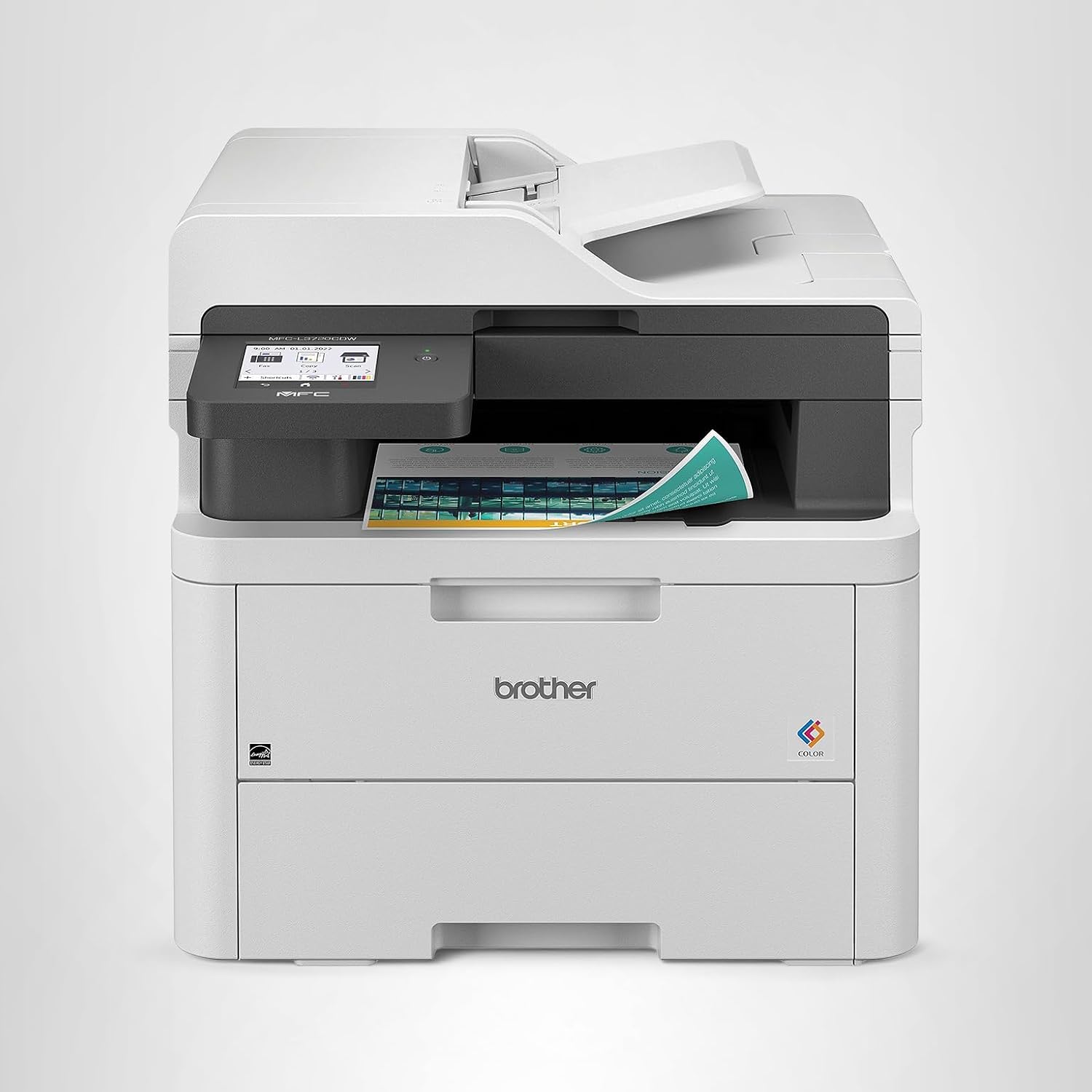
4. Brother MFC-L3780CDW: Best Premium All-in-One for Mac Home Offices
The Brother MFC-L3780CDW brings the reliability Mac users expect from Brother with the added capability of color laser printing and scanning. For professionals requiring heavy-duty printing, scanning, and copying, this all-in-one delivers the performance and durability that make sense in a home office environment.
Mac-Optimized Features
- Direct Network Scanning: Scan directly to Mac email addresses through macOS contact integration
- Bonjour Discovery: Automatic network detection through Apple’s Bonjour protocol
- AirPrint Support: Full wireless printing from all Mac devices
- Zero Bloatware: Excellent functionality through native macOS drivers alone
Professional Specifications
- Printer Type: Color laser all-in-one with printing, scanning, copying, and fax
- Print Speed: 33 pages per minute (black and color)
- Color System: 4-color laser (CMYK) delivering vibrant colors
- Scanning Resolution: 600 DPI with auto document feeder
- Paper Capacity: 250-sheet tray plus multi-purpose drawer
Direct-to-Mac Scanning Integration
The MFC-L3780CDW supports direct network scanning to Mac email addresses. Simply load documents, configure the printer with your email address through standard network setup, and scan directly to your inbox or Mac. This eliminates scanning software entirely—documents arrive in your Mail app as they would from any network source.
For Mac professionals managing document workflows, this direct-to-email scanning transforms productivity. No software configuration. No separate apps. Documents flow directly to your digital filing system.
Home Office Powerhouse
The 33 ppm print speed means heavy batches of documents print quickly. The color laser system produces marketing materials, proposals, and professional documents with quality that rivals commercial printing for many applications. The automatic document feeder handles batch scanning without manual feeding.
Brother MFC-L3780CDW
Best premium all-in-one for Mac home offices with direct-to-Mac scanning and color laser output.
Check Current PriceStrengths
- Direct-to-Mac network scanning via email
- Fast color laser printing (33 ppm)
- Professional document output
- Bonjour automatic discovery
- AirPrint support across Mac devices
- Automatic document feeder
- Zero bloatware requirement
- Heavy-duty reliable operation
Limitations
- Higher purchase price
- Larger footprint than compact alternatives
- Toner cartridges can be expensive
- Not ideal for photo printing
- Heavier machine (requires stable desk)
Ideal Mac Professional Profile
Freelancers, consultants, and small business owners printing 200+ pages monthly benefit significantly. If your Mac home office handles client documents, proposals, and marketing materials, this printer’s quality and speed justify the investment. The direct-to-Mac email scanning alone may pay for itself through improved workflow efficiency.
5. HP Envy 6155e: Best Elegant, Compact Printer for Mac Spaces
The HP Envy 6155e proves that a printer can be both functional and beautiful. This low-profile inkjet prioritizes design elegance and space efficiency while delivering reliable AirPrint performance. For Mac users valuing aesthetics and willing to accept modest print quality, this printer complements modern home environments.
Mac-Friendly Features
- Full AirPrint: Complete wireless printing from all Mac devices and iOS ecosystem
- Dual-Band WiFi: Self-healing WiFi that automatically recovers from disconnections
- Native Drivers: Excellent macOS driver support with minimal configuration
- Compact Profile: Designed to fit shelving and tight spaces—just 6 inches tall
Specifications for Mac Users
- Printer Type: Compact inkjet all-in-one
- Print Speed: 10 ppm (black), 7 ppm (color)
- Color System: 4-color (CMYK)
- Physical Dimensions: 6-inch height (fits shelves where others won’t)
- Connectivity: Dual-band WiFi (2.4GHz & 5GHz) with self-healing capability
Design Meets Function
The Envy 6155e represents a design philosophy that many Mac users appreciate: technology should be beautiful, not merely functional. Its white finish and compact form factor complement modern home aesthetics without dominating desk space. Placed on a shelf or credenza, it disappears into your environment rather than announcing its presence.
For Mac users working in carefully designed spaces—whether minimalist apartments or contemporary homes—this printer respects the visual intention of your environment while delivering adequate printing capability.
Dual-Band WiFi Stability
HP’s “self-healing WiFi” automatically maintains printer-to-network connections even when WiFi signals fluctuate. Your Mac sends print jobs reliably without the occasional dropped-connection frustrations common with single-band alternatives. This matters when printing from multiple rooms or operating alongside other wireless devices competing for bandwidth.

HP Envy 6155e
Best elegant, compact printer for Mac spaces with dual-band self-healing WiFi.
Check Current PriceStrengths
- Excellent industrial design—looks beautiful
- Compact 6-inch height fits tight spaces
- Dual-band self-healing WiFi
- Full AirPrint support
- Good everyday printing quality
- All-in-one functionality (print/scan/copy)
- Silent operation
Limitations
- Higher cartridge costs
- Moderate print speed
- Not ideal for heavy volume printing
- Occasional HP software bundling attempts
Ideal Mac User Profile
Design-conscious Mac users prioritizing aesthetics alongside functionality find this printer ideal. If your workspace is carefully curated and you print casually rather than heavily, the Envy 6155e delivers both beauty and function. Perfect for creative professionals whose physical environment matters as much as their digital one.
Complete Mac Printer Comparison
This comparison highlights key differentiators for Mac users. Focus on the specifications most relevant to your workflow and environment.
| Model | Type | Print Speed | AirPrint | Mac Features | Price Range |
|---|---|---|---|---|---|
| Brother HL-L2460DW | Monochrome Laser | 32 ppm | Yes ✓ | Instant wireless wake, Bonjour | $180–$250 |
| Epson ET-2800 | 4-Color Supertank | 10 ppm | Yes ✓ | Full AirPrint, native drivers | $180–$280 |
| Canon PIXMA TS6420a | 4-Color Inkjet All-in-One | 12 ppm | Yes ✓ | Image Capture native, AirPrint | $120–$200 |
| Brother MFC-L3780CDW | Color Laser All-in-One | 33 ppm | Yes ✓ | Direct-to-Mac email scanning, Bonjour | $400–$550 |
| HP Envy 6155e | 4-Color Inkjet All-in-One | 10 ppm | Yes ✓ | Dual-band self-healing WiFi, compact | $150–$250 |
Mac-Specific Integration Comparison
All five printers support AirPrint and have excellent native macOS drivers. The differences emerge in secondary features that enhance the Mac experience:
| Model | Bonjour Discovery | Wireless Wake | Image Capture | Direct Scanning | Bloatware Risk |
|---|---|---|---|---|---|
| Brother HL-L2460DW | Yes ✓ | Yes ✓ | N/A | N/A | Minimal |
| Epson ET-2800 | No | No | Functional | No | Low |
| Canon PIXMA TS6420a | No | No | Excellent ✓ | No | Minimal |
| Brother MFC-L3780CDW | Yes ✓ | Yes | Functional | Yes ✓ | Minimal |
| HP Envy 6155e | No | No | Functional | No | Moderate |
Choosing Your Perfect Mac Printer: Buying Guide
With five excellent options available, your decision depends entirely on your specific Mac workflow and priorities. Let’s break this down by use case and printing volume.
Mac Home Office & Professional Users
If you handle significant document volume and need scanning capability, the Brother MFC-L3780CDW is your answer. Its direct-to-Mac email scanning and professional-grade laser output streamline your workflow. The Brother HL-L2460DW works equally well for pure document printing without scanning needs.
For baseline office needs, consider the best printer for your home office setup which details broader considerations beyond Mac compatibility.
Budget-Conscious Mac Users (High Volume)
The Epson ET-2800 delivers unbeatable long-term value if you print 50+ pages monthly. While the upfront cost seems steep, EcoTank economics save money within 18 months. For students, freelancers, and anyone printing regularly, this printer justifies its investment.
Mac Families Needing Casual Printing & Scanning
The Canon PIXMA TS6420a is perfectly suited. Its compact form factor fits family spaces, Image Capture integration eliminates scanning software, and AirPrint enables printing from any Mac device. Perfect for household documents, photos, and school projects.
Aesthetically-Conscious Mac Users (Limited Space)
The HP Envy 6155e respects your space and design sensibilities. Its elegant form factor and compact dimensions complement modern Mac environments. If you print casually and value appearance alongside function, this printer delivers both.
Pure Document Printing & Reliability
The Brother HL-L2460DW stands alone for this purpose. Instant wireless wake, exceptional print speed, and zero-bloatware operation make this the printer that “just works” with your Mac. If documents are your primary output, no other option matches it.
Printing Volume Considerations
Under 30 pages/month: HP Envy, Canon TS6420a, or Brother document printers make sense. Low volume means cartridge or toner costs remain manageable.
30–100 pages/month: Transition zone where EcoTank becomes viable but not mandatory. Choose based on secondary features (scanning, color quality, space).
Over 100 pages/month: EcoTank ET-2800 makes compelling economic sense. Per-page savings become dramatic at high volumes.
macOS Integration Priority Ranking
If Bonjour discovery and wireless wake matter most, choose a Brother model. If Image Capture integration is paramount, choose Canon TS6420a. If email scanning efficiency matters, choose Brother MFC-L3780CDW. All five offer excellent AirPrint, so that’s not a differentiator.
Pro Tip: Test Before Committing
Many Apple Stores and major retailers have printers available for hands-on demo. Bring your MacBook, test the wireless connection, run a test print, and ensure the physical footprint fits your space. Five minutes of hands-on evaluation often reveals more than reading reviews.
WiFi Network Considerations
Ensure your WiFi network is stable and within printer range. Brother’s Bonjour discovery and wireless wake work best on robust 2.4GHz networks. HP’s dual-band self-healing WiFi works on both 2.4GHz and 5GHz. If your home WiFi is weak, test connectivity before purchasing.
macOS Version Compatibility
All five printers support current macOS versions and recent backwards compatibility (typically 2–3 previous versions). Verify compatibility for your specific macOS version on the manufacturer’s website before purchasing. Generally, newer printers have broader compatibility, while older models may lack support for very recent macOS versions.
Storage Space in Your Mac
AirPrint requires minimal storage. Native drivers consume about 100–300 MB. Optional manufacturer utilities may require additional space. If your Mac storage is limited, prioritize AirPrint-only configurations without supplemental software.
Frequently Asked Questions About Mac Printing
Mac users often have specific questions about printer setup, compatibility, and macOS integration. Here are the most common concerns with detailed answers.
Yes, AirPrint enables wireless printing from any AirPrint-compatible printer. No additional drivers required—just connect to your WiFi network, and your Mac will discover the printer automatically. AirPrint handles formatting and quality settings through standard macOS Print dialogs. All five printers in this guide support full AirPrint compatibility.
AirPrint provides basic printing without additional software installation. Native drivers unlock advanced features: duplex printing options, paper type selection, color profiles, and specific printer features. You need AirPrint for basic printing; native drivers enable full feature access. Most Mac users benefit from having both, though AirPrint alone is perfectly sufficient for casual printing.
Image Capture works with most printers but with varying levels of integration. Canon PIXMA models integrate particularly well, offering direct scanning into your library without separate software. Brother, Epson, and HP models also support Image Capture but may require brief configuration. Some manufacturers provide better Image Capture support than others—this is a factor when prioritizing native macOS workflows.
Absolutely. Every printer in this guide supports full AirPrint from iPad and iPhone. Set up the printer on your WiFi network, and it appears automatically in Print menus across Apple devices. This seamless multi-device support is one of AirPrint’s greatest strengths for Apple ecosystem users.
No, but it’s optional. All five printers work perfectly through AirPrint and native macOS drivers without installing manufacturer software. Some users prefer manufacturer utilities for advanced features or maintenance functions, but they’re not required for basic printing. The printers recommended here all function excellently without any additional software, keeping your Mac clean and efficient.
Bonjour is Apple’s automatic network discovery protocol. Printers supporting Bonjour appear instantly in Mac Print dialogs without manual IP configuration. You don’t need to know the printer’s network address or perform technical setup. Brother printers excel at Bonjour support, making network setup effortless for Mac users.
Wireless wake requires the printer to remain powered (even in standby/sleep mode) and connected to WiFi. When you send a print job from your Mac, the printer wakes automatically and begins printing. The Brother HL-L2460DW and Brother MFC-L3780CDW support this feature particularly well. If you power off the printer completely, wireless wake won’t function.
Yes, through Image Capture (Mac’s built-in scanning app). Load documents, open Image Capture, select your printer/scanner, and import directly into your library. The Brother MFC-L3780CDW also supports email scanning—send scans to your Mac email address automatically. Both approaches eliminate the need for manufacturer scanning software.
AirPrint remains compatible across macOS updates. Native drivers usually maintain compatibility, though occasionally updates require updated drivers. Manufacturers typically provide driver updates through Software Update or their websites within weeks of macOS releases. All five printers in this guide have excellent driver support across multiple macOS versions.
Yes, all AirPrint printers support printing directly from Mail, Safari, and all other Mac applications. Simply press Command+P in any app, select your printer from the dropdown, and print. No special configuration required—it works exactly as you’d expect on a Mac.
Current versions support printing from Handoff devices using AirPrint, though printer availability depends on the specific devices involved. As Apple continues expanding Continuity features, printers with native driver support and robust WiFi connectivity are most likely to benefit from future integrations. No current printer offers special Continuity printing beyond standard AirPrint.
Final Recommendations & Conclusion
Choosing a printer for your Mac doesn’t require settling for compromises. Each of these five models delivers excellent macOS integration, reliable AirPrint performance, and minimal software burden. Your decision ultimately depends on your specific printing needs, volume patterns, and environmental priorities.
Quick Decision Framework
Choose the Brother HL-L2460DW if you print primarily documents and want the fastest, most reliable Mac printer experience.
Choose the Epson ET-2800 if you print 50+ pages monthly and value long-term cost savings over upfront expense.
Choose the Canon PIXMA TS6420a if you need an all-in-one scanner and prefer native Image Capture integration over manufacturer software.
Choose the Brother MFC-L3780CDW if your home office handles professional documents and you want direct-to-Mac email scanning.
Choose the HP Envy 6155e if design aesthetics and compact form factor matter as much as printing capability.
Key Takeaways for Mac Users
- AirPrint is Standard: All modern printers support AirPrint. Don’t settle for anything less.
- Native Drivers Matter: Look for excellent macOS driver support to access advanced features and maintain system cleanliness.
- Avoid Bloatware: You don’t need manufacturer utilities. Prioritize AirPrint + native drivers and skip proprietary software.
- Image Capture is Powerful: For scanning needs, leverage native Image Capture rather than manufacturer software.
- WiFi Stability is Critical: Ensure robust WiFi connectivity for reliable wireless printing across all your Mac devices.
- Brother Leads in Mac Integration: If Bonjour discovery and wireless wake matter, Brother printers are consistently excellent.
Mac users deserve printers that respect their ecosystem and work effortlessly with their devices. The printers recommended here deliver exactly that—no frustrating driver hunts, no mandatory software bloat, and no technical setup headaches. Pick the model matching your needs, connect it to your WiFi, and enjoy printing that works the way Mac users expect: invisibly and reliably.
Ready to Find Your Perfect Mac Printer?
Use the decision framework above combined with the detailed comparisons and feature tables to identify which printer matches your workflow. Don’t hesitate to visit retailers with demo units and test wireless connections with your actual MacBook. The right printer makes a significant difference in daily Mac satisfaction.
Explore Current Mac Printer Options