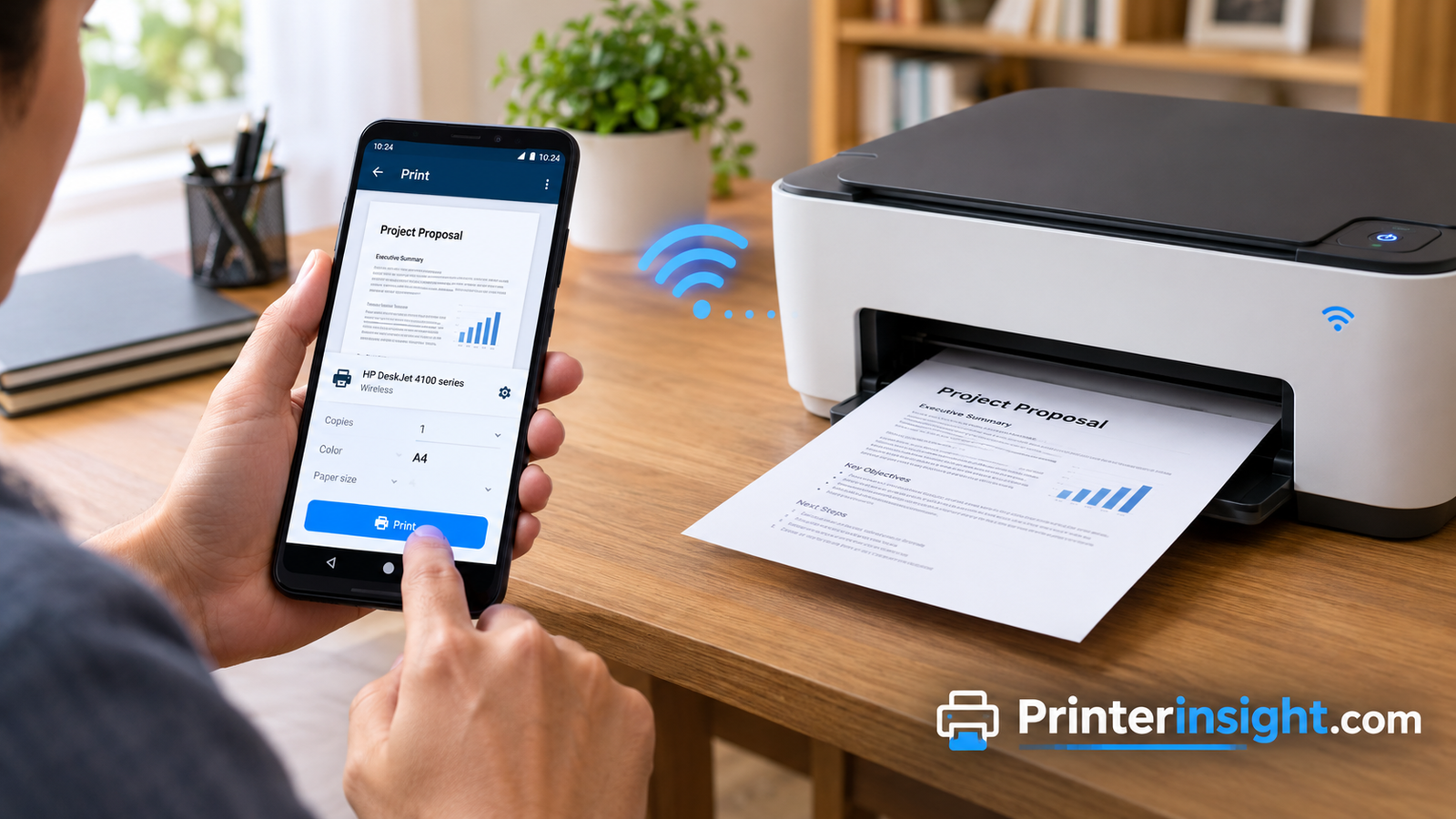
How to Print From Android: Every Method, Step by Step
Send documents, photos, and web pages from your Android phone or tablet to almost any printer, with illustrated steps for every method.
You’re standing in the hallway with a boarding pass on your phone, a permission slip due in an hour, or a recipe you’d rather not squint at on a six-inch screen. The printer is right there, humming quietly on the shelf. And yet getting a page from your Android phone onto actual paper somehow feels like it should be easier than it is.
Good news: it usually is easy. Modern Android phones ship with printing built in, and most printers sold in recent years speak the same language. Once the two devices are on the same network, printing takes about four taps. When it doesn’t work, there is almost always a small, fixable reason, and we’ll walk through every one of them below.
This guide covers all the main ways to print from an Android phone or tablet: the built-in print service, manufacturer apps like HP Smart and Epson Smart Panel, Wi-Fi Direct, Bluetooth, and a few useful backups. Each method has its own illustrated steps, so you can follow along visually instead of guessing which menu to open. Along the way you’ll find comparison tables, honest pros and cons, troubleshooting fixes, and printer advice if you’re shopping for something new.
To print from Android, connect your phone and printer to the same Wi-Fi network, open the file or photo you want to print, tap the three-dot menu (or Share), choose Print, select your printer, adjust the settings, and tap the Print button. If your printer doesn’t show up, install your printer brand’s app or switch to Wi-Fi Direct.
Prefer to watch before you read? This short video shows the whole process from start to finish.
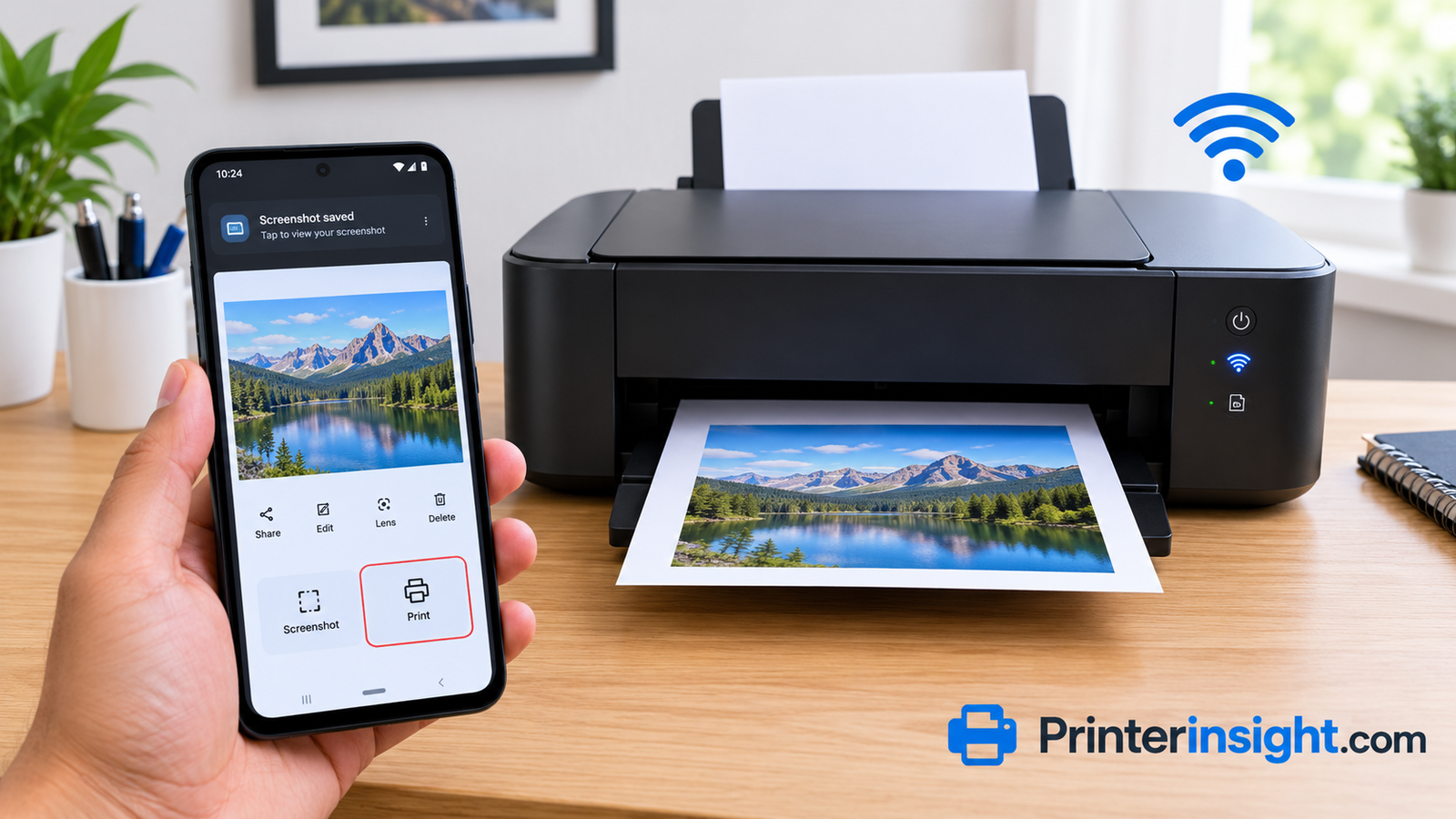
How Printing From Android Actually Works
Before the step-by-step instructions, it helps to understand what’s happening behind the scenes, because that knowledge makes troubleshooting far less mysterious. Android has a printing framework built into the operating system. When you tap Print in an app, the app hands your content to that framework, which converts it into a print-ready format and sends it across your network to a printer that has announced itself as available.
That announcement is the key. Most Wi-Fi printers broadcast their name and capabilities over the local network, a bit like a shop hanging an open sign in the window. Your phone’s Default Print Service listens for those signals and builds a list of nearby printers. It talks to them using open standards such as IPP (Internet Printing Protocol) and Mopria, which is why you rarely have to hunt down drivers. If you’ve ever wrestled with printer software on a laptop, this is a relief. Our guide on how to install printer drivers shows how much more involved the computer side can be.
One big change over the years is worth knowing about. Google Cloud Print, which once let people send jobs over the internet to any registered printer, has been retired. Modern Android printing is local first, meaning your phone and printer normally need to share a network. That’s simpler and more private, but it also explains why printing from far away needs a manufacturer’s app or an email-based workaround, both of which we cover later.
The four main ways to print from Android
Think of your options as four lanes, each suited to a different situation:
- The built-in print service works for most people with a Wi-Fi printer and requires nothing to install.
- A printer brand’s app unlocks extras such as scanning, ink levels, and borderless photo printing.
- Wi-Fi Direct lets your phone connect straight to the printer when there’s no router around.
- Bluetooth or USB suits portable photo printers, label makers, and emergency situations.
| Method | Needs a router? | Setup effort | Best for | Watch out for |
|---|---|---|---|---|
| Built-in print service | Yes | Very low | Everyday documents and photos at home | Older printers may not appear |
| Brand app | Usually | Low to medium | Scanning, ink levels, borderless photos | Extra app and permissions |
| Wi-Fi Direct | No | Medium | Offices, travel, router-free spaces | Phone loses internet while connected |
| Bluetooth or USB | No | Medium | Portable, label, and mini photo printers | Limited printer and app support |
If someone else in your household carries an iPhone, the process is similar but relies on AirPrint instead. We break that down in our guide to how to print from iPhone.
Which method should you pick?
Start with Method 1. It takes under a minute to try, and if your printer appears in the list, you’re done. Move to Method 2 when the printer doesn’t show up or when you want features like scanning from your phone. Choose Method 3 when there’s no router in sight, and Method 4 when your printer is a small portable unit that pairs like a pair of headphones.
What You Need Before You Start
A few minutes of preparation will save you from most of the frustration people run into. Printing problems rarely come from the phone itself. They come from a printer that’s asleep, a network that doesn’t match, or a tray with no paper. Run through the checklist below first.
Your pre-flight checklist
- An Android phone or tablet running Android 8 or newer. Newer versions include the Default Print Service. Older ones can add printing through the Mopria Print Service app from Google Play.
- A printer with Wi-Fi, Wi-Fi Direct, or Bluetooth. If the box mentions Mopria certification, you’re in great shape.
- The same network for both devices. Your phone and printer must be joined to the same Wi-Fi network, not just two networks that look similar.
- A printer that’s powered on and awake. Many printers drop into a deep sleep that stops them responding on the network until you press a button.
- Paper in the tray and ink or toner in the cartridges. An empty cartridge can pause a job without any obvious warning on your phone.
- An updated Google Play Store and system. Print services update quietly in the background, and an outdated one can hide your printer.
- Roughly a minute of patience. Printer discovery sometimes takes 10 to 20 seconds the first time.
Wi-Fi details that trip people up
Most “my phone can’t find my printer” problems trace back to the network. Here are the usual suspects:
- Two Wi-Fi bands. Many routers broadcast a 2.4 GHz and a 5 GHz network. Plenty of printers only support 2.4 GHz. As long as both devices are on the same router, this normally works, but if your router uses separate names for each band, make sure you know which one the printer joined.
- Guest networks. Guest Wi-Fi often isolates devices from each other for security, which means your phone can’t see the printer even though both are online.
- VPN apps. An active VPN can push your phone’s traffic through another network, hiding local devices. Turn it off while you print.
- Mesh systems and range extenders. Some create separate sub-networks. If printing fails only in certain rooms, this is a likely cause.
If your printer has never been joined to your Wi-Fi, do that first. Our guide on how to connect a printer to Wi-Fi covers the general process, and there’s a dedicated walkthrough for connecting an HP printer to Wi-Fi. If you ever need to add a printer manually, you’ll want its address, which you can learn in how to find your printer’s IP address.
No wireless printer yet?
If you’re still using a USB-only printer from the closet, Android will have a hard time with it. A modern wireless model solves nearly every problem in this guide. Start with our roundup of the best wireless printers for home, and if budget is the main question, our breakdown of how much a printer costs will help you set realistic expectations.
Method 1: Print With Android’s Built-In Print Service
This is the fastest route and the one most people should try first. Android’s Default Print Service finds compatible Wi-Fi printers on your network and adds a Print option to almost every app you use. There’s nothing to download, no account to create, and no cable to hunt for.
Pros
- Nothing extra to install
- Works from nearly every app
- Supports most modern Wi-Fi printers
- Same steps on any Android phone
Cons
- Fewer advanced options than brand apps
- No scanning or ink-level checks
- Older printers may not appear
- Needs the same network
1Put your phone and printer on the same Wi-Fi network
Open your phone’s Wi-Fi settings and note the network name. Then check your printer’s display or network report to confirm it’s joined to the same one. If the printer shows a different name, reconnect it. This single step solves more problems than any other, so don’t skip it even if you think it’s right.
2Make sure the Default Print Service is switched on
On most phones, open Settings and search for “Printing.” On many Pixel phones the path is Settings, then Connected devices, then Connection preferences, then Printing. On Samsung phones, look under Connections, then More connection settings, then Printing. Tap Default Print Service and confirm the toggle is on. If your phone is older, install the Mopria Print Service from Google Play and enable it here.
3Open what you want to print and find the menu
Open the document, photo, web page, or email. Tap the three-dot menu in the top corner. In apps like Chrome, Google Docs, Drive, and Gmail, you’ll see Print right there or under Share and export. In gallery apps, Print often hides behind the Share icon or a More option. If you can’t find it, try the three-dot menu first, then the Share button.
4Choose your printer from the drop-down
The Print screen opens with a preview and a drop-down at the top. Tap it, and your phone searches for printers on your network. Select yours by name; it often includes the brand and model, such as a series of letters and numbers. If you see “Save as PDF” and nothing else, your printer isn’t being detected yet, so jump to the troubleshooting section further down.
5Adjust the print options
Tap the small arrow or Options area to expand the settings. Here you can change the number of copies, paper size, color or black and white, page range, and two-sided printing. Check the paper size especially. Letter and A4 look similar but aren’t identical, and a mismatch can cut off edges. We unpack each option in Section 9.
6Tap the Print button and collect your page
Tap the round Print button, usually a printer icon in the corner or a bar at the bottom. Your phone sends the job, and a notification appears showing its progress. The first page typically comes out within 10 to 30 seconds, though photos and large PDFs take longer. If you change your mind, pull down the notification shade and tap Cancel.
Once your printer has appeared in the list the first time, Android remembers it. Next time, you only need steps 3 through 6, which is why printing from a phone starts to feel automatic after the first success.