How to Connect Your HP Printer to WiFi
Every reliable method, in the order that actually works — from the guided HP app setup to WPS, the control panel wizard, and the fallback trick IT people use when nothing else connects.
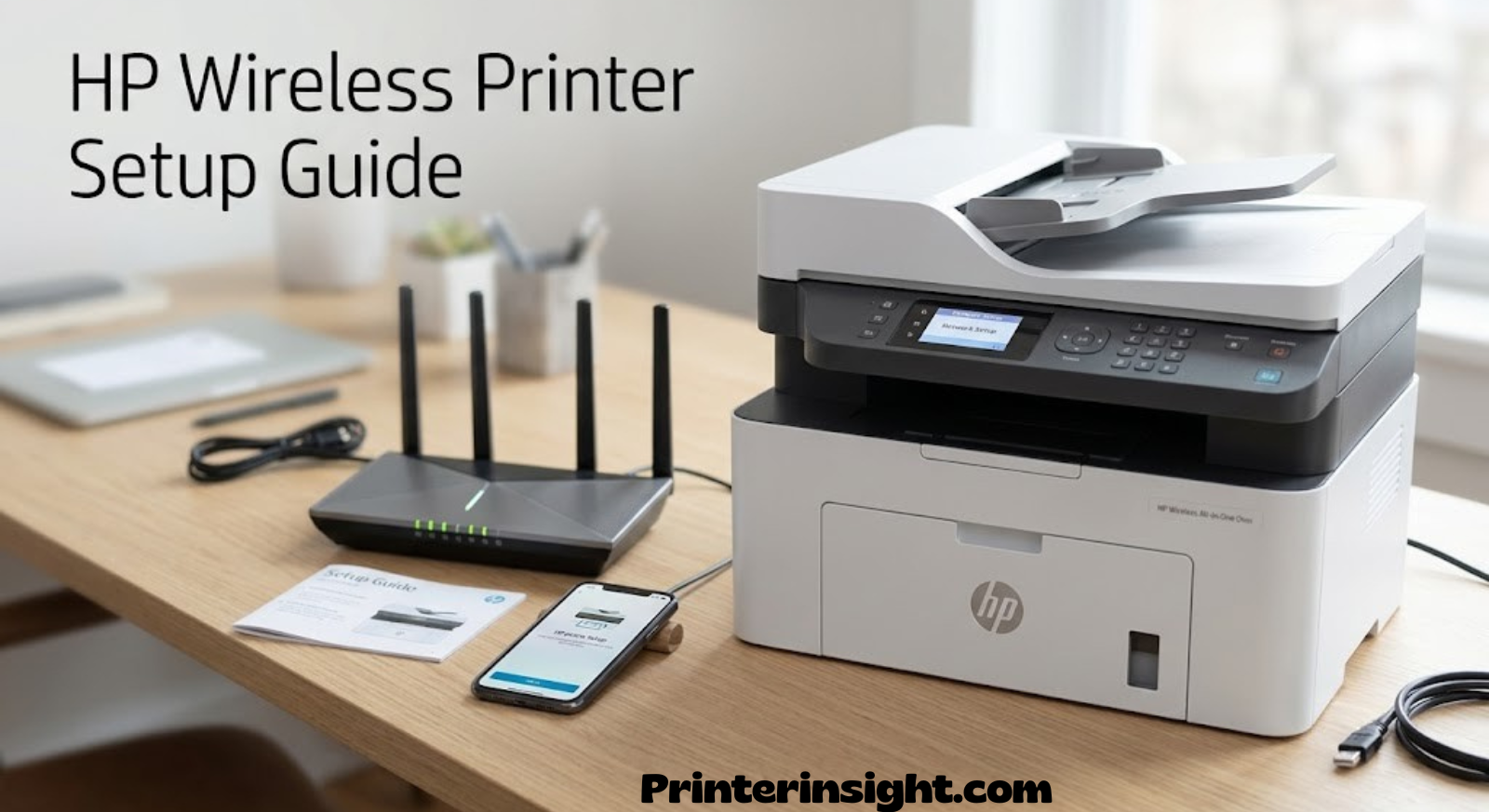
Quick Answer
The fastest reliable path: install the HP app on your phone or computer, put the printer within a room of your router, tap Add Printer, and follow the on-screen prompts to select your WiFi network and enter its password. Most printers show a solid (non-blinking) wireless light within two to three minutes once the correct password is entered. If your router has a physical WPS button, pressing it and then holding the printer’s wireless button within two minutes skips password entry entirely. Printers with their own touchscreen can also run a Wireless Setup Wizard directly from the control panel, with no app or computer needed at all. The sections below walk through each of these in full detail, plus what to do if none of them find the printer on the first try.
Before You Start: What You’ll Need
Every HP printer, from a ten-year-old DeskJet to this year’s OfficeJet Pro, connects to WiFi the same fundamental way: it needs to know your network’s name, it needs your password, and it needs a few minutes of being physically close enough to your router to hear it clearly. Once that handshake happens, the printer remembers the network and reconnects automatically every time it powers on, the same way your phone does.
The exact button layout changes from model to model, and HP’s own naming has shifted over the past couple of years — the setup app was called HP Smart, and on newer installs it now appears as simply the HP app, with the same underlying wizard. Don’t let the rebrand throw you; whichever one your app store shows you, the setup flow described below is nearly identical.
| What you need | Why it matters |
|---|---|
| WiFi network name (SSID) | The printer needs to find the exact network, not just “a” network — this matters most in apartments with several visible SSIDs. |
| WiFi password | Entered once during setup; the printer stores it and reconnects on its own after that. |
| HP app (or HP Smart) | The guided path that handles 90% of home setups without ever touching the printer’s menu. |
| Phone or laptop on the same network | The setup app needs to “see” the printer, which usually means both devices are on the same WiFi for at least the first few minutes. |
| A few minutes of proximity | Wireless setup mode times out after about two hours, but signal strength matters most in the first sixty seconds of pairing. |
If you’re shopping before you’re setting up — say your current printer won’t reconnect no matter what you try — it might genuinely be time for a replacement rather than another reset. Our roundup of the best home printers worth buying right now is a good place to start, and if wireless reliability is your main frustration, the best wireless printers for home use guide filters specifically for that.
It’s also worth a minute of thought about where the printer will actually live once setup is finished. A closet, a cabinet with a solid door, or a spot directly behind a large mirror or metal filing cabinet can all weaken a signal that tested fine during setup a few feet from the router. You don’t need a perfect line of sight — that’s rarely realistic in a real home — but a spot with at most one interior wall between printer and router will save you from having to revisit this whole process a month from now.

A reliable all-in-one with strong WiFi range and guided app setup — a solid pick if you’re upgrading rather than troubleshooting.
Check Price on AmazonWiFi vs. Ethernet vs. WiFi Direct: Understanding Your Options
Before diving into the setup steps, it helps to know that “connecting wirelessly” is actually one of three distinct ways an HP printer can talk to the rest of your devices, and picking the right one for your situation avoids a lot of unnecessary troubleshooting later.
Standard WiFi — the method this guide focuses on — joins the printer to your existing home network exactly the way a laptop or smart TV would. Every device already on that network can find and print to it without any extra configuration, which makes it the right default for almost every household. Ethernet is the wired alternative: plugging the printer directly into your router with a network cable sidesteps wireless troubleshooting entirely and tends to be the most stable option in homes with thick walls or persistent interference, at the cost of needing a cable run to wherever the printer lives. WiFi Direct is different from both — it creates a private, temporary network broadcast by the printer itself, with no router involved at all, useful for printing from a phone or laptop when there’s no shared network available, such as at a market stall, in a hotel room, or when troubleshooting a router that’s currently misbehaving.
| Connection type | Best for | Setup complexity |
|---|---|---|
| Standard WiFi | Everyday home or office use, multiple devices printing | Low — covered by this guide |
| Ethernet | Maximum stability, printers near the router already | Low — plug in and go |
| WiFi Direct | One-off printing with no network available | Low, but must be re-established each session |
If your household already runs on a network with a lot of devices competing for bandwidth, or the printer sits in a spot with historically weak signal, it’s worth weighing Ethernet as a genuine alternative rather than a last resort — our best wireless printers for home use guide flags which models support both connection types cleanly, so you’re not locked into wireless-only hardware if your situation calls for a cable instead.
Method 1: Setting Up WiFi with the HP App (Recommended)
For almost every home user, this is the method to use first. The HP app — the successor to HP Smart, though HP Smart still works fine if that’s what’s on your phone — walks you through the entire process with on-screen prompts, and it’s the only method that also installs the drivers and scanning tools you’ll want later. Here’s the full sequence, broken into four stages.
Video: HP Support walking through HP app wireless setup, for anyone who’d rather watch than read.
Download and open the HP app, then tap “Add Printer”
Install the HP app from the App Store, Google Play, or the Microsoft Store, depending on the device you’re setting up from. Open it, sign in or continue as a guest, and tap the + icon or “Set up a new printer.” If this is the first printer you’ve ever added, the app usually jumps straight into setup mode without you needing to tap anything.
Put the printer into wireless setup mode
On most printers without a touchscreen, this means holding the Wireless button (sometimes paired with the Cancel button) for about five seconds, until the wireless light starts blinking. On touchscreen models, it usually happens automatically when the app asks you to. Either way, the printer has around two hours to be discovered once setup mode is active — plenty of time, so there’s no need to rush.
Select your network and enter your password in the app
The app scans nearby printers using Bluetooth or a brief direct WiFi handshake, then hands you a list of visible networks. Choose your exact SSID (double-check if you have both a 2.4GHz and 5GHz version listed separately — most printers prefer the 2.4GHz band for range), type in the password, and confirm.
Confirm the connection and finish setup
Within a minute or two, the printer’s wireless light should turn solid (not blinking) — that’s your confirmation it’s on the network. The app then finishes registering the printer, installs any needed drivers on your computer, and offers to walk you through ink or toner registration. You’re done; the printer will reconnect to this network automatically from now on, even after you unplug it.
Why use the app method
- Handles WiFi setup and driver installation in one pass
- Clear on-screen prompts — no manual menu-diving
- Works the same way across almost every recent HP model
Watch out for
- Requires installing an app on your phone or computer
- Bluetooth or location permissions sometimes need to be enabled first
- Guest and hotel networks can block printer discovery entirely
If you’re setting this up on a Mac and want a printer that plays especially well with Apple’s ecosystem from the start, our best home printers for Mac guide is worth a look before you commit to a model.

If your printer keeps losing the signal during app setup, a dedicated dual-band router often solves it outright.
Check Price on AmazonMethod 2: WPS Push-Button Setup (No Password Typing)
If your router has a physical WPS button — most do, usually labeled “WPS” on the back or side — this is the fastest method of all, and it’s especially handy when you can’t remember your WiFi password off the top of your head. WPS (WiFi Protected Setup) lets two devices exchange credentials automatically, without you typing anything.
Press the WPS button on your router
Locate the WPS button on your router — it’s often a small, recessed button near the antennas. Press it once. Most routers give you a two-minute window to complete the handshake, so the next step needs to happen quickly.
Press and hold the wireless button on your printer
Within that two-minute window, hold the printer’s Wireless button until its light starts flashing rapidly, then wait. The two devices handle the rest of the exchange on their own — no SSID list, no password field. The printer’s light will turn solid once the connection succeeds.
Curious whether your current router is even holding your household back? Compare notes against the picks in our best compact home printers guide, which flags WPS support model-by-model.
Method 3: The Control Panel Wireless Setup Wizard
If your printer has its own touchscreen or a small menu display, you can skip the app entirely and connect directly from the printer itself. This is also the most reliable fallback if your phone or computer refuses to detect the printer during app setup.
Open Setup → Network → Wireless Setup Wizard
On the printer’s display, navigate to the Setup or gear icon, then find Network Settings, and select “Wireless Setup Wizard.” This tells the printer to actively scan for nearby networks rather than waiting to be found.
Select your network and type your password on-screen
The wizard displays every visible network in range. Tap yours, enter the password using the on-screen keyboard, and confirm. The printer connects and displays a success message directly on its own screen — no phone or computer required for this step at all.
Students setting this up in a dorm with a shared or restricted network often run into scanning issues at this exact step — if that’s you, our best printers for students guide covers models with the most forgiving network compatibility.
Method 4: Embedded Web Server (The Fallback for Tricky Networks)
This one is a little more technical, and you’ll only need it if the printer refuses to be discovered any other way — common on mesh WiFi systems, VLANs, or networks with client isolation enabled. Every HP printer briefly broadcasts its own temporary WiFi network during setup, and you can connect to that directly from a laptop to run the wizard through a browser instead of the app.
Connect to the printer’s temporary setup network
Restore wireless setup mode on the printer, then open your laptop’s WiFi list. Look for a network named something like HP-Setup-xx-DeskJet and connect to it. This is a temporary, direct link used only to configure the printer — it doesn’t give you internet access.
Once connected, open a browser and go to 192.168.223.1. Your browser will likely warn that the connection isn’t private — that’s expected for a local setup page with no public certificate; choose “Advanced” and proceed. From there, the printer’s embedded web server walks you through selecting your real home network and entering its password, exactly like the app would.
Reading Your Printer’s Wireless Light (So You Stop Guessing)
Almost every piece of HP wireless troubleshooting advice eventually comes back to one small blue icon on the control panel, and yet it’s the detail most guides gloss over fastest. The wireless light isn’t just on or off — its behavior at any given moment tells you exactly which stage of the connection process you’re in, and reading it correctly saves you from repeating steps that already worked.
A light that’s completely dark usually means the wireless radio itself is turned off, which happens more often than people expect on printers that also support Ethernet or USB — some models default to wireless-off if they were ever plugged in directly. A slow, steady blink is the printer’s way of saying “I’m in setup mode and listening,” and this is the state you want to see before opening the app or starting the control panel wizard. A fast blink, by contrast, usually signals an active connection attempt in progress — the printer has heard from your router or app and is in the middle of exchanging credentials. Solid, non-blinking light is success: the printer has joined the network and considers the job done.
| Light behavior | What it means | What to do |
|---|---|---|
| Off entirely | Wireless radio is disabled | Enable WiFi from the control panel’s Network Settings menu |
| Slow, steady blink | Setup mode active, waiting to be discovered | Proceed with the app, WPS, or control panel wizard now |
| Fast blink | Actively negotiating a connection | Wait — don’t restart the printer mid-handshake |
| Solid, unblinking | Successfully connected | Move on to adding the printer to your computer |
| Blinking amber or orange | Connection failed or was lost | Restore setup mode and try again, closer to the router |
One detail worth knowing: interrupting the printer mid-handshake — unplugging it, walking it to another room, or closing the app — almost always forces you to restart the whole pairing process from scratch rather than resuming where you left off. Wireless setup on these printers isn’t designed to be paused; it’s designed to be quick, which is exactly why patience during the fast-blink stage pays off more than persistence with button-mashing.
Adding the Printer to Windows and Mac
Getting the printer onto WiFi is only half the job — your computer also needs to know it’s there. If you set up through the HP app, this step is usually done automatically. If you used WPS or the control panel wizard, you’ll need to add the printer manually on each computer that will print to it.
On Windows
Open Settings → Bluetooth & devices → Printers & scanners, click “Add device,” and wait for your HP printer to appear in the list — it can take up to thirty seconds on a busy network. Select it and let Windows install the driver automatically. If it doesn’t appear, double-check that your PC and the printer are on the exact same network, including the same 2.4GHz/5GHz band if your router splits them into separate SSIDs.
On Mac
Go to System Settings → Printers & Scanners, click the + button, and select your printer once it shows up under the “Default” tab. macOS typically pulls the correct AirPrint driver automatically, so in most cases no separate software install is needed at all.
Setting Up Wireless Printing on iPhone vs. Android
The core steps are the same on both platforms, but a couple of permission quirks trip people up often enough to spell out separately.
iPhone and iPad
Once your HP printer is on the same WiFi network, iOS usually finds it automatically through AirPrint the first time you tap Print from any app — no HP app required at all for basic printing. Install the HP app anyway if you want ink-level monitoring, scanning, or firmware update prompts, since AirPrint alone doesn’t surface any of that. During setup, iOS will ask for local network permission the first time the app tries to find the printer; if you tapped “Don’t Allow” by accident, it’s buried in Settings → HP Smart (or HP app) → Local Network, and needs to be flipped back on before discovery will work.
Android
Android relies more heavily on the HP app itself, plus Google’s own Default Print Service in many cases. The permission to watch for here is Location — Android uses WiFi scanning permissions tied to location services to let apps see nearby networks, so the HP app will refuse to find your printer if Location is toggled off, even though nothing about GPS is actually involved. Enable it just for setup if you’d rather not leave it on permanently afterward; the printer’s connection persists on the network regardless of what you do with that permission once setup finishes.
If your household leans heavily on mobile devices for schoolwork or freelance printing, our best printers for students guide flags which models have the smoothest phone-first setup experience.
Printing a Test Page (Confirming It Actually Worked)
Don’t skip this step — a printer can show a solid WiFi light and still fail to actually print, usually because of a driver mismatch rather than a network problem. From the printer’s control panel, look for Setup → Reports → Print Test Page, or use the equivalent option inside the HP app under your printer’s settings. On Windows, you can also right-click the printer under Printers & Scanners and choose “Print a test page” directly from there.
If the test page prints cleanly, you’re fully set up. If it doesn’t, jump ahead to the troubleshooting section below before assuming the wireless connection itself is at fault — plenty of “won’t print” issues turn out to be paper jams, low ink, or an outdated driver rather than WiFi at all.
HP+ and Cloud Printing: What Changes
Some newer HP printers ship with an optional program called HP+, which trades a lower up-front price (and sometimes free months of Instant Ink) for a requirement that the printer stay connected to the internet — not just your local network — for its entire life. It’s worth understanding the distinction before you set up, because it changes what “connected” actually needs to mean for your printer.
A standard wireless connection only needs the printer talking to your router and the devices on your local network; it works perfectly well for printing even if your internet goes down, since nothing about local printing requires reaching the wider web. HP+ printers, by contrast, are enrolled during initial setup specifically to enable cloud-based features — automatic driver updates, remote print-from-anywhere, and Instant Ink cartridge shipments — and HP requires them to remain online to keep functioning as sold. If you’d rather keep things simple and avoid any cloud dependency at all, look for the option to decline HP+ enrollment during first-time setup, usually presented as a choice between “HP+” and a standard setup path.
Either way, the wireless connection methods in this guide work identically — HP+ doesn’t change how you join WiFi, only what the printer does with that connection afterward.
Trying to decide if the ink-subscription model is worth it for your printing volume? Our home printers with the cheapest ink comparison breaks down the real cost differences between subscription and pay-as-you-go cartridges.
Which Method Should You Use?
All four methods land in the same place — a printer connected to your network — but they trade off convenience against reliability differently depending on your situation.
| Method | Best for | Typical setup time | Requires |
|---|---|---|---|
| HP App | First-time setup, most home users | 3–6 minutes | Phone or computer + app install |
| WPS Push-Button | Forgotten passwords, fastest reconnects | Under 2 minutes | A WPS button on your router |
| Control Panel Wizard | Printers with a touchscreen, no app needed | 3–5 minutes | A display on the printer itself |
| Embedded Web Server | Mesh networks, VLANs, stubborn setups | 5–10 minutes | A laptop and basic browser navigation |
If none of these feel like the right fit because your current printer is simply aging out, it may be worth comparing categories rather than models — our inkjet vs. laser printer comparison and are ink tank printers worth it breakdown both cover long-term reliability, including WiFi behavior, in more depth.

Consistently strong WPS support and one of the more forgiving printers for shared or mesh home networks.
Check Price on AmazonTroubleshooting Common Connection Problems
Most WiFi printer failures fall into a short list of repeat offenders. Work through these roughly in order — they’re sequenced from “takes ten seconds” to “takes ten minutes,” which means most people solve their issue well before reaching the bottom of the list. It’s worth resisting the urge to jump straight to a factory reset; that’s rarely the actual fix, and it wipes out any custom settings, saved shortcuts, or Instant Ink enrollment along with it.
Printer isn’t found during setup
Restore wireless setup mode and try again within the two-hour window; it’s easy to let this quietly expire while you’re troubleshooting something else. Move the printer and router closer together for the initial pairing — you can relocate the printer afterward, since the WiFi connection itself doesn’t care about distance once established. Temporarily disable your computer’s Ethernet connection if it has one, since some setup tools default to the wrong network adapter.
Connects, then drops a few minutes later
This is almost always a signal-strength issue rather than a settings issue. Check how many walls or floors separate the printer from the router, and consider a WiFi extender if the printer lives in a garage, basement, or far corner of the house. Firmware updates also fix a surprising number of drop-outs — most printers check for these automatically once connected, but you can force a check from Setup → Firmware Update.
Wrong network selected (2.4GHz vs. 5GHz confusion)
Most HP printers only support the 2.4GHz band, which has better range but slower speed than 5GHz. If your router broadcasts both bands under the same network name, the printer might grab the wrong one and then struggle. Splitting them into two visibly different SSIDs during setup — even temporarily — removes the ambiguity.
Printer shows connected, but the computer can’t find it
Confirm both devices are on the same network, not just “on WiFi” generally — this trips people up constantly on networks with a separate guest SSID. Restart the print spooler service on Windows, or remove and re-add the printer in Printers & Scanners on Mac.
| Symptom | Likely cause | Fix |
|---|---|---|
| Wireless light blinking, never turns solid | Wrong password or setup mode timed out | Restore setup mode, re-enter password carefully |
| Printer found, then disappears from list | Weak signal, printer too far from router | Move closer for setup, add a WiFi extender if needed |
| App won’t detect printer at all | Bluetooth/location permission disabled | Enable both in your phone’s app permissions |
| Connected on network, but “offline” in print queue | Stale driver or wrong default printer selected | Remove and re-add the printer, reinstall driver |
Connected on a mesh network, but still not found
Mesh systems (Eero, Google Nest WiFi, Orbi, and similar) technically present a single network name, but they route traffic through multiple physical nodes, and some ship with client isolation or band-steering settings that quietly block the kind of local device discovery HP printers rely on. If setup keeps failing specifically on a mesh network, check the mesh app for a setting called “client isolation,” “AP isolation,” or “guest mode enforcement” and disable it, at least temporarily during setup. Some mesh systems also have a dedicated “IoT” or “smart home” network band specifically designed for exactly this kind of device — moving the printer there, rather than the main household network, often clears up discovery problems entirely.
Printer connects to WiFi, but scanning doesn’t work
Scanning and printing use slightly different software paths even on the same wireless connection, so it’s possible to have one working perfectly while the other fails. If printing works but scanning doesn’t, the fix usually lives in the HP app or your computer’s scanner settings rather than in WiFi troubleshooting — reinstalling the full driver package (not just the “printer only” driver) typically restores the scan function, since some quick-install options skip it by default to save space.
| Network type | Common issue | Fix |
|---|---|---|
| Mesh WiFi (Eero, Orbi, Nest) | Client/AP isolation blocks discovery | Disable isolation setting, or use a dedicated IoT band if offered |
| Guest network | Devices can’t see each other | Move printer and computer to the primary network |
| Dual-SSID router | Printer joins wrong band | Temporarily split into two visibly different network names |
| Apartment/dorm managed WiFi | Network blocks peer-to-peer discovery entirely | Use WiFi Direct for a direct, router-free connection instead |
If you’re chasing driver-level ink or scanning quirks rather than WiFi itself, our guide on how to clean printer heads and preventing inkjet printers from drying out covers the maintenance side of things.
Common Mistakes That Cause Most Setup Failures
Stepping back from any single method, most failed setups share one of a handful of root causes, and recognizing them upfront can save an entire troubleshooting session.
| Mistake | Why it causes problems |
|---|---|
| Letting setup mode time out mid-troubleshooting | The two-hour window quietly expires while you’re reading forums or trying something else, and the printer simply stops listening |
| Trying to set up over a guest network | Guest networks routinely block the local discovery that both the app and control panel rely on |
| Setting up too far from the router | The initial handshake is far more sensitive to distance than the ongoing connection will be afterward |
| Assuming a solid light means printing will work | A solid wireless light confirms network connection only — driver installation is a separate step |
| Skipping firmware updates for months | Many of HP’s wireless stability improvements ship specifically through firmware, not the app itself |
Most of what feels like “the printer is broken” during setup is actually one of these five things quietly working against you rather than a hardware fault — which is good news, since every one of them is fixable in under a minute once you know to look for it.
Securing Your Wireless Printer
A printer sitting quietly on your network is still a device with its own IP address, its own tiny web server, and — on some models — its own cloud printing features. A little bit of hygiene here goes a long way, and it’s worth treating a printer with the same basic care you’d give any other always-on device on your network, rather than assuming it’s too simple a gadget to matter.
Do this
- Use WPA2 or WPA3 on your router, never an open network
- Give the printer a distinct name if you have several devices
- Keep firmware updated — security patches ship quietly through it
Avoid this
- Connecting the printer to open public or hotel WiFi
- Leaving remote printing features like ePrint enabled if you never use them
- Ignoring firmware update prompts for months at a time
None of this requires ongoing effort once it’s set up correctly. The practical version of “printer security” for a home network is mostly a handful of one-time choices made during setup, rather than a maintenance routine — pick a strong router password before you start, decline any remote-access feature you know you won’t use, and let firmware updates install when the printer prompts for them. That’s a materially different bar than the constant vigilance a phone or laptop needs, precisely because a printer’s job is narrow enough that it simply doesn’t need many open doors in the first place.
What to Do After a Router or Password Change
Swapped internet providers, reset the router, or just changed your WiFi password? The printer won’t automatically know — it’s still holding onto the old credentials. The fix is simply to repeat whichever setup method you used originally: open the HP app and choose “reconnect” or “set up new printer,” or restore wireless setup mode and run through the control panel wizard again with the new password. Nothing about the printer itself needs to be reset in the process; you’re only updating which network it remembers.
One detail that catches people out: if a new router keeps the exact same network name and password as the old one, the printer often reconnects entirely on its own within a minute or two of the new router finishing its boot cycle, since as far as the printer can tell, nothing has changed. It’s only when the SSID or password actually differs — which includes many “upgrade” situations where an ISP swaps in new equipment with a factory-default network name — that manual reconnection through one of the methods above becomes necessary. If you’re not sure which situation you’re in, checking whether your phone reconnected automatically is a quick way to tell, since phones and printers behave identically here.
Keeping the Connection Stable Long-Term
Once everything’s working, a small amount of upkeep keeps it that way. Restart the printer every so often, especially after extended power outages, since a clean reboot resolves the small memory-related glitches that build up in any always-on device. Keep it within reasonable range of the router — walls, mirrors, and metal furniture all cut wireless signal more than open air does. And check for firmware updates every few months, since HP periodically improves wireless stability and reconnect behavior through them, not just security fixes.
It’s also worth paying attention to what else shares the printer’s WiFi band over time. Smart home devices in particular tend to accumulate quietly — a video doorbell here, a set of smart bulbs there — and every one of them competes for the same limited 2.4GHz airtime that most HP printers rely on. A printer that connected instantly a year ago and now takes noticeably longer to wake from sleep or start a print job isn’t necessarily failing; it may simply be sharing a more crowded band than it used to. Where possible, moving less bandwidth-sensitive smart home gadgets to a 5GHz band (on routers that support splitting bands) frees up the 2.4GHz channel for the devices, like most printers, that actually depend on it for range.
If reliability keeps being a fight no matter what you try, it may genuinely be a hardware limitation rather than something you can configure your way out of — worth comparing against current models in our best printers for a home office guide or checking whether an Epson EcoTank vs. HP Smart Tank switch would serve you better.
When It’s Time to Choose a New Printer Instead
Every method in this guide assumes the printer’s wireless hardware itself is fundamentally healthy — sometimes it isn’t. Wireless radios do degrade over years of use, and a printer that connected reliably for its first two or three years but now fails setup repeatedly, even close to the router, with fresh firmware and a confirmed-correct password, is telling you something a software fix won’t solve.
If you’re at that point, it’s worth shopping with wireless reliability specifically in mind rather than defaulting to whatever’s cheapest, since the printer that’s hardest to review-shop for is exactly the one that looks fine in a store but struggles once it’s asked to hold a connection for years. A few starting points depending on what matters most to you:
- For general home use with minimal fuss, our best home printers worth buying right now roundup weighs wireless reliability alongside print quality.
- If cost-per-page matters more than upfront price, ink tank printers for home tend to pair well with strong WiFi hardware since they’re built for higher-volume, longer-life use.
- For a compact space where a bulky all-in-one won’t fit, compact home printers covers smaller models without giving up dependable wireless range.
- If you’re torn between brands entirely, Brother vs. HP for home use compares wireless setup experience directly, not just print specs.
A budget-friendly option with straightforward app-guided setup — a sensible replacement if your current unit’s WiFi hardware has simply worn out.
Check Price on AmazonFrequently Asked Questions
Why won’t my HP printer connect to WiFi?
Can I connect an HP printer to WiFi without a computer?
What’s the difference between the HP Smart app and the HP app?
Does my printer need to stay near the router permanently?
Can I connect my HP printer to a 5GHz network?
Do I need my printer’s password, or my router’s WiFi password?
What’s the difference between WiFi Direct and connecting to my home network?
Why does my printer keep going offline after working fine for weeks?
Is it safe to connect my printer to a guest network?
What do I do if my router doesn’t have a WPS button?
How do I reconnect my HP printer after switching to a new router?
Can two computers print to the same wireless HP printer?
Does connecting my printer to WiFi mean it’s also connected to the internet?
My printer worked wirelessly before but stopped after a power outage — why?
Ready to Print?
Connecting an HP printer to WiFi comes down to one of four repeatable paths — the app, WPS, the control panel, or the browser fallback — and picking the right one for your situation saves far more time than brute-forcing the wrong one. Most people never need to go past Method 1, and the ones who do usually just need Method 2 or 3 rather than anything more complicated. If your current printer still won’t cooperate after working through every relevant section above, it may simply be time for a model with sturdier wireless hardware rather than another hour of troubleshooting an aging radio.
Browse HP Wireless Printers on AmazonRelated Guides
Still deciding on hardware, or chasing a different printer question entirely? These cover the ground this guide didn’t: