Why Does My Printer Keep Going Offline?
If your printer shows “offline” in the queue even though it’s powered on, connected, and worked fine yesterday, the cause is almost never the printer itself — it’s a quiet disagreement between your printer, your router, and your computer about who’s actually on the network. Here’s every real cause, in the order worth checking.
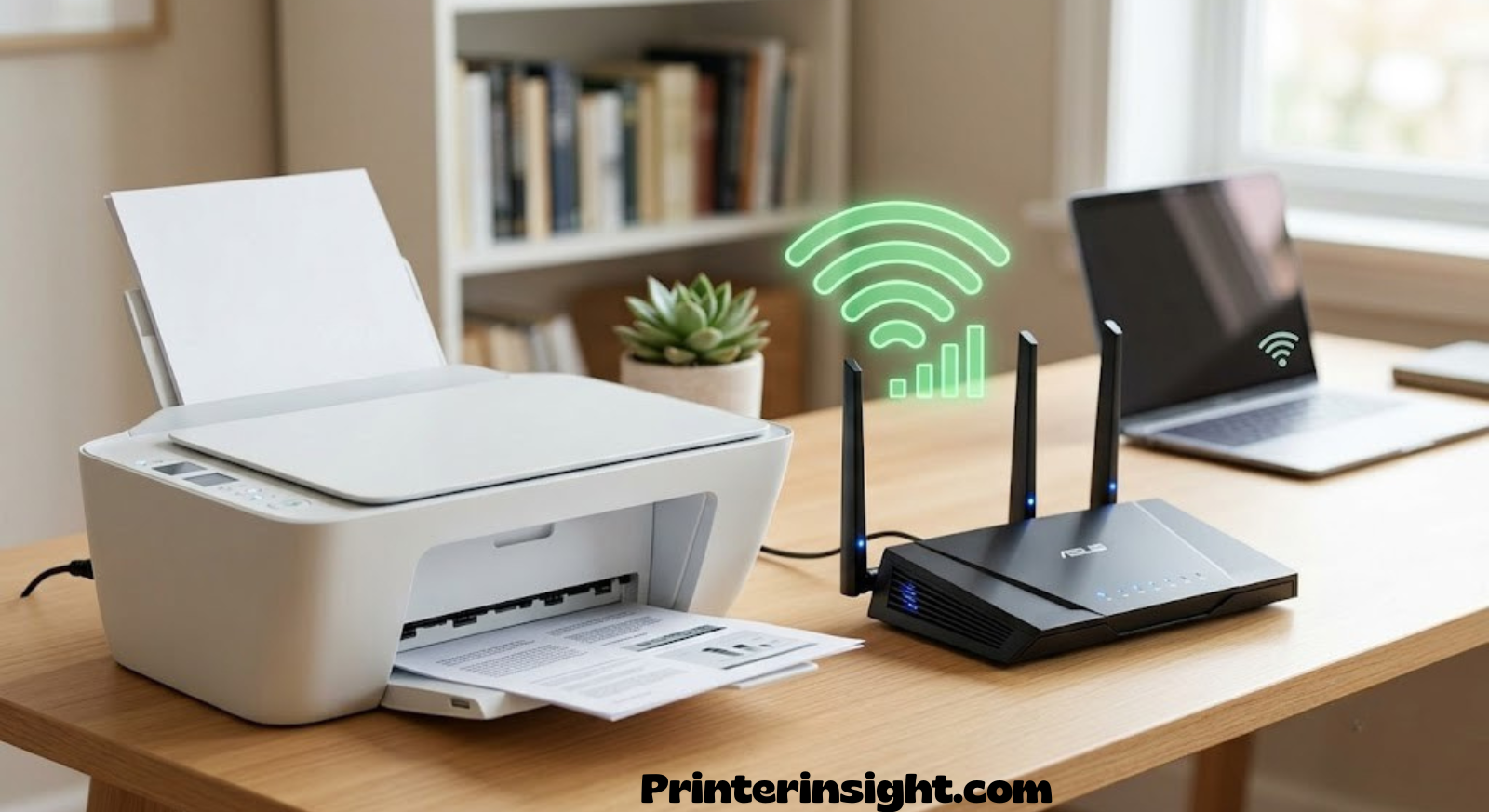
Quick Diagnostic Checklist
Before diving into the deeper causes, run through this 60-second checklist. It resolves the “offline” message for a large share of home setups without touching a single setting.
- 1Confirm the printer’s screen or status light shows it’s actually connected to Wi-Fi — not just powered on.
- 2Restart the printer fully (power off, wait 30 seconds, power on) rather than just waking it from sleep.
- 3Restart your router — this clears stale device leases that commonly cause a printer to appear offline.
- 4Check that your computer and printer are on the same Wi-Fi network, especially if your router broadcasts a separate 2.4GHz and 5GHz network.
- 5Delete the printer from your computer’s printer list and re-add it fresh.
If none of those clear it, the cause is one of twelve things below — and once you know which one, the fix usually takes under five minutes.
One thing worth understanding before you start troubleshooting: “offline” is a status your computer assigns, not something the printer itself broadcasts. The printer doesn’t know it’s been marked offline. Your operating system periodically pings the printer’s last known address, and if it doesn’t get a response within a short timeout window, it labels the device offline in the print queue — even if the printer is sitting right next to you, powered on, and perfectly capable of printing. That distinction matters because it explains why so many fixes that feel unrelated to the printer itself, like restarting a background service on your computer, end up solving the problem. The issue frequently isn’t between the printer and the network at all; it’s between your computer’s cached assumption about the printer and the printer’s actual current state.
It also explains why the same printer can behave perfectly for a coworker or family member on a different device while showing offline for you specifically. Each device on the network keeps its own record of the printer’s address and status, so a stale entry on one laptop has zero effect on a phone or tablet that’s never cached that information. If you notice the offline error is device-specific rather than affecting every device in the house, that’s a strong early signal you’re dealing with a caching problem on that one machine rather than a genuine network or printer fault.
1. Wi-Fi Signal & Range Issues
Printers have notoriously weak Wi-Fi antennas compared to phones and laptops. A signal that feels perfectly strong on your laptop might be too weak for the printer sitting on the far side of the same room, and that gap is one of the single biggest reasons a printer flickers between online and offline throughout the day.

Why this happens
Unlike a laptop, most printers use a single, small internal antenna with no signal amplification. Walls, metal filing cabinets, microwaves, and even stacks of paper near the printer can degrade the signal enough that the connection drops intermittently rather than failing outright — which is exactly the pattern that produces a printer showing “offline” one moment and “ready” the next.
How to fix it
Move the printer closer to the router if that’s practical, or add a mesh Wi-Fi node or extender near the printer’s location. If you’re shopping for a new unit specifically because your current printer struggles with range, our guide to the best wireless printers for home use covers models with stronger dual-band radios that hold a connection more reliably at distance.
How to actually measure the signal, instead of guessing
Most printers will show a signal strength indicator, often expressed as a percentage or a set of bars, somewhere in their network settings menu or on a printed network configuration page. It’s worth checking this number directly rather than assuming a printer that “seems close enough” to the router is fine. A signal reading below roughly 50% is a strong candidate for the cause of intermittent offline errors, even if the printer connects successfully most of the time. Printers with a persistently weak but not completely absent signal tend to produce exactly the maddening pattern people describe as “it goes offline for no reason” — the connection is real, just too marginal to hold up under any interference at all.
Physical obstructions matter more than people expect
Solid obstacles between a printer and a router affect Wi-Fi very differently depending on what they’re made of. Drywall and wood barely register. Brick, concrete, and especially anything metal — filing cabinets, refrigerators, HVAC ductwork inside a wall — can cut signal strength dramatically over even a short distance. If your printer sits in a closet, a garage, or behind a metal cabinet for space reasons, that placement alone can be the entire explanation for chronic offline errors, and no amount of router or driver troubleshooting will fix a physical obstruction. In that scenario, either relocating the printer a few feet or adding a dedicated access point near it is a more durable fix than repeatedly restarting things.

TP-Link Wi-Fi Range Extender
A cheap, fast fix for printers sitting just outside strong router range.
Check Price on Amazon2. Router & Network Settings
Modern routers do a lot of quiet housekeeping in the background — band steering, guest network isolation, DHCP lease renewal — and printers are frequently the device that gets tripped up by it.
Dual-band confusion
Many routers broadcast one network name for both 2.4GHz and 5GHz bands and automatically steer devices between them. Printers almost always need the 2.4GHz band specifically, since most printer Wi-Fi chips don’t support 5GHz at all. If your router “smart-steers” your printer onto the 5GHz band, it will simply vanish from the network without any obvious error.
Client isolation and guest networks
If your printer is accidentally connected to a guest network, or your router has “AP isolation” or “client isolation” turned on, devices on the network can’t see each other even though they’re all technically connected to the internet. Your printer will show as connected on its own screen while your computer reports it as offline, because the two devices are functionally on separate islands.
| Setting to check | Where to find it | What it should be |
|---|---|---|
| Band steering / Smart Connect | Router admin > Wireless | Off, or printer manually assigned to 2.4GHz |
| Client / AP isolation | Router admin > Wireless > Advanced | Disabled |
| Guest network | Router admin > Guest Wi-Fi | Printer must NOT be on it |
| DHCP lease time | Router admin > LAN/DHCP | 24 hours or longer |
If you’re setting up a printer from scratch and want to avoid this entirely, our step-by-step walkthrough on how to connect a printer to Wi-Fi covers exactly which network settings to choose during setup so you don’t run into this later.
Router firmware and periodic reboots
Consumer routers accumulate small memory leaks and connection table bloat over weeks of continuous uptime, and a router that hasn’t been restarted in a month or more can start behaving unpredictably with lower-priority devices like printers well before anything more serious, like a full outage, becomes noticeable. Many routers now support a scheduled automatic reboot, often at 3 or 4 a.m., specifically to clear this kind of drift before it causes visible problems. Setting that up once removes an entire category of “my printer just stopped working” surprises.
Mesh systems and roaming behavior
If your home uses a mesh Wi-Fi system with multiple nodes, the printer can occasionally get “handed off” between nodes as it tries to connect to whichever one currently reports the strongest signal — a process called roaming that’s designed for phones and laptops that move around the house. A stationary printer doesn’t benefit from roaming, and in some mesh systems it can actually cause the connection to hiccup as the printer’s assigned node changes without the printer physically moving at all. Many mesh systems let you pin a specific device to a specific node, which is worth doing for a printer once you know which node it’s closest to.
3. Printer Sleep / Power-Save Mode
Almost every modern printer has an aggressive power-save mode that puts its network radio into a low-power state after a period of inactivity. On some models, that low-power state doesn’t fully drop the connection — it just stops responding to requests until it “wakes up,” which your computer reports as the printer being offline.
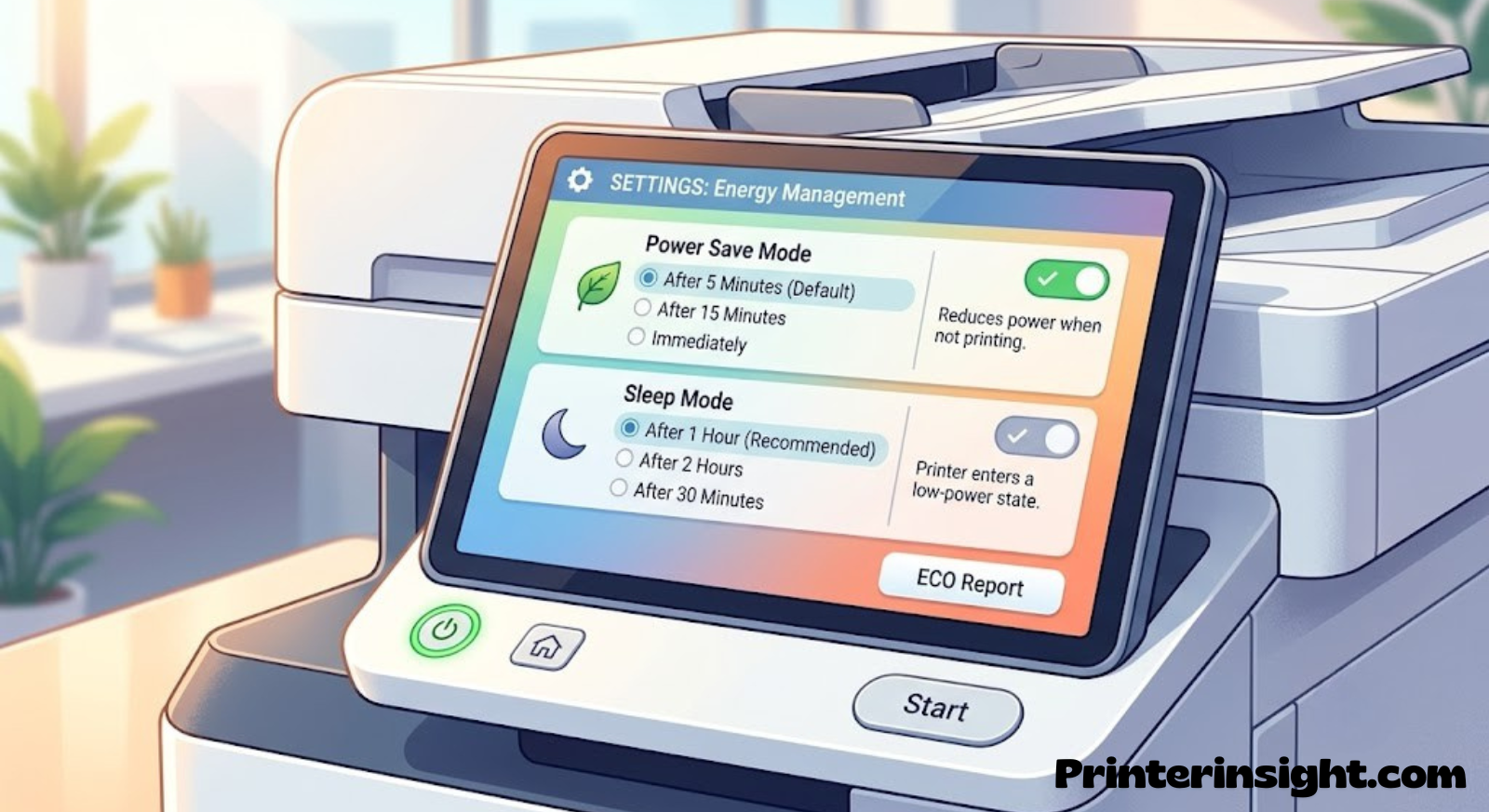
The wake-up lag
If your printer consistently shows offline the first time you print after leaving it idle for an hour or more, but comes back online after you send a second print job a minute later, sleep mode is almost certainly the cause — not a network problem at all.
Pros of Sleep Mode
- Lower electricity usage over time
- Reduces wear on the print head heating elements
- Extends printer lifespan slightly
Cons of Sleep Mode
- Causes the classic “offline” flicker on wake
- Adds 10–30 seconds of delay to the first print
- Some models fail to auto-wake and need a manual button press
You can usually extend the sleep timer or disable it entirely from the printer’s control panel under Setup > Power Management, or through the printer’s web interface if it has one.
Why disabling sleep mode is usually the right trade-off
For most households, the electricity saved by an aggressive sleep timer is genuinely negligible — printers are low-power devices even when fully active — while the daily annoyance of an offline error every time someone needs to print something is a real, recurring cost of time and frustration. Extending the sleep delay to two or three hours, or disabling it entirely for a printer that’s used daily, is a reasonable trade almost everyone should make. Reserve the default aggressive sleep settings for printers that genuinely sit unused for days at a stretch, where the wake-up delay matters far less.
Finding the setting on the printer’s embedded web page
Many printers expose a more detailed set of power and network settings through a built-in web page, accessible by typing the printer’s IP address directly into a browser on the same network. This interface often includes options not available on the printer’s small physical control panel, including finer control over sleep timing, network protocol preferences, and firmware update scheduling. It’s worth bookmarking this page once you find it, since it’s the fastest way to make several of the changes described throughout this guide without navigating a tiny screen with a directional pad.
4. IP Address Conflicts
This is the single most common cause of a printer that was working fine for months and then suddenly, without any changes on your end, starts showing offline every few days.
Most home networks assign IP addresses dynamically through DHCP, meaning your printer’s address can change every time its lease expires or the router restarts. If your computer has the printer’s old IP address saved, it will keep trying to reach a device that’s no longer there — and report it as offline even though the printer itself is connected and working perfectly.
The fix: a static or reserved IP
The cleanest permanent fix is to assign your printer a static IP address, or set up a DHCP reservation in your router so the printer always receives the same address.
Pros of a Static IP
- Printer address never changes, ending the offline flicker for good
- Faster reconnection after router restarts
- Easier to add the printer manually if auto-discovery fails
Cons of a Static IP
- Requires a few minutes in the router’s admin panel
- Wrong subnet settings can knock the printer offline entirely
- Needs to be redone if you replace your router
Set this up through your router’s DHCP reservation list rather than manually entering a static IP on the printer itself — reservations are far less likely to create the exact conflict you’re trying to avoid.
Setting up a DHCP reservation, in general terms
While the exact menu wording varies by router brand, the process is broadly the same everywhere. Log into your router’s admin page, usually by typing its address, commonly something like 192.168.1.1 or 192.168.0.1, into a browser. Look for a section labeled DHCP reservations, address reservations, or static leases, typically nested under LAN or Network settings. From the list of currently connected devices, find your printer, usually identifiable by its manufacturer name or model number, and reserve its current address permanently. Once saved, that address is set aside specifically for the printer’s network hardware identifier going forward, regardless of how many times it disconnects and reconnects.
Why two devices sometimes fight over the same address
An outright IP conflict, where two devices are actively assigned the exact same address at the same time, is less common on home networks than the stale-cache problem described above, but it does happen, particularly on networks with a manually configured device somewhere, like a smart TV or game console with a fixed IP set by a previous owner or installer. When this happens, both devices can experience unpredictable connectivity, since the network doesn’t reliably know which physical device should receive traffic addressed to that IP. Checking your router’s connected devices list for any duplicate addresses is a useful, if less common, addition to the troubleshooting process.
5. Outdated Drivers & Firmware
Printer manufacturers push firmware and driver updates constantly, and an out-of-date driver is a frequent, invisible cause of offline errors — especially after a Windows or macOS update changes how the operating system talks to printers.
Driver mismatch after an OS update
When Windows or macOS pushes a system update, it sometimes swaps your printer’s driver for a generic one automatically. That generic driver can misreport the printer’s status, showing it as offline even while print jobs technically still queue.
How to update safely
- Go to the manufacturer’s official support site and search your exact printer model.
- Download the latest full driver package, not just a “quick fix” utility.
- Remove the existing printer from your device list before installing the new driver.
- Check the printer’s own firmware version from its control panel and update it separately if a newer version is listed.

HP DeskJet Wireless All-in-One
A reliable, driver-stable option if you’re ready to replace an aging printer entirely.
Check Price on AmazonIf you’re evaluating whether it’s time to replace an unreliable printer rather than keep fighting driver issues, our roundup of the best home printers worth buying right now is a good starting point.
The difference between a driver and firmware, and why both matter
It’s worth being precise about the difference between these two, since fixing one while ignoring the other only solves half the problem. A driver lives on your computer and translates print commands from your operating system into a format the printer understands. Firmware lives inside the printer itself and controls how the printer’s own hardware, including its network radio, behaves. An outdated driver can cause your computer to misreport the printer’s status even when the printer is working fine, while outdated firmware can cause the printer’s network radio to behave unpredictably regardless of what your computer thinks. A thorough fix updates both, not just whichever one happens to be easier to reach at the time.
Why “quick fix” driver utilities often make things worse
A number of third-party utilities promise to automatically find and install the correct driver for any printer, and while some are legitimate, many install generic, poorly matched drivers that create more offline errors than they solve. Downloading directly from the manufacturer’s own support page for your specific model number remains the most reliable path, even though it takes an extra minute or two compared to an automated tool.
6. Print Spooler Problems (Windows)
On Windows, all print jobs pass through a background service called the Print Spooler. When that service crashes, hangs, or gets clogged with a stuck job, Windows will often report every printer — including ones connected perfectly fine — as offline.
How to tell if it’s the spooler
If every printer on your computer shows offline at once, including ones on different networks or USB connections, the spooler service is almost always the culprit rather than any individual printer’s connection.
| Step | Action |
|---|---|
| 1 | Open Services (search “services.msc”) |
| 2 | Find “Print Spooler” in the list |
| 3 | Right-click > Restart |
| 4 | Clear the print queue folder if jobs are stuck |
If the spooler crashes repeatedly, it’s usually one specific stuck print job causing the loop — clearing the spool folder at C:\Windows\System32\spool\PRINTERS after stopping the service resolves this in most cases.
A step-by-step spooler reset
- Open Services and stop the Print Spooler service completely before making any changes.
- Navigate to the spool folder and delete every file inside it, leaving the folder itself in place.
- Restart the Print Spooler service from the same Services window.
- Reprint a single test page to confirm the queue is clear and processing normally.
If the spooler crashes again shortly after this reset with a specific document still in the queue, that document itself, rather than the printer or network, is the actual source of the problem — often a corrupted PDF or an oversized image file that the spooler fails to process correctly. Removing that one job before it re-enters the queue is usually enough to stabilize everything else.
Setting the spooler to start automatically
Occasionally the Print Spooler service itself gets set to a manual or disabled startup type, meaning it doesn’t even start when Windows boots. Checking that its startup type is set to Automatic in the Services window prevents this particular cause from recurring after every restart of your computer.
7. Firewall & Antivirus Interference
Security software is designed to be suspicious of unexpected network traffic, and a printer broadcasting its presence on the local network can occasionally get flagged and silently blocked, especially right after installing new antivirus software or changing your firewall’s network profile.
Public vs. Private network profile
Windows treats “Public” and “Private” networks very differently for security purposes. If your Wi-Fi network is set to “Public,” Windows Firewall blocks the kind of local device discovery that printers rely on, and your printer will appear offline even though nothing is wrong with it.
Switch your home network’s profile to “Private” in Settings > Network & Internet, and check that your antivirus software’s firewall isn’t running a separate, stricter set of rules on top of Windows’ own firewall.
Third-party antivirus firewalls layered on top
Many third-party antivirus suites install their own firewall that runs alongside, rather than instead of, the operating system’s built-in one. This creates a scenario where a device can pass Windows Firewall’s rules but still get silently blocked by the antivirus software’s separate network monitoring feature. Checking that specific product’s settings for a “network protection,” “firewall,” or “network threat prevention” module, and adding an exception for your printer’s IP address, resolves offline errors that otherwise seem to have no explainable cause.
Corporate or managed network restrictions
If you’re printing from a work laptop on a home network, IT-managed security software occasionally applies network restrictions designed for office environments that don’t make sense on a home Wi-Fi network, including blocking the local discovery protocols printers use. This is worth ruling out specifically if a personal device on the same network prints fine while a managed work device doesn’t.
8. USB Connection Issues
Not every offline printer is a Wi-Fi problem — plenty of home offices still run their printer over a direct USB cable, and that connection has its own set of quirks that produce the exact same “offline” message.
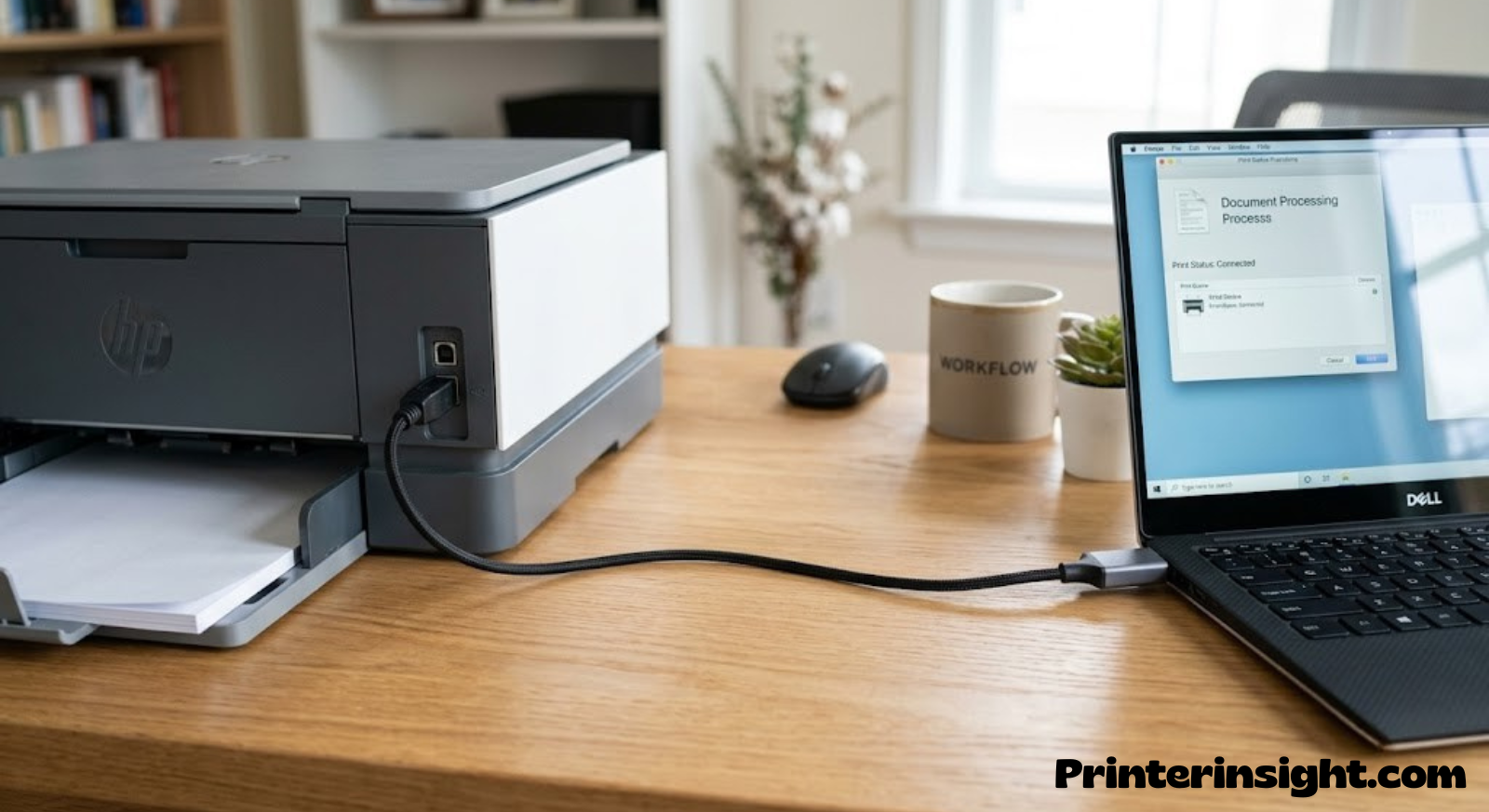
Common USB causes
- A USB port entering selective suspend mode to save power, disconnecting the printer mid-idle.
- A worn or damaged USB cable that only makes intermittent contact.
- A USB hub introducing enough power draw or latency to drop the connection.
Disable USB selective suspend for that port in Device Manager > USB Root Hub > Power Management, and connect the printer directly to a rear motherboard port rather than a front-panel port or hub whenever possible.
If you’re deciding between a wired and wireless setup for a new printer, our comparison of inkjet vs. laser printers for home use also touches on which connection type tends to be more stable for each printer category.
Testing the cable and port independently
When a USB-connected printer goes offline intermittently, it’s worth isolating whether the cable, the port, or the printer itself is responsible before assuming it’s a settings issue. Try the same cable in a different USB port on your computer, and separately try a different cable in the original port. If the printer stays online consistently with either change but not the original combination, you’ve identified a hardware fault rather than a software one, and no driver reinstall or settings change will fix it.
USB extension cables and length limits
USB signaling degrades over longer cable runs, and a printer connected through a long extension cable, or a cable plus a hub plus another cable, can experience exactly the kind of intermittent dropouts that look identical to a driver or Windows problem. Standard USB cables are reliable up to roughly five meters; beyond that, a powered USB extender or hub is usually needed to maintain a stable connection.
9. Network Congestion & Device Overload
Home networks have gotten crowded. Smart TVs, video doorbells, thermostats, phones, laptops, and game consoles are all competing for the same router resources, and a printer — being one of the lowest-priority, lowest-bandwidth devices on the network — is often the first thing to get silently dropped when a router’s device table fills up.
Signs of congestion-related dropouts
If your printer goes offline more often in the evening, when everyone in the house is streaming video or gaming, congestion is a likely factor. Cheaper routers cap the number of simultaneously connected devices they can reliably manage, and printers tend to be the device sacrificed first.
| Router Tier | Typical Device Limit | Printer Reliability |
|---|---|---|
| Budget ISP-provided router | ~15–20 devices | Frequent dropouts on busy networks |
| Mid-range consumer router | ~30–40 devices | Occasional dropouts under heavy load |
| Mesh Wi-Fi system | 50+ devices | Stable even on crowded networks |
If you’ve outgrown a basic router, upgrading it will often fix intermittent printer dropouts more permanently than any printer-side setting change.
Quality of service settings and device prioritization
Some routers include Quality of Service, or QoS, settings that let you prioritize certain devices’ network traffic over others. While this is usually used to prioritize streaming or gaming devices, it can inadvertently deprioritize a printer to the point that it struggles to maintain a stable connection during busy periods. Checking your router’s QoS settings for any rule that might be deprioritizing the printer’s traffic class, and either removing it or explicitly adding the printer to a higher-priority group, can resolve congestion-related dropouts without needing new hardware.
IoT device sprawl
The steady growth of smart home devices, from light bulbs to plugs to sensors, means many households now have far more connected devices than a router was originally designed to handle gracefully, even if the total number stays under the router’s technical limit. Each additional device adds a small amount of ongoing network chatter, and a printer’s relatively infrequent, low-priority traffic is often what gets crowded out first when that chatter builds up. If your smart home setup has grown substantially since you first got your printer, that growth alone can explain a printer that used to be perfectly reliable and no longer is.
10. Manufacturer-Specific Quirks
Every major printer brand has its own known quirks around offline errors, largely tied to how each one’s software monitors connection status.
HP
HP’s Smart app and HP Print and Scan Doctor tool are the fastest way to diagnose HP-specific offline errors, since HP printers frequently report offline due to the HP Smart software losing sync with the printer’s actual IP address. See our best HP printers for home use guide if you’re comparing current models.
Canon
Canon PIXMA printers commonly go offline after the printer’s Wi-Fi Direct feature interferes with the primary network connection. Turning off Wi-Fi Direct when it’s not actively in use resolves this for most PIXMA owners.
Epson
Epson’s EcoTank line is particularly sensitive to router band-steering, since many EcoTank models only support 2.4GHz. If you’re weighing tank-based printers, our Epson EcoTank vs. HP Smart Tank comparison covers connectivity differences between the two lines.
Brother
Brother printers are generally the most stable of the major brands for maintaining a persistent network connection, though their firmware update prompts can occasionally interrupt the connection mid-print. Our Brother vs. HP for home use guide and best Brother printers for home roundup both cover this in more depth.
If you’re comparing two of the most popular home inkjet lines head-to-head, see our Canon PIXMA vs. HP Envy breakdown.
Why brand-specific companion apps sometimes cause the exact problem they’re meant to prevent
Nearly every printer manufacturer now ships a companion smartphone or desktop app designed to simplify setup, ink monitoring, and troubleshooting. Ironically, these apps maintain their own separate connection status tracking, independent of your operating system’s printer list, and the two can fall out of sync with each other. It’s fairly common for a manufacturer’s app to show a printer as fully connected while the operating system’s native print queue simultaneously reports it offline, or vice versa. When this mismatch happens, trust whichever one you’re actually trying to print from, and if the discrepancy persists, removing and reinstalling the companion app itself, separately from the printer driver, often resolves the confusion.
Firmware auto-update prompts interrupting active jobs
Several manufacturers, Brother and HP included, schedule automatic firmware checks that can occasionally trigger mid-print if a job happens to be running when the check occurs, briefly taking the printer’s network interface offline while the update process completes. If you notice offline errors clustering around specific times of day, checking whether your printer has a scheduled firmware check at that same time is worth ruling out, and most models let you move that schedule to an hour when the printer isn’t typically in use.

Canon PIXMA Wireless All-in-One
A well-reviewed, stable-connection printer for everyday home use.
Check Price on Amazon11. Windows vs Mac vs Chromebook Differences
The operating system you’re printing from changes both the likely cause and the fix, since each handles printer discovery and status reporting differently.
| Platform | Most Common Offline Cause | Fastest Fix |
|---|---|---|
| Windows | Spooler crash or stale IP | Restart spooler service, re-add printer |
| macOS | Cached printer profile after network change | Remove and re-add in System Settings > Printers |
| Chromebook | Cloud Print / driverless printing sync delay | Toggle Wi-Fi off and on, refresh printer list |
Mac users in particular should check that the printer wasn’t added twice under two different protocols (AirPrint and a manufacturer driver), which causes one listing to show online and a duplicate to show offline. Our guide to the best home printers for Mac highlights models with the smoothest AirPrint integration if you’re printer shopping specifically for a Mac household.
If you’re on a Chromebook, our list of the best printers for Chromebook covers which models sync most reliably without the offline flicker Chromebooks are sometimes prone to.
Printing from a phone or tablet
Mobile printing apps, whether a manufacturer’s own app or a built-in mobile printing feature, rely on the same local network discovery as a computer, but with less robust error reporting when something goes wrong. A phone that says it “can’t find printer” is experiencing essentially the same underlying issue as a computer showing “offline,” just described differently. The same fixes apply: confirm the phone and printer are on the same Wi-Fi band, restart both, and check that the router isn’t isolating devices from each other.
Shared printers across multiple operating systems
Households running a mix of Windows, macOS, and Chromebook devices sometimes see the offline error appear on only one platform because each operating system caches printer information differently and refreshes it on its own schedule. If a printer is reliably online for two out of three device types in the house, that’s a strong signal to focus troubleshooting on the specific operating system having trouble, rather than the network or printer itself.
12. Preventing Future Offline Errors
Once you’ve cleared the current offline error, a little ongoing maintenance keeps it from coming back.
Simple habits that help
- Print something at least once a week, even a test page, so the printer doesn’t sit idle long enough to fully drop its connection.
- Keep the printer’s firmware updated on the same schedule as your router’s firmware.
- Avoid moving the printer’s physical location often, since each move can require re-establishing signal strength with the router.
- Follow good general upkeep — see our full home printer maintenance tips guide for the complete routine.
Ink and cartridge care matters too
A printer that frequently throws ink-related errors alongside offline messages is often just overdue for cartridge attention. Our guides on preventing inkjet printers from drying out and how to store printer cartridges properly help avoid the kind of print-head clogging that sometimes gets mistaken for a connectivity issue. Running a scheduled print-head clean is worth doing periodically — see how to clean printer heads for the full process.
Good Maintenance Habits
- Weekly test prints
- Firmware checked monthly
- Cartridges stored properly when not in use
Habits That Cause Problems
- Letting the printer sit unused for weeks
- Ignoring repeated firmware update prompts
- Moving the printer to a new room without re-checking signal
Building a simple monthly routine
Most of what keeps a printer reliably online doesn’t require any technical skill, just a little consistency. Once a month, print a single test page even if you have nothing to print that day, check whether the manufacturer’s app or website shows a pending firmware update, and glance at the printer’s signal strength reading if it’s displayed anywhere in the settings menu. This takes under two minutes and catches the majority of small drifts, like a weakening signal or a stalled firmware update, before they turn into a recurring offline error that’s harder to diagnose after the fact.
Documenting your printer’s working configuration
It’s worth writing down, somewhere you’ll actually find it again, the printer’s assigned IP address, the Wi-Fi network name it should be connected to, and which USB port it uses if applicable. When an offline error does eventually show up, having this baseline to compare against saves considerable troubleshooting time, since you can immediately tell whether the printer’s current configuration matches what it should be, rather than having to reconstruct that information from scratch under time pressure.
When to Reset or Replace the Printer
If you’ve worked through the causes above and the printer still drops offline daily, a full network settings reset on the printer itself is the next step — this clears any corrupted saved network profile the printer is holding onto internally, which none of the fixes above can touch from the computer’s side.
Factory network reset (not full factory reset)
Most printers have a dedicated “reset network settings” option under Setup > Network, separate from a full factory reset. This clears the saved Wi-Fi profile and lets you reconnect from scratch, which resolves a stubborn, recurring offline error far more often than restarting the router again.
When it’s time to replace it
If a printer is several years old and still drops offline constantly after a full network reset, aging Wi-Fi hardware inside the printer itself is a realistic possibility — printer radios don’t get better with age, and there’s no fix for a failing antenna. At that point, comparing current models makes more sense than continuing to troubleshoot. Depending on your setup, it’s worth looking at our guides for the best printer for a home office, best compact home printers for tight spaces, or best printer for photos at home if image quality matters most to you.
Families and shared households have their own considerations too — see our picks for the best printer for students and the best printer for crafting if either applies to how the printer gets used day to day.
What a network reset actually clears
A network settings reset erases the printer’s saved Wi-Fi password, network name, and any IP configuration it’s been holding onto, without touching print head calibration, ink levels, or stored user settings the way a full factory reset would. This makes it a much lower-risk step than people often assume, and it’s worth trying before resorting to a complete factory reset, which erases everything and requires setting the printer up again from the very beginning, including reconfiguring things unrelated to networking at all.
Signs the hardware itself, not the settings, is the problem
A few patterns point toward failing hardware rather than a fixable configuration issue: the printer’s signal strength reading is consistently poor even sitting directly next to the router, the offline error returns within minutes of a fresh network reset with no other devices or settings changed, or the printer’s network light flickers or changes color erratically rather than showing a steady connected state. None of these are conclusive on their own, but seeing more than one together is a reasonable basis for deciding a replacement is a better use of time than continued troubleshooting.

Epson EcoTank Wireless Printer
Worth considering if ink cost and connection reliability are both driving your replacement decision.
Check Price on AmazonOffline vs. Other Printer Error Messages
It’s worth being clear about what “offline” actually means compared to the other error messages printers commonly display, since mixing these up leads people down the wrong troubleshooting path entirely.
Offline vs. Error State
An “error” or “attention required” message means the printer itself has detected a specific physical problem — a paper jam, an empty tray, a cartridge that’s not seated correctly — and is actively reporting that to your computer. This is the opposite situation from offline: the printer is very much reachable on the network and communicating clearly about what’s wrong. Offline, by contrast, means your computer has stopped hearing from the printer at all, so there’s no specific error to report because no communication is happening in either direction.
Offline vs. Paused
A printer can also be manually or automatically paused, which shows up in the print queue as “paused” rather than offline, and simply means someone, sometimes accidentally, clicked pause on that print queue. This is worth checking first since it’s the fastest possible fix — right-click the printer in your operating system’s printer settings and look for a “resume printing” option before assuming a more complex network issue is at play.
Offline vs. Not Found / Not Installed
If a printer doesn’t appear in your device list at all, rather than appearing and showing as offline, that’s a different problem entirely — usually a driver that was never installed correctly, or a printer that’s never successfully joined the network in the first place. This calls for a fresh setup process rather than any of the offline-specific fixes described above, since there’s no existing connection to repair.
| Message Seen | What It Actually Means | Right First Step |
|---|---|---|
| Offline | Computer lost contact with the printer | Restart printer and spooler, check IP |
| Error / Attention Required | Printer is reporting a physical problem | Check paper, ink, and trays on the printer itself |
| Paused | Print queue was manually or automatically paused | Resume the queue from printer settings |
| Not Found | Printer was never added or fully set up | Run the manufacturer’s full setup process |
Ink Tanks, Toner, and Long-Term Running Costs
While it’s not a direct cause of offline errors, running cost is worth factoring in if you’re considering a replacement printer as part of solving a chronically unreliable one. Ink tank printers have become popular specifically because they sidestep both the cartridge cost problem and, in many cases, ship with more stable Wi-Fi modules than older cartridge-based budget models.
| Printer Type | Typical Cost Per Page | Best For |
|---|---|---|
| Cartridge Inkjet | Higher, ink runs out faster | Light, occasional printing |
| Ink Tank | Lowest per-page cost | High-volume home or student use |
| Laser / Toner | Low per-page cost, higher upfront price | Text-heavy office documents |
See our breakdowns of whether ink tank printers are worth it, best ink tank printers for home, printers with the cheapest ink, and the broader cost of ink vs. toner comparison, along with our best laser printer for home picks if toner-based reliability suits your printing habits better.
It’s a reasonable moment, if you’re already comparing running costs, to also factor in how each printer type has historically performed on the connectivity issues covered throughout this guide. Ink tank models tend to be newer overall as a product category, which generally means more modern, better-supported Wi-Fi hardware and more frequent firmware updates than an aging cartridge-based budget model that hasn’t seen a driver update in years. That’s not a guarantee of a trouble-free connection, but it’s a real factor worth weighing alongside the per-page cost numbers above when a replacement is genuinely on the table.
Frequently Asked Questions
Why does my printer say offline but it’s connected to Wi-Fi?
This almost always means your computer is holding onto an outdated IP address for the printer, or the printer’s Wi-Fi radio is in a low-power sleep state that isn’t fully responding to network requests. Restarting both the printer and your computer’s print spooler typically clears it.
Why does my printer go offline randomly throughout the day?
Random, intermittent drops usually point to a weak Wi-Fi signal at the printer’s location or network congestion from other devices competing for router resources, rather than a one-time setting problem.
Does restarting the router actually fix a printer offline error?
Yes, in a large share of cases, because a router restart clears stale DHCP leases and forces every device, including the printer, to reconnect and receive a fresh IP address.
Should I give my printer a static IP address?
If the offline error keeps recurring every few days, a DHCP reservation (a static IP set through your router rather than the printer) is one of the most permanent fixes available, since it stops the printer’s address from ever changing.
Why does my printer go offline only after sitting idle?
This is typically the printer’s power-save mode putting its network radio to sleep. Extending or disabling the sleep timer in the printer’s power settings usually resolves it.
Can antivirus software cause a printer to show offline?
Yes. Overly strict firewall rules, particularly when a network is set to “Public” instead of “Private” in Windows, can block the local discovery traffic printers rely on to report their status correctly.
Why do all my printers show offline at the same time?
If multiple printers, including ones on different connection types, all show offline simultaneously, the issue is almost certainly the Windows Print Spooler service rather than any individual printer.
Does a printer’s age affect how often it goes offline?
Yes. Older printers use older, weaker Wi-Fi hardware that’s more prone to dropping a connection, and repeated offline errors on an aging printer are sometimes a sign the internal radio itself is degrading.
Why does my printer go offline after a Windows update?
Windows updates occasionally replace a manufacturer-specific driver with a generic one that misreports the printer’s connection status. Reinstalling the manufacturer’s full driver package usually fixes this.
Is it better to use USB or Wi-Fi to avoid offline errors?
USB avoids network-related offline errors entirely but introduces its own, less common issues like port power-saving or cable wear. For most home setups, a stable 2.4GHz Wi-Fi connection with a reserved IP is reliable enough that USB isn’t necessary.
Why does my printer go offline on my Mac but not on my phone?
This usually means your Mac has a duplicate or cached printer entry from before a network change. Removing the printer entirely from System Settings and re-adding it typically resolves the mismatch.
How do I permanently stop my printer from going offline?
Combine a strong, dedicated 2.4GHz signal, a reserved IP address from your router, up-to-date drivers and firmware, and a disabled or extended sleep timer. Together, these address the overwhelming majority of recurring offline errors.
The Bottom Line
A printer that keeps going offline is rarely broken — it’s almost always a small mismatch between the printer, your router, and your computer’s cached idea of where the printer lives on the network. Work through the causes above in order, starting with signal strength and IP address stability, and the vast majority of “offline” errors clear up without needing to buy anything new.
The most efficient approach is usually a layered one rather than a single fix: start with the quick checklist at the top of this guide, move to whichever specific cause matches the pattern you’re seeing, most idle-time drops point to sleep mode, most day-to-day flickering points to signal strength, and most sudden, unexplained recurrences point to a stale IP address, and only consider a full network reset once you’ve ruled out the more targeted fixes. Keeping the small maintenance habits described above going afterward is what actually prevents the problem from resurfacing a few weeks later, which is usually far more frustrating than the original fix itself.
If your printer turns out to be genuinely aging hardware rather than a settings issue, our full guide to the best home printers worth buying right now is the fastest way to compare current, more reliable models side by side.
See Our Top Printer Picks