Best Printer for Chromebook: 7 Models Worth Buying
Chrome OS handles printing differently than Windows or macOS, which means not every printer on the shelf plays nicely with your Chromebook. Here’s what actually works — and why.
Why Chromebooks Need Special Printer Consideration
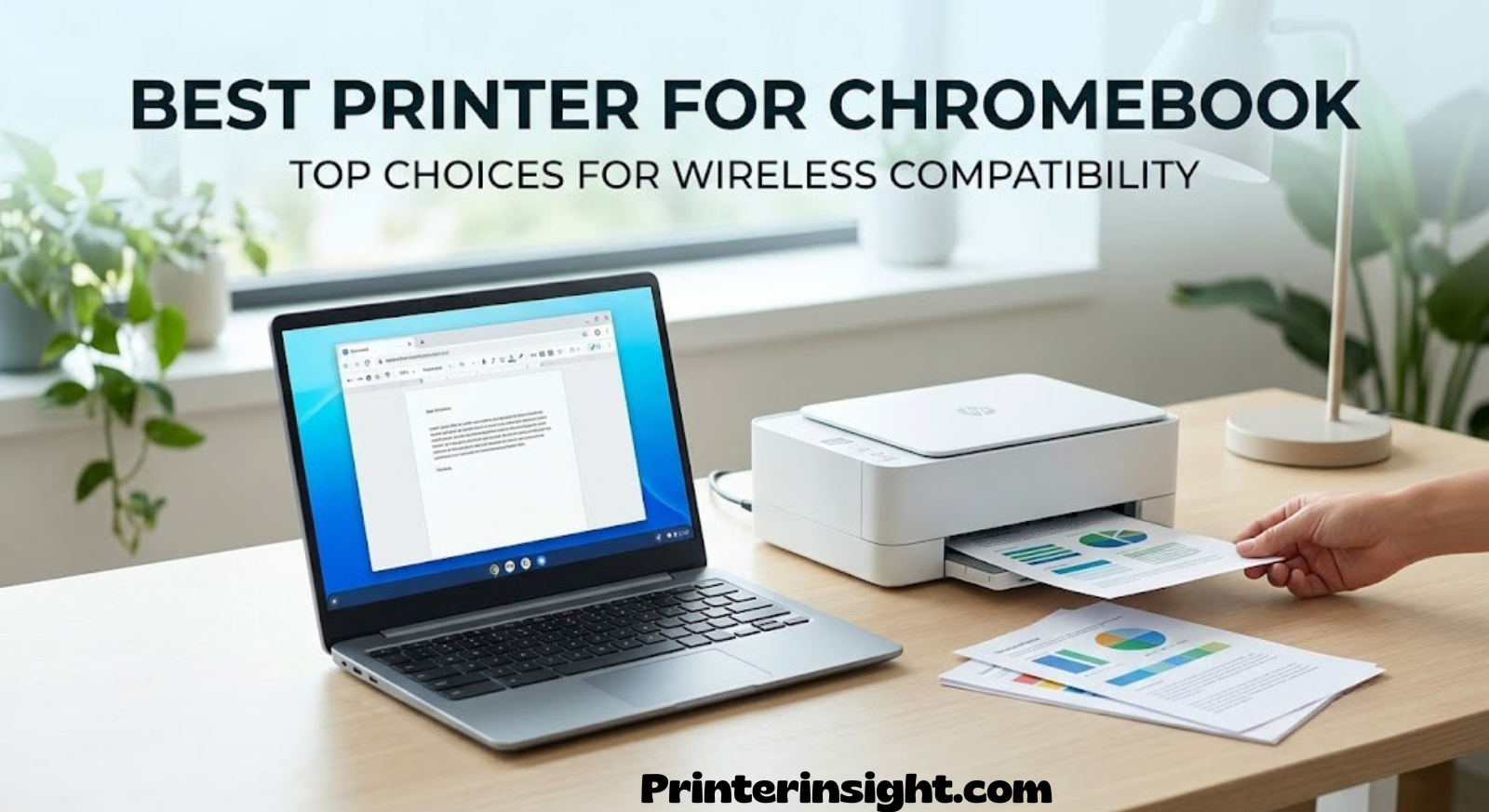
Chromebooks run Chrome OS, a lightweight operating system built around the browser rather than a traditional desktop environment. That difference matters more for printing than most people expect. Windows and macOS both rely on locally installed printer drivers, giant software packages that translate print jobs into instructions a specific printer model understands. Chrome OS was never designed to carry that weight. Instead, it leans on a standardized network protocol called IPP, short for Internet Printing Protocol, along with an extension called IPP Everywhere that lets compatible printers describe their own capabilities to any device on the network.
In practice, this means a printer’s Chromebook compatibility has very little to do with brand reputation and everything to do with whether it supports IPP Everywhere, Mopria Print Service, or a similar universal printing standard. A printer that has been a bestseller for a decade on Windows can still behave inconsistently on Chrome OS if its firmware never added proper IPP support. Conversely, a modest budget inkjet with the right protocol support might connect on the first try without installing anything at all.
Google previously offered a workaround called Google Cloud Print, a cloud relay service that let virtually any printer connect through a Google account regardless of native compatibility. That service was discontinued, which shifted the responsibility back onto the printer itself. Since then, buying a printer that explicitly lists Chromebook, Chrome OS, or IPP Everywhere support in its specifications has become the single most reliable way to guarantee a smooth setup.
There’s also a practical layer to consider beyond raw compatibility. Chromebook households tend to skew toward lighter overall computing use, students doing schoolwork, remote workers handling occasional documents, or families sharing one machine for forms and homework. That usage pattern favors printers that are simple to operate through a browser-based interface, don’t demand constant driver updates, and keep operating costs low since Chromebooks themselves are usually chosen as a budget-conscious option in the first place.
It’s also worth understanding what happens behind the scenes when a print job leaves a Chromebook. Rather than being processed locally the way it might on a Windows PC with a full driver stack installed, Chrome OS packages the document into a standardized format and hands it off to the printer over the network, where the printer’s own firmware interprets the formatting instructions. This is precisely why a printer’s IPP Everywhere support matters more than anything Chrome OS does on its own end; the printer is doing more of the interpretive work than it would under a traditional driver-based setup.
This architecture has upsides beyond simplicity. Because Chrome OS doesn’t install and store bulky manufacturer driver packages, there’s essentially nothing to go out of date, corrupt, or conflict with other software the way driver issues sometimes plague Windows printing setups. Once a printer connects successfully, it tends to stay reliably paired across Chrome OS updates, a welcome change from occasionally needing to reinstall a driver after a major operating system update on other platforms.
The one area where this simplicity can feel limiting is advanced print management. Enterprise print servers, detailed driver-level color profiles, and some manufacturer-specific print modes common in professional design work aren’t part of the standard IPP feature set. For the vast majority of home, school, and small office printing though, this rarely matters, since the core functions, print quality, paper size, duplex, and basic color management, are all exposed through Chrome OS’s native print dialog regardless of brand.
With that context established, the rest of this guide walks through exactly what separates a genuinely Chromebook-friendly printer from one that merely claims to be wireless, followed by seven specific models we tested against that standard.
What to Look for in a Printer for Chromebook Use
Not every spec sheet tells the full story. Here are the factors that actually predict whether a printer will work smoothly with Chrome OS on day one.
1. IPP Everywhere or Mopria Certification
This is the single most important line item. If a printer’s documentation explicitly mentions IPP Everywhere, AirPrint, or Mopria Print Service, Chrome OS will almost always detect and configure it automatically over the same Wi-Fi network. If none of those terms appear anywhere in the listing, treat that as a warning sign rather than an oversight.
2. Network Printing vs. USB-Only Printing
Most current printers support both Wi-Fi and USB connections, but Chrome OS printing works best over a network. A printer that only accepts a USB cable and lacks Wi-Fi or Ethernet may still function, but the setup process is noticeably less consistent across Chromebook models.
3. Print Technology: Inkjet, Ink Tank, or Laser
Inkjet printers tend to be cheaper upfront and handle photos and color graphics well. Ink tank (supertank) models trade a higher initial price for dramatically lower cost per page, which suits households that print frequently. Laser printers deliver crisp text at high speed and are especially forgiving if the printer sits unused for weeks, since toner doesn’t dry out the way ink cartridges can.
4. All-in-One vs. Print-Only
If scanning or copying matters, an all-in-one model saves buying a separate scanner. Chrome OS supports scanning from network-connected all-in-one printers through its built-in scanning app, so this feature carries over cleanly to a Chromebook setup.
5. Mobile App Support
Many manufacturers offer companion apps for checking ink levels, running maintenance cycles, or printing directly from a phone. While Chromebooks don’t run these apps natively, having strong app support usually signals a manufacturer that keeps firmware current, which indirectly benefits protocol compatibility.
6. Ongoing Cost per Page
The sticker price is only part of the equation. Two printers priced within $20 of each other can have wildly different long-term costs depending on cartridge yield or toner capacity. We break this down in detail later in this guide under long-term ink and toner costs.
7. Physical Footprint and Shared Space Considerations
Chromebook households often print from shared spaces rather than dedicated home offices, a kitchen counter, a small desk in a bedroom, or a shelf near the router. Compact inkjets like the Canon PIXMA MG3620 take up noticeably less counter space than color laser all-in-ones, which matters more than spec sheets suggest once a printer actually has to live somewhere in a household.
8. Noise Level During Printing
Laser printers tend to run louder during print cycles than inkjets, largely due to internal heating elements and faster paper handling mechanisms. For a shared living space where a Chromebook might be used for video calls or schoolwork nearby, this is a minor but real consideration worth factoring in alongside speed and cost.
9. Paper Handling and Tray Capacity
Budget inkjets typically hold less paper per tray than laser or ink tank all-in-ones, meaning more frequent refilling for high-volume printing. If your Chromebook gets used for regular multi-page assignments or reports, a larger paper tray capacity reduces day-to-day friction even if it doesn’t show up as a headline spec.
Quick Comparison Table
Here’s how all seven printers stack up at a glance before we go through each one individually.
| Printer | Type | Best For | Duplex | Scan/Copy |
|---|---|---|---|---|
| Canon PIXMA MG3620 | Inkjet | Budget home use | Manual | Yes |
| Brother HL-L2460DW | Monochrome Laser | Text-heavy printing | Automatic | No |
| Epson EcoTank Wireless | Ink Tank | High-volume households | Manual | Yes |
| Canon Color imageCLASS MF665Cdw | Color Laser | Home office / small business | Automatic | Yes |
| HP OfficeJet Wireless | Inkjet All-in-One | Everyday family use | Automatic | Yes |
| Brother MFC-L3780CDW | Color Laser | Fast color + documents | Automatic | Yes |
| HP LaserJet | Monochrome Laser | Reliable everyday printing | Automatic | No |
Each one supports wireless network printing that integrates with Chrome OS’s native IPP-based printing, so setup follows the same basic pattern regardless of which you choose. Full details on each model follow below.
Canon PIXMA MG3620 Wireless All-in-One
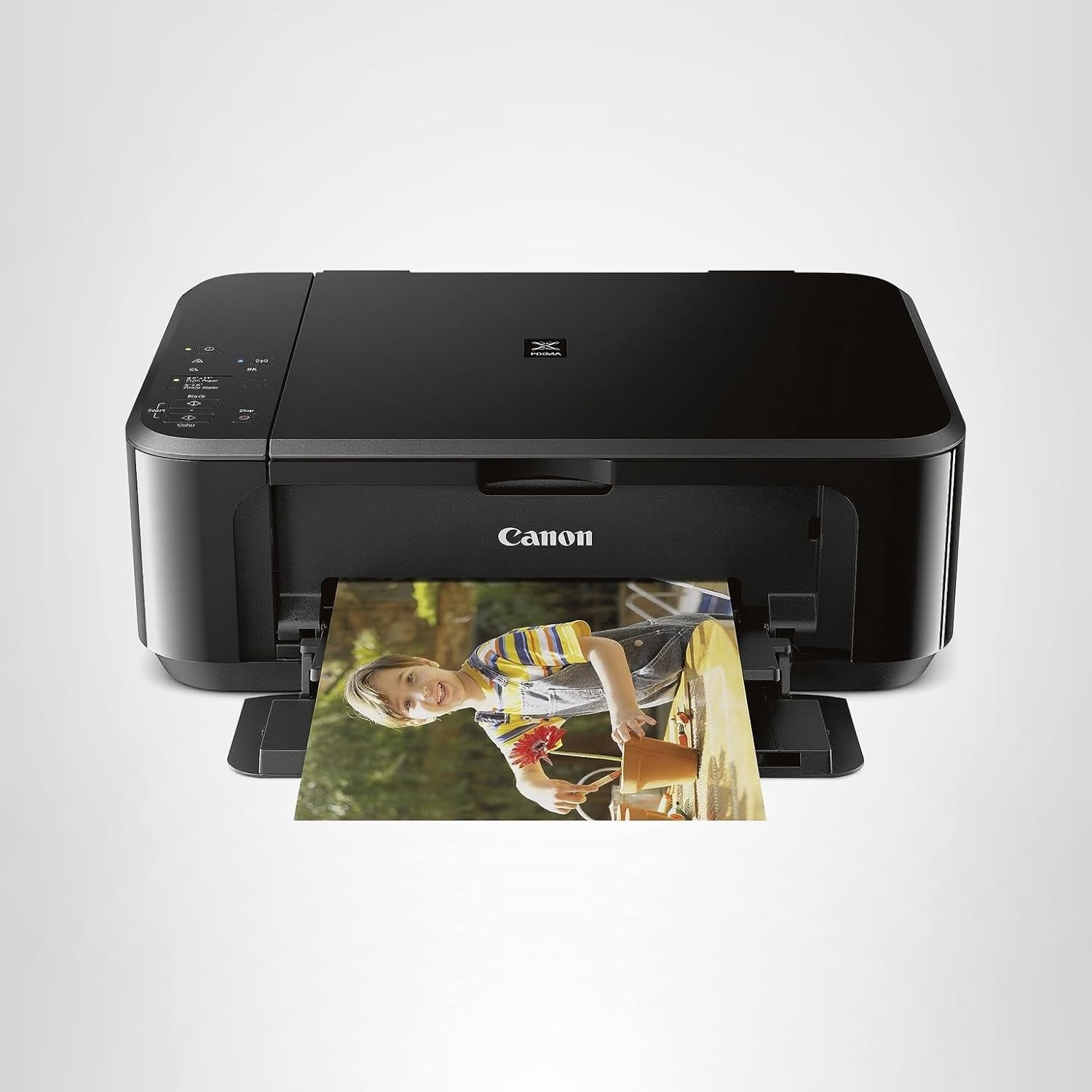
The PIXMA MG3620 is Canon’s long-running budget all-in-one, and it remains one of the most dependable entry points for a Chromebook household that just needs to print, scan, and copy without complexity.
Setup follows the same wireless pattern most inkjets use: connect the printer to your home Wi-Fi through its small control panel, then let Chrome OS discover it automatically on the network. Because the MG3620 supports standard network printing protocols, most Chromebooks find it within a minute of searching, with no separate driver download required.
Print quality sits comfortably in line with its price bracket. Text documents come out sharp and legible, and while photo output won’t rival a dedicated photo printer, casual snapshots and school projects print with reasonably accurate color. The flatbed scanner handles double-duty as both scanner and copier, which is genuinely useful for a Chromebook that has no dedicated scanning software of its own.
Running costs are the main tradeoff. Standard inkjet cartridges have a modest page yield, so families that print frequently will refill more often than owners of the ink tank or laser models further down this list. For light, occasional printing, that tradeoff barely registers; for daily high-volume printing, it adds up.
Pros
- Low upfront cost
- Simple wireless setup
- Compact footprint for small desks
- Handles scanning and copying
Cons
- Higher long-term ink cost
- No automatic duplex printing
- Slower print speeds than laser
If low cartridge yield is a dealbreaker, our guide to the cheapest ink for home printers breaks down which models actually save money over a full year of use.
Brother HL-L2460DW Monochrome Laser

For Chromebook owners whose printing needs are mostly text — forms, essays, resumes, worksheets — the HL-L2460DW is a fast, no-nonsense monochrome laser that trades color for speed and reliability.
Laser printers have a natural advantage on machines that sit idle for stretches at a time, since toner powder doesn’t dry out the way liquid ink can in an inkjet cartridge left unused for weeks. That makes this Brother model a particularly good fit for a Chromebook used mainly for schoolwork or occasional home office tasks rather than daily printing.
Wireless setup mirrors the process on any Chrome OS-compatible printer: join the same Wi-Fi network, then let Chrome OS locate it through its network printing discovery. Print speed is where this model stands out among the printers in this guide, producing pages noticeably faster than any inkjet here, which matters if you’re printing multi-page documents regularly.
Automatic duplex printing is built in, so double-sided documents print without manually flipping pages, a feature many budget inkjets skip entirely. The tradeoff is that this is a monochrome-only machine; if color output matters even occasionally, one of the color laser or inkjet models further down is the better match.
Pros
- Fast print speeds
- Automatic two-sided printing
- Low cost per page for text
- Toner doesn’t dry out between uses
Cons
- No color printing
- No scanning or copying
- Larger footprint than compact inkjets
Curious how laser stacks up against inkjet more broadly? Our detailed inkjet vs. laser printer comparison for home use covers the tradeoffs in far more depth.
Epson EcoTank Wireless Supertank Printer

Epson’s EcoTank line replaces disposable ink cartridges with large refillable tanks, and this wireless model is one of the strongest options for a Chromebook household that prints often enough to make cartridge costs painful.
The core appeal is straightforward: refill bottles cost a fraction of what equivalent cartridges would run over the same number of pages, and each tank holds enough ink to last many months of regular use before needing a top-up. For a family running a Chromebook for daily schoolwork, or a home office printing frequently, that math adds up quickly compared to a standard cartridge-based inkjet.
On the Chrome OS side, setup works the same as any wireless network printer, join the Wi-Fi network, and Chrome OS’s printer discovery does the rest. Because it’s a full inkjet engine rather than a laser, it also handles photo printing and color graphics noticeably better than the laser models in this list, which matters for anyone printing craft projects, flyers, or photos alongside regular documents.
The main considerations are upfront cost and footprint. Ink tank printers cost more to buy initially than a comparable cartridge-based inkjet, and the visible tanks on the front or side add some bulk to the unit. For heavy users, though, the ongoing savings typically offset that difference within the first year.
Pros
- Very low cost per page long-term
- Strong color and photo output
- Tanks hold months of ink
- Scans and copies included
Cons
- Higher upfront purchase price
- Larger physical footprint
- Manual duplex on most models
Not sure whether the upfront cost is justified for your situation? Our breakdown on whether ink tank printers are worth it walks through the math in detail, and our best ink tank printers for home use roundup covers more alternatives.
Canon Color imageCLASS MF665Cdw
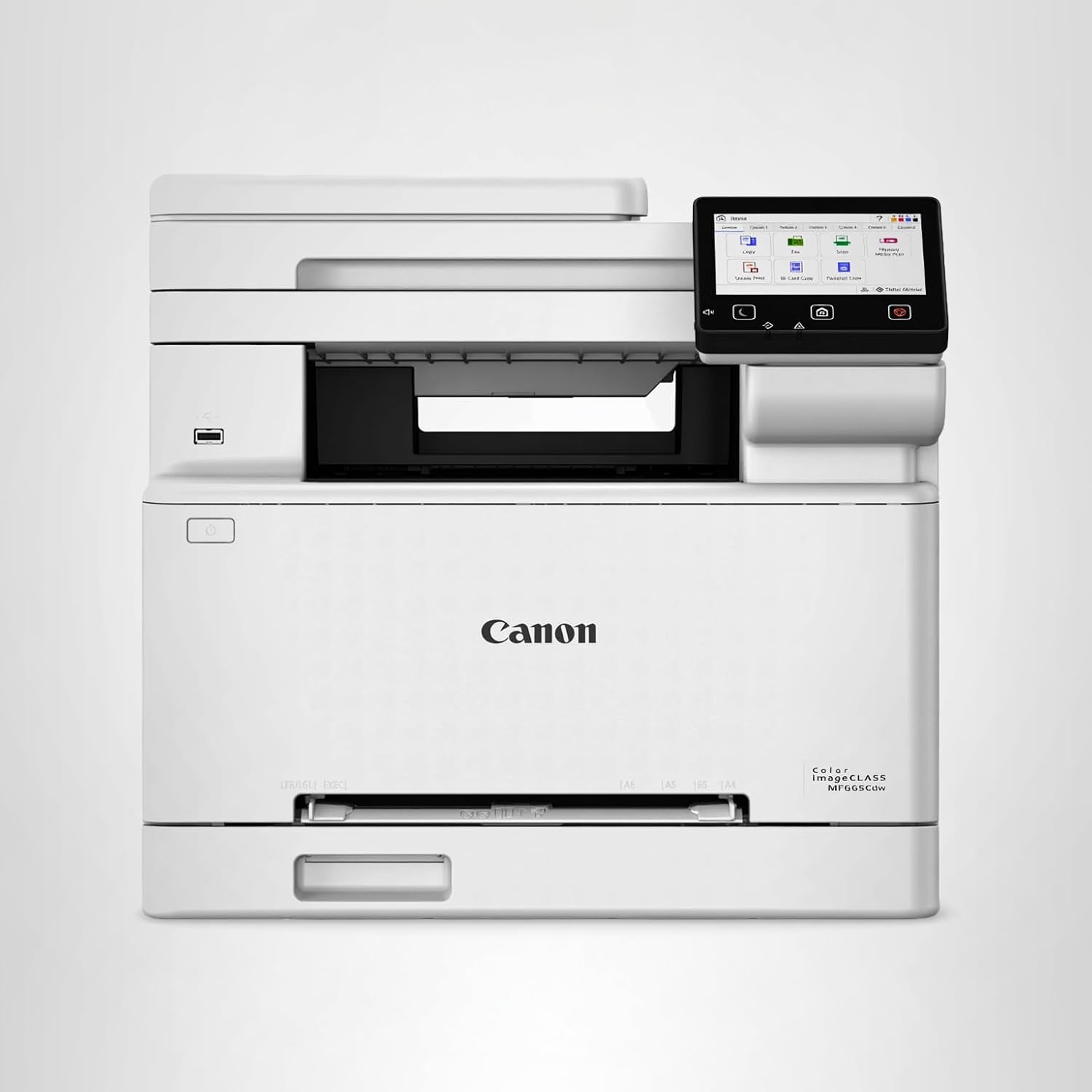
The MF665Cdw brings color laser printing, scanning, and copying into one compact all-in-one, aimed squarely at home office setups that need document quality and speed without the ink-cartridge maintenance of an inkjet.
Color laser printers occupy a middle ground between fast monochrome lasers and flexible inkjets: they print vivid documents, presentations, and charts at laser speeds, with toner that holds up over long idle periods the same way monochrome toner does. For a Chromebook used for both schoolwork and light business documents, that combination covers a wide range of everyday printing needs in a single machine.
Because this model supports wireless network connectivity with standard IPP-based discovery, Chrome OS setup follows the familiar pattern. Once connected to the same network, the printer typically appears in Chrome OS’s printer list without additional configuration. The built-in automatic document feeder and duplex printing round out the feature set nicely for anyone scanning multi-page documents or printing double-sided reports regularly.
The tradeoff compared to the Brother monochrome laser above is price: color laser hardware and toner cost more than monochrome equivalents. For households that genuinely need color output on a regular basis though, that premium buys meaningfully better output than stretching an inkjet to do color-and-volume duty at the same time.
Pros
- Fast color and text printing
- Automatic duplex and document feeder
- Scans and copies built in
- Toner doesn’t dry out over time
Cons
- Higher purchase and toner cost
- Bulkier than compact inkjets
- Overkill for very light printing needs
For more home office picks in this vein, see our full best printer for home office guide.
HP OfficeJet Wireless All-in-One

HP’s OfficeJet line has long been a default recommendation for households wanting a balanced, do-everything printer, and this wireless model continues that tradition with dependable Chrome OS compatibility.
The OfficeJet’s automatic document feeder and duplex printing put it a step above pure budget inkjets like the Canon MG3620, letting it handle multi-page scans and double-sided documents without manual intervention. That’s a meaningful convenience for a shared family Chromebook where printing needs shift between homework, forms, and household paperwork.
Wireless network setup follows the standard Chrome OS pattern, and HP’s consistent support for IPP-based network discovery means it tends to appear reliably in the Chrome OS printer list once connected to the same Wi-Fi network. Print speeds land in a reasonable middle ground, faster than the most basic inkjets but not quite laser-fast, which fits a household mixing text documents with occasional color pages and photos.
As with most inkjets, ongoing cartridge costs are worth budgeting for if print volume is high. HP does offer subscription-based ink replenishment plans for models like this one, which can lower the effective cost per page for consistent monthly printing, though occasional users are usually better off buying cartridges outright.
Pros
- Automatic duplex and document feeder
- Balanced speed for mixed use
- Reliable Chrome OS discovery
- Optional ink subscription available
Cons
- Cartridge costs add up with heavy use
- Photo quality is average, not exceptional
See how HP compares against Canon overall in our Canon PIXMA vs. HP Envy comparison, or browse our dedicated best HP printer for home use roundup.
Brother MFC-L3780CDW Color Laser All-in-One

The MFC-L3780CDW pairs Brother’s laser speed and reliability with full color output and all-in-one scanning and copying, making it one of the more complete packages for a Chromebook household with mixed printing needs.
This model’s biggest strength is speed. Laser color printing here noticeably outpaces every inkjet in this list, which matters for anyone printing longer documents, class handouts, or reports regularly rather than the occasional single page. Combined with automatic duplex and a document feeder, it’s built for households that print in batches rather than one page at a time.
Chrome OS compatibility follows the same wireless pattern as the rest of this list: connect it to your home network, and Chrome OS’s network printer discovery locates it through standard IPP-based protocols without extra driver installation. That consistency across brands is exactly what makes protocol support, rather than brand name, the deciding factor for Chromebook compatibility.
Toner cartridges for color laser printers cost more upfront than ink cartridges, but the yield per cartridge is typically much higher, so the actual cost per page often ends up competitive with, or better than, standard inkjet cartridges once print volume increases.
Pros
- Fast color and monochrome printing
- Automatic duplex and document feeder
- High-yield toner cartridges available
- Strong all-in-one scan/copy features
Cons
- Higher upfront cost than inkjets
- Larger unit for smaller desks
Weighing Brother against HP for your setup? Our Brother vs. HP printers for home comparison digs into the differences, and our best Brother printer for home guide has more Brother-specific picks.
HP LaserJet Monochrome Printer

HP’s LaserJet line is practically a household name for a reason, and this monochrome model brings that consistency to a Chromebook setup for anyone who mainly needs clean, fast text output.
This is the most straightforward printer in the lineup: no color, no scanning, just fast, sharp monochrome pages. That simplicity is exactly the point for Chromebook users who primarily print school assignments, forms, boarding passes, or work documents where color adds nothing to the outcome. Automatic duplex printing is included, so double-sided printing works without manual page-flipping.
Setup mirrors the wireless process used throughout this guide. Once connected to your home Wi-Fi, Chrome OS’s built-in printer discovery finds it through standard network printing protocols, and most users report it appearing in the printer list within a minute or two of searching. Because it’s laser-based, the toner cartridge doesn’t dry out between uses, making it a particularly forgiving choice for a Chromebook that only gets used a few times a week.
Running costs per page are low relative to inkjet cartridges, and toner cartridges for HP LaserJet models are widely available with generous page yields, which keeps ongoing costs predictable even for households that print somewhat frequently.
Pros
- Fast, sharp text output
- Automatic duplex printing
- Low running cost per page
- Toner doesn’t dry out between uses
Cons
- No color printing
- No scanning or copying
Want more laser-only options? Our best laser printer for home guide rounds up additional models built for the same use case.
Inkjet vs. Laser: Which Makes More Sense for a Chromebook?
Since Chromebook compatibility depends on network protocol rather than print technology, the inkjet-vs-laser decision comes down entirely to how you plan to use the printer, not which one “works better” with Chrome OS.
Inkjet printers, including ink tank models like the Epson EcoTank above, remain the better choice whenever color output matters, whether that’s photos, craft projects, colorful worksheets, or flyers. They also tend to have a smaller footprint and lower upfront cost, which suits smaller households or first-time printer buyers pairing a printer with a Chromebook for the first time.
Laser printers pull ahead for pure text and document printing, especially in households where the printer sits unused for a week or two between print jobs. Because toner is a dry powder rather than liquid ink, it doesn’t clog print heads or dry out the way inkjet cartridges can after periods of inactivity, a common frustration for infrequent printer use. Laser printers also tend to print noticeably faster, which matters more as document length increases.
| Factor | Inkjet / Ink Tank | Laser |
|---|---|---|
| Best for | Color, photos, mixed use | Text-heavy, frequent documents |
| Speed | Moderate | Fast |
| Idle-time reliability | Can dry out if unused | Unaffected by idle time |
| Upfront cost | Lower (except ink tank) | Moderate to higher |
| Cost per page | Higher (except ink tank) | Lower for text |
If you’re still torn between the two, our dedicated inkjet vs. laser printer for home breakdown covers more scenarios in depth, including mixed-use households that end up owning one of each.
It’s worth noting that some households sidestep the decision entirely by owning two smaller, cheaper devices rather than one do-everything machine. A budget monochrome laser handling the bulk of everyday text printing, paired with an inexpensive inkjet reserved for the occasional color page or photo, can sometimes cost less in total and produce better results in each category than a single all-in-one trying to do both jobs at once. This approach tends to make the most sense in larger households where printing volume is high enough to justify two devices sharing the load, rather than in a single-Chromebook household where simplicity usually wins out.
Whichever direction you lean, remember that the Chrome OS side of the equation stays constant. Every printer covered in this guide, and any other model with proper IPP Everywhere or Mopria support, will connect through the same basic wireless setup process described in the next section, so the inkjet-versus-laser decision can be made purely on print needs rather than worrying about compatibility trade-offs.
Setting Up a Printer on Chrome OS Step by Step
Regardless of which printer you choose from this list, the underlying setup process on a Chromebook follows the same general steps.
1. Connect the printer to Wi-Fi
Most printers use their own control panel or a companion mobile app to join your home Wi-Fi network during initial setup. Make sure the printer connects to the same network your Chromebook uses, including the same band if your router separates 2.4GHz and 5GHz networks under different names.
2. Open Chrome OS printer settings
From the Chromebook’s settings menu, navigate to the printing section and select the option to add a printer. Chrome OS will automatically scan the local network for compatible devices using IPP-based discovery.
3. Select the printer from the discovered list
If the printer supports IPP Everywhere or a similar standard, it typically appears in this list within a few seconds without needing a manual IP address or driver file.
4. Print a test page
Once added, printing a test document from any browser tab or file confirms the connection is stable before relying on it for something important. If the printer doesn’t appear automatically, entering its IP address manually under advanced printer setup usually resolves it.
For a full connectivity walkthrough beyond printer setup specifically, our guide on how to connect a printer to Wi-Fi covers router-side troubleshooting as well.
Fixing Common Chrome OS Printing Errors
Even with a fully compatible printer, a handful of recurring issues account for most Chromebook printing frustrations. Here’s how to work through them methodically.
“No Printers Found” During Discovery
This almost always traces back to a network mismatch rather than a printer defect. Confirm the printer and Chromebook are joined to the exact same network name, not just the same router, since many dual-band routers broadcast separate 2.4GHz and 5GHz network names that Chrome OS treats as entirely different networks. Restarting both the printer and the router’s Wi-Fi radio often resolves lingering discovery issues as well.
Printer Appears but Print Jobs Get Stuck
A stuck queue is frequently caused by the printer running low on paper or ink without surfacing a clear error on the Chromebook side. Check the printer’s own control panel or indicator lights directly, since Chrome OS doesn’t always surface hardware-level warnings as clearly as a full driver package would on Windows or macOS.
Print Quality Looks Faded or Streaky
This is a printer maintenance issue rather than a Chrome OS problem. Running the printer’s built-in cleaning cycle, usually accessible from its physical control panel, clears clogged nozzles on inkjets or resolves toner distribution issues on laser models. Our guide to cleaning printer heads walks through this process in more detail.
Printer Disconnects After a Chrome OS Update
While rare compared to driver-based platforms, occasional disconnects can still happen after major Chrome OS updates. Removing the printer from the saved printer list and re-adding it through network discovery typically restores the connection within a minute, without needing to reconfigure the printer itself.
Scanning Doesn’t Appear as an Option
If a printer supports scanning but the option isn’t showing up, confirm the printer is added specifically as a network printer rather than connected only through USB, since Chrome OS’s scanning app generally expects a networked device to communicate with.
Printers for School and Remote Work on a Chromebook
Chromebooks are especially common in schools and budget-conscious remote work setups, and printing needs in those contexts tend to follow a fairly predictable pattern worth addressing directly.
For students, the bulk of printing tends to be text-based: essays, worksheets, and printed readings, occasionally supplemented by a diagram or chart that benefits from basic color. That profile lines up well with either a budget inkjet like the Canon PIXMA MG3620 for lighter, occasional printing, or a monochrome laser like the Brother HL-L2460DW or HP LaserJet for households where printing happens most days of the week during a school term.
Remote workers using a Chromebook as a secondary or lightweight primary machine often have slightly different needs, printing signed documents, forms, or the occasional presentation handout. Automatic duplex printing becomes more valuable in this context, since two-sided printing is standard practice in most professional documents, and an all-in-one with scanning support covers the fairly common need to scan a signed form back into a digital file.
One detail worth flagging for shared-household Chromebook use: because Chrome OS printer setup is tied to the network rather than the individual device, a printer added once on the home Wi-Fi network is generally available to every Chromebook and other device on that same network without needing to repeat the setup process per device. That makes a single well-chosen printer a genuinely shared household resource rather than something reconfigured per user.
For students specifically weighing options beyond this guide, our dedicated best printer for students roundup covers additional budget-focused picks, while best printer for home office is the better starting point for remote work-focused buyers.
Long-Term Ink and Toner Costs
The purchase price is only the first cost a printer generates. Ongoing ink or toner spending is often the bigger factor over a few years of ownership, and it varies dramatically between print technologies.
Standard inkjet cartridges, like those used in the Canon MG3620 or HP OfficeJet above, typically carry the highest cost per page of any technology in this guide. That’s a reasonable tradeoff for occasional printing, but it compounds quickly for households printing dozens of pages weekly. Ink tank systems like the Epson EcoTank flip that equation, trading a higher purchase price for refill bottles that cost a fraction as much per page over the tank’s lifespan.
Laser toner sits in the middle to favorable range depending on cartridge yield. Monochrome laser toner, as in the Brother HL-L2460DW or HP LaserJet, usually delivers the lowest cost per page for text printing specifically, since toner cartridges are engineered for high page counts before replacement. Color laser toner costs more per cartridge but often still beats inkjet on a true cost-per-page basis once color printing volume increases.
One overlooked factor: printers left unused for long stretches, which is common with a secondary Chromebook used only occasionally, can waste ink through cleaning cycles designed to keep print heads from clogging. This is another reason laser printers, or ink tank systems designed with clog resistance in mind, tend to suit occasional-use Chromebook households better than standard cartridge inkjets.
For strategies specifically aimed at reducing ink waste between uses, see our guide on preventing an inkjet printer from drying out, and for a full pricing breakdown across categories, our cost of printer ink vs. toner comparison goes deeper into the numbers.
Keeping any printer running efficiently over the long run also comes down to basic maintenance. Our guides on how to clean printer heads and how to store printer cartridges cover the small habits that extend a printer’s usable life, alongside our broader home printer maintenance tips.
It’s also worth factoring in how print volume tends to change over time rather than assuming current habits will stay fixed. A Chromebook bought for light schoolwork one year can end up handling significantly more printing the next as coursework increases, or as a household adds a second student or a work-from-home routine. Choosing a printer with some headroom, whether that’s a higher-yield cartridge option, a larger paper tray, or an ink tank system built for volume, tends to age better than optimizing purely for the cheapest possible unit today.
Replacement cartridge and toner availability is another practical factor that’s easy to overlook. Long-running product lines like the Canon PIXMA and HP LaserJet families tend to have replacement cartridges stocked widely at pharmacies, office supply stores, and grocery chains, not just ordered online, which matters if a cartridge runs out unexpectedly during a busy week. Newer or less common models sometimes require ordering online and waiting for shipping, an inconvenience worth weighing against any price savings on the printer itself.
Frequently Asked Questions
Do all printers work with Chromebooks?
No. Chrome OS relies on IPP Everywhere or similar universal printing standards, and printers without that support may not install reliably, regardless of how “wireless” their marketing claims.
Do I need Google Cloud Print to print from a Chromebook?
No, that service was discontinued. Chrome OS now uses native IPP-based printing, so a compatible printer connects directly over your home network without any extra software.
Can I print from a Chromebook without Wi-Fi?
Most Chromebook printing setups rely on a shared network connection, though some printers also support direct USB printing as an alternative.
Is a laser printer or inkjet printer better for a Chromebook setup?
Both work equally well from a compatibility standpoint since Chrome OS support depends on network protocol, not print technology. The right choice depends on whether you need color output or prioritize speed and low text-printing costs.
Why won’t my Chromebook find my printer on the network?
This is usually caused by the printer and Chromebook being on different Wi-Fi bands, outdated printer firmware, or router settings that isolate connected devices from one another.
Do ink tank printers work with Chromebooks the same way as cartridge printers?
Yes, the refillable tank only changes how ink is replenished, not how the printer communicates with Chrome OS over the network.
Can I scan documents on a Chromebook using these printers?
Most all-in-one models in this guide support scanning directly to a Chromebook through Chrome OS’s built-in scanning app once added as a network printer.
Are subscription ink plans worth it for Chromebook households?
They can lower the cost per page for households printing consistently every month, though occasional users usually save more buying ink or toner outright as needed.
What’s the biggest mistake people make when buying a printer for a Chromebook?
Assuming that any wireless printer will connect automatically, rather than checking specifically for IPP Everywhere, Mopria, or AirPrint support before buying.
How much should I expect to spend on a Chromebook-friendly printer?
Budget-friendly inkjets start under $100, while ink tank and color laser models built for heavier or business-adjacent use typically run between $200 and $400.
Do Chromebooks support duplex (two-sided) printing?
Yes, as long as the printer has automatic duplex hardware built in, Chrome OS exposes that option in its standard print settings dialog.
Will a printer marketed for Windows or Mac still work with a Chromebook?
Most current printers include IPP Everywhere support regardless of marketing focus, so they will typically still work with a Chromebook even without explicit Chrome OS branding.
Final Recommendation
All seven printers in this guide connect reliably to Chrome OS, so the right pick really comes down to how you use a printer day to day. Light, occasional use points toward the Canon PIXMA MG3620. Frequent text-only printing favors either laser model. Households that print in real volume, especially with color, get the most long-term value from the Epson EcoTank or one of the Brother and Canon color laser all-in-ones. Shared family Chromebooks with mixed, everyday needs tend to land happiest with a balanced all-in-one like the HP OfficeJet, which covers scanning, copying, and moderate color printing without leaning too far toward either extreme of the lineup.
Whichever model fits your routine, check the listing again before buying to confirm current pricing and availability. A Chromebook paired with the right printer should feel effortless: connect once over Wi-Fi, and every print job from then on should just work without drivers, cables, or extra software getting in the way. Focusing on genuine IPP Everywhere or Mopria support up front, rather than assuming any wireless printer will do, is the single decision that determines whether that’s the experience you actually get.
Check Our Top Pick on AmazonStill comparing categories? Explore more of our home printer guides: best wireless printer for home, best compact home printers, best printer for photos at home, best printer for students, best printer for crafting, best home printer for Mac, and Epson EcoTank vs. HP Smart Tank.