How to Find Printer IP Address: Every Method for Windows, Mac, Phones and the Printer Itself
Need to set up, fix or share a printer and the computer keeps asking for an address? Here is every reliable way to find it, in plain steps.
Sooner or later every printer owner hits the same wall. You buy a new laptop, open the add-printer screen, and it asks for an IP address you have never seen. Or the printer drops off the network and the fix depends on a string of four numbers. It sounds technical, but finding that address takes about a minute once you know where to look.
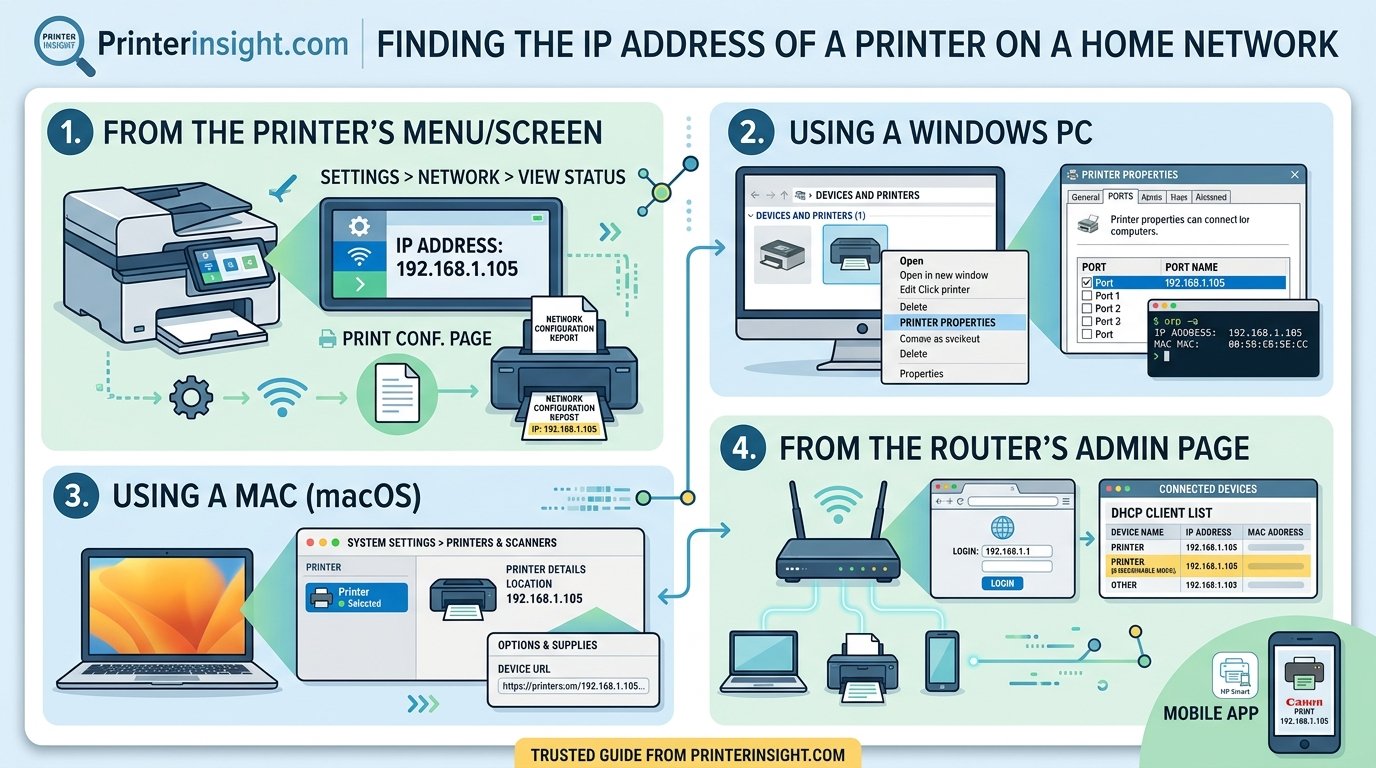
This guide covers every method that actually works: reading it from the printer, printing a report, checking Windows and Mac, asking your router, and using your phone. Each numbered method includes a diagram so you can match what you see on screen. If your printer is not on Wi-Fi yet, start with our guide on how to connect a printer to Wi-Fi, then come back here.
What Is a Printer IP Address?
An IP address is the number your router gives every device on your home network so traffic knows where to go. A printer on Wi-Fi or Ethernet gets one just like a phone or laptop. It usually looks like 192.168.1.45 or 10.0.0.23: four groups of numbers separated by dots.
Most home routers hand these out automatically through a system called DHCP. That is convenient, but it means the address can change after a reboot or a long power-off. That is why you sometimes need to look it up again.
169.254 mean the printer never received a valid address from the router. That is a connection problem, not a real address. See the troubleshooting section below.Shopping for a printer that shows its IP address right on the screen?
Browse Touchscreen Printers on AmazonWhy You Might Need Your Printer’s IP Address
Most of the time your computer finds the printer by itself. The IP address becomes important in a few situations:
- Manual setup: Adding a printer by address when automatic discovery fails.
- Fixing offline errors: A changed address is a common reason the printer shows as offline. Our article on why your printer keeps going offline goes deeper.
- Web admin page: Typing the address into a browser opens the printer’s built-in settings, ink levels and scan tools.
- Driver installs: Some installers ask for it. See how to install printer drivers.
- Sharing: Letting a second computer, a Chromebook or a Mac print to the same device.
| Situation | Do you need the IP? | Easier alternative |
|---|---|---|
| First-time Wi-Fi setup | Rarely | Manufacturer setup app |
| Printer shows offline | Often | Restart printer and router first |
| Adding printer on a second PC | Sometimes | Automatic discovery |
| Opening printer web page | Yes | Manufacturer app |
Want a printer that stays connected without constant fiddling?
See Reliable Wireless PrintersMethod 1: Find the IP Address on the Printer’s Control Panel
The fastest method needs no computer at all. If your printer has a screen, the address is stored in a network menu.
Step 1: Open the Settings or Setup menu
Press the home, setup or gear button. Touchscreens usually show a wrench or gear icon.
Step 2: Choose Network or Wireless settings
Look for Network Setup, Wireless, Wi-Fi Settings or Ethernet. Brand names differ, but the idea is the same.
Step 3: Read the IP address
Choose Network Summary, Wireless Details or View IP Address. The IPv4 line is the one you want.
Prefer a printer with a clear color display for easy menus?
Shop All-in-One PrintersMethod 2: Print a Network Configuration Page
Printers without a screen usually have a button combination that prints a report showing the IP address. It is often called a network configuration page, wireless test report or network status sheet.
Step 4: Load paper and trigger the report
Make sure paper is loaded. On many models you hold the Wi-Fi or Info button for a few seconds until the printer starts printing. Check the manual or manufacturer site for your exact combination.
Step 5: Find the IP line on the sheet
Scan the printout for IPv4 Address, IP Address or TCP/IP. That number is your printer’s current address.
Compact printers that fit shelves and desks.
View Compact PrintersMethod 3: Find It in Windows Settings
If your printer is already installed on a Windows PC, the address is a few clicks away.
Step 6: Open Printers & scanners
Open Settings, choose Bluetooth & devices, then Printers & scanners. Select your printer from the list.
Step 7: Open Printer properties
Click Printer properties and go to the Ports tab, or choose Properties on the Web Services tab. The port name often shows the address directly.
If the wrong printer is being used when you print, sort that out with how to change your default printer.
Printers that work smoothly with Windows.
Shop Windows-Friendly PrintersMethod 4: Use the Classic Control Panel and Device Properties
Older Windows versions and some drivers show more detail in the classic Devices and Printers screen.
Step 8: Right-click the printer
Open Control Panel, then Devices and Printers. Right-click your printer and choose Printer properties, then the Ports tab. Highlight the checked port and click Configure Port to see the exact address.
Office-ready printers with strong network features.
Explore Home Office PrintersMethod 5: Find It with Command Prompt
This method suits anyone comfortable typing a couple of commands, and it works even when the printer is not installed. The idea is to list devices your computer has recently talked to.
Step 9: Open Command Prompt and run arp
Press the Windows key, type cmd, and press Enter. Then type the command below.
arp -a
Step 10: Match the MAC address
Compare the physical addresses with the MAC address printed on your printer’s label or network report. The match reveals your printer’s IP. You can also try ping printername if you know the hostname.
Printers that are simple to manage and monitor.
Find Easy-Setup PrintersMethod 6: Find It on a Mac
macOS keeps the address in the printer’s settings, though you sometimes need one extra click. If you are still choosing a printer, see our roundup of the best home printer for Mac.
Step 11: Open Printers & Scanners
Open System Settings, choose Printers & Scanners, then click the info button beside your printer. Look for the Location or Address line, or open the printer’s web page from the Options menu.
Step 12: Confirm through the CUPS page (optional)
Advanced users can visit http://localhost:631/printers in a browser to see every printer and the address it connects through.
Mac-compatible printers that connect in seconds.
Shop AirPrint PrintersMethod 7: Ask Your Router
Your router knows every device connected to it, which makes it a dependable fallback, especially when the printer has no screen and you cannot use a computer that has it installed.
Step 13: Log in to the router admin page
Type your router’s address into a browser. Common ones are 192.168.1.1, 192.168.0.1 or 10.0.0.1. The login is often printed on a sticker on the router.
Step 14: Open the connected devices list
Look for Connected Devices, DHCP Clients, Device List or Attached Devices. Find your printer by name or MAC address and read the IP beside it.
Upgrade your home network for steadier printing.
Compare Wi-Fi RoutersFinding the IP Address from a Phone or Tablet
Most modern printers pair with a manufacturer app that shows the address under printer details or settings. Open the app, select your printer, and look for a network or about section.
| Device | Where to look | Notes |
|---|---|---|
| Android with manufacturer app | App, then Printer settings, then About | Shows IPv4 and MAC |
| iPhone or iPad | Manufacturer app or the printer’s web page | AirPrint hides the address |
| Any phone via router app | Connected devices list | Needs router login |
Free network scanner apps can also list every device on your Wi-Fi with names and addresses. Use them only on your own network.
Printers that print easily from your phone.
Shop Phone-Friendly PrintersHow to Stop the IP Address from Changing
If the address changes every few weeks and keeps breaking your setup, give the printer a permanent one. There are two common ways.
| Approach | How it works | Best for |
|---|---|---|
| DHCP reservation | Router always gives the printer the same address | Most homes |
| Static IP on the printer | You type the address into the printer settings | Advanced users |
Pros of a reservation
- Set once, works for years
- Less chance of address clashes
- Easy to undo
Cons
- Needs router login
- Menus differ by router brand
- Must be redone after a router swap
To set a reservation, open the router’s DHCP or LAN settings, pick your printer from the device list and choose Reserve or Bind. Keep the address outside your router’s automatic range if you choose a manual static address.
Networking gear that makes printing more reliable.
See Mesh Wi-Fi SystemsTroubleshooting: When You Still Cannot Find the Address
- Printer shows 0.0.0.0 or 169.254.x.x: It is not connected properly. Restart the printer and router, then reconnect using our Wi-Fi setup guide. HP owners can use this HP-specific walkthrough.
- Printer not responding: Work through every cause of a non-responding printer.
- Different network: Your computer and printer must be on the same Wi-Fi network, not a guest network.
- Address does not open in a browser: Try typing
http://before it and confirm you copied it exactly. - Blank pages once connected: See why printers print blank pages.
Replacing a stubborn printer? These models connect with fewer headaches.
Shop Top Wireless PrintersFrequently Asked Questions
What is the easiest way to find my printer’s IP address?
Check the printer’s network menu or print a network configuration page. Both take under a minute and need no software.
Is a printer IP address the same as my computer’s?
No. Each device has its own address, though they share the first three groups of numbers on the same home network.
Can I find the IP address without the printer screen?
Yes. Print a network report, check your router’s device list, or use the manufacturer’s phone app.
Why does my printer’s IP address keep changing?
Your router assigns addresses temporarily. Setting a DHCP reservation keeps it fixed.
How do I open my printer’s web page?
Type the IP address into a browser address bar. You will see ink levels, network settings and other tools.
What does an address starting with 169.254 mean?
The printer failed to get a valid address from the router. Restart both devices and reconnect to Wi-Fi.
How do I find the IP address of a USB printer?
USB printers do not have their own network address. Only the computer it is plugged into has one, unless you share it over the network.
Can I find it with my Mac?
Yes. Open Printers & Scanners in System Settings, select the printer and check its info or location field.
Does AirPrint need an IP address?
Normally not. AirPrint finds printers automatically, but the address helps when troubleshooting.
What is the difference between IPv4 and IPv6 on a printer?
IPv4 is the short four-part address most homes use. IPv6 is longer and rarely needed for home printing. Use IPv4 for setup.
Is it safe to share my printer’s IP address?
Local addresses only work inside your home network, so they are low risk, but avoid posting them publicly along with router details.
How do I fix an offline printer once I have the IP?
Update the port in Windows to the current address, or delete and re-add the printer using that address.
Conclusion
Finding your printer’s IP address is a simple job once you know your options. Start with the printer’s own menu or a printed network report. If that is not possible, Windows, macOS, your router or a phone app can all show it. For a printer that keeps dropping off the network, lock in a permanent address through a DHCP reservation.
If you are tired of fighting a printer that will not stay connected, a newer model can save hours of frustration.
Ready for a printer that just works?
Find Your Next Printer on Amazon