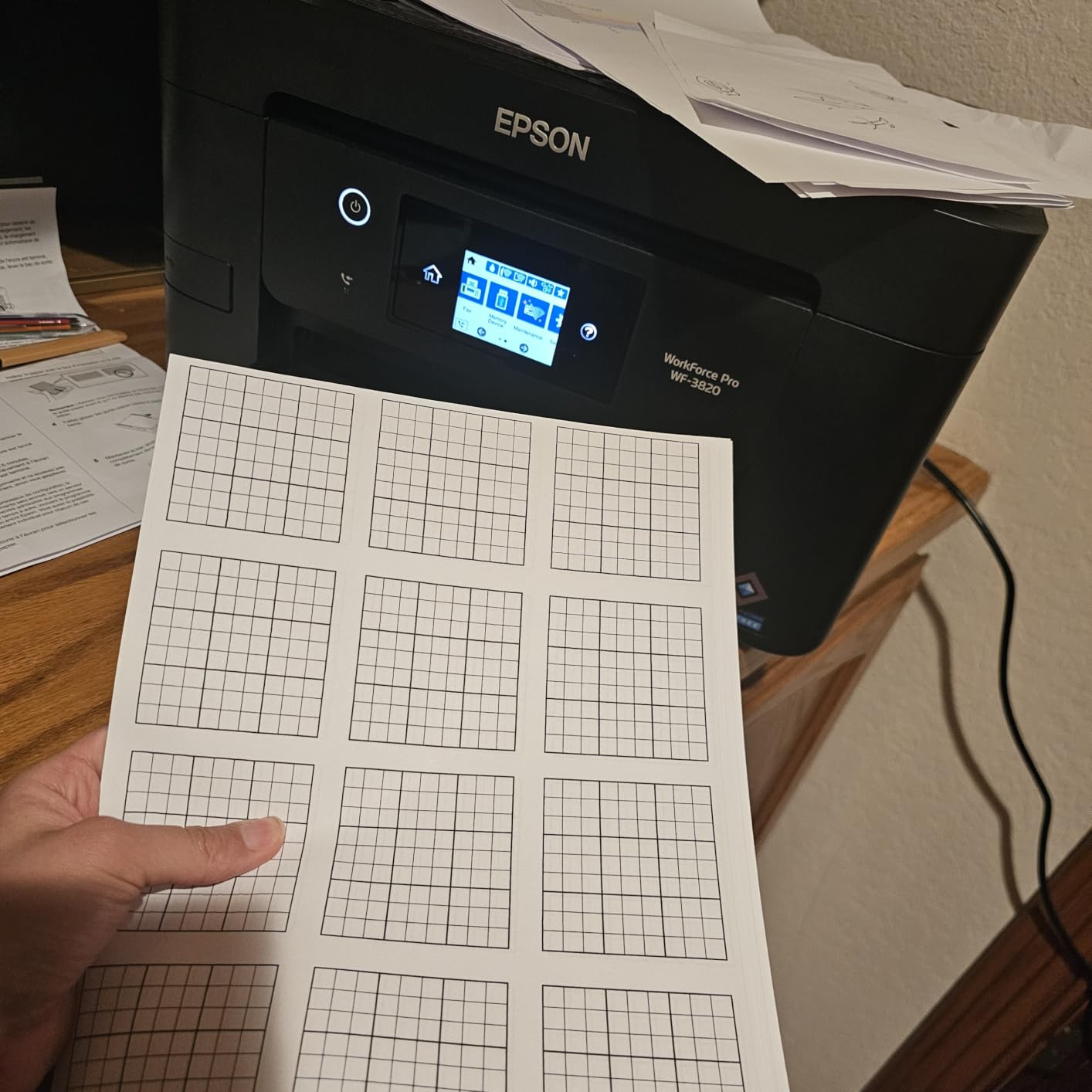
Epson Workforce Review: Which Model Actually Deserves a Spot on Your Desk?
Epson’s Workforce lineup covers an unusually wide range of jobs — everyday home-office printing, high-volume small-business output, portable printing on the road, and dedicated document scanning. That breadth is exactly why picking “the right one” gets confusing fast. This guide walks through every current Workforce model worth considering, compares them head-to-head, and tells you plainly which one fits which kind of user.
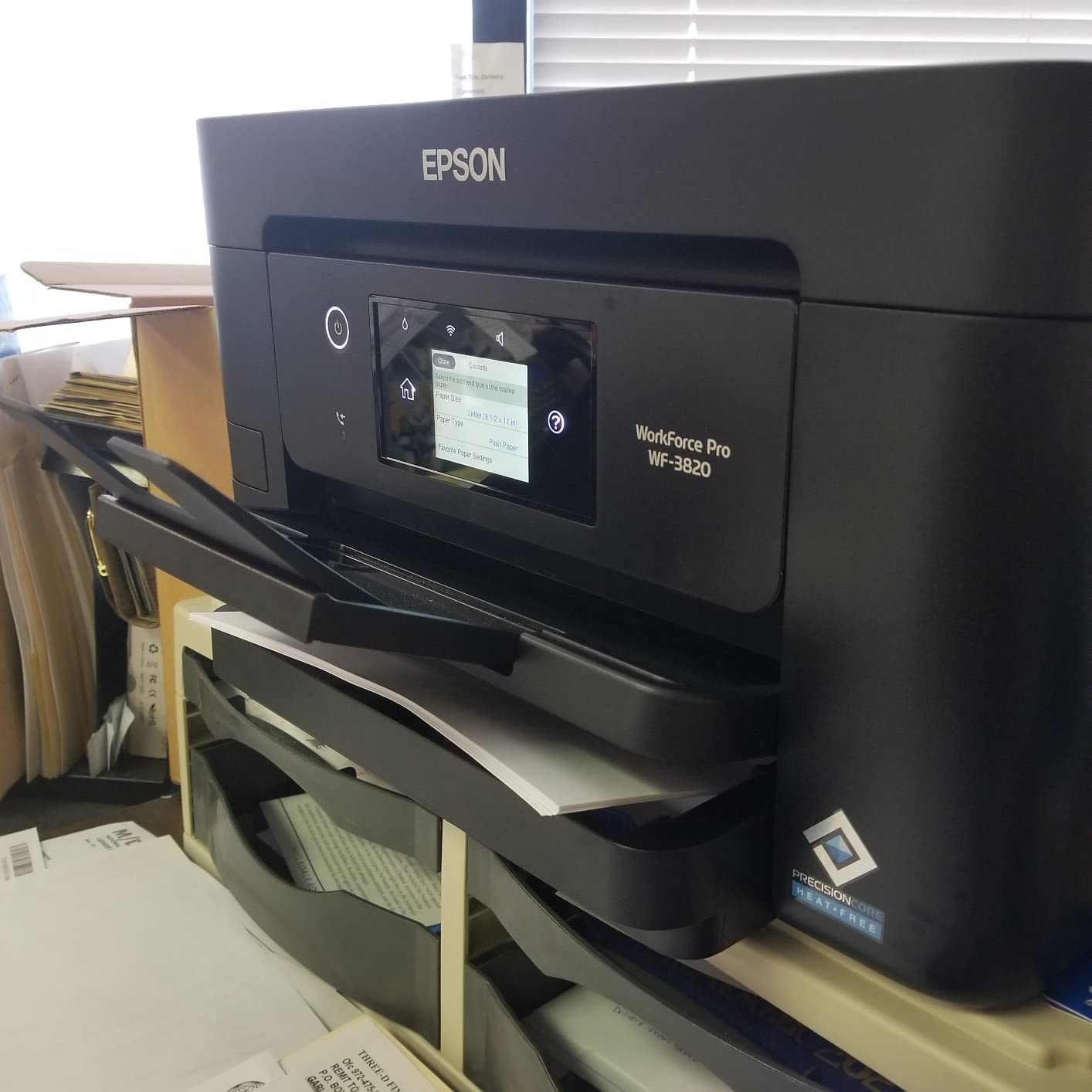
Workforce Lineup Overview
“Epson Workforce” isn’t a single product — it’s an umbrella brand that spans several very different categories of hardware. Some Workforce models are business-grade inkjet all-in-ones built to replace a laser printer in a busy office. Others are compact document scanners with nothing to do with printing at all. And at least one is a battery-powered printer small enough to toss in a bag. Before comparing specs, it helps to understand which bucket each model actually belongs to, because comparing a scanner against a printer on “print speed” obviously doesn’t make sense.
In this review we’re covering six current Workforce devices: two mid-volume business all-in-ones (the WF-3820 and WF-4820), a higher-capacity all-in-one (the WF-4830), two dedicated document scanners (the ES-400 II and ES-590W), and one ultra-portable printer (the WF-110). If you already know roughly what category you need, feel free to jump straight to that section using the table of contents. If you’re still narrowing things down, the buying guide further down will help you match your workload to the right machine.
For readers comparing Epson against other brands before committing, our Brother vs HP printer comparison and Epson EcoTank vs HP Smart Tank breakdown are useful companion reads, since ink-tank Epson models solve a different problem than the Workforce cartridge-based lineup does.
It’s also worth understanding why Epson keeps the Workforce name spread across such different hardware categories in the first place. Historically, “Workforce” has been Epson’s business-oriented counterpart to its more consumer-facing Expression line, signaling durability, higher-volume paper handling, and business software features like scan-to-cloud and fleet management over pure photo quality or budget pricing. That branding logic still holds here — every model in this review, even the pocket-sized WF-110, is built around getting documents done reliably rather than producing gallery-quality prints. Keeping that context in mind helps explain some of the design choices you’ll notice throughout this review, like the emphasis on duplex scanning and network reliability over photo color accuracy.
How We Evaluated These Machines
Rather than relying purely on spec sheets, this review weighs the factors that actually affect day-to-day satisfaction: real-world print and scan speed, paper handling capacity, duplex reliability, wireless setup friction, app quality, noise level, and — critically — long-term running costs. A printer that looks great on paper but chews through ink cartridges every few weeks isn’t actually a good value, so cost-per-page gets just as much attention as raw output quality.
We also factored in how each device fits into a broader home or office ecosystem. If you’re outfitting a full home office, our best printers for a home office roundup and best printers for small business guide cover how these Epson picks stack up against the wider field, not just against each other.
Quick Comparison Table
Here’s the fast version, if you just want to see how these six models stack up side by side before diving into full reviews.
| Model | Category | Best For | ADF Capacity | Duplex | Connectivity |
|---|---|---|---|---|---|
| WF-3820 | All-in-one inkjet | Home office, light business use | 35 sheets | Auto duplex print & scan | Wi-Fi, Ethernet, USB |
| ES-400 II | Sheet-fed scanner | Document digitizing, small office | 50 sheets | Duplex scan | USB |
| WF-4820 | All-in-one inkjet | Growing small business | 50 sheets | Auto duplex print & scan | Wi-Fi, Ethernet, USB |
| WF-4830 | All-in-one inkjet | Higher-volume office use | 50 sheets | Auto duplex print & scan | Wi-Fi, Ethernet, USB |
| ES-590W | Sheet-fed scanner | Wireless document workflows | 50 sheets | Duplex scan | Wi-Fi, USB, Ethernet |
| WF-110 | Portable printer | Mobile professionals | None | No | Wi-Fi Direct, USB |
Note the split: three of these are full all-in-ones (print, scan, copy, sometimes fax), two are scan-only workhorses, and one is a print-only device built entirely around portability. Keep that distinction in mind as you read through, since “which is best” really depends on which of those three jobs you’re trying to solve.
Epson Workforce Pro WF-3820 Review
The WF-3820 is the entry point into Epson’s business-grade Workforce Pro line, and it’s a genuinely sensible choice for a home office or small team that needs reliable print, scan, copy, and fax in one box without paying for capacity they won’t use. It uses Epson’s PrecisionCore print head technology, which tends to produce sharper text and more consistent color than older thermal inkjet designs, and it supports automatic double-sided printing on both the print and scan sides — a feature that’s still missing on plenty of competitors in this price bracket.
Day to day, the WF-3820 feels like a printer built for people who print often but not in massive batches. The 35-sheet automatic document feeder handles routine scanning and copying jobs without constant babysitting, and network setup over both Wi-Fi and Ethernet means it can slot into an existing office network without much fuss. If you’re setting this up for the first time, our guide to connecting a printer to Wi-Fi walks through the general process, which applies closely to this model’s setup wizard.
What Stands Out
Running costs are the real selling point here. Epson’s high-capacity cartridge options for this printer bring cost-per-page down meaningfully compared to standard inkjet cartridges, so if you’re printing several hundred pages a month, the math works out favorably over a laser printer with a similar footprint. The print head’s precision also shows up in fine text and thin lines — invoices, contracts, and spreadsheets look noticeably crisper than on older Workforce generations.
Pros
- Strong text and line-art print quality
- Auto duplex on both print and scan
- Reasonable cost-per-page with high-capacity cartridges
- Ethernet included alongside Wi-Fi for office networks
Cons
- No built-in second paper tray
- Touchscreen response can feel sluggish at times
- Photo output is functional, not exceptional

Check Price on Amazon
Epson Workforce ES-400 II Review
The ES-400 II isn’t a printer at all — it’s a dedicated document scanner, and that focus shows in how well it does one job. If your actual pain point is a growing stack of receipts, contracts, or forms that need to become searchable PDFs, this is a far better tool than trying to make an all-in-one printer’s flatbed scanner do the heavy lifting. The 50-sheet automatic document feeder scans both sides of a page in a single pass, and Epson’s bundled software includes reasonably capable OCR for turning scanned pages into editable, searchable text.
Where this model earns its keep is speed and consistency on batch jobs. Scanning a 40-page mixed-size stack rarely causes jams if the paper is in decent condition, and the software does a good job auto-detecting page size and orientation so you’re not manually cropping every image afterward. It connects via USB only, so it’s meant to live at a single desk rather than serve a whole office wirelessly — for that, see the ES-590W below.
Who This Is Actually For
This is squarely a tool for people digitizing paper archives: accountants during tax season, legal offices dealing with signed documents, or anyone finally tackling a filing cabinet full of old paperwork. It’s overkill if you scan the occasional single page — a flatbed on a standard all-in-one printer handles that fine.
Pros
- Fast, reliable duplex scanning
- Solid OCR accuracy out of the box
- Handles mixed paper sizes well
Cons
- USB-only, no wireless scanning
- No printing function at all
- Software interface feels dated

Check Price on Amazon
Epson Workforce Pro WF-4820 Review
The WF-4820 sits a step above the WF-3820 in nearly every measurable way, and it’s built for offices that print more, scan more, and can’t afford paper jams slowing down the day. The document feeder capacity jumps to 50 sheets, which matters more than it sounds — it’s the difference between loading a stack once and walking away versus refilling it twice through a long scanning job. Print speeds are noticeably quicker too, especially on duplex jobs where the WF-4820’s engine keeps a more consistent pace.
This model also adds a bit more polish to daily operation: a larger, more responsive touchscreen, faster wake-from-sleep times, and better first-page-out speed, which matters if you’re printing single documents throughout the day rather than long batch runs. For teams that share the machine across a small office, the combination of Ethernet, Wi-Fi, and reliable mobile printing support via Epson’s app makes it easy for multiple people to send jobs without fighting over a single USB cable.
Business Fit
If you’re outfitting an office of three to eight people where the printer handles a genuine daily workload — invoices, client documents, internal reports — the WF-4820 is built for exactly that use case. It’s a meaningful step up from home-office-tier machines without jumping all the way to enterprise laser MFPs. Anyone weighing the tradeoffs between inkjet business printers more broadly should also glance at our best printers for small business guide for how it compares against non-Epson options in the same tier.
Pros
- Noticeably faster duplex printing than the WF-3820
- Larger 50-sheet ADF reduces reload interruptions
- Solid multi-user network printing support
- Includes fax, useful for offices that still need it
Cons
- Larger physical footprint than entry Workforce models
- Cartridge costs add up if usage is light
- Setup wizard can be slow on first boot

Check Price on Amazon
Epson Workforce Pro WF-4830 Review
The WF-4830 is close to the WF-4820 in spec sheet terms, but a few refinements make it a better fit for offices printing the highest volumes in this comparison. Paper handling is the biggest differentiator — the WF-4830 supports higher-capacity paper options and holds up better across long unattended print runs, which matters if the printer is expected to run through an entire batch of client mailers or reports without someone standing by to refill trays.
Scan performance is also a step up, with a fully duplexing ADF that reliably handles double-sided originals in one pass rather than requiring a manual flip-and-rescan workaround. For offices already using cloud storage or shared drives, Epson’s scan-to-cloud and scan-to-email features cut out a lot of the manual file-transfer busywork that comes with cheaper scanners.
Where It Wins
If your team is deciding between the WF-4820 and WF-4830, the deciding factor usually comes down to volume: choose the WF-4830 if the printer will regularly handle 500+ pages a week, since the paper handling and duplex scan reliability genuinely hold up better under that kind of sustained load. For lighter offices, the WF-4820 covers the same core feature set at a lower cost.
Pros
- Best paper-handling capacity in the lineup
- Reliable duplex scanning on the ADF
- Handles sustained high-volume jobs well
- Strong cloud and scan-to-email integration
Cons
- Priced above the WF-4820 for a similar feature set
- Overkill for lighter home-office use
- Bulkier footprint needs real desk space

Check Price on Amazon
Epson Workforce ES-590W Review
The ES-590W takes everything the ES-400 II does well and removes the biggest limitation: the USB-only tether. This model adds full Wi-Fi scanning, meaning it can sit anywhere in an office and accept scan jobs from multiple computers or mobile devices without anyone needing to physically plug in. That alone makes it a much better fit for shared office environments where more than one person needs scanning access throughout the day.
A small color touchscreen also makes it easier to select scan destinations, presets, and file formats directly on the device rather than digging through desktop software every time. Scan speed and duplex reliability are on par with the ES-400 II, so the core scanning experience doesn’t change — what you’re really paying for here is flexibility in where and how the scanner fits into your workflow.
Best Use Case
Offices with more than one or two people who need to scan regularly benefit the most from the ES-590W’s wireless capability. It removes the “who’s using the scanner right now” bottleneck entirely, and combined with scan-to-cloud support, documents can land directly in shared folders without any extra steps.
Pros
- True wireless scanning, not just USB
- Touchscreen simplifies repeat scan jobs
- Great for multi-user office environments
- Fast, reliable duplex scans
Cons
- Costs more than the wired ES-400 II
- Wi-Fi setup can be fiddly on some networks
- No printing capability, scanner only

Check Price on Amazon
Epson Workforce WF-110 Review
The WF-110 is the outlier in this lineup, and honestly one of the more genuinely useful travel accessories Epson makes. It’s a compact, battery-operated inkjet printer built for people who need to print away from a desk — real estate agents printing documents on-site, contractors printing quotes in the field, or anyone who’s tired of hunting down a hotel business center. It connects via Wi-Fi Direct straight from a phone or laptop with no shared network required, which makes it genuinely plug-and-play in places with no reliable internet.
Print quality is respectable for a device this size, though it’s clearly optimized for documents rather than photos — expect clean, legible text and usable line graphics rather than glossy photo output. The rechargeable battery gets a reasonable number of pages per charge for occasional use, though it’s not built for long unattended print runs the way the desk-bound Workforce Pro models are.
Who Actually Needs This
This isn’t a replacement for a home or office printer — it’s a supplement for people who genuinely print on the move. If your printing happens entirely at a desk, a compact desktop model will serve you better and cheaper; our best compact home printers guide covers those options in more depth.
Pros
- Genuinely portable, fits in a bag
- No network required thanks to Wi-Fi Direct
- Clean, legible text output
- Battery life adequate for occasional field use
Cons
- No scanning, copying, or duplex printing
- Higher per-page ink cost than desktop models
- Small paper capacity requires frequent reloading

Check Price on Amazon
Buying Guide: Picking the Right Workforce Model
With six fairly different machines in play, the fastest way to narrow things down is to start with the job, not the model name. Ask yourself what you’re actually trying to solve before comparing spec sheets line by line.
If you need an all-in-one for everyday printing
Start with the WF-3820. It covers print, scan, copy, and fax without unnecessary bulk or cost, and it’s the easiest of the three all-in-ones to justify for a single desk or small household office.
If your office has genuine daily volume
Move up to the WF-4820, and step up again to the WF-4830 if you’re regularly running large batch jobs or need the strongest paper-handling capacity available in this lineup. The jump from WF-3820 to WF-4820 is noticeable in daily use; the jump from WF-4820 to WF-4830 matters mostly at higher volumes.
If your problem is a stack of paper, not a printing need
Skip the all-in-ones entirely and go with a dedicated scanner. Choose the ES-400 II if the scanner will live at one desk permanently, or the ES-590W if multiple people need wireless access to it throughout the day.
If you print on the move
The WF-110 is really the only option here, and it’s a good one for its specific niche — just don’t expect it to replace a full desktop all-in-one.
A simple way to decide if you’re stuck
When two models still seem equally reasonable after reading their individual reviews, it usually comes down to one practical question: how much desk space and budget do you actually have to spare? Between the WF-3820 and WF-4820, for instance, the WF-3820 is the safer default unless you already know your print volume is high enough to strain a 35-sheet feeder on a regular basis. Between the ES-400 II and ES-590W, the deciding factor is almost always whether more than one person needs to use the scanner — a single dedicated user rarely needs the wireless premium. And if you’re torn between an all-in-one and the WF-110, ask whether you print away from a desk often enough to justify a second, more limited device, or whether that need is rare enough that a phone-based scanning app and an occasional print shop visit would cover it just as well.
For readers still weighing Epson against other printer families more broadly, it’s worth browsing our best all-in-one printers for home guide and best wireless printers for home roundup to see how these Workforce picks compare against non-Epson competitors in the same price range.
Ink Costs & Long-Term Ownership
One of the most overlooked factors when buying any inkjet printer is what it actually costs to keep running, and the Workforce Pro all-in-ones are designed with this in mind more than most consumer inkjets. Epson offers high-capacity cartridge options for the WF-3820, WF-4820, and WF-4830 that bring cost-per-page down substantially compared to standard cartridges, which matters a lot if the printer is handling regular business volume rather than occasional home use.
That said, cartridge-based printing will still generally cost more per page than Epson’s separate EcoTank line, which uses refillable ink tanks instead of cartridges. If your monthly print volume is high enough that ink cost is a major concern, it’s worth reading our dedicated comparison on whether ink tank printers are worth it before settling on a Workforce Pro model — for some users, the upfront cost difference pays for itself within the first year.
| Model | Ink System | High-Capacity Option | Best For Cost-Conscious Users |
|---|---|---|---|
| WF-3820 | Cartridge | Yes | Moderate volume |
| WF-4820 | Cartridge | Yes | Moderate-high volume |
| WF-4830 | Cartridge | Yes | High volume |
| ES-400 II / ES-590W | No ink used | N/A | Scanning only, no ink cost |
| WF-110 | Cartridge (compact) | Limited | Occasional field printing |
General home printer shoppers weighing ink costs across brands more broadly will also find our guide to home printers with the cheapest ink and ink vs toner cost comparison useful for putting Epson’s pricing in context against the wider market.
Maintenance & Longevity Tips
Inkjet printers, Workforce models included, tend to develop problems less from heavy use and more from long stretches of sitting idle. Print heads can dry out or clog if a machine goes unused for weeks at a time, which is a common complaint across nearly every inkjet brand, not just Epson. Running a short test page every week or two, even when there’s nothing else to print, keeps the nozzles clear and avoids a much more annoying cleaning cycle later. Our guide on preventing an inkjet printer from drying out covers this in more detail if it’s a recurring issue for your setup.
If print quality does start to degrade — streaky lines, faded sections, or missing colors — most of these issues resolve with the built-in nozzle-check and head-cleaning utility rather than needing a service call or cartridge replacement. It’s also worth periodically wiping down the print head area and paper rollers, since dust buildup is a quieter cause of paper jams and streaking than most people realize; our guide to cleaning printer heads walks through the process safely.
For unopened spare cartridges, storage conditions matter more than people expect. Heat and direct sunlight degrade ink faster than time alone, so keeping spares in a cool, dark drawer rather than on top of the printer itself noticeably extends their usable shelf life — see our printer cartridge storage guide for specifics. And if you want a broader maintenance checklist beyond just ink, our home printer maintenance tips article rounds up the habits that actually extend a printer’s working life.
Paper quality is another maintenance factor that gets overlooked. Cheap, dusty copy paper sheds more fibers than premium paper, and those fibers accumulate on rollers and inside the paper path over time, gradually causing misfeeds and multi-page pulls through the ADF. If any of these Workforce models start pulling two sheets at once during scanning or printing, a paper switch combined with a rubber roller wipe-down often resolves the issue faster than any software fix. It’s a small detail, but on machines with 50-sheet feeders handling regular batch jobs, it adds up to a meaningful difference in how often you’re dealing with jams versus just getting work done.
Firmware updates are worth staying on top of as well. Epson periodically ships updates that address connectivity bugs, add compatibility with newer versions of macOS or Windows, and occasionally improve scan or print reliability outright. These update automatically through the Epson Smart Panel app in most cases, but it’s worth manually checking every few months on machines that are otherwise left alone for long stretches, since an outdated firmware version is a surprisingly common root cause behind printers that “used to work fine” and then mysteriously stopped.
Connectivity & Setup Notes
All three Workforce Pro all-in-ones (WF-3820, WF-4820, WF-4830) support Wi-Fi, Ethernet, and USB connections, and generally set up without much drama through Epson’s mobile app or desktop installer. If you run into trouble getting any of them onto your network, the general troubleshooting steps in our how to connect a printer to Wi-Fi guide apply closely, since Epson’s setup wizard follows a similar pattern to most other brands.
A more frustrating issue that occasionally comes up with networked printers generally — Epson included — is a printer intermittently dropping off the network and showing as offline despite being powered on and connected. This is almost always a router or driver-level issue rather than a hardware fault, and our guide on why printers keep going offline covers the most common fixes. If the printer stops responding to jobs altogether rather than just showing offline, the more detailed step-by-step printer not responding troubleshooting guide covers a wider range of causes.
The ES-590W scanner and WF-110 portable printer both rely more heavily on direct wireless connections — Wi-Fi for the scanner, Wi-Fi Direct for the printer — which sidestep some router-related headaches entirely, since they don’t necessarily need to join your home or office network to function.
Alternatives Worth a Look
The Workforce lineup is strong, but it isn’t the only reasonable option in any of these categories. If cartridge costs are a dealbreaker regardless of Epson’s high-capacity options, Epson’s own EcoTank line and Canon’s Megatank series both use refillable ink tanks instead — our Canon Megatank review and Epson EcoTank printer review cover how those compare on both cost and print quality.
For shoppers comparing across brands rather than staying within Epson’s catalog, our Canon PIXMA TS series review and HP OfficeJet Pro review cover two of the more common alternatives at similar price points, and the head-to-head Canon PIXMA vs HP Envy comparison is useful if you’re deciding between ecosystems more broadly rather than specific models.
If your platform is a specific concern — say, you’re on a Mac or a Chromebook rather than Windows — our best home printers for Mac guide and best printers for Chromebook roundup flag any platform-specific quirks worth knowing about before you buy.
Students and shoppers on a tighter budget than a business-grade all-in-one calls for should also check our best printers for students guide, which leans toward smaller, cheaper machines better suited to dorm rooms and lighter, sporadic printing needs than the Workforce Pro lineup’s business-first design.
Frequently Asked Questions
Is the Epson Workforce line good for a small business?
Yes, particularly the WF-4820 and WF-4830, which are built specifically around business-level print and scan volumes. The WF-3820 also works well for smaller offices or a single busy desk. For a broader look at what matters when buying for a business context specifically, see our best printers for small business guide.
What’s the difference between the WF-4820 and WF-4830?
They share most core features, but the WF-4830 offers stronger paper handling capacity and slightly more robust performance under sustained high-volume printing. For lighter office use, the WF-4820 covers nearly the same ground at a lower price.
Do any of these printers use ink tanks instead of cartridges?
No — all three Workforce Pro all-in-ones in this review use cartridge-based ink systems, though high-capacity cartridge options are available to lower cost-per-page. Epson’s separate EcoTank line uses refillable tanks; see our EcoTank printer review if that’s a priority.
Can the ES-400 II or ES-590W print documents?
No, both are dedicated scanners with no printing function at all. If you need both scanning and printing in one device, one of the Workforce Pro all-in-ones is the better fit.
Is the ES-590W worth the extra cost over the ES-400 II?
It depends on how many people need to use the scanner. If it’s a single-user desk setup, the wired ES-400 II is more cost-effective. If multiple people need wireless access throughout the day, the ES-590W’s flexibility justifies the higher price.
How portable is the Workforce WF-110 in practice?
It’s genuinely pocketable in a laptop bag and runs on a rechargeable battery, connecting directly via Wi-Fi Direct without needing a shared network. It’s best suited to occasional field printing rather than replacing a desktop printer entirely.
Do these printers support automatic double-sided printing?
The WF-3820, WF-4820, and WF-4830 all support automatic duplex printing and duplex scanning. The WF-110 does not support duplex printing due to its compact, portable design.
Are Workforce printers compatible with Mac and Chromebook?
Yes, all models in this review support macOS and Chromebook printing through standard drivers and Epson’s mobile app. If you want platform-specific recommendations beyond Epson, check our best home printers for Mac guide.
How often should I run a test print to prevent clogged nozzles?
Roughly every one to two weeks if the printer isn’t in regular use is generally enough to keep the print head clear. See our guide on preventing an inkjet printer from drying out for more detail.
Why does my Workforce printer keep showing as offline?
This is almost always a network or driver issue rather than a hardware fault, often caused by router settings like band-steering or IP address conflicts. Our printer offline troubleshooting guide covers the most common fixes step by step.
Which Workforce model has the best cost-per-page for high volume printing?
The WF-4830, when paired with Epson’s high-capacity cartridge options, offers the best balance of paper handling and per-page cost among the three all-in-ones in this review.
Do I need a scanner if my all-in-one printer already has one built in?
Only if your scanning needs go beyond occasional single pages. A built-in flatbed on an all-in-one is fine for light use, but a dedicated scanner like the ES-400 II or ES-590W is significantly faster and more reliable for scanning large stacks of documents.
Who Should Skip the Workforce Lineup Entirely
Not every shopper lands well in this lineup, and it’s worth being upfront about that rather than pretending one of these six machines fits every situation. If your household prints only a handful of pages a month — school forms, the occasional boarding pass, a recipe here and there — the running-cost advantages of the Workforce Pro cartridges won’t really pay off, and a smaller, cheaper compact printer will likely serve you better without the larger footprint. Our best compact home printers guide and roundup of home printers worth buying cover lighter-duty options built specifically for that kind of occasional use.
Photographers and anyone printing photo-heavy projects regularly should also look elsewhere. None of the Workforce models in this review are optimized for photo printing the way Epson’s dedicated photo printers are — text and business documents are the priority here, and photo output, while usable, won’t match a printer built around six or more ink colors. If image quality matters more than document throughput, our best printers for photos at home guide is a better starting point.
And if your printing needs are almost entirely labels, envelopes, or craft materials rather than standard letter-size paper, a general-purpose Workforce all-in-one isn’t the most efficient tool for the job either. Specialized printers handle those formats with far less fuss — see our guides on the best printers for labels, best printers for envelopes, and best printers for crafting if any of those describe your actual use case better than general office printing does.
What Setup Actually Looks Like
Across all three Workforce Pro all-in-ones, first-time setup follows roughly the same pattern: unbox, remove the shipping tape and protective foam from the print carriage, install the starter cartridges, and let the printer run its initial ink-charging cycle, which typically takes a few minutes and uses a small amount of ink from the included cartridges. Once that’s done, connecting to Wi-Fi through Epson’s mobile app is usually the fastest path — scan the QR code on the touchscreen, follow the prompts, and the app handles driver installation on connected computers automatically.
For offices setting up several printers at once, or for anyone who’d rather use a static IP over Ethernet instead of relying on Wi-Fi, the setup process is only slightly more involved and follows the same general logic covered in our how to connect a printer to Wi-Fi walkthrough. Both the ES-400 II and ES-590W scanners have simpler setups by comparison — install the software, connect via USB or Wi-Fi, and the scanning presets are ready to use within a few minutes. The WF-110’s setup is the fastest of all six, since Wi-Fi Direct skips the network step entirely and pairs directly with a phone or laptop the same way a Bluetooth speaker would.
One detail worth flagging for anyone setting up their very first networked printer: keep the printer and the device you’re printing from on the same network band if your router splits 2.4GHz and 5GHz into separate network names, since that’s one of the most common causes of a printer that connects during setup but then mysteriously can’t be found later. This single detail resolves a surprising share of the “my printer won’t connect” complaints that otherwise get blamed on the printer itself.
Final Verdict
There isn’t a single “best” Epson Workforce model, because these six machines genuinely serve different purposes — and that’s the main thing worth taking away from this whole comparison. For most home offices and light business use, the WF-3820 hits the sweet spot of price, reliability, and features. Businesses with heavier daily printing needs should look to the WF-4820 or, for the highest volumes, the WF-4830. If printing isn’t actually your problem and a stack of paper is, skip straight to the ES-400 II or ES-590W depending on whether you need wireless access. And if you genuinely print away from a desk on a regular basis, the WF-110 is a smart, compact addition to a bag that already has too much in it.
Whichever model fits your workload, buying from a listing with current pricing and availability is the safest way to make sure you’re getting the exact configuration reviewed here. And if none of these six quite match what you need once you’ve read through the full breakdown, the buying guide and alternatives sections above point toward other Epson lines and competing brands that might be a closer fit for your specific mix of volume, budget, and features.
Check Price on Amazon