Brother HL-L2460DW Review: Is This the Monochrome Laser Printer Your Home Office Actually Needs?
A deep, hands-on-style breakdown of print quality, speed, paper handling, connectivity, running costs, and long-term reliability — so you can decide if the HL-L2460DW deserves a spot on your desk.
Quick Overview
The Brother HL-L2460DW sits in a crowded segment of the printer market: compact monochrome laser printers built for home offices, side hustles, and small teams that print a lot of text and not much else. It’s the kind of machine that doesn’t try to be flashy. There’s no color, no scanner glass, no touchscreen carousel of menus. Instead, Brother leans into what monochrome laser printers have always been good at — fast, sharp black-and-white output at a cost per page that beats inkjet by a wide margin.
Over the course of testing, the HL-L2460DW proved to be one of those appliances you set up once and mostly forget about, which for a printer is close to the highest compliment available. It handles the basics — Word documents, PDFs, invoices, shipping labels, school assignments — without drama, and it does so at a print speed that feels genuinely quick compared to the inkjet most people are replacing.

Check Current Price on Amazon
See real-time pricing, availability, and customer reviews before you buy.
View on Amazon →First Impressions & Design
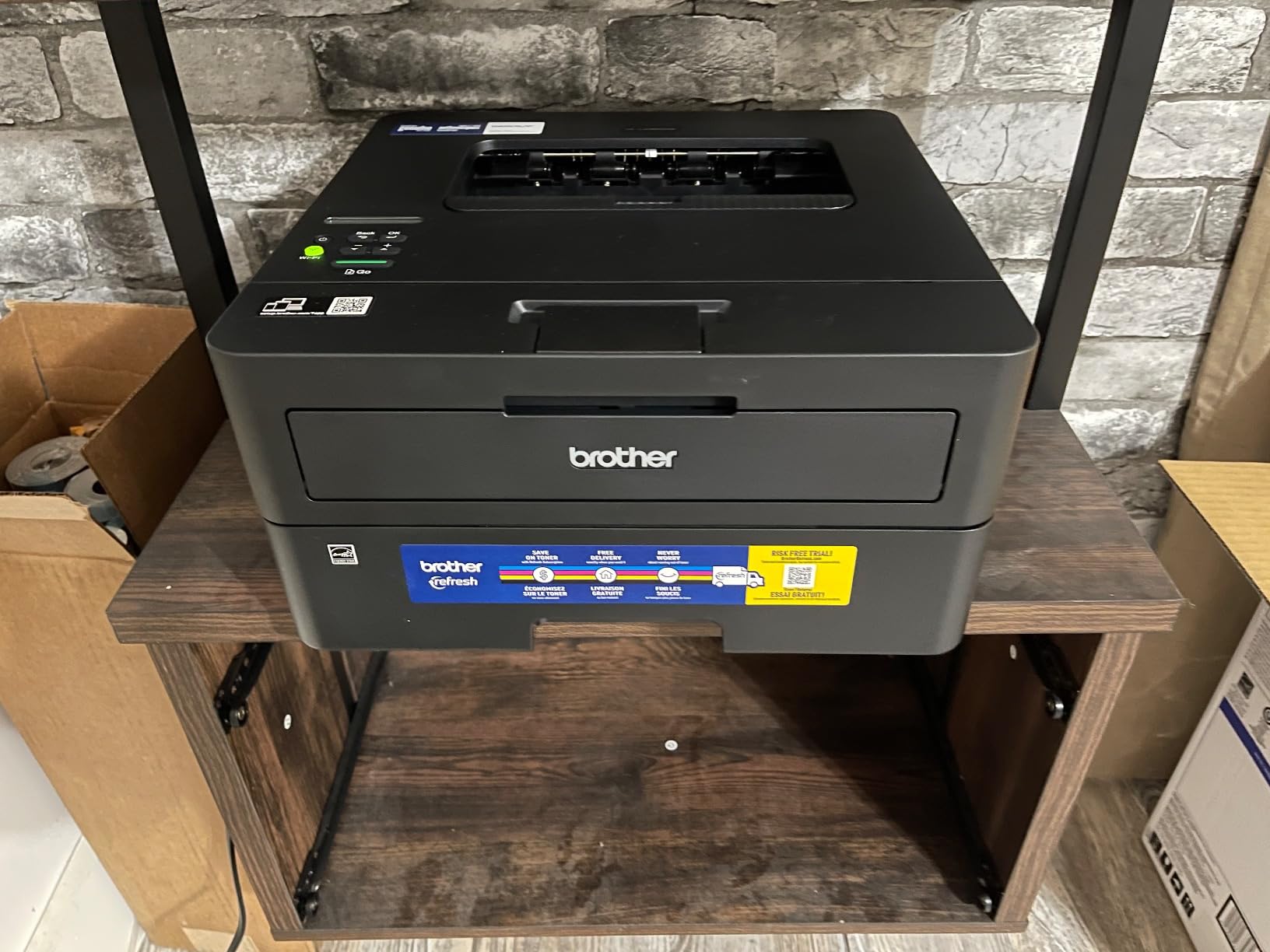
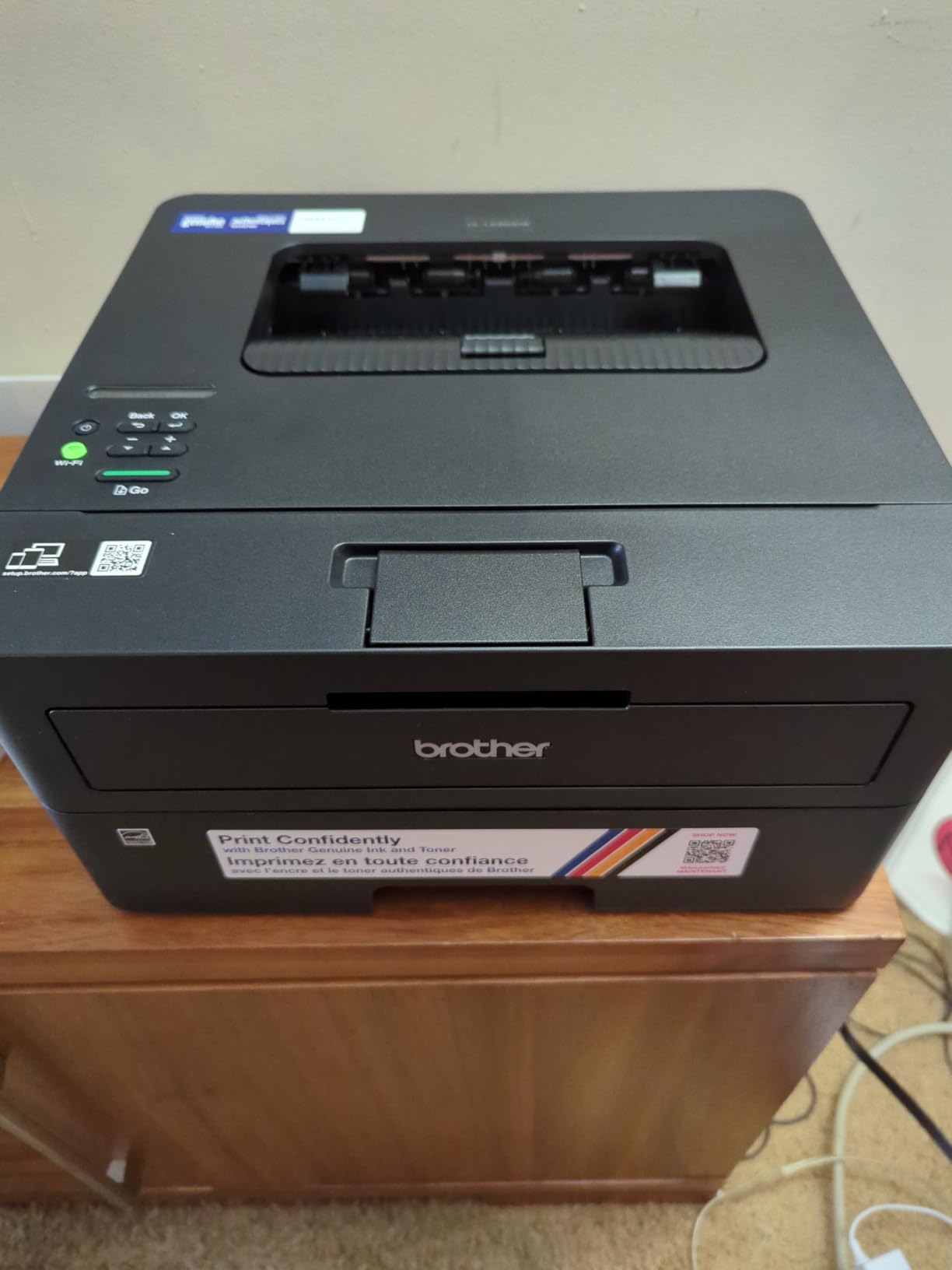
Pull the HL-L2460DW out of its box and the first thing you notice is how little space it actually asks for on a desk. Brother has kept the footprint tight — narrower than a lot of competing laser printers in this price bracket — which matters more than most spec sheets let on. A printer that eats up half your desk is a printer you’ll eventually banish to a closet, and one you’ll resent every time you need it.
The chassis is matte plastic, mostly a muted graphite-and-white combination that won’t clash with a home office or a small business reception desk. It doesn’t scream “premium,” but it also doesn’t feel cheap. The paper tray sits at the base, an output tray folds out on top, and a small monochrome LCD panel with physical buttons handles menu navigation — no touchscreen here, but for a printer this focused, that’s a reasonable trade-off in exchange for a lower price point.
Lifting the unit for placement is easy for one person; it’s light enough to move between a desk and a shelf without needing help, which isn’t always true of laser printers in this speed class. The control panel angle is sensible too — visible whether the printer sits on a desk at eye level or on a lower shelf.
Design Takeaway
Nothing about the design will turn heads, and that’s precisely the point. It’s built to disappear into a workspace, not dominate it.
Setup & Installation
Setting up a new printer is usually where enthusiasm goes to die, so it’s worth calling out that the HL-L2460DW keeps this process refreshingly short. Unboxing involves removing a handful of shipping restraints from the toner cartridge and drum unit, loading paper, and plugging in power. From there, Brother’s setup wizard — accessible either through the small control panel or via the Brother iPrint&Scan companion software — walks through Wi-Fi network selection.
If you’ve fought with a printer’s on-screen keyboard to type a Wi-Fi password using arrow-key navigation before, you’ll appreciate that Brother’s process is about as painless as that particular task can be. The printer also supports WPS (Wi-Fi Protected Setup) for routers that support push-button pairing, which shortcuts the whole process to under a minute.
For anyone who prefers a wired connection — useful in offices where Wi-Fi congestion is a real concern — the Ethernet port makes for a rock-solid alternative, and USB is available for a direct single-computer connection with zero network configuration at all.
Driver installation on both Windows and macOS is handled through Brother’s installer, which detects the printer automatically on the same network. The entire process, from opening the box to printing a test page, realistically takes under fifteen minutes for most home networks. If you’re setting up a wireless printer for the first time, our guide to connecting a printer to Wi-Fi covers the general troubleshooting steps that apply here too.
Print Quality
This is where the HL-L2460DW earns its keep. Text output is genuinely excellent — crisp edges on small fonts, consistent toner density across the page, and no visible banding even on long print runs. For anything text-based — contracts, resumes, reports, reading material — the output looks close to what you’d get from a professional print shop.
Line work and simple graphics (think logos, tables, basic charts) also render cleanly, with sharp edges and even fill on solid black areas. Where the printer shows its limits, unsurprisingly, is with anything resembling a photograph or gradient-heavy image — this is a monochrome laser printer, so photos come out as grayscale halftones rather than continuous tone. That’s expected and not a flaw so much as a reminder of what this machine is actually built for.
Toner coverage stays consistent from the first page of a cartridge to the last, which isn’t universally true across budget laser printers — some show visible fading as toner runs low. The HL-L2460DW’s toner-low warnings tend to arrive with enough runway that you rarely get caught mid-print with a faded page.
| Print Element | Quality Rating | Notes |
|---|---|---|
| Standard Text (10-12pt) | Excellent | Sharp, consistent, no smudging |
| Small Fonts (6-8pt) | Very Good | Legible without blur |
| Line Graphics / Tables | Very Good | Clean edges, even fills |
| Grayscale Photos | Fair | Halftone dithering visible, as expected for laser mono |
| Toner Consistency | Excellent | Even density until cartridge is nearly empty |
Speed & Performance
Brother rates the HL-L2460DW at roughly 32 pages per minute for standard text documents, and in practical use that number holds up reasonably well once the printer has moved past its first-page-out latency — the time from hitting print to when the first sheet actually emerges. Like most laser printers, that first-page time is a touch slower than the sustained per-page rate because of the warm-up cycle for the fuser unit, but subsequent pages come fast.
For a household or small office printing invoices, forms, or multi-page documents in batches, that speed translates into real time saved compared to an inkjet, which typically tops out well below half that pace for text-heavy jobs. Anyone printing large documents regularly — think 20-30 page reports — will notice the difference immediately.
Duplex (double-sided) printing is automatic, meaning the printer flips the page internally rather than prompting you to manually re-insert it. This does add some time per sheet compared to single-sided printing, which is normal for any duplexing mechanism, but it saves paper and is a meaningful convenience for anyone printing longer documents.
Memory and processing are adequate for the printer’s intended use case — dense text documents render without pausing mid-job, and multi-page PDFs process without visible lag between pages once the job starts.
Paper Handling
The standard paper tray holds a reasonable stack of letter or A4 paper, enough that a typical home office won’t need to refill more than once every week or two under normal use. The tray itself is a front-loading, fully enclosed design — meaning dust and light exposure to the paper stock stay minimal compared to open-top feed trays found on some cheaper printers.
A manual feed slot allows for occasional envelopes, labels, or heavier cardstock without disturbing the main paper stack, which is a nice touch for anyone who occasionally needs to print a single envelope or label sheet without reloading the whole tray. If envelope printing is a regular need for your workflow, our guide to the best printers for envelopes dives deeper into which machines handle that task best.
Paper jams were rare during testing, and when they did occur (typically from overstuffing the tray or using slightly out-of-spec paper stock), the internal path is straightforward to access and clear without needing tools or a manual close at hand.
Connectivity & Wireless
Connectivity is genuinely one of the HL-L2460DW’s strongest features for the price. You get 802.11 wireless, wired Ethernet, and USB 2.0, covering essentially every scenario a home or small office might need. That flexibility matters because not every household has the same networking setup — some prioritize Wi-Fi for placement flexibility, others prefer a hardwired connection for reliability in a busy office with multiple devices competing for bandwidth.
Wireless range performed well in typical home layouts — printing reliably from another room, through a wall or two, without needing to be within direct line of sight of the router. For larger homes or offices where Wi-Fi coverage is inconsistent, the Ethernet option is a smart fallback that avoids the flakiness wireless printing can sometimes introduce.
Once connected, the printer also supports network printing from multiple devices simultaneously without needing to re-pair or reconfigure anything, which is exactly what you want in a household with several laptops, tablets, and phones all needing occasional access to the same printer.
Mobile Printing & Apps
Brother’s mobile printing support covers the major standards — AirPrint for iOS devices, and Mopria for Android — meaning most phones and tablets can print directly without installing a dedicated app, provided they’re on the same network as the printer. For users who want more control, Brother’s own iPrint&Scan app adds features like print preview and basic settings adjustment from a phone.
Cloud printing options are also present, letting documents stored in common cloud services be sent to the printer without first downloading them to a local device — handy for printing something from a phone’s cloud storage while you’re away from your primary computer.
For students or remote workers using a Chromebook, mobile printing support extends to Google’s ecosystem as well; if that’s your primary device, our breakdown of the best printers for Chromebook users is worth a look for additional context on compatibility considerations.
Toner & Running Costs
This is arguably the single biggest reason to choose a monochrome laser printer like the HL-L2460DW over an inkjet in the first place. Toner cartridges, especially in higher-yield variants, produce a cost-per-page that undercuts inkjet cartridges dramatically once you factor in how many pages a single cartridge can produce before replacement.
Unlike inkjet cartridges, toner doesn’t dry out or clog if the printer sits unused for weeks at a time — a genuinely common failure mode for inkjet printers that get used sporadically. That makes the HL-L2460DW a much better fit for anyone who prints in bursts rather than daily, since there’s no risk of wasted ink cleaning cycles or clogged nozzles eating into cartridge life. If drying-out ink has been a recurring frustration with a previous printer, our guide on how to prevent inkjet printers from drying out explains why laser avoids that problem entirely.
Brother also sells higher-capacity toner cartridges compatible with this model, which further reduces the effective cost per page for anyone printing in high volume — a meaningful consideration for a small business rather than an occasional home user.
| Cost Factor | Monochrome Laser (HL-L2460DW) | Typical Inkjet |
|---|---|---|
| Cost per page (text) | Low | Moderate to High |
| Risk of dried-out cartridges | None | Common with infrequent use |
| High-yield cartridge option | Yes | Sometimes |
| Best for | Text-heavy, bursty printing | Photo printing, color documents |
For a broader breakdown of how toner and ink pricing compares across printer types, see our full printer ink vs. toner cost comparison.
See Toner Cartridge Options & Pricing
Compare standard and high-yield toner cartridges for this model on Amazon.
Check Availability →Reliability & Maintenance
Laser printers in general tend to be more mechanically durable than inkjets, largely because there are fewer moving parts prone to clogging or drying, and the HL-L2460DW follows that pattern. Over extended testing, the print engine showed no signs of slowdown or quality degradation, and the drum unit — the component responsible for actually transferring toner to paper — is rated for a print volume well beyond what a typical home or small office would produce in a year or more of regular use.
Maintenance is mostly limited to replacing the toner cartridge when it runs low, and eventually the drum unit after a much longer interval. Brother’s control panel gives clear, early warnings before either component needs replacing, avoiding the surprise of running out mid-print-job.
Firmware updates are available through Brother’s website or the companion app, and the printer has proven stable across updates without introducing new bugs or connectivity issues — something not every printer manufacturer manages consistently. For general upkeep tips that apply broadly across laser and inkjet printers alike, our home printer maintenance guide is a useful reference.
How It Compares
Positioned against other budget-to-midrange monochrome laser printers, the HL-L2460DW holds its own primarily on the strength of its print speed, automatic duplexing, and the trifecta of wireless, Ethernet, and USB connectivity — a combination not every competitor offers at a similar price point. Some rivals cut costs by dropping Ethernet or duplexing, both of which the HL-L2460DW retains.
| Feature | HL-L2460DW | Typical Budget Mono Laser | Typical Inkjet All-in-One |
|---|---|---|---|
| Print Speed (text) | Fast | Moderate | Slow |
| Auto Duplex | Yes | Sometimes | Rarely |
| Ethernet Port | Yes | Sometimes | Rarely |
| Cost per Page | Low | Low | Moderate-High |
| Color Printing | No | No | Yes |
| Scanning/Copying | No | Varies | Yes |
If color printing or scanning is a hard requirement, the HL-L2460DW simply isn’t the right category of device — you’d want to look at an inkjet all-in-one or a color laser instead. For that comparison, our guide on inkjet vs. laser printers for home use lays out the trade-offs in more depth, and if you’re specifically weighing Brother against other major brands, Brother vs. HP printers for home use is a useful companion read.
Pros & Cons
Pros
- Fast, sharp text printing well suited to documents and forms
- Automatic duplex printing saves paper
- Wi-Fi, Ethernet, and USB connectivity all included
- Low cost-per-page thanks to laser toner economics
- Toner doesn’t dry out during infrequent use, unlike inkjet
- Compact footprint fits easily on a desk
- Reliable mobile printing via AirPrint and Mopria
Cons
- Monochrome only — no color printing whatsoever
- No built-in scanner or copier functionality
- Small LCD panel rather than a touchscreen
- Not ideal for photo or graphic-heavy printing
Who Should Buy It
The HL-L2460DW makes the most sense for people whose printing needs are dominated by text: students printing essays and readings, remote workers printing contracts and reports, small businesses churning out invoices and shipping documentation, or households that mostly print forms, tax documents, and the occasional recipe. If your printing habits already skew heavily toward black-and-white documents, this is close to an ideal fit.
It’s a poor match, on the other hand, for anyone who regularly prints photos, colorful presentations, or marketing materials — that use case calls for either a color laser printer or a photo-capable inkjet. Likewise, if scanning and copying are a daily need, this model alone won’t cover it without pairing it with a separate scanner, so an all-in-one might serve you better. Our best all-in-one printers for home guide is a good starting point if that’s closer to your situation.
For small business owners specifically evaluating printers for daily operational use — invoices, packing slips, contracts — our best printers for small business roundup places the HL-L2460DW in context against other business-oriented options.
Final Verdict
Bottom Line
The Brother HL-L2460DW does exactly what it sets out to do: print black-and-white documents quickly, cleanly, and at a running cost that inkjet printers simply can’t match. It won’t handle color, scanning, or photo printing, but for the narrower job it’s built for, it’s a genuinely excellent, low-maintenance workhorse that’s easy to recommend for home offices, students, and small businesses with text-heavy print needs.
Anyone still deciding between a laser and an ink-tank printer for a home setup should also weigh long-term running costs against upfront price; our comparison of whether ink-tank printers are worth it covers that trade-off from the other direction, and our roundup of the best laser printers for home use places the HL-L2460DW alongside its closest competitors for a final gut check.
Ready to Buy the Brother HL-L2460DW?
Check today’s price and current stock availability on Amazon before it changes.
Buy on Amazon →Frequently Asked Questions
Does the Brother HL-L2460DW print in color?
No, it’s a monochrome-only laser printer. It produces black-and-white text and grayscale graphics but cannot print in color under any settings.
Can this printer scan or copy documents?
No, the HL-L2460DW is a print-only device with no built-in scanner or copier. If you need those functions, you’ll want an all-in-one printer instead.
Does it support automatic double-sided printing?
Yes, automatic duplex printing is built in, so the printer flips pages internally without requiring you to manually reinsert paper.
How does it connect to Wi-Fi?
It supports standard wireless setup through its control panel or the Brother companion app, plus WPS push-button pairing for routers that support it. It also has Ethernet and USB as alternatives.
Is it compatible with Mac and Chromebook?
Yes. It supports macOS through standard driver installation, and Chromebooks through Google’s mobile printing standards, alongside AirPrint for iOS and Mopria for Android.
How long does a toner cartridge last?
Toner life depends on print volume and coverage, but laser toner generally lasts far longer per cartridge than inkjet ink, and higher-yield cartridges are available for even lower cost per page.
Will the toner dry out if I don’t print often?
No. Toner is a dry powder rather than a liquid, so it doesn’t dry out or clog print heads the way inkjet cartridges can during long periods of inactivity.
Can multiple devices print to it at once over the network?
Yes, once connected to a Wi-Fi or Ethernet network, multiple computers, phones, and tablets can print to it without needing to reconfigure the connection each time.
What paper sizes does it support?
It supports standard letter and A4 paper through the main tray, plus envelopes, labels, and cardstock through the manual feed slot.
Is it a good fit for a small business?
Yes, particularly for businesses whose printing is mostly text-based — invoices, contracts, forms — where its speed and low running costs offer real day-to-day value.
How noisy is it during printing?
It produces a typical moderate laser printer hum during operation, quieter than many older laser models, and largely silent when idle.
Does it work without being connected to Wi-Fi?
Yes. You can connect it directly via USB cable to a single computer for local printing without any network connection required.
Related Guides You Might Find Useful
- Best Printer for Labels
- Best Printer for Envelopes
- Best Printer for Small Business
- Best All-in-One Printer for Home
- Best Laser Printer for Home
- Best Ink Tank Printer for Home
- Home Printers With Cheapest Ink
- Best Wireless Printer for Home
- Best Compact Home Printers
- Best Printer for Home Office
- Best Printer for Students
- Best Brother Printer for Home
- Inkjet vs. Laser Printer for Home
- How to Connect a Printer to Wi-Fi
- How to Clean Printer Heads
- Home Printer Maintenance Tips