Canon PIXMA TS Series Review: Which Model Actually Deserves a Spot on Your Desk?
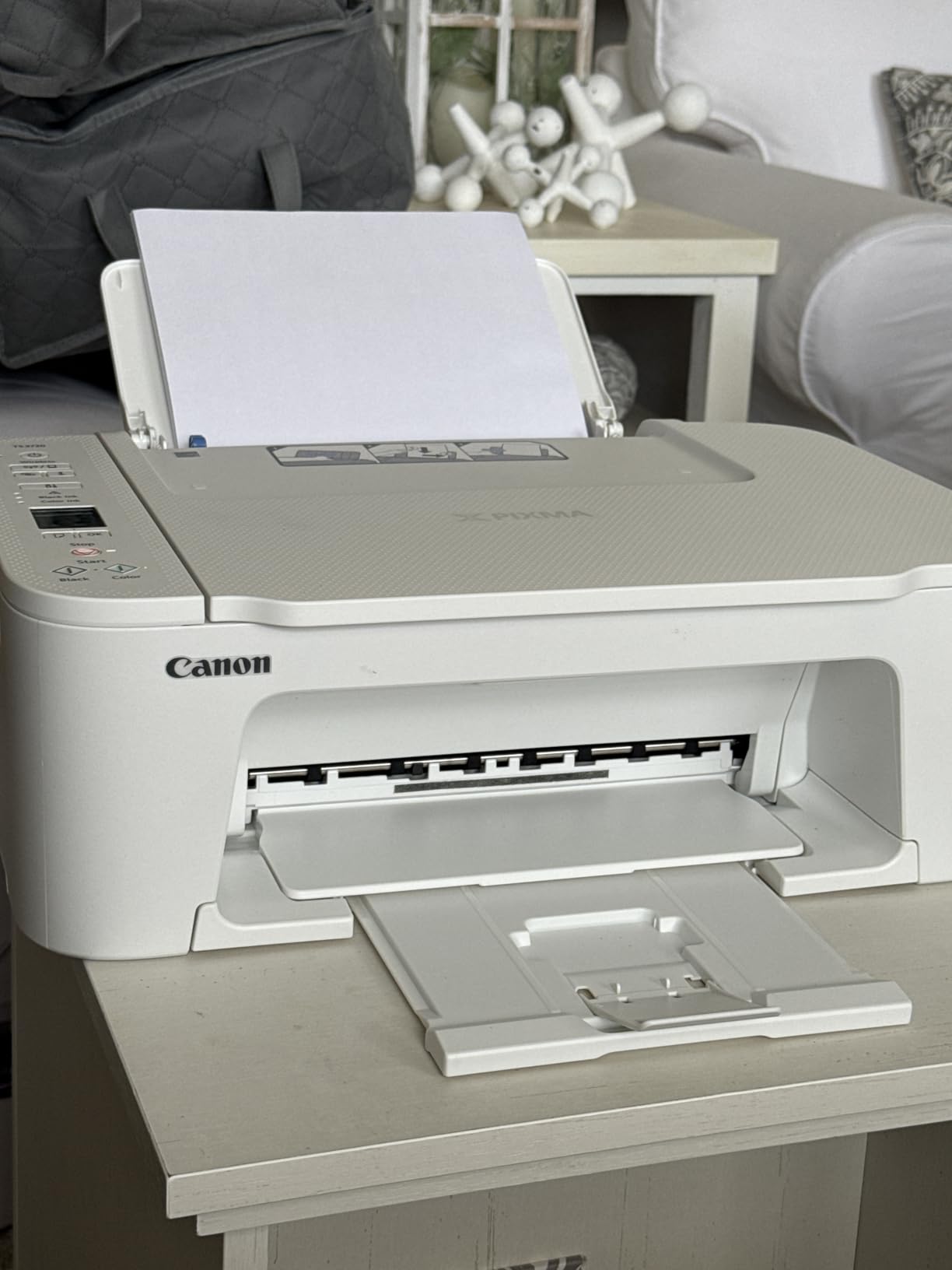
The Canon PIXMA TS lineup is one of the most confusing product families in the home printer world — not because any single model is bad, but because there are so many of them, spread across so many price points, that picking the “right” one feels like a guessing game. This review breaks down the entire TS series in plain language: what each model actually does well, where corners get cut, and which one fits your specific situation, whether that’s printing school assignments, greeting cards, or the occasional boarding pass.
Canon PIXMA TS Series Overview
Canon’s PIXMA TS series sits in the sweet spot between bare-bones budget printers and the more expensive MegaTank and Pro lineups. Every model in this family uses Canon’s five- or six-ink FINE cartridge system, produces genuinely good photo output for the price, and is built around the idea that a home printer should be small enough to live on a desk without dominating it. That said, “TS series” isn’t a single product — it’s a family that spans everything from a $60 basic all-in-one to a $300 photo-focused machine with a dedicated photo cartridge.
What makes this review useful is that we’re not just talking about specs on a page. We’re looking at how these printers behave in the real situations people actually buy them for: a parent printing school forms and photos, a small home office churning out invoices, or a hobbyist who wants borderless 4×6 prints without hauling a photo printer out of a closet. If you’re also weighing whether an inkjet is even the right category for your needs, our inkjet vs laser printer comparison is worth a detour before you commit to any TS model.
One thing worth setting expectations on upfront: none of these are “professional” printers in the sense of a dedicated photo lab machine or a high-volume office laser. They’re consumer-grade inkjets designed for homes, and every one of them makes trade-offs somewhere to hit its price point. The trick isn’t finding a flawless printer — it’s finding the one whose trade-offs line up with what you actually do most often. A household that prints twenty photos a month and three documents a year should be shopping from a completely different shortlist than one that prints thirty pages of homework a week and almost never touches a photo.
It’s also worth noting that Canon periodically refreshes trim levels and bundle configurations within the TS series, so exact accessory inclusions (extra cartridges, cables, or trial ink) can vary slightly by retailer and by when you’re buying. The core hardware differences described in this review — ink channels, paper trays, screens, and scanning capability — are the reliable constants to shop around, regardless of which specific bundle you land on.
Meet the Lineup
Before diving into each printer individually, it helps to understand how Canon organizes this family. The TS series isn’t numbered in a strictly logical way, so here’s the plain-English breakdown of where each model sits.
If you already know roughly what you need — say, a compact printer for a small apartment or a machine that won’t chew through ink — you might find it faster to jump straight to our curated picks in best compact home printers or home printers with the cheapest ink. Otherwise, let’s go model by model.
Canon PIXMA TS4320: The Budget All-Rounder

Compact wireless all-in-one with print, scan, copy, and a small ADF — built for everyday home printing on a tight budget.
Check Price on AmazonThe TS4320 is Canon’s answer to the question “what’s the cheapest printer that still does everything a household actually needs?” It prints, scans, and copies, and unlike some rock-bottom models, it includes a small automatic document feeder, so you’re not manually flipping pages one at a time when you need to scan a stack of paperwork. It won’t win any speed awards, and photo output is fine rather than spectacular, but for text documents, forms, and the occasional snapshot, it does the job without drama.
Where the TS4320 Shines
Setup is genuinely simple — Canon’s app walks you through Wi-Fi pairing in a few minutes, and if you’ve set up any Canon printer before, our guide to connecting a printer to Wi-Fi covers the general process step by step. The control panel is a small monochrome screen, which keeps the price down without making the printer feel cheap to operate.
Where It Falls Short
There’s no duplex (two-sided) printing built in automatically on every configuration, paper capacity is modest at around 100 sheets, and print speeds hover in the single digits for pages per minute. If your household prints in bulk, this isn’t the machine — check our best printer for small business guide instead.
Pros
- Very affordable upfront cost
- Includes automatic document feeder
- Simple wireless setup via Canon PRINT app
- Compact footprint for small desks
Cons
- Slower print speeds than mid-range models
- Small paper tray capacity
- Basic monochrome LCD, no touchscreen
Best suited for light home use — students, small apartments, and anyone who prints occasionally rather than constantly.
View Current PriceCanon PIXMA TS6520: The Well-Rounded Mid-Ranger

A step up in build quality, screen size, and print output — a strong middle-ground pick for families.
Check Price on AmazonThe TS6520 is where the PIXMA TS lineup starts to feel like a “real” printer rather than a bare-minimum appliance. It steps up to a color touchscreen, faster print speeds, and noticeably better photo output thanks to a five-ink system with a dedicated photo blue cartridge in some configurations. This is the model we’d point most families toward if budget isn’t the only deciding factor.
Everyday Usability
The touchscreen interface makes navigating settings, selecting paper types, and running scans far less fiddly than the button-and-LCD combo on the TS4320. If your household splits time between schoolwork, the occasional photo print, and PDFs from email, this model absorbs all of it without friction. It also pairs well with mobile printing, so if you’re printing mostly from a phone or tablet, setup is nearly identical to what’s outlined in this wireless setup walkthrough — the steps translate across brands.
Photo and Document Balance
Text documents print crisp and dark, which matters more than people expect — cheap inkjets sometimes render black text with a slight gray tinge. Photos benefit from the extra ink channel, producing noticeably smoother gradients in skies and skin tones compared to the entry-level TS3720.
| Feature | TS6520 Detail |
|---|---|
| Display | Color touchscreen |
| Ink system | 5-ink FINE cartridges |
| Connectivity | Wi-Fi, USB, mobile printing |
| Best for | Families balancing documents and photos |
Pros
- Color touchscreen simplifies navigation
- Better photo quality than entry models
- Strong all-around document performance
- Reliable wireless connectivity
Cons
- Ink costs add up with heavy photo printing
- No built-in fax
- Paper tray still modest for a mid-range unit
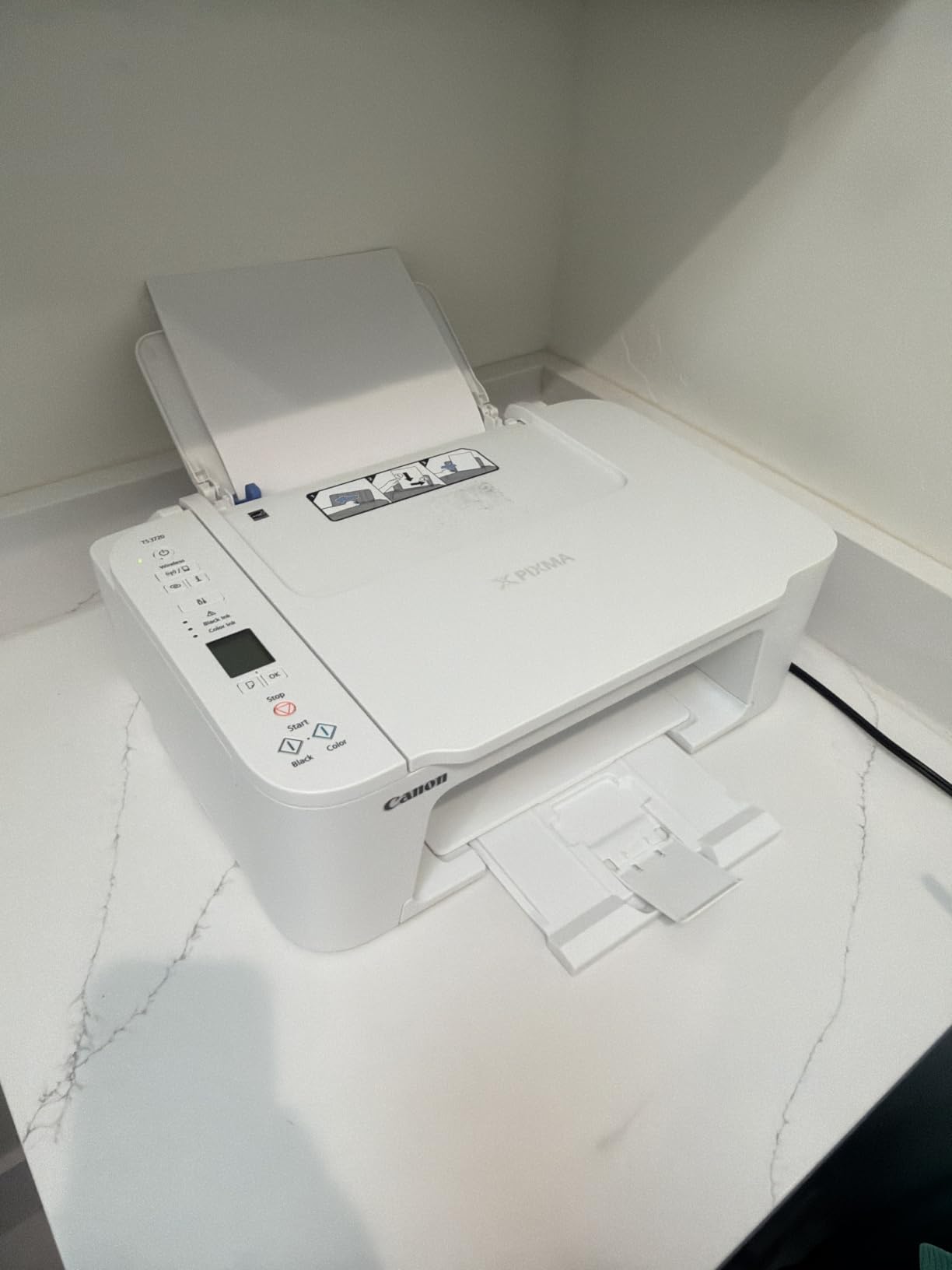
Canon PIXMA TS3720: The Bare Essentials

The most affordable model in this lineup — print, copy, and scan without the extras.
Check Price on AmazonThe TS3720 strips things down to the essentials: print, scan, copy, done. There’s no automatic document feeder, no touchscreen, and no fax. What you get instead is Canon’s most accessible entry point into the PIXMA line, ideal for anyone who prints rarely and doesn’t want to pay for features they’ll never use.
Who This Actually Fits
Students in dorm rooms, retirees who print a handful of documents a month, or anyone setting up a secondary printer in a home office fits this model well. If you’re weighing this against similarly priced alternatives, our home printers worth buying guide puts it in context against competing budget picks.
The Trade-Offs
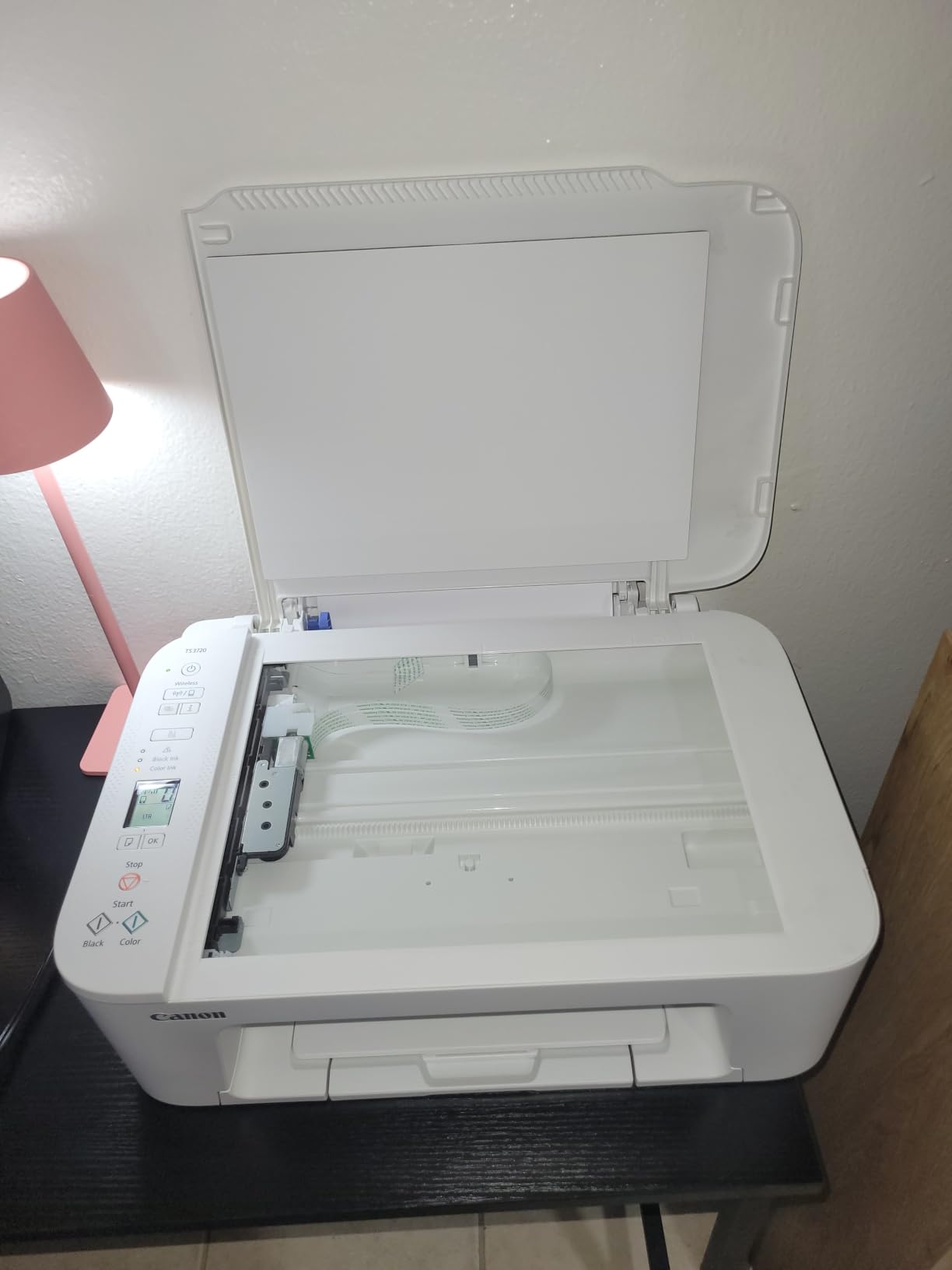
Because there’s no ADF, scanning multi-page documents means lifting the lid and repositioning pages manually each time — tedious if you do it often, a non-issue if you don’t. Print speed is also on the slower end, so it’s not the printer for anyone regularly printing long reports.
Pros
- Lowest price point in the TS lineup
- Compact and lightweight
- Simple enough for anyone to operate
Cons
- No automatic document feeder
- No touchscreen or fax
- Slower than mid-range and premium models
Canon PIXMA TS702a: The Business-Leaning Outlier

A print-only model built for speed and volume rather than scanning or copying.
Check Price on AmazonThe TS702a is the odd one out in this lineup because it drops the “all-in-one” label entirely — there’s no scanner, no copier, just a printer. In exchange, you get faster print speeds, a larger paper capacity, and automatic duplex printing built in as standard, which makes it a genuinely appealing option for a small home office that already has a separate scanner or doesn’t need one.
Built for Output, Not Multitasking
If your printing needs revolve around invoices, letters, labels, or envelopes rather than family photos, the TS702a’s higher-capacity trays and quicker output make it feel more like a small business tool than a home appliance. It pairs particularly well with recurring print jobs — for label and envelope printing specifically, see our dedicated guides on the best printer for labels and the best printer for envelopes.
The Catch
No scanning means you’ll need a separate device (or a phone scanning app) for digitizing documents, and there’s no photo-specific ink channel, so it’s not the pick if photo printing matters to you at all.
Pros
- Faster print speeds than most TS models
- Automatic two-sided printing built in
- Larger paper capacity, better for volume
Cons
- No scanner or copier
- Not designed for photo printing
- Larger footprint than compact TS models
Canon PIXMA TS7720: The Premium Home Choice

Six-ink system, front and rear paper trays, and a touchscreen — Canon’s most complete home all-in-one in this lineup.
Check Price on AmazonThe TS7720 is the model that makes the strongest case for stepping up from the TS6520. It adds a dedicated photo black ink cartridge alongside the standard color set, giving it a genuine six-ink system that produces noticeably richer photo prints — deeper blacks in particular, which is where cheaper printers usually struggle most.
Dual Paper Trays Matter More Than You’d Think
One underrated feature here is the rear specialty tray sitting alongside the front cassette. That means you can keep plain paper loaded for everyday printing while feeding photo paper or cardstock from the rear tray without swapping trays every time you switch jobs. It’s a small convenience that adds up if you print a mix of content regularly.
Everyday Performance
Text documents print quickly and cleanly, and the touchscreen interface is more responsive than the one on the TS6520. If print quality across both text and photos is your priority and you don’t want to jump all the way to a dedicated photo printer, this is likely the sweet spot in the lineup. It’s also a strong match for home offices — see how it stacks up in our best printer for home office roundup.
| Feature | TS7720 Detail |
|---|---|
| Ink system | 6-ink FINE cartridges with photo black |
| Paper handling | Front cassette + rear specialty tray |
| Display | Color touchscreen |
| Best for | Households prioritizing both photos and documents |
Pros
- Six-ink system with dedicated photo black
- Dual paper trays for mixed media
- Responsive touchscreen
- Strong all-around print quality
Cons
- Pricier than mid-range models
- Six cartridges to replace instead of five
- Larger footprint than entry-level units
Canon PIXMA TS9521Ca: Built for Crafters and Photo Enthusiasts

The most feature-loaded model here, with a disc tray, larger flatbed, and craft-friendly extras.
Check Price on AmazonThe TS9521Ca sits at the top of this particular lineup and is aimed squarely at people who print more than the average household — scrapbookers, small crafters, and photo hobbyists. It includes a printable disc tray for CDs and DVDs, a larger flatbed scanner that accommodates bigger originals, and the same six-ink system found on the TS7720, but paired with more paper handling flexibility.
Craft-Specific Extras
Being able to print directly onto printable discs is a niche feature, but for the audience that wants it, there’s genuinely no substitute. Combined with borderless printing support up to certain sizes, this model caters to people making custom cards, labels, and photo projects rather than just printing the occasional document.
Where It Sits Price-Wise
This is the most expensive model in the roundup, and that cost only makes sense if you’ll actually use the extras. For most households, the TS7720 covers 90% of what this printer does at a lower price. But for the specific crafting and photo-focused audience, the 9521Ca’s larger scanning bed and disc printing genuinely justify the upgrade. If photo output specifically is your main concern, it’s worth comparing against dedicated options in our best printer for photos at home guide.
Pros
- Printable disc tray included
- Larger flatbed for bigger originals
- Six-ink system with strong photo output
- Great for crafting and card-making projects
Cons
- Highest price point in this lineup
- Overkill for basic document printing
- Bulkier than other TS models
Side-by-Side Comparison
With six models spanning multiple price tiers, it helps to see them laid out together rather than one at a time. Here’s how the lineup compares on the factors that matter most day to day.
| Model | Scanner/Copier | Display | Ink Channels | Best For |
|---|---|---|---|---|
| TS3720 | Yes, no ADF | Basic LCD | 4-color | Light, occasional use |
| TS4320 | Yes, with ADF | Basic LCD | 4-color | Budget households |
| TS6520 | Yes, no ADF | Touchscreen | 5-color | Balanced family use |
| TS702a | No | Basic LCD | 4-color | Document/volume printing |
| TS7720 | Yes, no ADF | Touchscreen | 6-color | Photos + documents |
| TS9521Ca | Yes, large flatbed | Touchscreen | 6-color | Crafting & photo hobbyists |
A pattern emerges quickly: as you move up the lineup, you gain ink channels (better photo output), display quality (touchscreens over basic LCDs), and paper handling flexibility. The trade-off is always price and, in the case of the TS702a, the removal of scanning entirely in favor of speed.
It’s worth pointing out that this pattern isn’t unique to Canon — most manufacturers structure their home printer lineups the same way, trading scanning, screen quality, and ink channels against price. If you’re shopping across brands rather than committing to Canon specifically, our Brother vs HP comparison and Canon PIXMA vs HP Envy breakdown apply the same framework to competing lineups, which can help confirm whether Canon is actually the right ecosystem for your household before you commit to cartridges and accessories that are brand-specific.
Speed Differences in Practice
On paper, the print speed differences between these models look modest — a few pages per minute here or there. In daily use, though, that gap compounds. The TS702a, built without scanning to prioritize throughput, noticeably outpaces the TS3720 and TS4320 on long documents, which matters if you’re regularly printing multi-page reports rather than single sheets. The touchscreen models (TS6520, TS7720, TS9521Ca) sit in between, prioritizing balanced performance over raw speed in either direction.
Print Quality Deep Dive
Print quality across the TS series follows a predictable curve tied directly to the number of ink channels. The four-color models (TS3720, TS4320, TS702a) handle text and simple graphics well but show visible banding and muddier color transitions in photos, particularly in skies, skin tones, and gradients. The five-color TS6520 improves on this meaningfully, and the six-color TS7720 and TS9521Ca produce output that genuinely rivals dedicated photo printers for casual use.
Text Sharpness
Every model in the lineup, even the cheapest, produces sharp black text thanks to Canon’s pigment-based black ink formulation used across FINE cartridges. This is one area where you’re not really sacrificing much by going with the budget end of the range.
Color Accuracy and Photo Output
Once you’re printing actual photographs rather than documents, the differences become obvious. The extra photo black or photo blue channels on the higher-end models produce deeper shadows and smoother gradients that four-color printers simply can’t replicate, regardless of paper quality. If photo output is your main use case, don’t undersell yourself with the entry-level models — check our broader home photo printer recommendations for more context.
Ink Costs Explained
This is where the TS series gets a little tricky, because cartridge-based inkjets — even efficient ones — tend to cost more per page than ink-tank systems over time. If you print heavily, it’s worth reading our comparison on whether ink tank printers are worth it before committing to any cartridge-based TS model.
XL Cartridges Help
Every model in this lineup supports higher-capacity XL cartridges, which meaningfully reduce cost-per-page compared to standard cartridges, especially for households printing more than a few pages a week. If minimizing long-term cost is the priority, our cheapest home printer ink guide breaks down exactly how the math works across brands.
Preventing Waste
Inkjets left unused for weeks at a time are prone to clogged print heads, which wastes ink on cleaning cycles. If you print infrequently, our guide on preventing inkjet printers from drying out and our printer head cleaning walkthrough are worth bookmarking alongside any TS-series purchase.
Individual vs Combined Cartridges
One underrated cost factor across this lineup is that Canon’s FINE cartridges are individual per color rather than a single combined tri-color cartridge. That matters because it means you only replace the specific color that’s actually run out, rather than tossing an entire cartridge because one of its three colors is empty. Over the life of a printer, this individual-cartridge design typically saves money compared to combined-cartridge competitors, even if the upfront cartridge price looks similar on a shelf.
Setting a Realistic Monthly Ink Budget
A reasonable way to think about ongoing cost is to separate your printing into two buckets: routine text and light color printing, and dedicated photo printing. For the first bucket, even the entry-level TS3720 and TS4320 with standard cartridges keep costs modest for a typical household. It’s the second bucket — regular photo printing — where costs escalate quickly across every model in this lineup, since photo paper and higher ink coverage per page both add up. If photo printing is a recurring habit rather than an occasional treat, budgeting for XL cartridges from day one avoids the common trap of underestimating ongoing costs based on the printer’s sticker price alone.
Connectivity & Setup
All six models support Wi-Fi and mobile printing through the Canon PRINT app, and setup across the lineup is close to identical regardless of price tier. USB connections are also available on every model for a direct wired connection if you’d rather skip the network setup entirely.
Mobile and Cloud Printing
Canon’s app supports printing directly from cloud storage and mobile photo libraries, which is genuinely convenient for the photo-focused models like the TS7720 and TS9521Ca. If you’re printing primarily from a Mac, our best home printer for Mac guide covers driver compatibility specifics worth checking before purchase.
Troubleshooting Connectivity
Like most home printers, TS-series models can occasionally drop off the network. If that happens, our guides on why printers keep going offline and fixing a printer that isn’t responding cover the most common causes and fixes step by step.
Who Should Buy Which Model
With six models on the table, it’s worth boiling this down to plain recommendations based on actual use cases rather than specs alone.
If You Print Rarely and Want the Lowest Price
Go with the TS3720. It covers the basics without asking you to pay for features you won’t use.
If You Need a Document Feeder for Scanning Stacks of Paper
The TS4320 is the more sensible budget pick, since it’s the only entry-level model with an ADF included.
If You Want a Balanced Family Printer
The TS6520 hits the best value-to-feature ratio in the lineup, with a touchscreen and improved photo output over the entry models.
If You Print in Volume and Don’t Need Scanning
The TS702a’s speed and paper capacity make it the practical choice, especially for a small home office already covered elsewhere in our small business printer guide.
If Photos and Documents Both Matter
The TS7720 is the strongest all-rounder in the lineup and, for most people, the best long-term value at the premium end.
If You’re a Crafter or Serious Photo Hobbyist
The TS9521Ca’s disc printing and larger scanning bed make the extra cost worthwhile — but only for that specific use case.
If You’re Buying for Students or Dorm Rooms
Space and simplicity usually matter more than raw features in a dorm setting. The TS3720’s small footprint and low price make it a practical pick for this scenario, and our dedicated best printer for students guide covers additional considerations like portability and low-cost replacement ink that matter specifically in shared living situations.
If You’re Comparing This Against Other Brands Entirely
It’s reasonable to want a second opinion before committing to Canon’s ecosystem, since switching brands later means starting your ink cartridge investment over from scratch. If you’re still weighing Canon against Epson’s ink-tank systems specifically, our Epson EcoTank review offers a useful contrast point, particularly for anyone whose print volume is high enough that cartridge costs would outweigh a higher upfront tank-based purchase.
Paper Handling and Media Support
It’s easy to overlook paper handling when comparing printers on ink channels and touchscreens alone, but it quietly shapes the day-to-day experience more than most buyers expect. Every model in the TS lineup accepts standard letter and A4 paper without issue, but the differences show up once you start feeding photo paper, cardstock, or envelopes through the machine.
Single-Tray vs Dual-Tray Designs
The TS3720, TS4320, and TS702a all rely on a single front-loading tray, which means switching between plain paper and photo paper requires physically swapping the stack each time. That’s a minor annoyance for someone who prints one media type almost exclusively, but it becomes tedious fast if you regularly alternate between documents and photos in the same sitting.
The TS7720 and TS9521Ca solve this with a rear specialty tray that sits behind the front cassette. You can leave plain paper loaded in the front while feeding photo paper, cardstock, or envelopes from the rear, and the printer automatically pulls from the correct tray based on what you select in the print dialog. If envelope printing is part of your regular workflow, this dual-tray setup removes a genuine point of friction — something covered in more depth in our best printer for envelopes guide.
Borderless Printing Limits
Borderless printing — where the ink extends all the way to the paper’s edge with no white margin — is supported across most of the lineup but with size restrictions that vary by model. The four-ink machines typically top out at standard 4×6 and letter-size borderless prints, while the six-ink TS7720 and TS9521Ca extend that support to a slightly wider range of paper sizes, which matters if you’re printing custom greeting cards or larger photo prints at home.
Long-Term Maintenance and Reliability
A printer’s out-of-box experience is only half the story. What matters more over a two- or three-year ownership window is how easy the machine is to maintain, how often it needs intervention, and how gracefully it handles the inevitable clog or paper jam.
Print Head Longevity
Canon’s FINE cartridge system integrates the print head into the cartridge itself on some models and keeps it fixed in the printer on others, which affects long-term reliability in different ways. A fixed print head, found on most TS-series machines, tends to produce more consistent output over time but requires more diligent cleaning-cycle maintenance to avoid clogs, particularly with infrequent use. Our guide on cleaning printer heads walks through the exact process for TS-series machines specifically.
Cartridge Storage Between Uses
If you’re the kind of household that prints in bursts — heavy for a week around the holidays, then silent for two months — proper cartridge storage becomes genuinely important. Leaving cartridges installed but unused for extended stretches is usually fine, but if you ever remove them, storing them incorrectly can dry out the nozzles prematurely. Our guide on storing printer cartridges covers the do’s and don’ts in detail.
General Upkeep Habits
A handful of small habits go a long way toward extending any TS-series printer’s usable life: running a nozzle check every few weeks even during periods of low use, keeping the machine somewhere with stable temperature and humidity rather than a garage or unheated space, and avoiding third-party ink cartridges that aren’t calibrated to Canon’s print head specifications. Our broader home printer maintenance tips guide rounds out these habits with a few additional checks worth building into a routine.
Value for Money Across the Lineup
Price alone doesn’t tell the full value story with this lineup, because the gap between the cheapest and most expensive TS models isn’t just about features — it’s about how much of that feature set you’ll actually use. A household that only ever prints black-and-white text documents gets essentially zero added value from the TS9521Ca’s disc tray or six-ink photo system, no matter how impressive those features look on paper.
The more useful way to think about value here is cost-per-use over the printer’s lifetime rather than sticker price alone. A $60 printer that gets replaced in eighteen months because it can’t keep up with your needs isn’t actually cheaper than a $150 printer that comfortably lasts three or four years. If you’re unsure how your print volume compares to what these machines are rated for, it’s worth reviewing your recent print history — most home users significantly overestimate how much they’ll print and underestimate how much photo printing they’ll eventually want to do.
Where Most Buyers Get It Wrong
The most common mistake we see is buying strictly on upfront price and then discovering months later that ink replacement costs have erased any savings. This is especially true with the entry-level four-ink models if you didn’t opt for XL cartridges from the start. Before finalizing a purchase, it’s worth running the numbers using our ink versus toner cost breakdown, even though these are all inkjet models — the underlying math on cost-per-page still applies.
More Printer Buying Resources
Still narrowing things down? These related guides cover adjacent decisions worth thinking through alongside your Canon PIXMA TS choice.
- Best All-in-One Printer for Home
- Best Laser Printer for Home
- Best Ink Tank Printer for Home
- Best Wireless Printer for Home
- Best Printer for Students
- Best Printer for Crafting
- Brother vs HP Printers for Home
- Epson EcoTank vs HP Smart Tank
- Best Brother Printer for Home
- Canon PIXMA vs HP Envy
- Best HP Printer for Home Use
- Cost of Printer Ink vs Toner
- How to Store Printer Cartridges
- Home Printer Maintenance Tips
- Best Printer for Chromebook
- Epson EcoTank Printer Review
Frequently Asked Questions
Which Canon PIXMA TS model is the best all-around choice?
For most households, the TS7720 offers the best balance of photo quality, document performance, and paper handling without going all the way to the crafting-focused TS9521Ca.
Do all TS-series printers support wireless printing?
Yes, every model covered here supports Wi-Fi connectivity along with mobile printing through the Canon PRINT app, and USB is available as a wired backup option.
What’s the difference between the TS6520 and TS7720?
The TS7720 adds a sixth ink channel (dedicated photo black), a rear specialty paper tray in addition to the front cassette, and generally faster performance, at a higher price point.
Is the TS702a a good choice for a home office?
Yes, if you don’t need scanning. It trades away the scanner and copier for faster print speeds, larger paper capacity, and automatic duplex printing, which suits document-heavy home offices well.
Can any of these printers print borderless photos?
The five- and six-ink models (TS6520, TS7720, TS9521Ca) support borderless printing at common photo sizes with noticeably better results than the four-color entry-level models.
Which model has the automatic document feeder?
Of the models covered here, the TS4320 is the only entry-level unit with a built-in ADF, which matters if you regularly scan multi-page documents.
Are XL ink cartridges available for all these printers?
Yes, all models in this lineup support higher-yield XL cartridges, which lower the cost per page compared to standard cartridges for anyone printing regularly.
What’s the benefit of the disc tray on the TS9521Ca?
It allows direct printing onto printable CDs and DVDs, a niche but genuinely useful feature for anyone burning custom discs as gifts or for archival purposes.
Do these printers work with both Windows and Mac?
Yes, Canon provides drivers and the PRINT app for both platforms. Mac users should double check driver compatibility specifics in our dedicated Mac printer guide before purchasing.
How often should I run a print head cleaning cycle?
Only when you notice streaking or missing lines in test prints — running cleaning cycles too often wastes ink unnecessarily. Our print head cleaning guide covers the correct cadence.
Is a five- or six-ink system worth the extra cost over four-ink models?
If you print photos regularly, yes — the difference in gradient smoothness and shadow depth is noticeable. If you mostly print text documents, a four-ink model is perfectly adequate.
What happens if I don’t print for several weeks?
Inkjet print heads can dry out and clog with extended inactivity, which is common across all cartridge-based inkjets, not just Canon. Printing a test page periodically helps prevent this.
Final Verdict
There’s no single “best” Canon PIXMA TS printer — the right pick depends entirely on how you actually use a printer day to day. If you want the simplest, cheapest option that still gets documents on paper, the TS3720 or TS4320 will serve you well. If you want a genuine all-rounder that handles both family photos and everyday paperwork without complaint, the TS6520 or TS7720 are the smarter long-term investments. And if your printing habits lean into crafting, photography, or disc printing specifically, the TS9521Ca is built for exactly that audience, while the TS702a carves out its own lane for anyone who wants speed and volume without scanning.
Whichever model fits your situation, take a moment to compare current pricing before deciding — promotional pricing on these models shifts often enough that it’s worth checking before checkout. And if none of these six quite hit the mark once you’ve weighed everything against your actual printing habits, it’s worth widening the search rather than settling; our broader home printer buying guide can help you sanity-check the decision against models outside the PIXMA TS family before you commit.
Ready to pick your Canon PIXMA TS printer? Compare live pricing and availability now.
See Latest Prices on Amazon