Why Is My Printer Printing Blank Pages? Every Cause and the Fix for Each
You hit print, the machine whirs, warms up, feeds a sheet, and delivers a page with nothing on it. Here is how to work out exactly what is going wrong and get crisp text and images back.
Few printer problems are as irritating as a blank page. An error message at least tells you where to look. A blank sheet tells you nothing, wastes paper, and often arrives right before a deadline. The good news is that a printer that prints blank pages is rarely dead. In the large majority of cases, the cause is something ordinary: a cartridge that has run dry, a printhead crusted with dried ink, a strip of packaging tape nobody peeled off, or a setting that quietly changed.
This guide walks through every realistic cause, roughly in the order you should check them, and explains why each one produces a blank page in the first place. Understanding the mechanism matters, because it stops you from replacing parts that are perfectly fine. By the end you will know how to separate an ink problem from a software problem, how to tell whether the fault is in the printer or in the file, and when a repair stops making financial sense.
The Short Answer: What Usually Causes Blank Pages
Quick answer: A printer prints blank pages most often because the cartridges are empty, the printhead nozzles are clogged with dried ink, protective tape is still on a new cartridge, or the print job itself is empty or misconfigured. On laser printers, a missing or exhausted toner cartridge, a faulty drum, or a transfer problem is the usual culprit.
A blank page means the printer went through the physical motions of printing but no ink or toner reached the paper. That gives you only a few places where the chain can break. Either the printer had no data to draw (a software or file problem), or it had the data but nothing to draw with (a supply problem), or it had both but could not deliver the marks to the page (a hardware problem such as a blocked printhead or a failed transfer component).
The table below gives you a fast orientation before we go deeper into each cause.
| Symptom | Most likely cause | First thing to try |
|---|---|---|
| Blank pages after a period of not printing | Dried ink in the printhead | Run a cleaning cycle |
| Blank pages right after installing new cartridges | Tape or seal still attached, or cartridge not seated | Remove and reseat cartridges |
| Blank pages from one app only | Empty document, font, or export problem | Try printing a test page |
| Test page prints fine, documents do not | Software or driver issue | Reinstall the driver |
| Faded or partly blank pages that get worse | Low ink or partially clogged nozzles | Check ink levels and run a nozzle check |
| Laser printer outputs white pages | Toner empty, seal strip, or drum fault | Shake or replace the toner cartridge |
If you are new to troubleshooting, the simplest single test is to print the printer’s built-in self-test or nozzle check page directly from its control panel. That page bypasses your computer entirely. If it prints correctly, the printer hardware is basically healthy and the problem lives in your software, file, or connection. If it prints blank, the problem is inside the printer itself.
Keeping spare cartridges on hand saves a lot of guesswork when you need to rule out an empty one.
Browse Printer Ink CartridgesEmpty or Nearly Empty Cartridges
It sounds too obvious, yet running out of ink is the single most common reason for a blank page. What makes it confusing is that printers do not always behave the way you expect when supplies run out. Some models refuse to print at all and display a warning. Others continue feeding paper and printing “nothing” because the software sent the job before it registered that the cartridge was empty.
Why the ink level indicator can mislead you
Most printers estimate ink levels by counting the drops they have fired and comparing that number against an assumed cartridge capacity. They do not physically measure the remaining liquid. That means the indicator can be wrong, especially if you swapped cartridges, used a refilled one, or moved the printer. A gauge that shows a quarter full can still hide a cartridge whose sponge is already dry, and a cartridge that reads empty sometimes still holds usable ink.
Colour ink adds another twist. If your document is printing in black only, a black cartridge that is truly empty produces a fully blank page even though the colour cartridges are full. On the other hand, a black-and-white document may be printing partly using colour ink to build a composite black on some models, so an empty colour cartridge can also degrade or blank the page.
How to check properly
- Open the printer’s status screen or software utility and read the estimated levels for every individual cartridge.
- Print the printer’s own status or nozzle check page and look for missing colours or empty bars.
- Remove the suspect cartridge and look through any transparent window, or gently feel whether it seems weightless compared with a fresh one.
- Swap in a cartridge you know is full. If the blank pages stop, you have found the cause.
Running cartridges completely dry is also hard on the printer. An inkjet printhead relies on the ink flowing through it to stay cool, so firing the nozzles with no ink behind them can shorten the life of the head, especially on models where the printhead is built into the cartridge. Replace cartridges when the printer first warns you, rather than squeezing out every last page.
Cost is naturally part of this conversation. If you are replacing cartridges constantly, it may be worth reading our breakdown of the cost of printer ink versus toner or looking at options for a home printer with the cheapest ink so that a blank page is not also an expensive one.
Not sure which cartridge your model takes? Search by your exact printer model to avoid buying the wrong one.
Find Replacement CartridgesClogged Printheads and Dried Ink
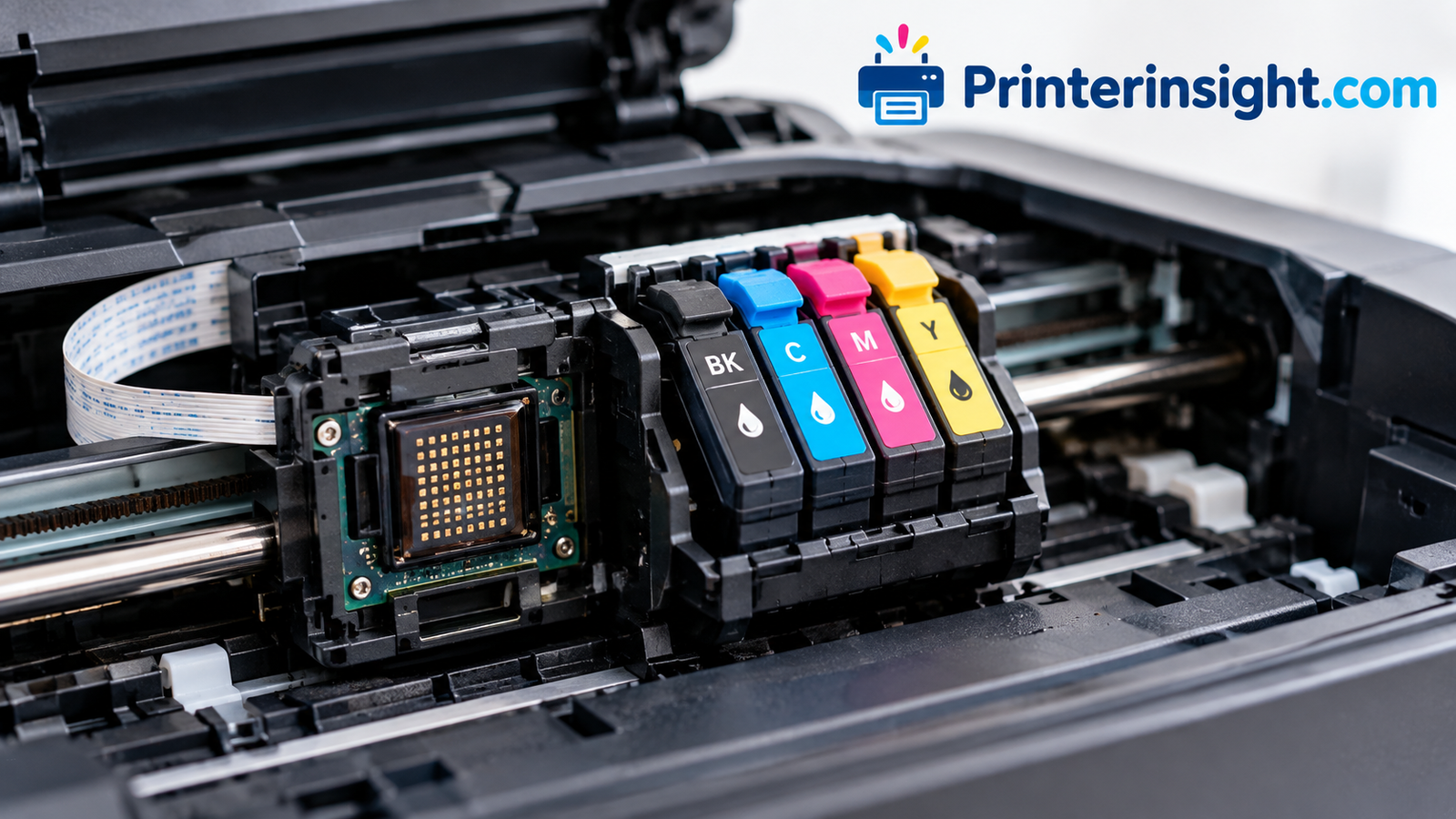
If your cartridges are full and you still get blank pages, the next suspect is the printhead. This is the part of an inkjet that actually sprays ink onto the paper through hundreds or thousands of microscopic nozzles. Each nozzle is far thinner than a human hair, which is why a tiny amount of dried ink can block it completely.
How ink dries out and blocks nozzles
Inkjet ink is mostly water and solvents carrying pigment or dye. When a printer sits idle, the ink at the nozzle tip is exposed to air and slowly evaporates, leaving a sticky plug of pigment behind. Low humidity, a warm room, a printer that has been switched off at the wall rather than by its power button, and long gaps between print jobs all speed the process. Once enough nozzles are blocked, the printer sprays nothing and you get a blank page.
This is why blank pages so often appear after holiday breaks, seasonal use, or a printer that only prints once a month. We cover the underlying habits in detail in our guide on how to prevent an inkjet printer from drying out.
Running the built-in cleaning routine
Almost every inkjet has a head cleaning or nozzle cleaning function, found in the printer’s maintenance menu or in the driver’s utility tab. It forces a small amount of ink through the head to dissolve the blockage. A sensible routine looks like this:
- Print a nozzle check pattern to see which colours are missing or broken.
- Run one standard cleaning cycle.
- Print the nozzle check again and compare it.
- If it has improved but is not perfect, wait a few minutes and repeat once or twice.
Go easy on repeated cleanings. Each cycle uses a noticeable amount of ink and sends waste ink to the maintenance pad. If three cycles produce no improvement, stop and switch to a gentler approach rather than burning through your cartridges.
If the built-in cleaning does not do it, a stubborn clog may need a manual approach. Our step-by-step piece on how to clean printer heads covers deeper methods, including soaking and wiping techniques, that work when software cleaning falls short. Also remember that printers with a printhead built into the cartridge are simpler in one respect: swapping in a fresh cartridge replaces the head as well.
A proper printhead cleaning kit is far cheaper than replacing a printer over a dried clog.
See Printhead Cleaning KitsProtective Tape, Seals, and Cartridges That Are Not Seated
Brand new cartridges ship with protection built in so the ink does not leak or dry during transport. Depending on the model, that could be a strip of plastic tape over the nozzle, a small plug in the ink vent, or a foil seal across the toner opening. Leave that protection in place and no ink can leave the cartridge. The printer will happily run through a full print job and return blank sheets.
What to look for
- Orange, clear, or coloured plastic tape covering the copper contacts or the nozzle plate on inkjet cartridges.
- Vent plugs or stickers on the top of some ink tanks that need to be peeled off for the tank to flow.
- Pull tabs or seal strips on toner cartridges that must be removed before first use.
- Orange caps on refillable tank bottles, which must be removed before ink flows.
Take each cartridge out and inspect it under good light. Be careful not to touch the copper contacts or the nozzle surface with bare fingers, because skin oils can interfere with the electrical connection and the ink flow.
Seating and chip recognition
A cartridge that is not fully clicked into place can also cause blank output. The printer may not detect it correctly, or the electrical contacts may not line up, so the head never fires. Push each cartridge in until you feel or hear a firm click, then close the cover and let the printer recognise everything before you print. If a cartridge is repeatedly flagged as not recognised, try wiping the contacts gently with a lint-free cloth.
This cause is easy to fix and very common among people who have just replaced ink. If your blank pages started immediately after a cartridge change, check here before anything else. It is also worth knowing how to handle spare stock properly, since cartridges that sit on a shelf badly can dry out before you ever install them. Our guide on how to store printer cartridges explains the best conditions to keep them working.
Lint-free wipes and a clean workspace make cartridge swaps safer for your printer.
Shop Lint-Free WipesPaper Type, Paper Loading, and Feed Problems
Sometimes the printer does its job perfectly and the fault lies with the paper. Because the marks are landing on the wrong surface or the sheet is being pulled through incorrectly, you end up with a page that looks blank even though ink was used.
Loaded the wrong way up
Most paper has a preferred printing face, and many printers print only on one side. If you load the paper upside down, the printer prints on the back of the sheet, and when you look at the front it appears empty. This happens most often after loading a fresh ream, using coated photo paper, or feeding paper through a rear tray. Check the paper icon on the tray or the printer’s manual for the correct orientation. Photo paper in particular is almost always glossy on the printing side.
Multiple sheets feeding at once
Humid paper, static electricity, or an overfilled tray can cause two sheets to stick together and feed through as one. The top sheet receives the ink, but you see the back sheet, which is blank. Fan the paper stack before loading it, avoid overfilling the tray, and store paper in a dry place away from damp walls and windows.
Wrong paper type or quality settings
The paper type setting tells the printer how much ink to lay down and how slowly to move. Choosing a heavy or glossy stock when you loaded plain paper, or the reverse, can produce washed-out or seemingly blank results. Match the setting in the print dialog to what is actually in the tray, and try a standard plain-paper, normal-quality setting first when troubleshooting.
Worn pickup rollers and dirty paper paths
Rollers that are worn smooth may grab the paper inconsistently, and paper dust can build up along the path. In rare cases the sheet skews and the print head fires before the paper arrives beneath it, leaving the page blank while ink lands in the platen area. If you notice ink smears inside the printer or odd feed sounds, a careful clean of the rollers with a slightly damp lint-free cloth can help.
Regular tidying prevents most feed problems, and our overview of home printer maintenance tips lists the small jobs worth doing every few weeks.
Good paper feeds cleanly and reduces double-feed errors and jams.
Shop Printer PaperThe Document Itself: Empty Files, Fonts, and Export Errors
Not every blank page is the printer’s fault. If your test page prints fine from the control panel but a particular document comes out empty, the printer is working and something about that file, or the way the app sends it, is wrong.
Check the print preview first
Always look at the print preview before sending a job. If the preview is empty, the problem is in the document, not the printer. Common causes include white text on a white background, text boxes set to hidden, content sitting outside the printable area, images that failed to load, or a page range that points to an empty page. A stray page break can also push an entire page of content off to the side, so the printer outputs pages that are technically part of the document but contain nothing.
PDF and web page quirks
PDFs with embedded fonts that are damaged, or files created by unusual tools, sometimes render blank when printed even though they look normal on screen. Web pages can behave the same way if a site uses print styles that hide the main content. Two workarounds often solve this: print the PDF as an image (most PDF readers offer a “print as image” option in the advanced settings) or use “Save as PDF” first, then print the new file.
Extra blank pages at the end
If your document prints correctly but adds a blank page at the end, the cause is almost always an empty paragraph or a hard page break after the last real line. Deleting the extra return or break normally fixes it. Some printers also add a separator page by default, which can be switched off in the printer properties.
Test with different apps and a fresh file
To isolate the issue, create a brand new document containing a single line of text and print it. Then try printing from a different application or a different device. If the fresh file prints while the original does not, the original is at fault. If nothing prints from the computer but the panel test page works, move on to drivers and connection.
Selecting the wrong destination is another sneaky reason for odd results, particularly on shared machines. If you have several printers installed, confirm your document is going to the one you expect. Our tutorial on how to change your default printer shows how to lock that down.
If your printer keeps giving you trouble, a reliable all-in-one can be a fresh start.
Compare All-in-One PrintersDrivers, Firmware, and Connection Problems
Between your document and the paper sits a chain of software: the application, the operating system’s print spooler, the printer driver, and the connection to the machine. A fault anywhere along it can result in a job that the printer accepts but renders as nothing.
Corrupted or outdated drivers
The driver translates your document into instructions the printer understands. After an operating system update, the old driver may still appear to work while quietly mishandling certain jobs. Blank output is a classic symptom. Removing the printer completely and installing a fresh driver from the manufacturer’s site is one of the most reliable fixes. We walk through the process in our guide to how to install printer drivers.
A stuck print queue
A damaged job can jam the spooler and cause every following job to print blank or not at all. Open the print queue, cancel all pending jobs, restart the print spooler service or simply restart your computer, and try a single fresh job. Power cycling the printer at the same time clears its own memory of the bad job.
Wireless and network hiccups
On a wireless printer, an unstable connection can corrupt the data stream and produce empty pages. If the printer keeps dropping off your network, you may also see it show as unavailable. Our articles on why a printer keeps going offline and what to do when a printer is not responding cover these connection faults in depth. If you need to reconnect from scratch, follow the guides on connecting a printer to Wi-Fi or connecting an HP printer to Wi-Fi.
Try a USB cable as a test
To decide whether the network is to blame, connect the printer directly to your computer with a USB cable and print again. If the same document prints properly over USB, the wireless connection is the weak point. If it is still blank, look at the driver or the printer itself.
Firmware
Manufacturers occasionally release firmware updates that fix print rendering bugs. Check the printer’s settings menu or the manufacturer’s support page for updates, and apply them while the printer is on a stable power and network connection. Interrupting a firmware update can cause bigger problems, so do not switch the machine off during the process.
A dependable wireless printer with strong Wi-Fi handling avoids many of these dropouts.
Shop Wireless PrintersBlank Pages on Laser Printers
Laser printers do not use liquid ink, so the causes look different. A laser printer builds the image using a charged drum, fine toner powder, and a fuser that melts the powder onto the page. A break anywhere in that process leaves you with a white sheet.
Empty toner or a sealed cartridge
Just as with inkjets, a new toner cartridge often has a sealing strip or tab that must be pulled out before use. If it is still in place, no toner reaches the drum. Empty toner is the other common cause. Before replacing a cartridge that reports low, remove it and rock it gently side to side a few times to redistribute the powder, which can squeeze out a few more pages.
Drum unit failure
The drum holds a static image that attracts the toner. If it is worn out, damaged, or not making proper electrical contact, it cannot hold the pattern, and pages emerge blank. Some printers use a separate drum unit while others combine drum and toner in one cartridge. Look for a drum warning on the display, and check the contacts for toner build-up.
Transfer roller and high-voltage problems
The transfer roller moves toner from the drum to the paper using an electrical charge. A dirty or worn roller, or a fault in the printer’s high-voltage supply, means the toner stays on the drum and the paper passes through clean. This is a less common cause and often points to a repair rather than a home fix.
Wrong or unrecognised toner
Cartridges with a chip that the printer refuses can occasionally cause blank output on models that lock out certain supplies. Confirm the toner is the correct model for your printer and is seated firmly.
Why laser is easier to keep healthy
- Toner does not dry out or clog like liquid ink
- Better tolerance for infrequent printing
- Fewer maintenance cleaning cycles
Where laser can trip you up
- Drum and fuser wear can mean pricey repairs
- Blank pages can point to internal electrical faults
- Toner seals and tabs are easy to miss
If blank pages keep tempting you to rethink your setup, it is worth reading our comparison of inkjet versus laser printers for home use. For steady, low-fuss printing, our picks for the best laser printer for home are a good place to start.
Make sure you buy toner made for your exact laser model.
Shop Toner CartridgesRefilled, Compatible, and Ink Tank Printer Issues
Not every ink source behaves like a genuine sealed cartridge. Refilled and third-party cartridges can work well, but they add a few extra ways for blank pages to appear.
Compatible and refilled cartridges
Cheaper cartridges vary widely in quality. Some have chips that the printer no longer recognises after a firmware update, and the printer may then treat them as empty or unusable. Others contain ink that dries faster or has a different viscosity, which can gum up the head. If blank pages started after you changed brands, test with a genuine cartridge to see whether the ink source is the cause.
Air locks in ink tank printers
Refillable tank printers use continuous ink supply systems. If a tank was drained low, or the printer was moved and tilted, air can enter the tubes and block ink from reaching the head. Running the manufacturer’s power cleaning routine often draws the ink through. Also check that the tank cap is properly closed but the air vent is not sealed, because a blocked vent stops ink flow.
Overfilling and leaks
Filling a tank beyond its indicated maximum can create pressure problems and leaks, which may lead to uneven flow. Use only the correct bottle for each colour and fill slowly.
Ink tank machines are popular for their low running costs, and if you are weighing them up, our guide on whether ink tank printers are worth it gives an honest view. You can also see our shortlist of the best ink tank printers for home, or compare the two leading systems in Epson EcoTank vs HP Smart Tank.
Genuine replacement ink bottles keep tank systems flowing properly.
Shop Ink Refill BottlesA Simple Diagnostic Routine You Can Follow
Rather than guessing, work through the checks in a logical order. The sequence below narrows down the cause quickly, starting with the quickest and most common fixes.
- Print a test page from the printer’s own panel. If it works, your printer hardware is fine. If it is blank, continue to the supply and hardware checks.
- Check the ink or toner. Confirm every cartridge is genuinely full and correctly seated, and that all tapes and seals are removed.
- Print a nozzle check. Look for missing lines or colours. Run cleaning cycles if needed.
- Check the paper. Load a fresh, dry stack the right way up and set the correct paper type.
- Test a new document. Print a single line of text from a fresh file to exclude a bad document.
- Clear the print queue and restart everything. Power off the printer, restart the computer, and try again.
- Reinstall the driver and update firmware. Remove the printer, install the current driver, and apply any firmware update.
- Try a USB connection. Rule out wireless as the cause.
The next table summarises which result points to which fault so you can interpret what you see.
| What you observe | What it usually means | Best next step |
|---|---|---|
| Panel test page blank, cartridges full | Clogged printhead or air lock | Cleaning cycles, then manual cleaning |
| Panel test page prints, computer job blank | Driver, spooler, or file issue | Reinstall driver, test another file |
| Nozzle check has gaps in some colours | Partial clog or one empty cartridge | Clean heads, replace empty cartridge |
| Only one app prints blank | App export or font problem | Print as image or save as PDF first |
| Blank after moving or tilting the printer | Air in ink lines | Run power clean, let it rest level |
| Blank laser pages, toner full | Drum or transfer fault | Replace drum or seek service |
Keep notes as you work. If you change three things at once and the problem disappears, you will not know which fix mattered, and that knowledge saves you time the next time it happens.
A basic toolkit of cartridges, paper, and cleaning supplies turns troubleshooting into a five-minute job.
Shop Maintenance SuppliesHow to Stop Blank Pages From Coming Back
Once you have fixed the problem, a few habits keep it from returning. Most of them cost nothing and take seconds.
- Print something every week or two. A single colour page keeps ink moving and stops nozzles drying out.
- Turn the printer off with its own power button. This lets the head return to its capped, protected position.
- Keep the room stable. Avoid placing the printer near heaters, sunny windows, or in very dry rooms.
- Store spare cartridges sealed and at a moderate temperature, standing the way the packaging advises.
- Use quality paper and keep it dry to prevent double feeds and dust.
- Keep drivers and firmware current from the manufacturer’s official support page.
- Replace cartridges promptly when warned, rather than running them completely empty.
Choosing the right printer for how you print also matters. People who print rarely usually do better with laser or ink tank models that tolerate long gaps. If you are shopping, our guide to the best home printers worth buying right now and our picks for the best wireless home printer can help you match a machine to your habits.
Small habits and the right supplies keep a printer reliable for years.
Explore Reliable Home PrintersWhen to Repair and When to Replace Your Printer
Sometimes you follow every step and the pages stay blank. At that point the question becomes practical: is it worth more effort?
Signs a repair or replacement is sensible
- Repeated deep cleaning has made no difference and the nozzle check stays blank.
- The printhead is a separate, expensive part and the printer is already several years old.
- A laser printer shows drum or fuser errors after the cartridges have been replaced.
- Replacement parts and repair labour cost more than a modern printer of similar quality.
- The printer is chewing through ink with no output, suggesting a fault beyond a simple clog.
Reasons to repair
- The printer is fairly new or under warranty
- The fault is a cheap part, such as a cartridge
- Your model has features that are hard to replace
Reasons to replace
- The printhead or main board has failed
- Ink and repair costs keep climbing
- Newer models offer lower running costs
If you do decide to move on, think about how you actually print. Home offices and students have different needs from crafters or photo enthusiasts, so look at the specialist guides for the best printer for home office, the best all-in-one printer for home, or the best compact home printers. Many owners are pleasantly surprised by how much lower their ink costs run after upgrading, particularly with a modern tank model.
Ready to move on from a troublesome printer? Compare current options and reviews.
See Home PrintersFrequently Asked Questions
Why is my printer printing blank pages even though the cartridges are full?
Full cartridges do not guarantee ink is reaching the paper. The most common reasons are a clogged printhead, a leftover protective tape or seal, an air lock in the ink lines, or a document and driver problem. Print the printer’s own nozzle check page to find out whether the fault is in the machine or in your software.
Why does my printer print blank pages after not being used for a while?
Ink evaporates from the nozzles during long periods of inactivity, leaving dried pigment that blocks them. Run a cleaning cycle, print a nozzle check, and repeat if needed. Printing something small every week or two helps prevent this.
Why is my printer printing blank pages after I changed the ink cartridge?
Check that the protective tape or seal was removed and that the cartridge is fully clicked into place. Also make sure it is the correct model. A cartridge that is not detected properly can produce blank output.
How do I know if the problem is the printer or my document?
Print a test or nozzle check page directly from the printer’s control panel. If that page prints normally, the printer is healthy and the issue lies with the document, the driver, or the connection. If it is blank, the problem is inside the printer.
Can low ink cause a completely blank page?
Yes. If a cartridge is completely dry, especially the black one when printing text, the page can come out blank. A cartridge that is only partly empty usually causes faded or streaky output first.
Why does my printer print a blank page between every page?
This is often a separator page setting turned on in the printer properties, or a stray page break in your document. Check the printer’s advanced options for a separator page and look for empty paragraphs or breaks in the file.
Why is my laser printer printing blank white pages?
Common causes are a toner seal strip left in place, empty toner, a failing drum unit, or a transfer roller fault. Remove and shake the toner cartridge gently, check for seals, and inspect the drum before considering service.
How many times should I run the head cleaning cycle?
One to three cycles is a sensible limit, checking the nozzle pattern after each. Each cycle uses ink and adds to the waste pad, so if there is no improvement, move on to a deeper manual cleaning or a different diagnosis.
Will reinstalling the driver fix blank pages?
It can, particularly if blank output began after a system update or if only computer jobs, not panel test pages, print blank. Remove the printer fully, restart, and install a fresh driver from the manufacturer’s site.
Can a wireless connection cause blank pages?
Occasionally, yes. An unstable connection can corrupt or interrupt the data. Try a USB cable as a test. If the same job prints correctly over USB, focus on your Wi-Fi setup and signal strength.
Are refilled or compatible cartridges more likely to print blank?
They can be, if the chip is not recognised or the ink is poor quality. If blank pages began after switching, try a genuine cartridge to confirm. Quality varies widely, so choose reputable sources.
Is it worth repairing a printer that prints blank pages?
It depends on the cause and the printer’s age. A clog or cartridge issue is cheap to fix. A failed printhead, drum, or main board on an older machine often costs more than a replacement.
Conclusion
A printer that prints blank pages feels broken, but the cause is usually simple and fixable. Work from the easy checks toward the harder ones: confirm the ink or toner is truly there and unsealed, run a nozzle check and clean the printhead, make sure the paper is loaded correctly, test with a fresh document, and then look at drivers, firmware, and your connection. Most people solve the problem in the first few steps.
Once it is fixed, a little routine care prevents a repeat. Print regularly, power the machine off properly, store supplies well, and replace cartridges before they run out. If the problem refuses to go away and your printer is older, putting the repair money toward a more dependable model is often the smarter choice.
Stock up on the essentials or find a printer that suits how you work.
Shop Printer Supplies on Amazon