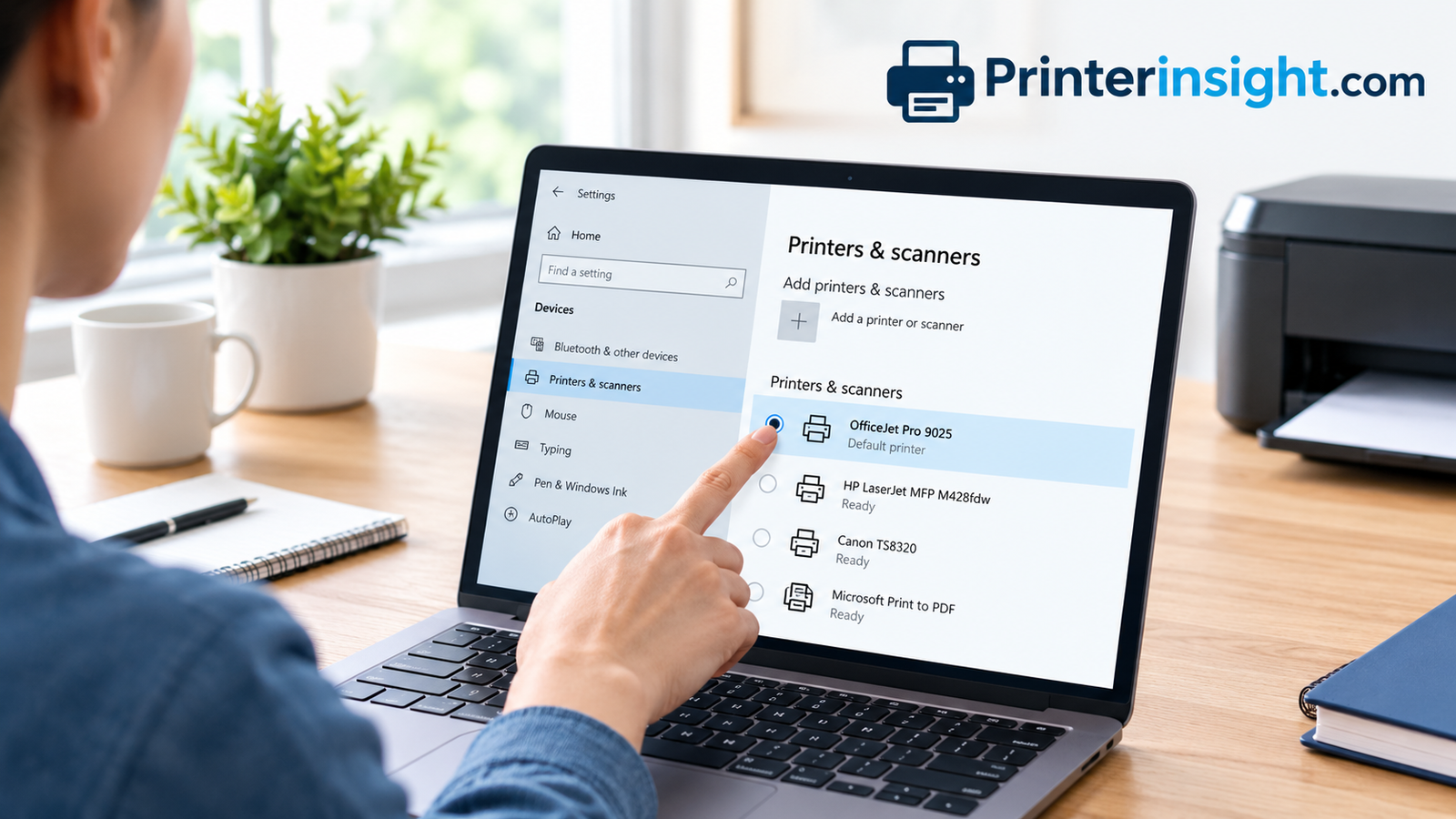
How to Change Default Printer on Windows, Mac, Chromebook and Phone
Stop sending documents to the wrong machine. This guide walks through every reliable way to pick the printer your computer uses automatically, plus the fixes for when it refuses to stay put.
You hit print on a boarding pass, walk to the printer, and nothing is there. Ten minutes later you discover the file went to a machine in the spare room that hasn’t been switched on since spring, or worse, to a virtual “print to PDF” device that quietly saved a file you never asked for. It is one of the most common little frustrations of home and office computing, and it almost always comes down to the same thing: your computer’s default printer is not the one you think it is.
The good news is that changing it takes under a minute once you know where the setting lives. The slightly less good news is that the setting lives in different places depending on your operating system, and Windows in particular has a habit of moving things around and even changing the default behind your back. This guide covers all of it. We will go through Windows 11, Windows 10, the classic Control Panel, PowerShell, macOS, Chromebooks, iPhones and Android phones, then dig into network printers, shared office setups and the situations where the default keeps flipping.
Every Windows and Mac method below includes a simple illustration so you can match what you see on screen to what we describe. Menu names shift slightly between updates, but the overall path stays recognizable. Pick the method that matches your device and follow along.
1. What a Default Printer Really Does (and Why It Matters)
A default printer is simply the device your computer selects automatically whenever you press Ctrl+P, Cmd+P, or tap a print button without choosing a destination. Almost every program shows the default at the top of its print dialog. You can override it for a single job, but if you never touch that dropdown, the default takes every page.
That sounds trivial until you consider how many “printers” are installed on a typical computer. Beyond your real inkjet or laser machine, you may have a PDF writer, an XPS writer, a OneNote export, a fax entry that nobody has used in a decade, and leftover printers from a previous job or an old router setup. Any one of these can end up as the default after an update, a driver install or a well-meaning click.
Default printer versus the selected printer
It helps to separate two ideas. The default printer is the system-wide fallback. The selected printer is whatever you choose in one specific print window. Changing the selection does not change the default unless your system is set up to remember your last choice, which brings us to a behavior that catches many people out.
Why Windows and Mac treat the default differently
Windows offers a switch that lets the operating system manage the default for you, choosing whichever printer you used most recently in your current location. Macs offer a similar “Last Printer Used” option. Both are convenient for people who move between offices, but they are exactly what causes the “it keeps changing” complaint at home. We cover how to turn that behavior off in a later section.
A quick look at when you should change it
- You bought a new printer and want it to take over from the old one.
- A software update reset the default to a virtual PDF printer.
- You moved to a new home or office and your laptop is still pointing at a printer that is out of range.
- You share a computer with family members and want the color printer to be the daily driver.
- You installed a label or photo printer and it accidentally grabbed the default slot.
Browse popular home printers with reliable wireless setup.
2. Before You Start: A Quick Checklist That Saves Headaches
Most failed attempts to change the default are not really settings problems. They come from a printer that is not properly installed or not reachable. Spend two minutes on this checklist and the actual change will go smoothly.
Confirm the printer is powered on and connected
Check that the printer is on, has no error lights, and shows a Wi-Fi or USB connection. If it is a wireless model and you are unsure whether it joined your network, our walkthrough on how to connect a printer to Wi-Fi covers the general process, and there is a brand-specific guide for connecting an HP printer to Wi-Fi if that is your machine.
Make sure the printer appears in your device list
If you cannot see the printer in your system’s printer list, you cannot make it default. Add it first through the Add Printer option in your settings. Modern printers usually install automatically when they are on the same network or plugged in over USB, but older models may need a driver from the manufacturer’s website.
Sign in with the right account
On a work or school computer, the ability to change the default may be limited by an administrator. On a home computer, make sure you are signed in with a standard account that has permission to manage printers. If a setting is greyed out, that is usually a sign of restricted permissions.
Know your operating system version
On Windows, press the Windows key and type “About your PC” to see whether you are on Windows 10 or Windows 11. The menus differ, so choosing the right section below matters. Mac users can click the Apple menu and choose About This Mac.
| Your device | Best method | Time needed |
|---|---|---|
| Windows 11 PC | Settings > Bluetooth & devices > Printers & scanners | About 30 seconds |
| Windows 10 PC | Settings > Devices > Printers & scanners | About 30 seconds |
| Any Windows PC | Control Panel > Devices and Printers | About 45 seconds |
| Power users | PowerShell or command line | About 1 minute |
| Mac | System Settings > Printers & Scanners | About 30 seconds |
| Chromebook or phone | Per-print selection (no true system default) | About 15 seconds |
If you are still shopping for a machine that connects painlessly, a good wireless printer for home use will save you most of these setup steps.
See highly rated models that connect in minutes.
3. How to Change the Default Printer in Windows 11
Windows 11 tucks printer controls under the Bluetooth & devices area. The process is short, but there is one detail that trips people up: if the option to let Windows manage your default printer is switched on, the Set as default button is hidden. We handle that in Step 3.
Open Settings
Press Windows key + I on your keyboard. This opens the Settings app instantly. You can also right-click the Start button and choose Settings from the menu.
Go to Bluetooth & devices, then Printers & scanners
In the left column, click Bluetooth & devices. On the right, choose Printers & scanners. You will see a list of every printer and virtual printer installed on your PC.
Turn off “Let Windows manage my default printer”
Scroll down in the Printers & scanners page until you find Let Windows manage my default printer. If the toggle is on, switch it off. This is the setting that silently changes your default to whichever printer you used last. With it off, the manual choice you are about to make will actually stick.
Select your printer and click Set as default
Click the name of the printer you want, then choose Set as default near the top of its page. Windows will label it “Default” in the list. Send a quick test print from any program to confirm the new default is active.
Compare inkjet and laser models that install cleanly on Windows 11.
4. How to Change the Default Printer in Windows 10
Windows 10 uses a very similar route, just with a different menu name at the start. If you are on this version, the labels below match what you will see. The same “Let Windows manage” switch applies here as well.
Open Settings and choose Devices
Click the Start button, then the gear icon for Settings. From the tile grid, click Devices.
Open Printers & scanners and disable Windows management
In the left column click Printers & scanners. Scroll to the bottom and untick Let Windows manage my default printer. Without this, the button you need will not appear.
Choose your printer, click Manage, then Set as default
Click your printer’s name to reveal a couple of buttons. Choose Manage, and on the next screen click Set as default. Windows 10 confirms the change by adding “Default” under the printer name.
Modern models set up faster and keep their default more reliably.
5. How to Change the Default Printer Using Control Panel
The classic Control Panel is still there in both Windows 10 and Windows 11, and many experienced users prefer it because it shows the default printer with an obvious green check mark. It also works well when the Settings app is misbehaving.
Open Control Panel
Click the search box or press the Windows key, type Control Panel, and press Enter. If the view is set to Category, switch the “View by” option to Large icons to make everything easier to find.
Click “View devices and printers”
Under the Hardware and Sound heading, choose View devices and printers. You will land on a page that shows icons for your monitor, keyboard, mouse and printers.
Right-click the printer and choose Set as default printer
Find your printer icon, right-click it, and pick Set as default printer. A green circle with a white check appears on the icon. That check mark is the fastest way to see which printer is default at any time.
Look for models that install drivers automatically on Windows.
6. How to Change the Default Printer with PowerShell or Command Line
If you manage several computers, work remotely over a terminal, or just enjoy the speed of typing, you can set the default printer without opening a single settings window. This method works in both Windows 10 and Windows 11 and is handy for scripting a setup on many machines at once.
Open PowerShell
Right-click the Start button and choose Terminal or Windows PowerShell. Administrator mode is normally not required for changing your own default printer.
List your installed printers
Type the command below and press Enter. It prints the exact name of every installed printer. You need the exact name for the next step, so copy it carefully, including spaces.
Get-Printer | Select-Object Name, DefaultSet the default with one line
Run the following, replacing the name with your own. If PowerShell returns no message, the change worked.
(New-Object -ComObject WScript.Network).SetDefaultPrinter("Home Inkjet Printer")Network-ready printers simplify default settings across a household or office.
7. How to Change the Default Printer on a Mac
macOS handles this through a single dropdown. There is no per-printer “set default” button. Instead, you pick the default in the Printers & Scanners pane, or you leave it on “Last Printer Used,” which follows whatever you chose most recently. If you are buying a printer specifically for a Mac, our guide to the best home printer for Mac highlights models that work smoothly with AirPrint.
Open System Settings
Click the Apple logo in the top-left corner of the screen and choose System Settings (called System Preferences on older macOS versions).
Choose Printers & Scanners
Scroll the sidebar until you see Printers & Scanners. Click it to view every printer your Mac knows about. If yours is missing, click Add Printer, Scanner or Fax and select it from the list.
Pick your default from the dropdown
At the top of the pane, open the Default printer menu and select the specific printer you want. Choose “Last Printer Used” only if you actually want the Mac to switch on its own. Close the window and the change is saved.
These connect to a Mac without extra drivers.
8. Changing Your Printer on a Chromebook, iPhone and Android
Mobile devices and ChromeOS work differently. They generally do not keep a system-wide default in the way Windows and Mac do. Instead, they remember the printer you last chose or prompt you each time. That said, there are ways to make the right printer the easy option.
On a Chromebook
Open the print dialog with Ctrl+P and look at the Destination menu. Choose your printer, and Chrome remembers it as the top suggestion for next time. To add or remove printers, open Settings, then Advanced, then Printing, and choose Printers. Saved printers appear there, and you can remove old entries so only the right machine shows. If you are still choosing a machine for ChromeOS, see our list of the best printers for Chromebook.
On an iPhone or iPad
AirPrint asks you to pick a printer each time you print. Tap the share icon, choose Print, then tap Select Printer. Your phone will show the last printer you used at the top of the list. There is no permanent default toggle, but keeping your unused printers off or removing them from the network makes the right one the only obvious choice.
On an Android phone
Open the three-dot menu in a supported app, tap Print, then open the Save as PDF dropdown to choose your printer. Android relies on print service plugins, such as the one from your printer maker or the built-in Mopria service. Ensure the correct plugin is enabled in Settings, then Connected devices, then Connection preferences, then Printing.
On the go
If you print from a phone while traveling, a compact model can be worth considering. See our roundup of the best portable printers for travel for models that connect straight to your phone.
| Platform | True system default? | What to do instead |
|---|---|---|
| Windows | Yes | Set as default in Settings or Control Panel |
| macOS | Yes | Default printer dropdown |
| Chromebook | Partly | Chrome remembers your last destination |
| iPhone / iPad | No | Pick at print time; last used appears first |
| Android | No | Enable the right print service plugin |
Portable and wireless printers make mobile printing painless.
9. How to Stop Windows From Changing Your Default Printer Back
This is the complaint we hear most often. You set the default, feel good about it, and a day later it has flipped to a different printer. Almost every time, the cause is the “Let Windows manage my default printer” feature described earlier. When it is on, Windows changes the default to your most recently used printer at your current location. Print one page to the PDF writer and it becomes your default.
The permanent fix
- Open Settings and go to the Printers & scanners page.
- Scroll to the bottom and switch off Let Windows manage my default printer.
- Choose your preferred printer and click Set as default.
- Restart the computer once to make sure the setting sticks.
When the toggle is off but it still changes
Some applications write their own default printer settings, and a few older programs override the system choice when they open. Check the program’s own print or page setup menu for a “remember printer” option. Also look for duplicate entries of the same printer, which happen when a wireless printer is installed twice under slightly different names, for example “Home Inkjet” and “Home Inkjet (Copy 1)”. Delete the duplicates and keep one clean entry.
Drivers and updates
Large Windows updates occasionally reset printer defaults, especially when they replace a manufacturer driver with a generic one. After a big update, it is worth a quick look at your default printer. Installing the manufacturer’s full driver package from the maker’s website tends to be more stable than the generic version Windows chooses.
Manage default manually (recommended)
- Same printer every time
- No surprise PDF files
- Predictable for shared computers
Let Windows manage it
- Changes to the last printer used
- Can land on a virtual printer
- Confusing at home, handy for travel
A dependable printer stays connected and stays default.
10. Shared, Network and Office Printers: What Changes
Things get more interesting once several computers and several printers share a network. The steps to set a default stay the same, but the details around them matter more.
Network printers and IP addresses
A printer connected over your network is identified by its IP address or hostname. If your router hands out changing addresses, the printer can appear to disappear and reappear, and Windows may install it again as a new device. Assigning the printer a fixed address (a DHCP reservation in your router) prevents this and keeps the default stable.
Shared printers from another computer
If you connect to a printer shared by another PC, the default you set applies only on your computer. The host machine has to be on and awake for you to print. If you have trouble reaching a shared printer, look at the connection first and the default second.
Work and school computers
Managed computers often receive printer settings from an administrator, and the default may be reassigned at every sign-in. If the option is greyed out or resets, ask your IT team. They may have a policy that maps printers by location.
Home offices
If you use one computer for both personal and work printing, consider naming each printer clearly, for example “Color Inkjet” and “Office Laser,” so the right one is obvious in the dropdown. Choosing the right hardware matters too, and our guide to the best printer for a home office covers models that handle both everyday and professional jobs.
| Situation | Recommended default | Why |
|---|---|---|
| Mostly documents | Laser or mono printer | Cheaper per page, faster |
| Mostly photos and color | Color inkjet | Better color quality |
| Mixed household | Color all-in-one | Flexible for every task |
| Shared family PC | Whichever the kids use most | Fewer failed print jobs |
Explore all-in-one printers that scan, copy and print.
11. Troubleshooting a Default Printer That Won’t Cooperate
When the steps above do not work, the cause is usually one of a handful of issues. Work through these in order.
The Set as default button is missing
This is nearly always the Windows-managed toggle. Switch it off and refresh the page. If the button is still missing, close and reopen Settings.
The printer shows as Offline
A printer marked offline can still be default, but nothing prints until it reconnects. Restart the printer and your router, then check the connection. Our detailed guide on why a printer keeps going offline walks through the common causes. If the printer is online but jobs still do not print, see what to do when your printer is not responding.
Jobs are stuck in the queue
Open the print queue by clicking the printer icon in the Settings list and choosing Open print queue. Cancel any stuck documents, then restart the Print Spooler service: press Windows key + R, type services.msc, find Print Spooler, right-click and choose Restart.
The printer is duplicated
Remove any duplicate entries, restart the computer, and re-add the printer once. Choose the entry without a number in brackets and set that as your default.
The test page is faded or streaky
If you can print but the result looks poor, the default settings are not to blame. Clogged nozzles are a common cause, and we cover the fix in our guide on how to clean printer heads.
Driver problems
Uninstall the printer from Settings, download the full driver package from the manufacturer, install it, and then set the default again. Generic drivers work for basic printing but can cause odd behavior with advanced features.
See current bestsellers and compare features before you replace it.
12. Choosing a Printer Worth Making Your Default
A default printer should be the one you trust most: reliable connection, sensible running costs, and quality that fits your usual jobs. If you are about to replace an old machine, the type you choose changes everything about the day-to-day experience.
Inkjet, laser or ink tank?
Inkjets suit color and photos but can dry out if left unused, which is worth understanding before you pick one. Lasers are quick and economical for documents. Ink tank models cost more upfront but slash the price of refills. Our comparison of inkjet vs laser printers for home and our look at whether ink tank printers are worth it will help you decide.
| Type | Best for | Upfront cost | Running cost |
|---|---|---|---|
| Inkjet | Color, photos, mixed use | Low to medium | Medium to high |
| Laser | Text documents, speed | Medium | Low |
| Ink tank | High-volume home printing | Medium to high | Very low |
| Portable | Travel, small spaces | Medium | Medium |
What to look for
- Reliable Wi-Fi with an app for setup
- Automatic driver installation
- Affordable, widely available ink or toner
- Automatic duplex printing
What to avoid
- Models with proprietary, pricey cartridges
- Printers with weak Wi-Fi radios
- Very old models without current drivers
- Machines with poor user reviews for reliability
Popular brands to shortlist
Brother is widely respected for dependable laser machines, and our picks for the best Brother printer for home are a good place to begin. HP makes many well-supported all-rounders, covered in our list of the best HP printer for home use. If you want one device that prints, scans and copies, browse the best all-in-one printers for home, or start with our broad roundup of home printers worth buying right now.
Keeping it healthy after setup
Once your default is set, a little upkeep keeps it dependable. Print something every week or two so ink does not dry, using our tips on preventing an inkjet printer from drying out, and follow the routine in our home printer maintenance tips. Students setting up a new machine for a dorm or apartment may also like our guide to the best printer for students.
Compare top-rated inkjet, laser and ink tank printers side by side.
Frequently Asked Questions
How do I change my default printer quickly on Windows?
Press Windows key + I, open Bluetooth & devices (or Devices on Windows 10), choose Printers & scanners, select your printer and click Set as default. If the button is missing, turn off “Let Windows manage my default printer” first.
Why does my default printer keep changing?
Windows can change the default to whichever printer you used last when the manage-default setting is on. Turn that setting off, delete duplicate printer entries, and set your preferred printer again.
Why is the Set as default option missing?
It is hidden while Windows is managing the default for you. Switch off that toggle in Printers & scanners, and the button appears when you select a printer.
How can I tell which printer is currently my default?
In Windows Settings the default printer is labeled “Default.” In Control Panel it has a green check mark. On a Mac, the Default printer dropdown at the top of Printers & Scanners shows the current choice.
Can I have two default printers?
No. Each user account can have only one default at a time on Windows and Mac. You can, however, choose a different printer for individual jobs in the print dialog.
Does changing the default printer affect other users on the same computer?
On Windows, the default is stored per user account, so other accounts keep their own choices. Printer installation itself, though, may be shared across the computer.
How do I change the default printer on a Mac?
Open System Settings, click Printers & Scanners, then use the Default printer dropdown at the top to choose your printer. Avoid “Last Printer Used” if you want a fixed default.
Is there a default printer setting on iPhone or Android?
Not in the same sense. Phones prompt you to choose a printer, and they usually show the one you used last. Make sure the right print service is enabled on Android so your printer is discoverable.
Why does my computer choose Microsoft Print to PDF as default?
This usually happens after an update, after a printer was removed, or when Windows is managing the default and you printed to PDF last. Choose your real printer and turn off the manage-default toggle.
What should I do if my printer is default but still won’t print?
Check that it is on and connected, clear the print queue, restart the Print Spooler service, and reinstall the driver if needed. An offline printer will not print no matter which one is default.
Can I change the default printer from the command line?
Yes. In PowerShell, list printers with Get-Printer, then run the WScript.Network SetDefaultPrinter command with your printer’s exact name. It is useful for scripts and multiple computers.
Will a new Windows update reset my default printer?
Occasionally. Large updates can replace drivers or reset preferences. After a major update, take ten seconds to confirm your default printer is still the one you want.
Conclusion: Set It Once and Print With Confidence
Changing your default printer is one of those small tasks that pays back every time you press print. On Windows 11 and Windows 10 it takes a few clicks in Settings, with Control Panel and PowerShell available as alternatives. On a Mac it is a single dropdown. Phones and Chromebooks handle things a little differently, but with a tidy printer list they are just as easy to manage.
The most important takeaway is to turn off the option that lets Windows or macOS choose for you, unless you genuinely move between locations. That one switch is behind most “it changed by itself” complaints. Pair it with a clean list of installed printers, a stable network connection, and a printer you trust, and the whole problem largely disappears.
If your current machine is the source of the frustration, a newer and more reliable model can make printing feel effortless again. Take a look at current options below and choose one that fits how you print.
Explore top-rated home printers with easy wireless setup.
You May Also Like
Keep exploring with more printer guides, comparisons and reviews from PrinterInsight.