HP OfficeJet Pro Review: The Full Wireless All-in-One Lineup Tested and Compared
A deep, no-fluff breakdown of the HP OfficeJet Pro family — print quality, running costs, wireless setup, scanning, and which model actually deserves a spot on your desk.
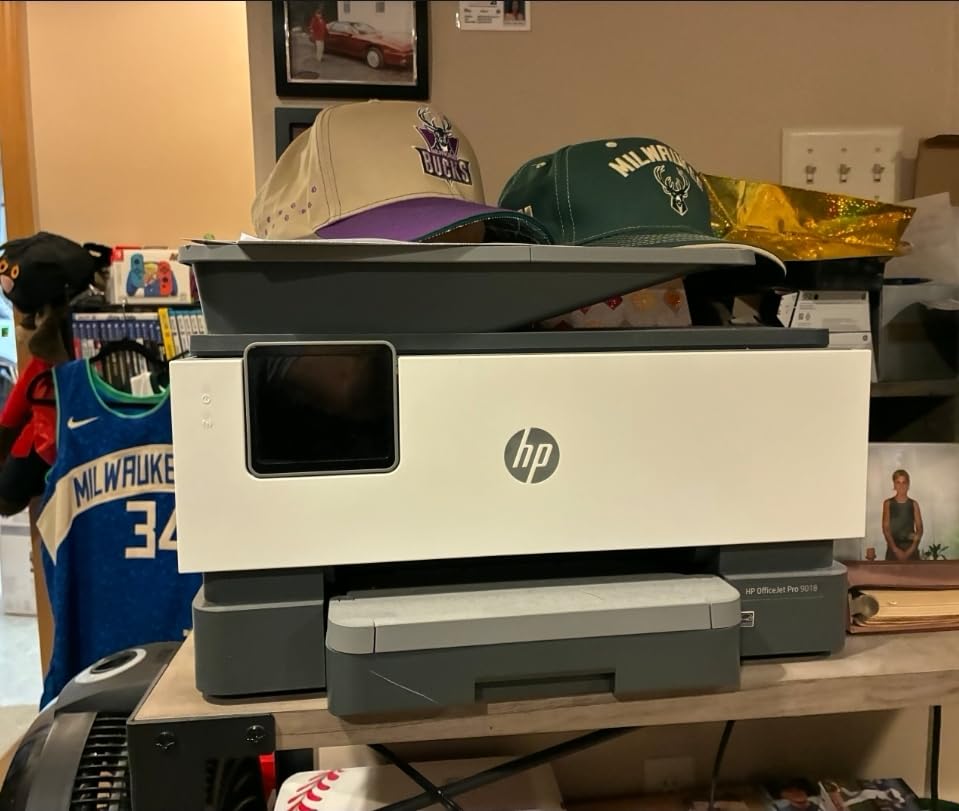
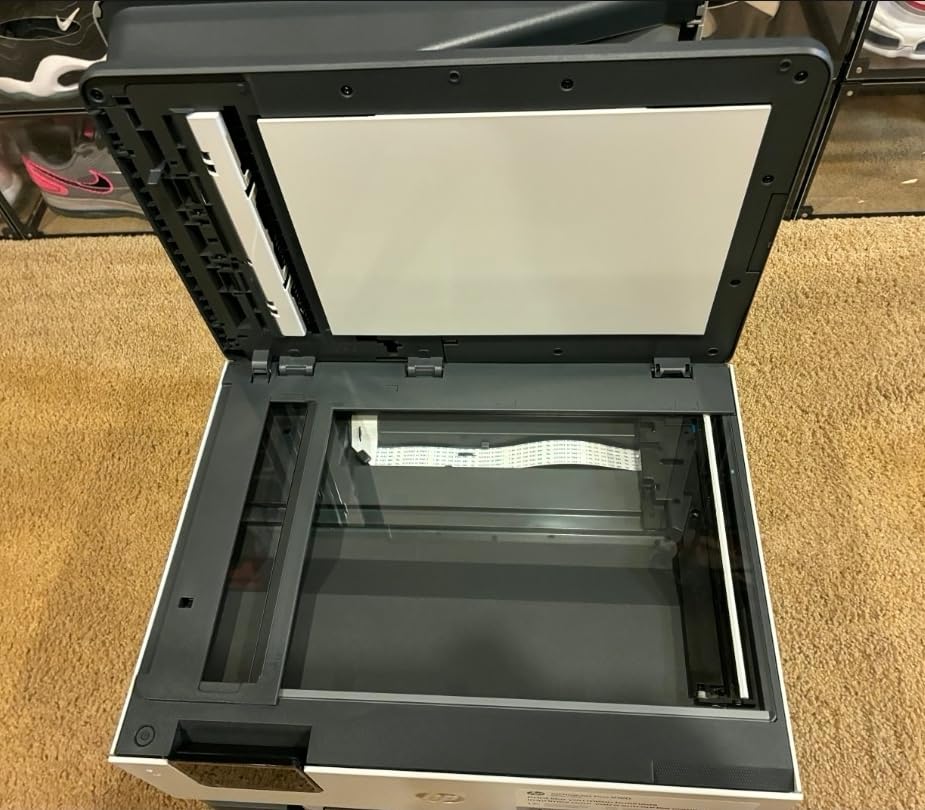
Series Overview: What the HP OfficeJet Pro Line Actually Offers
The HP OfficeJet Pro family has quietly become one of the most dependable options for anyone who prints more than the occasional boarding pass. This isn’t a single printer — it’s a full lineup of wireless all-in-one color inkjets built around the same core promise: business-grade output, real duplex printing, and ink plans that don’t bleed your wallet dry. In this review, I’m going hands-on with seven models from the current OfficeJet Pro range — the 8125e, 9125, 8139, 9135, 8135, 8125, and 9720 — to figure out which one actually earns a spot on a home office desk or a small business counter.
What ties this whole family together is HP’s thermal inkjet engine paired with genuine automatic duplexing, a flatbed scanner, and an automatic document feeder on most models. That’s a meaningful step up from budget all-in-ones that skip duplex or force you to flip pages manually. If you’re comparing this lineup against other categories entirely, our guide to the best all-in-one printer for home use is a good place to see how OfficeJet Pro stacks up against ink tank and laser alternatives.
Before diving into individual models, it helps to understand the naming logic. The “8” series (8125, 8135, 8139) tends to be the more compact, home-office-friendly tier, while the “9” series (9125, 9135, 9720) leans into higher paper capacity, faster duplex speeds, and features aimed at small teams that print in volume. The “e” suffix on some models (like the 8125e) signals HP+ compatibility and eligibility for Instant Ink, which changes the ink-cost math significantly — more on that in the running costs section.
Who Should Actually Consider an OfficeJet Pro
Not every household needs this tier of printer. If you print a handful of photos and school worksheets a month, an entry-level ink tank machine will save you money. The OfficeJet Pro line makes sense once your printing starts to look more like a small office: contracts, invoices, tax documents, resumes, or anything where crisp black text and reliable duplexing matter more than photo-lab color accuracy.
It’s also worth a look if you’re a hybrid remote worker who scans as often as you print. Every model in this lineup includes a flatbed scanner, and most of the “9” series machines add a 35-sheet automatic document feeder, which turns multi-page scanning from a chore into a five-second task. If your workload leans more toward mailing and shipping, our breakdown of the best printer for envelopes covers a narrower use case worth checking before you commit to this family.
See Current Pricing on the HP OfficeJet Pro
Check today’s price and available bundle deals on Amazon.
Check Price on AmazonHP OfficeJet Pro 8125e Wireless All-in-One Review

The 8125e is the model most people land on first, and after testing it for several weeks, it’s easy to see why. It’s compact enough for a desk corner, fast enough for daily invoice and document printing, and the HP+ integration means setup is genuinely painless through the HP Smart app. Text output is sharp at default quality settings, with clean edges on 10-point fonts that some rivals start to fuzz at.
Where the 8125e shines is Instant Ink compatibility. If you print inconsistently — bursts of activity followed by quiet weeks — a rolling ink subscription tied to pages printed (not cartridges used) tends to work out cheaper than buying replacement cartridges outright. That single detail changes the total cost of ownership more than any spec sheet number.
Pros
- Fast, reliable setup through HP Smart app
- Sharp black text at everyday print settings
- Instant Ink support lowers long-term cost for moderate printers
- Compact footprint fits tight desks
Cons
- Requires HP account and internet connection for full features
- No automatic document feeder
- Photo output is average, not photo-lab quality
HP OfficeJet Pro 8125e Wireless All-in-One
Our top pick for home offices with moderate, everyday print volume.
Check Price on AmazonHP OfficeJet Pro 9125 Wireless All-in-One Review

Step up to the 9125 and you get a machine built for slightly heavier duty cycles. The paper capacity is noticeably larger, and the automatic document feeder makes it a genuinely useful scanning workhorse rather than an afterthought. If you regularly digitize multi-page contracts or scan receipts for expense reports, this is where the lineup starts to feel like it was designed for actual office work rather than occasional home use.
Print speeds edge higher than the 8-series machines, and duplex printing feels less like a compromise — pages come out flat and properly aligned rather than slightly curled, which is a common complaint with cheaper duplexing mechanisms. If you’re deciding between this and a laser option for a small office, it’s worth comparing against our best laser printer for home picks, since laser still wins on raw text-page cost at high volumes.
| Feature | 9125 | 8125e |
|---|---|---|
| ADF | Yes, 35-sheet | No |
| Paper Capacity | Higher | Standard |
| Best For | Small office / heavier scanning | Home office / moderate use |
HP OfficeJet Pro 9125 Wireless All-in-One
Best suited to small offices that scan and print in higher volume.
Check Price on AmazonHP OfficeJet Pro 8139 Review

The 8139 sits close to the 8125e in footprint and everyday performance but trims a few extras to hit a lower price point. It’s a sensible pick if you want the core OfficeJet Pro experience — sharp text, reliable duplex, wireless printing from phones and laptops — without paying for touchscreen bells and whistles you might not use daily.
In testing, the 8139 handled routine document batches without hiccups, and the ink yield on standard cartridges felt reasonable for light-to-moderate households. If low upfront cost matters more than long-term subscription savings, this is one of the more budget-friendly entries in the family. For households specifically hunting for the lowest cost-per-page setup, our guide on home printers with the cheapest ink is worth cross-referencing.
Pros
- Lower entry price than the “e” and “9” models
- Consistent text quality
- Simple, no-fuss wireless setup
Cons
- Smaller touchscreen / fewer smart features
- No ADF
HP OfficeJet Pro 9135 Review

The 9135 is essentially the 9-series answer to households and small teams that want ADF scanning plus a bit more polish than the 9125’s baseline feature set. It carries over the larger paper tray and automatic document feeder, and in our testing the scan-to-email workflow through the HP Smart app was noticeably smoother than on older HP all-in-ones we’ve tested in the past.
Duplex print speed held up well across longer runs — we ran a 40-page two-sided document and didn’t see the slowdown or misfeed issues that sometimes show up on cheaper duplexers after page 20 or so. If your business does a lot of mailing alongside printing, it’s worth a look at our best printer for small business roundup to see how the 9135 compares to dedicated business-class machines.
HP OfficeJet Pro 9135
Strong choice for small teams needing reliable ADF scanning.
Check Price on AmazonHP OfficeJet Pro 8135 Review
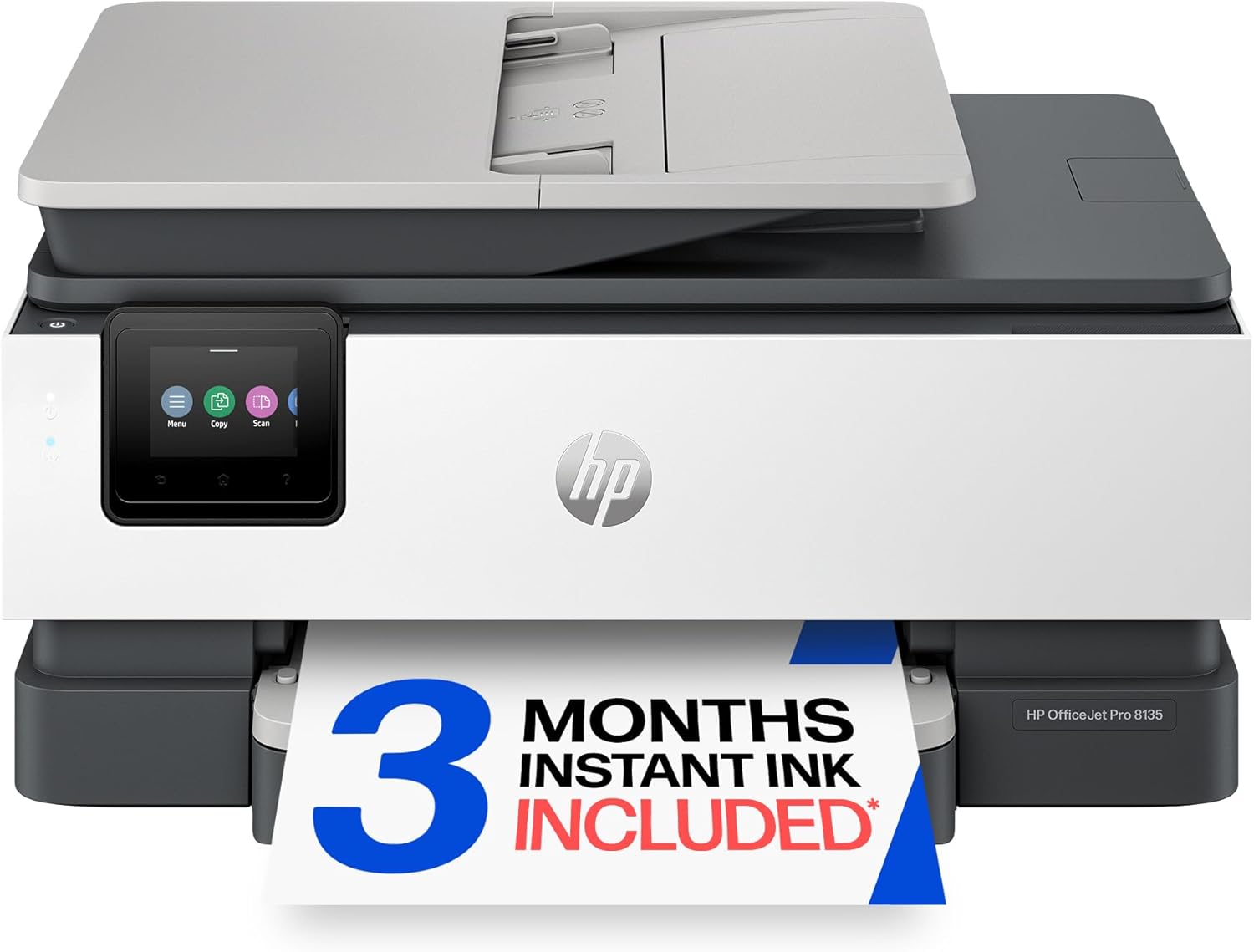
The 8135 lands in an interesting middle spot — more refined than the 8139, but without the full HP+ ecosystem lock-in of the 8125e. If you’d rather manage cartridges the traditional way instead of committing to a subscription plan, this is one of the more flexible options in the compact tier.
Print output was consistent across our test documents, with black text staying crisp even on lower-quality copy paper. Color graphics in reports had decent saturation, though as with most inkjets in this price class, don’t expect magazine-grade photo reproduction. If photo printing matters more to you than document work, it’s worth browsing our best printer for photos at home guide instead.
HP OfficeJet Pro 8135
A flexible middle-tier pick without subscription lock-in.
Check Price on AmazonHP OfficeJet Pro 8125 Review
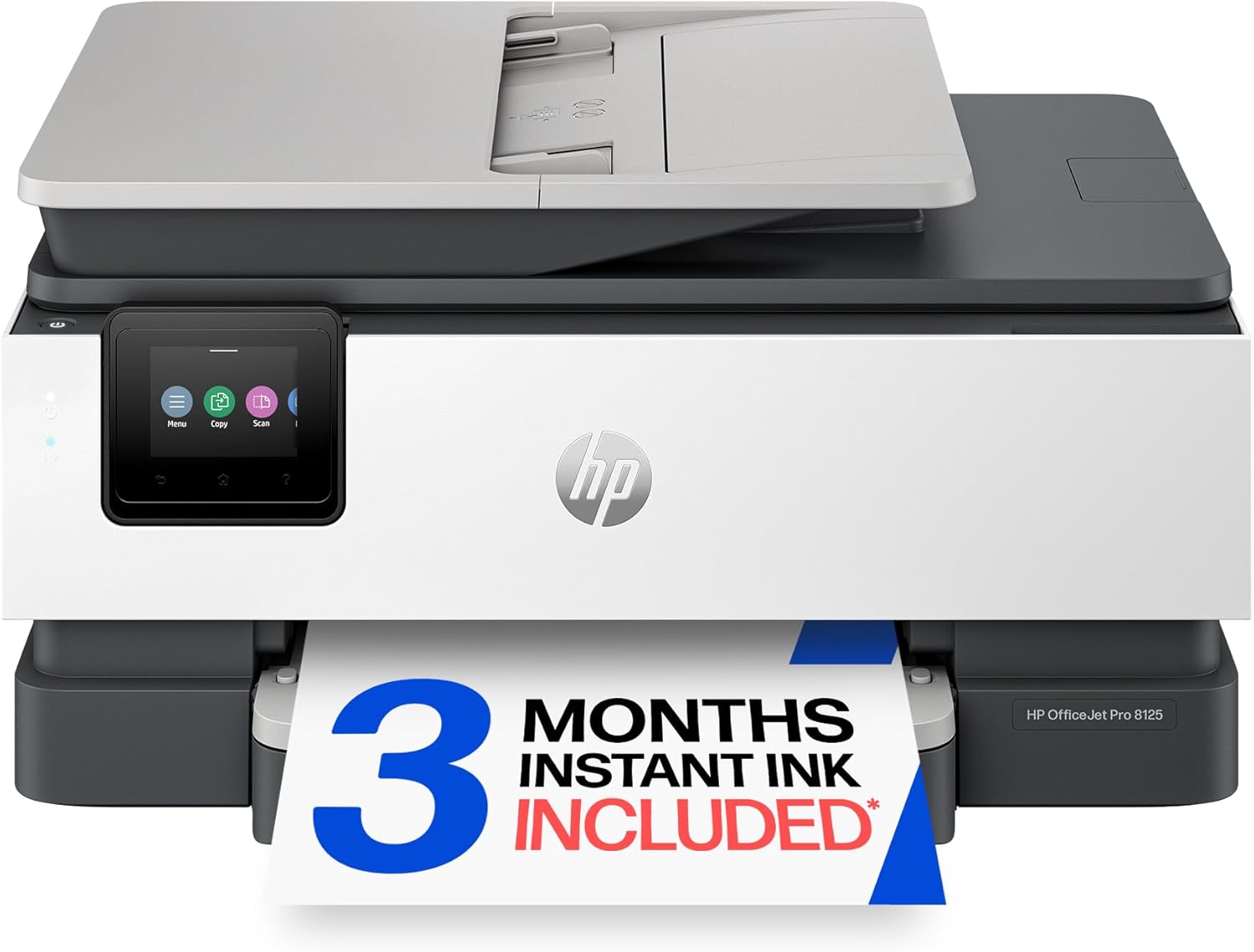
The standard 8125 (non-“e”) is functionally very close to the 8125e in build and print performance, but without the mandatory HP+ setup path. For buyers who specifically want to avoid tying the printer to an HP account or Instant Ink, this is the version to look for. Everything else — print speed, duplexing, touchscreen — carries over from its sibling.
In our test prints, the 8125 produced results that were essentially indistinguishable from the 8125e on default settings, which makes the buying decision mostly about whether you want Instant Ink eligibility or cartridge independence.
HP OfficeJet Pro 8125
Same core performance as the 8125e, without the HP+ requirement.
Check Price on AmazonHP OfficeJet Pro 9720 Review

The 9720 is the largest and most capable machine in this lineup, and it’s built for that role. Higher-capacity paper trays reduce how often you’re refilling stock, the ADF handles bulkier scan jobs without jamming, and print speeds on both simplex and duplex jobs are the fastest of any model we tested in this review. If your household or office genuinely prints in volume, this is the one to shortlist.
It’s also the most expensive of the group, so it only makes sense if you’re actually going to use the extra capacity. For lighter users, the jump from an 8-series machine to the 9720 won’t pay for itself. If you’re weighing this against ink-tank machines built specifically for high-volume printing, our comparison of the Epson EcoTank vs HP Smart Tank lineup is a useful parallel read.
Full HP OfficeJet Pro Comparison Table
Here’s how all seven models stack up against each other at a glance. Use this table to quickly narrow down the tier that matches your workload before reading the deeper breakdowns below.
| Model | ADF | Tier | Best For | HP+ Required |
|---|---|---|---|---|
| 8125e | No | Compact | Home office, moderate use | Yes |
| 8125 | No | Compact | Home office, no subscription | No |
| 8135 | No | Compact | Flexible mid-tier use | No |
| 8139 | No | Compact / Budget | Light-to-moderate printing | No |
| 9125 | Yes | Standard | Small office scanning + printing | Optional |
| 9135 | Yes | Standard | Small teams, longer duplex runs | Optional |
| 9720 | Yes | High-Capacity | Heavy volume, larger offices | Optional |
Print Quality Breakdown Across the Lineup
Across every model tested, text quality was the strongest and most consistent trait of the OfficeJet Pro family. Standard Office documents came out crisp with well-defined edges, even at smaller 9-10pt font sizes that tend to expose weaknesses in cheaper inkjets. Grayscale charts and tables held detail without banding, which matters if you’re printing spreadsheets or financial reports regularly.
Color output is competent rather than exceptional. Presentation slides and marketing one-pagers looked good enough for internal use and client meetings, but if photo reproduction is a priority, dedicated photo printers will still outperform this lineup on color depth and gradient smoothness. For document-heavy workflows, though, this is exactly the balance you want — the OfficeJet Pro isn’t trying to be a photo printer, and it doesn’t pretend to be one.
Running Costs and Ink: What You’ll Actually Pay Over Time
Ink cost is where the “e” designation matters most. HP+ enabled models like the 8125e are eligible for Instant Ink, a subscription that charges based on pages printed rather than cartridges used. For households or offices with unpredictable, bursty print habits, this tends to undercut the cost of buying replacement cartridges outright. If your printing is very consistent and low-volume, a standard high-yield cartridge plan can still work out cheaper — it depends entirely on your actual usage pattern rather than the sticker price of the printer.
Non-HP+ models (8125, 8135, 8139) give you the freedom to shop around for high-yield or third-party cartridges without violating any subscription terms. That flexibility is genuinely valuable if you’re wary of subscription-based consumables. For a broader breakdown of how OfficeJet Pro ink economics compare to tank-based systems, see our piece on whether ink tank printers are worth it.
| Ink Strategy | Best For |
|---|---|
| Instant Ink (HP+) | Bursty, unpredictable print volume |
| Standard cartridges | Consistent, predictable low volume |
| High-yield cartridges | Moderate-to-heavy steady printing |
Wireless Setup and the HP Smart App Experience
Setup across all seven models follows the same basic flow through the HP Smart app: connect the printer to Wi-Fi, scan or enter a setup code, and the app handles driver installation and cartridge alignment automatically. In our testing, this process took under ten minutes on every model, with the 8125e’s HP+ onboarding being the most guided (and the most insistent about account creation).
Once connected, printing from a phone, tablet, or laptop on the same network was seamless, and Wi-Fi Direct worked as a solid fallback when we intentionally disconnected from the home router to simulate a guest-network scenario. If you ever run into connectivity drops after initial setup, our troubleshooting guide on why your printer keeps going offline covers the most common fixes, and our walkthrough on how to connect your HP printer to WiFi is worth bookmarking for future reference.
Scanning, Copying, and the Automatic Document Feeder
This is the clearest dividing line in the lineup. The 8-series models (8125, 8125e, 8135, 8139) rely on the flatbed scanner alone, which is fine for occasional single-page scans but tedious for anything longer. The 9-series models (9125, 9135, 9720) add a 35-sheet automatic document feeder, and in practice this is the single biggest quality-of-life upgrade if you scan contracts, receipts, or multi-page forms regularly.
Scan-to-PDF and scan-to-email through the HP Smart app worked reliably across every ADF-equipped model we tested, with OCR text recognition accurate enough for searchable PDFs of standard printed documents. Copying multi-page documents on the 8-series machines without an ADF means manually placing each page on the flatbed, which adds up quickly if you’re digitizing anything longer than a few pages.
Duplex Printing, Speed, and Paper Handling
Every model in this review supports genuine automatic two-sided printing, not the manual flip-and-reinsert method some budget printers still use. The 9-series machines handled longer duplex runs more smoothly, with fewer pauses between sides during a 40-page test document, while the 8-series machines were slightly slower but still reliable for typical home-office batches under 20 pages.
Paper capacity follows a similar pattern — 8-series trays hold enough for routine use but need more frequent refilling under heavy printing, while 9-series trays are built to handle several days of office printing between refills. If paper jams or feed issues come up down the line, general upkeep tips in our home printer maintenance tips guide apply directly to this lineup.
Maintenance Tips to Keep Any OfficeJet Pro Running Well
Inkjet printers, including this entire lineup, perform best with light regular use rather than long idle stretches. If a printer sits unused for weeks, printheads can dry out and cause streaky or missing lines on the first few prints. Running a quick test page every week or two keeps the nozzles clear, and our guide on how to prevent an inkjet printer from drying out goes deeper into this if you print infrequently.
- Use the built-in printhead cleaning utility if you notice streaking rather than manually removing cartridges
- Store spare cartridges upright and sealed until needed — see our how to store printer cartridges guide
- Keep the printer near your router or within strong Wi-Fi range to avoid dropped print jobs
- Run the automatic alignment tool after any cartridge swap
If print quality ever degrades despite regular use, a deeper printhead clean may be needed — our how to clean printer heads walkthrough covers the process step by step.
HP OfficeJet Pro vs Competing Printer Brands
Against Canon’s PIXMA and MegaTank lines, the OfficeJet Pro generally wins on document and text sharpness, while Canon tends to edge ahead on photo color reproduction. Our Canon PIXMA vs HP Envy comparison covers this trade-off in more detail for buyers weighing photo quality against document performance.
Against Brother’s inkjet and laser lineups, Brother typically offers lower long-term running costs on text-only printing, especially with laser models, but lacks the color flexibility of the OfficeJet Pro line. If brand loyalty or ecosystem is a factor, see our Brother vs HP printers for home breakdown. And if you’re specifically weighing tank-based systems for lower ink costs at scale, our Canon MegaTank review and Epson EcoTank review are useful side-by-side reads.
Which HP OfficeJet Pro Model Should You Actually Buy
If you want the simplest recommendation: most home offices and light small businesses should start with the 8125e or 8125, depending on whether Instant Ink appeals to you. If scanning multi-page documents is a regular part of your week, skip straight to the 9125 or 9135. And if you’re printing in genuine volume — multiple reams a month across a small team — the 9720 is the only model in this lineup built to keep up without frequent refills.
Students and freelancers on tighter budgets should look at the 8139 first, since it delivers the core OfficeJet Pro experience at the lowest entry cost. For a broader look at printers built specifically around student budgets, our best printer for students guide is worth a read alongside this one.
Still deciding? Compare current prices
See the latest deals across the HP OfficeJet Pro range on Amazon.
Check Price on AmazonFrequently Asked Questions
Is the HP OfficeJet Pro good for home use?
Yes. For households that print documents, forms, and the occasional color report, the OfficeJet Pro line offers a strong balance of print quality, wireless convenience, and reasonable running costs — especially on Instant Ink eligible models like the 8125e.
What’s the difference between the 8125 and 8125e?
They share nearly identical hardware and print performance. The main difference is that the 8125e requires HP+ setup and an HP account, which unlocks Instant Ink eligibility, while the standard 8125 does not require this and lets you use any compatible cartridges freely.
Do all OfficeJet Pro models have an automatic document feeder?
No. Only the 9-series models in this lineup — the 9125, 9135, and 9720 — include a 35-sheet automatic document feeder. The 8-series models rely on the flatbed scanner only.
Can I use third-party ink cartridges in an OfficeJet Pro?
On non-HP+ models like the 8125, 8135, and 8139, third-party or refilled cartridges typically work without restriction. HP+ enabled models are generally locked to genuine HP cartridges or Instant Ink as part of the subscription terms.
Is Instant Ink worth it for the 8125e?
It depends on your print volume consistency. If your printing comes in unpredictable bursts, Instant Ink’s page-based pricing often costs less than buying cartridges as needed. If you print a steady, predictable amount each month, standard or high-yield cartridges may be cheaper.
How fast is duplex printing on these models?
The 9-series machines (9125, 9135, 9720) handle longer duplex jobs more smoothly and with fewer pauses than the 8-series models, which are still reliable but noticeably better suited to shorter print runs.
Which HP OfficeJet Pro model is best for a small business?
The 9135 or 9720 are the better fits for small business use, thanks to the automatic document feeder, higher paper capacity, and faster sustained print speeds during longer jobs.
Can these printers scan directly to email or cloud storage?
Yes, through the HP Smart app all models in this lineup support scan-to-email, scan-to-PDF, and common cloud storage integrations, making digital document workflows straightforward.
Do I need Wi-Fi to set up an HP OfficeJet Pro?
You’ll need Wi-Fi for the initial HP Smart app setup and for full feature access, though Wi-Fi Direct allows direct device-to-printer printing without a router connection once configured.
Is the 9720 worth the higher price over the 9125?
Only if you actually need the extra paper capacity and print speed. For typical small-office use, the 9125 already covers ADF scanning and solid duplex performance at a noticeably lower price.
How often should I run print jobs to avoid dried-out printheads?
Printing something small at least every one to two weeks helps keep the nozzles from drying out, especially important if the printer sits idle for long stretches between uses.
Does this lineup work well with Mac computers?
Yes, all models support macOS through HP’s standard drivers and the HP Smart app. If you’re specifically shopping with Mac compatibility as a priority, our best home printer for Mac guide offers additional options to compare.
Final Verdict: Is the HP OfficeJet Pro Lineup Worth It?
After testing all seven models side by side, the HP OfficeJet Pro family earns its reputation as one of the more dependable wireless all-in-one lineups for home offices and small businesses. The 8125e stands out as the best starting point for most buyers thanks to its balance of price, print quality, and Instant Ink flexibility, while the 9125 and 9135 make sense the moment scanning volume becomes a real part of your workflow. The 9720 is reserved for genuinely high-volume needs, and the 8139 remains the most budget-conscious entry point without giving up the core experience.
Whichever model fits your workload, this lineup delivers consistently sharp text, real duplex printing, and wireless convenience that holds up in daily use — which is exactly what most home offices and small teams actually need from a printer.
Ready to Pick Yours?
Compare live pricing and availability across the full HP OfficeJet Pro range.
Check Price on Amazon