The Best Wireless Printer for Home, Ranked by Real Connection Reliability
Most printer shopping guides treat “wireless” as a checkbox: either it has Wi-Fi or it doesn’t. In practice, that’s the least useful way to compare these machines, because almost every printer sold today technically supports wireless printing, and the gap between a printer that connects once and stays connected for years and one that drops off the network every other week has nothing to do with that checkbox at all.
We compared seven home printers built around genuinely different approaches to wireless reliability: dual-band self-healing Wi-Fi, one-touch Bluetooth pairing, remote app control, ultra-stable sleep-wake behavior, and cloud printing that works from outside the house entirely. Three are inkjet all-in-ones, two are ink-tank supertank models, and two are monochrome laser printers, because the “best” wireless printer genuinely depends on what you’re printing and how your home network is set up. If you want the full category picture beyond wireless specifically, our guide to the best home printers worth buying covers every type side by side.
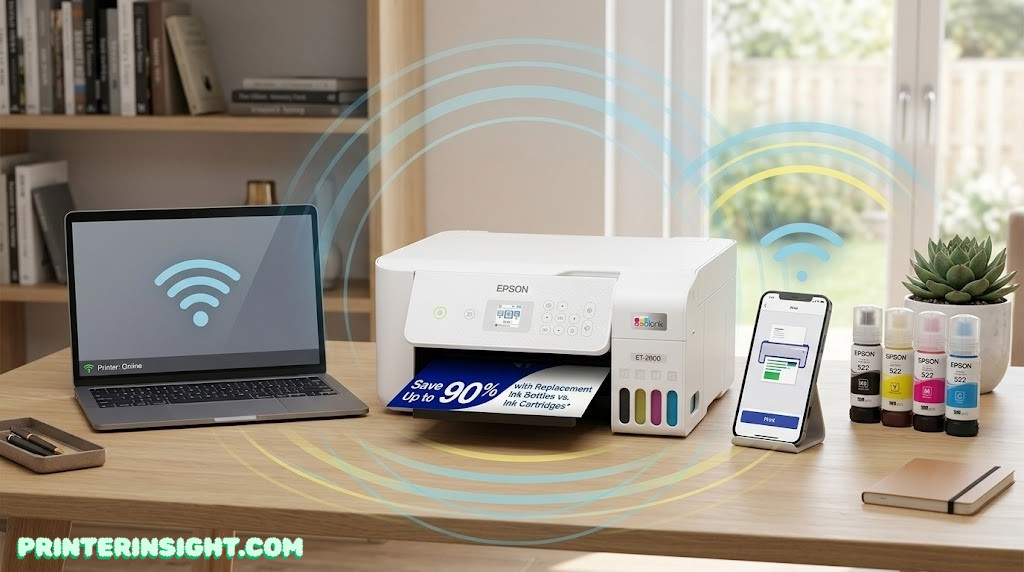
7 Best Wireless Printers for Home, at a Glance
Each printer below earned its spot for a specific wireless strength rather than a generic spec-sheet win. Find your priority in the table, then jump to the full review for the details that actually matter once it’s set up on your network.
| Printer | App | Signature wireless feature | |
|---|---|---|---|
| HP Envy 6055e | HP Smart | Dual-band self-healing Wi-Fi | Read review → |
| Canon PIXMA TS6420a | Canon PRINT | One-touch Bluetooth setup | Read review → |
| Epson EcoTank ET-2800 | Epson Smart Panel | Excellent remote app control | Read review → |
| Brother HL-L2460DW | Brother Mobile Connect | Ultra-stable network sleep-wake | Read review → |
| HP OfficeJet Pro 8125e | HP Smart | Cloud printing from anywhere | Read review → |
| Brother DCP-L2640DW | Brother Mobile Connect | Fast mobile scanning interface | Read review → |
| Canon MegaTank G3270 | Canon PRINT | Direct cloud-drive printing | Read review → |
Notice that the lineup deliberately mixes printer types — three inkjet all-in-ones, two ink-tank supertank models, and two monochrome laser printers. That’s because “wireless” isn’t a feature that lives on top of a printer; it’s implemented differently depending on the engine underneath, and the right wireless printer for a household that prints constantly in color looks nothing like the right one for a household that mostly prints text and wants the connection to simply never be the problem.
Fig. 1 — Rated print speed across all seven picks, grouped by engine type
How We Evaluated Wireless Performance Specifically
Print quality and speed matter, but this guide weighted something most roundups treat as an afterthought: how the printer behaves on a real home network over time, not just whether it connects successfully on the first try out of the box. A printer that’s brilliant on setup day and starts dropping connections six months later isn’t actually a good wireless printer, even if the box said all the right things.
- Band support. Whether the printer supports both 2.4GHz and 5GHz Wi-Fi, which determines how easily it joins a modern mesh or dual-band router setup.
- Reconnection behavior. Whether the printer actively monitors and repairs its own connection after a router reboot or brief outage, versus simply going offline until someone notices.
- Setup friction. How many steps it takes to get a non-technical household member from unboxing to a successful first print.
- App quality. Whether the companion app is a genuinely useful daily tool or a one-time setup wizard nobody opens again.
- Remote capability. Whether the printer can actually receive a job from outside the home network, not just from a phone sitting on the same Wi-Fi.
We deliberately included printers across three different engines — inkjet, ink-tank, and laser — because wireless behavior isn’t engine-agnostic. A laser printer’s simpler internal architecture tends to translate into more predictable wireless firmware, which is part of why the two laser picks on this list post some of the most consistently reliable connection behavior in the lineup, even though neither one markets itself primarily as a “wireless” printer.
HP Envy 6055e
Color inkjet all-in-one · print, scan, copy
If you only want one printer to handle photos, homework, and the occasional color flyer without thinking too hard about your network setup, the Envy 6055e is the easiest recommendation on this list. HP’s self-healing Wi-Fi is the headline feature for good reason: rather than waiting for you to notice a dropped connection and dig through router settings, the printer actively monitors its own link and works to restore it, which is the single biggest quality-of-life difference between a “fine” wireless printer and a genuinely low-maintenance one.
Setup leans on Bluetooth for the first handshake, which means pairing happens directly between the printer and your phone before Wi-Fi credentials ever need to be typed on a tiny screen. From there, the HP Smart app handles ongoing printing, scanning, and ink monitoring, and the printer supports both 2.4GHz and 5GHz bands so it isn’t picky about which network your router happens to be broadcasting. For households comparing this directly against Canon’s competing inkjet lineup, our Canon PIXMA vs. HP Envy comparison breaks down where each brand actually pulls ahead.
| Function | Print, scan, copy |
| Print speed | Up to 10 ppm black, 7 ppm color |
| Duplex printing | Automatic, built in |
| Wireless | Dual-band Wi-Fi (2.4/5GHz), self-healing, Bluetooth for setup |
| App | HP Smart, with optional HP+ cloud features |
| Ink system | 2 cartridges (black, tri-color), HP 67 / 67XL |
| Photo printing | Borderless up to 8.5 x 11″ |
| Price tier | $ — budget-friendly |
What we like
- Self-healing Wi-Fi genuinely reduces manual troubleshooting
- Bluetooth-assisted setup is fast for non-technical users
- Handles photos and documents equally well for casual home use
What to know
- Standard ink cartridges run out faster under heavy printing
- Full functionality nudges you toward an HP+ account and Instant Ink
- Print speed is modest if you regularly print in bulk
For a family computer corner or a shared home office where reliability matters more than raw speed, this is the printer that’s most likely to simply work, month after month, without becoming a recurring household chore. If photo output specifically is your main use case rather than just a nice-to-have, it’s still worth a glance at our dedicated best printer for photos at home picks for models built even more squarely around that job.

Canon PIXMA TS6420a
Color inkjet all-in-one · print, scan, copy
Some printers treat wireless setup as a multi-screen wizard; the TS6420a treats it as something closer to pairing a pair of headphones. Built-in Bluetooth 4.0 LE lets a phone find and pair with the printer almost immediately, and the Canon PRINT app walks the rest of the way through joining your Wi-Fi network without much manual entry at all. For a household where the person setting up the printer isn’t necessarily the most technical person in the house, that’s a meaningful difference.
Beyond setup, it’s a genuinely capable compact all-in-one: a 1.44-inch OLED display keeps status messages legible without a touchscreen’s added cost and complexity, front-and-rear paper feeding lets you keep plain paper and photo paper loaded simultaneously, and automatic duplex printing is standard. It connects over standard Wi-Fi for day-to-day printing once paired, plus AirPrint and Mopria for broader device compatibility.
| Function | Print, scan, copy (no ADF) |
| Print speed | Up to 13 ipm black, 6.8 ipm color |
| Duplex printing | Automatic, built in |
| Wireless | Wi-Fi (802.11b/g/n) plus Bluetooth 4.0 LE for setup |
| App | Canon PRINT, plus AirPrint and Mopria |
| Paper handling | 200-sheet capacity (100 cassette + 100 rear feed) |
| Display | 1.44″ OLED status screen |
| Price tier | $ — budget-friendly |
What we like
- Bluetooth pairing meaningfully shortens setup time
- Front and rear trays handle plain and photo paper at once
- Compact footprint for a printer with this much paper flexibility
What to know
- No automatic document feeder, so multi-page scanning is one sheet at a time
- Standard ink cartridges, not a high-capacity ink-tank system
Compared with our top pick, this is the printer for the household that specifically dreads the wireless setup process more than any other part of printer ownership — if that’s your exact pain point, the Bluetooth handshake here is worth the trade against the Envy’s self-healing reconnection. Both brands show up constantly in head-to-head shopping decisions, and our broader Canon PIXMA vs. HP Envy comparison is the place to settle that question in more depth.

Epson EcoTank ET-2800
Color ink-tank all-in-one · print, scan, copy
The ET-2800’s headline feature is its cartridge-free ink-tank system, but its wireless story deserves equal billing: the Epson Smart Panel app is consistently one of the more polished companion apps in this category, handling setup, print and scan jobs, ink level monitoring, and even voice-activated printing through Alexa or Google Assistant once the printer’s connected to Epson Connect. For a household that wants to genuinely manage a printer from a phone rather than walking up to it, this is the one built most deliberately around that experience.
The ink-tank system underneath is the other half of the appeal: refillable bottles replace traditional cartridges entirely, with a single fill rated for up to 4,500 black pages or 7,500 color pages, which is an enormous yield compared with cartridge-based printers on this list. If you’re weighing whether that upfront ink-tank cost actually pays off for your household, our guide on whether ink-tank printers are worth it walks through the math, and our broader best ink-tank printer for home roundup compares it against other supertank options beyond just this one model.
| Function | Print, scan, copy |
| Print speed | Up to 10 ppm black, 5 ppm color |
| Wireless | Wi-Fi (802.11b/g/n), voice-activated printing via Epson Connect |
| App | Epson Smart Panel, plus AirPrint |
| Ink system | Refillable EcoTank bottles, ~4,500 pg black / 7,500 pg color per fill |
| Scanner | High-resolution flatbed |
| Price tier | $$ — mid-range upfront, very low per-page cost |
What we like
- One of the more capable remote/monitoring apps in this comparison
- Massive ink yield means far less time spent reordering supplies
- Voice-activated printing through Alexa or Google Assistant
What to know
- Higher upfront cost than a basic cartridge inkjet
- Print speed is modest, more suited to steady use than bursts
- No automatic document feeder on this specific model
If your household prints often enough that cartridge costs have become an actual budget line item, the combination of low per-page ink cost and strong app-based control makes this one of the more sustainable wireless printers to live with long term, not just the easiest to set up on day one.

Brother HL-L2460DW
Monochrome laser, single-function · print only
Inkjets and ink-tank printers tend to dominate “wireless printer” lists, but if pure connection stability is what you’re after, it’s hard to beat a well-built laser engine running simpler firmware. The HL-L2460DW’s standout trait isn’t a flashy app or a clever pairing gimmick — it’s that the printer goes to sleep to save power between jobs and wakes back onto the network instantly and reliably, without the multi-second “rediscovering printer” delay that affects some inkjet models after a long idle stretch.
That stability pairs with the print engine you’d expect from a laser printer in this class: up to 36 pages per minute, automatic duplex printing, and dual-band Wi-Fi alongside Ethernet and USB for households that want a wired fallback option. It’s a print-only machine, so there’s no scanning or copying here, but for a desk that just needs documents printed reliably on demand, that’s a feature, not a gap. If you’re trying to decide between staying in Brother’s ecosystem or comparing it against HP’s lineup, our Brother vs. HP printers for home guide is the natural next read, and this model gets a fuller treatment alongside other monochrome options in our best laser printer for home roundup.
| Function | Print only |
| Print speed | Up to 36 ppm, monochrome |
| Duplex printing | Automatic, built in |
| Wireless | Dual-band Wi-Fi (2.4/5GHz), Ethernet, USB |
| App | Brother Mobile Connect, plus AirPrint and Mopria |
| Toner system | Brother TN830 / TN830XL, DR830 drum unit |
| Price tier | $ — budget-friendly |
What we like
- Wakes from sleep onto the network almost instantly
- Dual-band Wi-Fi plus a wired Ethernet fallback
- Toner doesn’t dry out during long idle stretches the way ink can
What to know
- No scan or copy function, and monochrome only
- Not the pick if color or photo printing matters to you
For a home office where the printer needs to be the one piece of technology that never requires troubleshooting, this is the most boring choice on the list in the best possible sense.

HP OfficeJet Pro 8125e
Color inkjet all-in-one · print, scan, copy, fax
Most “wireless” printers really mean “works over your home Wi-Fi.” The OfficeJet Pro 8125e goes further: through the HP Smart app and direct integration with Google Drive, OneDrive, and Dropbox, it can receive and print a job sent from outside your house entirely, which matters if you’re the kind of person who remembers a document needs printing while you’re still at the office or running errands. That’s a genuinely different capability from local wireless printing, not just a marketing rebrand of the same feature.
It backs that up with home-office-grade hardware: a 225-sheet paper tray, an automatic document feeder, a 2.7-inch touchscreen, and dual-band self-healing Wi-Fi alongside Gigabit Ethernet for a wired option. HP’s AI-assisted print formatting also trims wasted space and unwanted content from web pages and emails before they print, a small detail that adds up if you print from a browser often. For a deeper look at how this fits into HP’s broader home-office lineup, see our best HP printer for home use guide, and if this is going to anchor your entire workspace, our best printer for home office picks provide useful context beyond wireless specifically.
| Function | Print, scan, copy, fax |
| Print speed | Up to 20 ppm black, 10 ppm color |
| Document feeder | Automatic document feeder included |
| Wireless | Dual-band self-healing Wi-Fi, Gigabit Ethernet, cloud printing |
| App | HP Smart, with Google Drive / OneDrive / Dropbox integration |
| Paper handling | 225-sheet input tray |
| Ink system | 4 individual cartridges (HP 923/924 series) |
| Price tier | $$$ — premium |
What we like
- Genuine remote/cloud printing, not just local Wi-Fi
- 225-sheet tray and ADF suit a busier home office
- Individual ink cartridges mean replacing only what’s empty
What to know
- Highest price tier on this list
- Photo print quality is secondary to document performance
- Cartridge running costs are worth comparing in our ink vs. toner cost guide
This is the printer for someone who’s actually running a household business or a demanding remote-work setup, where the ability to send a print job from across town and have it waiting when you walk in the door is worth paying for.

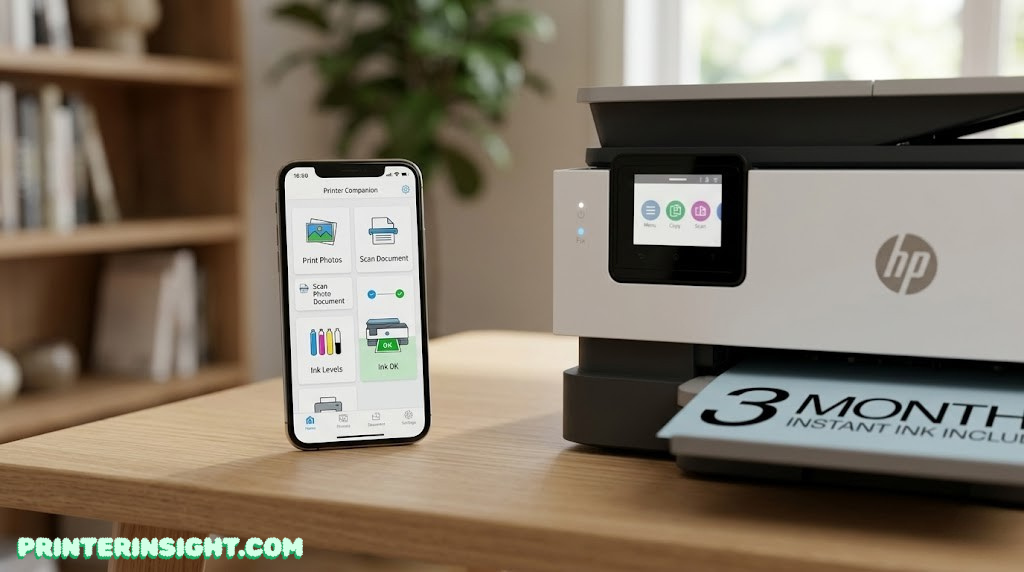
Brother DCP-L2640DW
Monochrome laser all-in-one · print, scan, copy
Wireless printing gets most of the attention in this category, but wireless scanning is where a lot of companion apps actually fall short, lagging behind the document feeder or producing scans that take longer to appear on your phone than the physical scanning itself took. The DCP-L2640DW pairs a genuinely fast 50-sheet automatic document feeder with a Brother Mobile Connect interface that keeps pace with it, so batching a stack of receipts or school forms into a PDF on your phone doesn’t turn into a multi-minute wait staring at a progress bar.
The rest of the printer shares the same dependable laser foundation as the HL-L2460DW above: 36 ppm rated speed, automatic duplex, dual-band Wi-Fi with an Ethernet fallback, and toner that doesn’t dry out between print jobs. For students juggling reading assignments and printed handouts, the combination of fast scanning and reliable printing is a particularly good fit, and our best printer for students guide covers more picks built around that exact use case.
| Function | Print, scan, copy |
| Print speed | Up to 36 ppm, monochrome |
| Document feeder | 50-sheet automatic document feeder |
| Wireless | Dual-band Wi-Fi (2.4/5GHz), Ethernet, Wi-Fi Direct, USB |
| App | Brother Mobile Connect, plus AirPrint and Mopria |
| Toner system | Brother TN830 / TN830XL, DR830 drum unit |
| Price tier | $$ — mid-range |
What we like
- Mobile scan interface keeps up with the document feeder
- Same dependable wireless behavior as the HL-L2460DW above
- Cloud scan-to integrations for Google Drive and OneDrive
What to know
- Monochrome only, no color output
- No fax function
If your household’s wireless pain point has specifically been scanning rather than printing, this is the pick that fixes that exact problem without dragging in a more expensive color engine you don’t need.

Canon MegaTank G3270
Color ink-tank all-in-one · print, scan, copy
The MegaTank G3270 carries Canon’s high-capacity ink-tank system, the same general category as the Epson model above, but its wireless standout is different: PIXMA Cloud Link lets you print directly from cloud storage and select services through the printer or the Canon PRINT app, without needing to download a file to your device first and then print it locally. For anyone who keeps important documents living in the cloud rather than on a specific device, that’s a genuinely useful shortcut.
Underneath that, it’s built around the same value proposition as any MegaTank model: a single set of ink tanks rated for up to 6,000 black or 7,700 color pages, refillable with simple bottles instead of replacement cartridges, which makes it one of the lowest cost-per-page options on this entire list despite a higher sticker price than a basic inkjet. Built-in Wi-Fi covers standard wireless printing, alongside AirPrint and Mopria for broader compatibility. If the bigger question for your household is whether an ink-tank printer like this beats the cartridge alternatives, our home printer cheapest ink breakdown is worth reading before you commit either way, and crafters specifically printing labels, templates, or transfer designs may also want to check our best printer for crafting picks.
| Function | Print, scan, copy |
| Print speed | Up to 11 ipm black, 6 ipm color |
| Wireless | Wi-Fi (802.11b/g/n), USB, PIXMA Cloud Link |
| App | Canon PRINT, plus AirPrint and Mopria |
| Ink system | 4-tank refillable, ~6,000 pg black / 7,700 pg color per fill |
| Paper handling | 100-sheet rear tray |
| Price tier | $$ — mid-range upfront, very low per-page cost |
What we like
- Print directly from cloud storage without a download step
- Exceptional ink yield from a single fill
- Borderless photo printing alongside everyday documents
What to know
- Single-band Wi-Fi only, no 5GHz support
- Print speed is modest compared with the laser picks on this list
For a household that keeps shared documents in Google Drive or a similar service and wants the printer itself to bridge that gap, this is the most purpose-built option in the lineup.

The Printer Apps, Compared
Once a printer is connected, the companion app is where the actual day-to-day wireless experience lives, and the four apps across this lineup take noticeably different approaches.
Leans hardest into account-based cloud features: remote printing, cloud storage integration, and Instant Ink management. The most capable app here for printing from outside the house, at the cost of nudging you toward an HP account.
A straightforward, focused app covering printing, scanning, and ink monitoring, plus PIXMA Cloud Link for cloud-drive printing on supported models. Less feature-dense than HP Smart, which some households will prefer.
Strong remote monitoring and control with a clean interface, plus voice-assistant integration through Epson Connect. One of the more consistently well-reviewed apps in this comparison for everyday use.
Simple and fast, particularly for mobile scanning, with cloud scan-to options for Google Drive and OneDrive. Less elaborate than HP Smart, but rarely the source of complaints either.
None of these apps are required for basic printing once a printer’s on your network — standard OS printing and AirPrint on Apple devices work without any extra software — but if you’re on a Mac-heavy household specifically, it’s worth confirming AirPrint support directly rather than assuming; our best home printer for Mac picks cover that compatibility question for the wider printer market.
What Actually Makes a Printer “Wireless-Friendly”
“Has Wi-Fi” is the floor, not the ceiling. Here’s what actually separates a printer that’s pleasant to live with on a home network from one that becomes a recurring source of frustration.
Fig. 2 — Shorter arcs represent shorter effective range; the printer’s job is to reach whichever band your router uses
- Dual-band support. A printer that only supports 2.4GHz can fail to find a router broadcasting a 5GHz-only or unified network name, which is the single most common wireless setup failure we see referenced in printer support threads.
- Self-healing or active reconnection. Look specifically for language about the printer monitoring its own connection, not just “supports Wi-Fi,” since that’s the difference between a printer that recovers from a router reboot on its own and one that needs to be manually reset.
- Bluetooth for setup. Not essential for daily use, but genuinely useful for getting through initial Wi-Fi configuration without typing a long password on a tiny screen.
- A wired Ethernet fallback. Even on a primarily wireless printer, having an Ethernet port as a backup connection option is a useful safety net if Wi-Fi ever becomes unreliable in a specific room.
- True remote/cloud printing. If you want to print from outside your home network, confirm the printer specifically supports that, since plenty of “wireless” printers only mean local network printing.
If your space is genuinely tight and footprint matters as much as wireless behavior, our best compact home printers guide filters specifically for that constraint without sacrificing the connectivity basics covered here.
Fixing Common Wireless Printer Problems
Even a well-reviewed wireless printer occasionally needs a nudge. Here are the issues that come up most often, and the cheapest fix to try first.
- Printer shows offline intermittently. Usually a router-assigned IP address changing, or the printer’s sleep settings being too aggressive. Our guide to connecting a printer to Wi-Fi walks through the full reconnection process.
- Printer can’t find the network during setup. Almost always a band mismatch, where the printer only supports 2.4GHz and your router is broadcasting a 5GHz-only or combined network name.
- Print jobs sit in the queue without printing. Restart the print spooler on your device first; if that doesn’t help, confirm the printer and device are actually on the same network, not just the same building.
- Mobile app can’t find the printer. Confirm Bluetooth and location permissions are enabled for the app, since several companion apps use both to discover nearby printers during setup.
Wireless reliability is only one half of keeping a home printer healthy long-term — the other half is basic upkeep. If you’re running an inkjet or ink-tank model from this list, our guide to preventing inkjet cartridges from drying out and our cleaning printer heads walkthrough cover the maintenance side directly. For proper storage of spare cartridges between print jobs, see how to store printer cartridges, and our general home printer maintenance tips guide is worth bookmarking regardless of which model you end up with.
Ink-Tank vs. Cartridge vs. Laser: Which Wireless Type Fits You?
This list deliberately spans three different printing technologies, and the wireless behavior is genuinely shaped by which one you pick, not just an add-on feature bolted onto otherwise identical hardware.
Cartridge inkjets like the HP Envy 6055e and Canon PIXMA TS6420a tend to have the most consumer-friendly setup apps and the best photo output, but they need somewhat regular use to keep nozzles from drying out, a problem covered in detail in our inkjet vs. laser printer for home comparison. Ink-tank models like the Epson EcoTank ET-2800 and Canon MegaTank G3270 solve the ongoing cost problem brilliantly and still print good color, at the cost of a higher upfront price; our EcoTank vs. Smart Tank breakdown is the right next stop if you’re narrowing between ink-tank brands specifically. Laser printers like the two Brother picks here are the wireless stability champions of this list, largely because there’s simply less that can go chemically wrong while the printer sits idle, though you give up color entirely on the budget end of that category.
None of these is universally “better” at being wireless — they’re optimized for different tradeoffs, and the right choice depends on whether your priority is photo quality, low running cost, or rock-solid connection stability. For the running-cost side of that decision specifically, our cost of printer ink vs. toner guide lays out the math across all three categories in one place.
Frequently Asked Questions
A handful of questions come up constantly once people start comparing wireless printers specifically, separate from the model-by-model picks above.
What’s the difference between Wi-Fi printing and Wi-Fi Direct?
Standard Wi-Fi printing routes the print job through your home router, so the printer and your device both need to be on the same network. Wi-Fi Direct creates a direct connection between your phone or laptop and the printer with no router involved, which is useful when there’s no Wi-Fi network available or the printer needs to live somewhere the router signal doesn’t reach well.
Do I need Bluetooth if my printer already has Wi-Fi?
Not strictly, but Bluetooth makes the initial setup noticeably easier on some models, since the printer and phone can pair directly to walk through Wi-Fi configuration without typing a network password on a tiny printer screen. After setup, most day-to-day printing still happens over Wi-Fi rather than Bluetooth.
Why does my wireless printer keep going offline?
The most common causes are the printer’s Wi-Fi sleep settings being too aggressive, the router reassigning the printer a new IP address, or the printer and your device being connected to different Wi-Fi bands. Printers with dual-band or self-healing Wi-Fi features, like several picks on this list, are specifically designed to reduce this kind of dropout.
Is dual-band Wi-Fi actually worth it for a home printer?
Yes, in most homes. Dual-band support means the printer can join either the 2.4GHz or 5GHz network your router broadcasts, which avoids the common setup failure where a printer can’t see a 5GHz-only or merged network name. It also gives the printer more available channels, which can mean fewer dropped connections in a crowded Wi-Fi environment.
Can I print wirelessly without installing a printer app?
Yes. Once a printer is on your Wi-Fi network, most operating systems can discover and print to it directly without any app, and Apple devices can use AirPrint with zero extra software. The manufacturer’s app adds conveniences like ink or toner level monitoring and remote printing, but it’s optional for basic local printing.
Does a wireless printer work without internet access?
Yes, as long as the printer and your device are connected to the same local Wi-Fi network or a Wi-Fi Direct connection, printing works without an active internet connection. Features that specifically require the internet, like cloud printing from outside the house or app-based ink reordering, won’t work while offline.
What is “self-healing” Wi-Fi, and is it a real feature?
It’s a real, if loosely defined, feature where the printer’s firmware actively monitors its own wireless connection and automatically attempts to reconnect or adjust settings when it detects a dropout, rather than simply sitting offline until someone notices. It doesn’t guarantee a perfect connection, but it does meaningfully reduce how often a printer needs to be manually reset.
Can multiple people print wirelessly to the same printer at once?
Yes, multiple devices on the same network can send print jobs to one wireless printer, and the printer queues them in the order received. Larger households printing frequently from several devices should pay closer attention to paper tray capacity and rated duty cycle rather than wireless capability itself, since the connection isn’t usually the bottleneck.
Is wireless printing slower than printing over USB?
For most home documents, the difference is negligible, since the printer’s own engine speed is the real bottleneck rather than the data transfer method. Very large files, like high-resolution photo prints, may transfer a few seconds slower over a congested Wi-Fi network than over a direct USB cable.
How do I print from my phone when I’m not home?
This requires a true cloud printing feature, typically tied to the manufacturer’s app and an internet-connected printer, which routes the print job through the cloud to the printer even when you’re on a different network entirely. Not every wireless printer supports true remote printing, so it’s worth confirming this specifically if printing from outside the house matters to you — the HP OfficeJet Pro 8125e on this list is built around exactly that use case.
Do wireless printers need to be restarted often to stay connected?
A well-functioning wireless printer on a stable home network shouldn’t need regular restarts. If you find yourself power-cycling a printer often, it’s usually a sign of a router-side issue, an outdated firmware version, or aggressive sleep settings rather than something inherently wrong with wireless printing as a category.
Which printer app is easiest to use: HP Smart, Canon PRINT, Epson Smart Panel, or Brother Mobile Connect?
All four cover the core basics of printing, scanning, and ink or toner monitoring reasonably well, and the differences come down to small details rather than one being clearly superior. HP Smart tends to lean most heavily into account-based cloud features, Canon PRINT and Epson Smart Panel keep things relatively simple and focused, and Brother Mobile Connect is generally regarded as the most straightforward for fast mobile scanning specifically.
Final Verdict: Which Wireless Printer Should You Actually Buy?
For most households, the HP Envy 6055e is the right default: affordable, genuinely easy to set up, and backed by self-healing Wi-Fi that quietly fixes most of the connection problems before you’d even notice them. Choose the Canon PIXMA TS6420a if the setup process itself is what you dread most. Reach for the Epson EcoTank ET-2800 or Canon MegaTank G3270 if low running cost and strong app control matter more than upfront price. Pick a Brother laser — the HL-L2460DW for print-only reliability or the DCP-L2640DW for fast mobile scanning — if you want the most boring, dependable wireless connection on this entire list. And step up to the HP OfficeJet Pro 8125e specifically if printing from outside your home network is a real, recurring need rather than a nice-to-have.
Whichever one you choose, the real test isn’t how it performs on setup day — it’s whether you’re still thinking about it a year from now, or whether it’s simply become a printer that works.
Check Our Top Pick on Amazon