Canon MegaTank All-in-One Wireless Inkjet Printer Review
A hands-on, no-fluff breakdown of Canon’s refillable-ink MegaTank lineup — what it costs to actually run one, how the prints hold up, and which model in the family is worth your money.
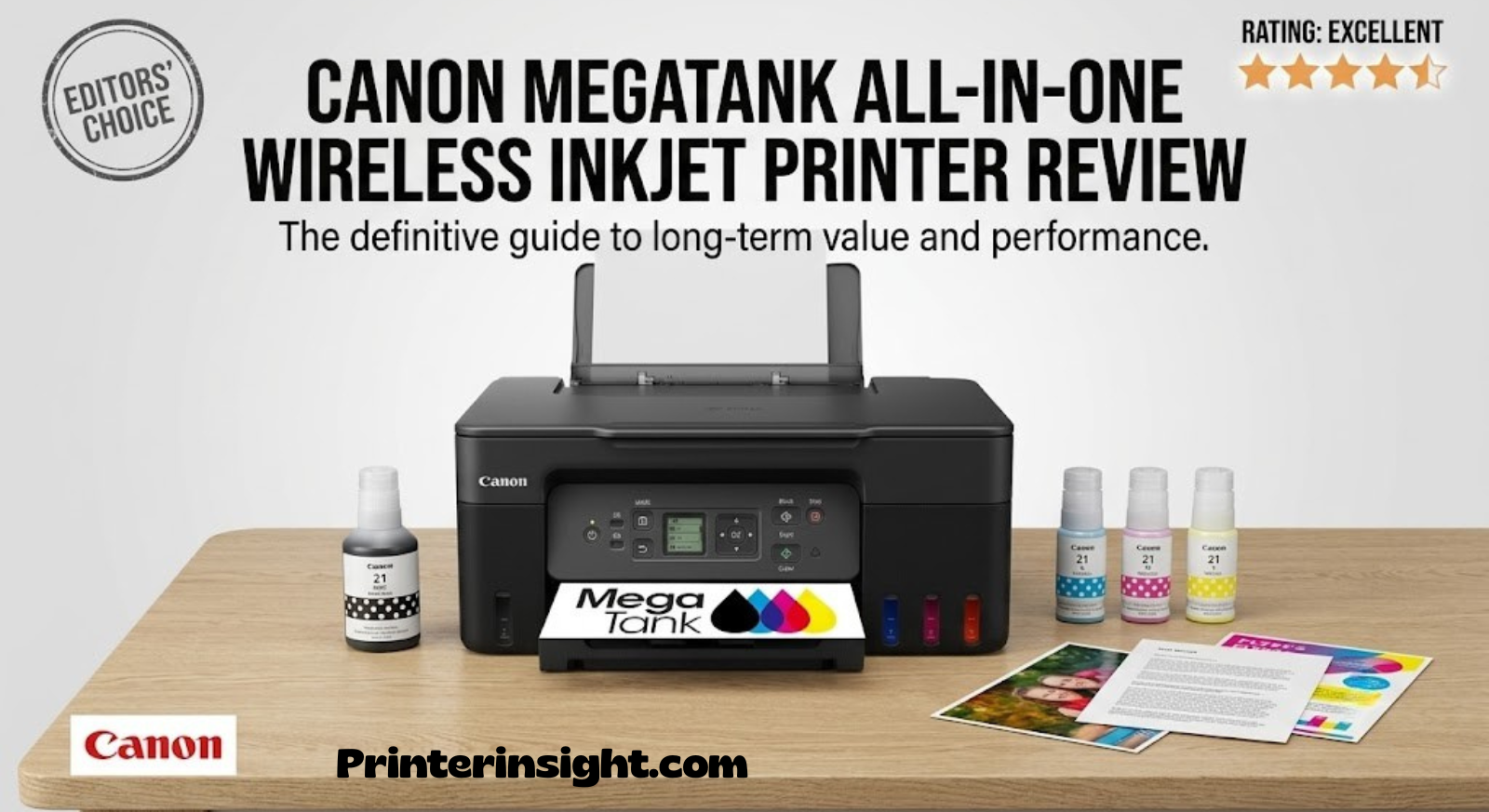
Canon MegaTank Technology: What Makes It Different
Most inkjet printers are built around small, disposable cartridges that run dry within a couple hundred pages and cost almost as much as the printer itself to replace. Canon’s MegaTank line — part of the PIXMA G-Series — flips that model entirely. Instead of cartridges, each printer ships with large refillable ink reservoirs built directly into the chassis, visible through a clear window on the front or side of the unit. You fill them from ink bottles rather than swapping plastic cartridges, and a single set of bottles is designed to last for thousands of pages before a refill is needed.
This isn’t a gimmick bolted onto an existing design. Canon re-engineered the print head, ink delivery system, and internal firmware specifically around bulk ink storage, which is part of why MegaTank printers tend to feel more like small workhorses than typical home inkjets. The tradeoff is a slightly higher upfront price compared to a basic cartridge printer, but the math flips almost immediately once you start printing in volume, since MegaTank ink bottles cost a fraction of what equivalent cartridge ink would cost per page.
If you’ve been comparing ink tank printers for home use in general, the Canon MegaTank family is consistently one of the first names that comes up, and for good reason — it’s one of the more mature, refined implementations of refillable ink technology currently sold at retail.
Across the lineup, you’ll typically see models ranging from simple print-only units to full all-in-one machines with copy, scan, automatic document feeders, and wireless connectivity. That range matters, because “MegaTank” isn’t one printer — it’s a strategy Canon applies across an entire family, and picking the right one depends heavily on what you actually need it to do day to day.

Who This Printer Is Actually For
MegaTank printers make the most sense for households and small offices that print often enough to feel cartridge costs, but not so often that they need a commercial-grade laser workhorse. If you’re printing school assignments, remote-work documents, boarding passes, recipes, and the occasional photo several times a week, a MegaTank all-in-one will comfortably outpace a cartridge-based printer on cost within the first year of ownership.
Families are one of the biggest beneficiaries. Kids’ school projects tend to burn through ink fast, and a bottle-fed tank means you’re not stuck ordering emergency cartridges at 9pm before a project is due. The same logic applies to printers built for students, where volume and reliability matter more than glossy photo output.
Small business owners and home-office workers who print invoices, shipping labels, contracts, or reports daily are another strong fit — especially anyone who has already been burned by how quickly cartridge costs creep up in a home office printing setup. Because MegaTank ink is so inexpensive per page, print volume essentially stops being a budgeting concern.
Where MegaTank printers are a less natural fit: if you print only a handful of pages a month, the higher upfront cost of the printer itself may never fully pay off compared to a cheap cartridge model. And if photo quality is your top priority — think fine-art reproduction or professional photography proofs — a dedicated photo printer will still edge out MegaTank output on certain paper types, though the gap has narrowed considerably in recent hardware generations.
Quick Fit Checklist
- Print more than 100–150 pages per month → MegaTank pays for itself quickly
- Need reliable wireless printing from phones and laptops → covered on all-in-one models
- Want to avoid ever buying cartridges again → this is the entire point of the system
- Mostly print a few pages a month → a standard inkjet may be more economical upfront
Design & Build Quality
Canon’s MegaTank printers share a consistent industrial design language across the lineup: a matte black chassis, front-loading paper trays, and — the signature feature — a transparent ink window on the front-right of the unit so you can see ink levels at a glance without opening any panels. It’s a small touch, but it removes the guesswork that plagues cartridge printers, where you often don’t know you’re low until a print job fails halfway through.
Build quality feels appropriately dense for a printer in this category. The tanks themselves are solid, the refill caps seal firmly enough that spills during refilling are rare if you follow the bottle’s drip-guard design, and the overall chassis doesn’t feel like it’s flexing or creaking during normal use, even on higher-volume models with automatic document feeders.
Physical footprint varies noticeably across the range. Entry-level, print-only models are compact and desk-friendly, while multifunction models with scanning and automatic document feeders are naturally larger and heavier, closer to a compact office copier than a slim home inkjet. If desk space is tight, it’s worth measuring your intended spot before ordering, since the ADF-equipped models in particular add meaningful depth and height.
Control panels differ by tier as well. Simpler models rely on a small LCD or LED status display alongside a handful of physical buttons, while higher-tier models step up to larger color touchscreens that make copy and scan settings far easier to navigate without needing a connected computer.
Setup & Wireless Connectivity
Initial setup follows a fairly standard sequence: unbox, remove the shipping tape and protective inserts from the print head carriage, install the four ink bottles into their respective tanks, and run the initial ink-charging cycle from the printer’s menu or the companion app. This charging cycle is the one step that catches new owners off guard — it can take longer than expected, sometimes 10–20 minutes, because the system is filling internal ink lines for the first time. Skipping ahead or interrupting it can cause print quality issues later, so patience here pays off.
Once initial ink charging finishes, wireless setup on MegaTank all-in-one models is handled through Canon’s PIXMA/MAXIFY companion app, which walks you through connecting the printer to your home Wi-Fi network. If your household already deals with printers dropping off the network occasionally, it’s worth reviewing general troubleshooting steps for connecting a printer to WiFi, since the same fundamentals — router band compatibility, signal strength, and firmware updates — apply here too.
Most MegaTank all-in-ones support the standard trio of wireless printing methods: direct Wi-Fi network printing, Wi-Fi Direct for connecting without a router, and mobile printing through Canon’s PRINT app for both iOS and Android. AirPrint and Mopria support are typically included as well, which matters if you’re printing from an iPhone, iPad, or Android device without wanting to install a dedicated app.
If you do run into a printer that refuses to stay connected after the initial setup, it’s rarely a hardware fault — it’s almost always a router or power-saving setting. A deeper look at why printers keep going offline covers the most common causes and fixes in more detail.
Print Quality: Documents, Graphics, and Photos
Text output on MegaTank printers is genuinely excellent — crisp, dark, and consistent even on plain copy paper, which is exactly what most households and offices need most of the time. Fine print, small fonts, and dense tables all render cleanly without the slight fuzziness that budget cartridge printers sometimes struggle with at smaller point sizes.
Color graphics — think charts, flyers, and colored diagrams — come out vibrant with good saturation, though slightly less punchy than a dedicated photo printer at default settings. Switching to a higher-quality print mode in the driver noticeably improves color depth at the cost of print speed, which is a reasonable tradeoff for anything that isn’t a quick draft.
Photo printing is where MegaTank models show the clearest split between entry-level and higher-tier units. Models with a dedicated photo black ink tank (in addition to standard cyan, magenta, yellow, and pigment black) produce noticeably richer photo prints with smoother gradients and better handling of skin tones. Lower-tier, print-only models without that extra tank still produce decent photos for everyday use, but they won’t match a photo-specialist printer for gallery-quality output. If photo output is a priority, it’s worth comparing against dedicated options in a guide to the best printers for photos at home.
Print Quality at a Glance
| Content Type | Result |
|---|---|
| Black text documents | Sharp, dark, consistent across paper types |
| Color charts/graphics | Vibrant, minor softness at default draft speed |
| Standard photos (4×6, 5×7) | Good, better with photo-black-equipped models |
| Borderless printing | Supported on all-in-one models |
Ink System & Running Costs
This is the section that actually sells the MegaTank concept. A standard set of replacement ink bottles for the MegaTank line is priced far below equivalent-capacity cartridges for a comparable inkjet, and each bottle is rated to produce thousands of pages rather than the few hundred typical of small cartridges. Over a year of moderate use, the difference in cost-per-page between a MegaTank printer and a cartridge printer can be dramatic enough that the printer effectively pays for its own price premium through ink savings alone.
Refilling is straightforward: each tank has its own color-coded bottle with a nozzle designed to click into the tank’s fill port, preventing overflow and cross-contamination between colors. Canon rates most bottle sets for very high page yields — black ink in particular is rated for thousands of standard pages per bottle on many models, which for an average household can mean refills only once or twice a year.
If you’re weighing this against a laser printer instead of a standard inkjet, it helps to look at the broader tradeoffs in inkjet vs. laser printers for home use — MegaTank narrows the cost gap considerably but still differs from laser in areas like waterproof toner permanence and raw text-only page speed. For a more direct breakdown of whether the tank system is worth the upfront cost at all, see this look at whether ink tank printers are worth it.

Speed & Real-World Performance
Rated print speeds across the MegaTank all-in-one lineup generally fall in a similar range — roughly 11–13 pages per minute for black-and-white documents and closer to 6–7 pages per minute for color, using Canon’s standard ISO measurement methodology. In everyday use, expect real-world speeds to run somewhat slower than the rated figures once you factor in the printer’s warm-up time and the first-page-out delay, which is typical for inkjet technology in general.
Where MegaTank models genuinely shine is sustained printing. Because there’s no cartridge to run dry mid-job, longer print runs — a 30-page report, a batch of worksheets, a stack of shipping labels — tend to complete without interruption, which is a bigger real-world quality-of-life improvement than the raw pages-per-minute number suggests.
Scan speed on multifunction models is respectable for flatbed and automatic document feeder scanning alike, though ADF-equipped models obviously move through multi-page documents far faster than manually placing each sheet on the flatbed glass.
Typical Speed Benchmarks
| Task | Approximate Speed |
|---|---|
| Black text (rated) | ~11–13 ppm |
| Color document (rated) | ~6–7 ppm |
| First page out (black) | ~6–9 seconds |
| Standard photo (4×6, borderless) | ~60–90 seconds depending on quality mode |
Paper Handling & Media Support
Paper capacity varies by model, with rear trays typically holding around 100 sheets on entry-level units and dual-tray configurations on higher-tier models offering a combined front-and-rear capacity well above that, which reduces how often you need to refill the tray during heavy printing sessions. Max print size on most models tops out around 8.5″ x 47″ for banner-style printing, or roughly 8.5″ x 26″ on models with a more compact rear-feed-only design.
Beyond plain copy paper, the lineup supports photo paper, glossy and matte finishes, envelopes, and in most cases labels — all fed either from a rear specialty tray or the main paper cassette depending on the model. Borderless printing is supported across the all-in-one range, which is a nice bonus for anyone printing photos or flyers without wanting to trim white edges afterward.
If you frequently print oversized documents like posters, banners, or long spreadsheets, double-check the specific model’s max sheet length before buying — the difference between roughly 26 inches and roughly 47 inches of continuous printing is significant if banner printing is part of your regular workflow.
Software, Mobile Printing & Chromebook Compatibility
Canon’s PRINT app remains the primary software companion across the MegaTank range, handling everything from initial wireless setup to scanning directly to your phone, photo printing templates, and ink level monitoring without needing to walk over to the printer. It’s available for both iOS and Android and covers the vast majority of day-to-day tasks without ever needing to open a desktop print dialog.
On desktop, Canon provides full driver support for Windows and macOS, along with AirPrint support for Apple devices that lets you print directly from an iPhone or iPad without installing anything extra. For anyone specifically shopping around the best home printer for Mac, the MegaTank lineup’s native macOS driver support and AirPrint compatibility make it a low-friction option.
Chromebook compatibility deserves a specific callout, since it isn’t universal across all printer brands. Most current MegaTank all-in-one models support Mopria Print Service, which covers printing from ChromeOS without additional drivers. If Chromebook support is a hard requirement for your household or classroom, cross-reference the specific model against a dedicated list of printers confirmed to work well with Chromebooks before finalizing your choice.

Canon MegaTank Model Comparison
The MegaTank family spans several tiers, from simple print-only machines to full-featured all-in-ones with automatic document feeders and color touchscreens. Here’s how the most common models stack up against each other on the specs that actually affect day-to-day use.
| Model | Functions | Display | Wireless | Max Print Size |
|---|---|---|---|---|
| PIXMA G1230 | Print only | None | No | Up to 8.5″ x 47″ |
| PIXMA G3270 | Print, Copy, Scan | 1.35″ Backlight LCD | Yes | Up to 8.5″ x 47″ |
| PIXMA G3260 | Print, Copy, Scan | 2-line LCD | Yes | Up to 8.5″ x 47″ |
| PIXMA G6020 | Print, Copy, Scan | 2-line LCD | Yes | Up to 8.5″ x 26″ |
| PIXMA G2270 | Print only | 1.2″ Segment LCD | No | Up to 8.5″ x 47″ |
| PIXMA G5020 | Print only | 2-line LCD | Yes | Up to 8.5″ x 26″ |
For most households, the sweet spot is a model that includes copy and scan functions alongside wireless connectivity — the added cost over a print-only unit is small relative to the daily convenience of scanning documents straight to a phone or copying a form without needing a computer at all. If you specifically want the widest banner-printing range, look toward models rated for the 47-inch max length rather than the more compact 26-inch tier.
For a broader look at how these stack up against non-MegaTank options entirely, see our roundup of the best home printers worth buying right now.
Pros and Cons
Pros
- Dramatically lower cost per page than cartridge printers
- Visible ink tanks remove the guesswork of ink levels
- Sharp, consistent text output straight out of the box
- Wireless and mobile printing on all-in-one models
- Good borderless photo printing on higher tiers
- Sturdy build quality that holds up to daily use
Cons
- Higher upfront cost than basic cartridge printers
- Initial ink-charging setup takes real time and patience
- Entry-level models lack copy/scan and wireless features
- Photo output trails dedicated photo printers at the top end
- Larger footprint on ADF-equipped multifunction models
Maintenance & Longevity Tips
MegaTank printers are relatively low-maintenance compared to cartridge machines, but a few habits go a long way toward keeping print quality consistent over the years. First, print something at least every couple of weeks, even a quick test page — inkjet print heads that sit completely idle for long stretches are more prone to minor clogging. If you already suspect clogging based on streaky or faded output, a guide to cleaning printer heads walks through the built-in cleaning cycles most models offer from their menu or software utility.
Second, always use genuine Canon ink bottles rather than generic refill ink. The click-fit bottle design is engineered specifically for Canon’s tanks, and third-party ink not only risks clogging but can also throw off the printer’s internal ink-level tracking.
Third, if you’re not printing daily, it still helps to understand general best practices for preventing an inkjet printer from drying out, since prolonged inactivity is one of the more common reasons any inkjet — MegaTank included — starts producing streaky or incomplete prints.
Finally, keep spare ink bottles somewhere temperature-stable rather than a garage or car trunk, and check out general guidance on storing printer ink properly if you tend to buy ink in bulk ahead of time. For a broader routine covering dust, paper feed rollers, and firmware updates, this rundown of home printer maintenance tips is worth bookmarking.

How It Compares to Other Brands
Canon isn’t the only company making ink tank printers — Epson’s EcoTank line is the most direct competitor, and the two are frequently cross-shopped by anyone comparing Epson EcoTank vs. HP Smart Tank style setups. Generally speaking, Canon’s MegaTank line tends to edge out competitors on text sharpness and build quality, while Epson’s EcoTank is often praised for slightly larger tank capacities on select models.
If you’re comparing Canon specifically against HP or Brother rather than Epson, it’s also worth reviewing a head-to-head like Brother vs. HP printers for home use or a dedicated look at the best Brother printer for home to see how cartridge-based competitors stack up on cost over time — the answer, in most cases, still favors ink tank systems like MegaTank once print volume climbs.
For anyone still undecided between Canon’s own cartridge and tank lines, a direct look at Canon PIXMA vs. HP Envy printers can help clarify whether the tank premium is worth it for your specific print volume, or whether a standard cartridge PIXMA might actually suit lighter, occasional use better.
Final Verdict: Is the Canon MegaTank Worth It?
The Canon MegaTank lineup delivers on its core promise: dramatically cheaper printing over time, without sacrificing the print quality most households and home offices actually need. Text is sharp, colors are solid, and the visible ink tanks remove one of the more annoying parts of printer ownership — never knowing exactly when you’re about to run dry mid-job.
The right model within the family comes down to how you’ll use it. If you need copy and scan functionality along with wireless printing from multiple devices, step up to one of the all-in-one models rather than a print-only unit. If banner-length printing matters to you, prioritize models rated for the longer 47-inch max size over the more compact 26-inch tier.
For anyone printing more than a light handful of pages a month, the math strongly favors MegaTank over a standard cartridge printer within the first year of ownership — and from there, the savings just keep compounding.

Frequently Asked Questions
How long does a full set of MegaTank ink bottles last?
It depends on print volume, but black ink is typically rated for thousands of standard pages per bottle, meaning moderate home users often refill only once or twice a year.
Can I use third-party ink bottles instead of genuine Canon ink?
You can, but it isn’t recommended. Generic ink has been linked to clogging issues in some MegaTank print heads and can interfere with the printer’s ink-level tracking.
Do all MegaTank models support wireless printing?
No. Some entry-level, print-only models are USB-only, while most all-in-one models with copy and scan functions do include Wi-Fi and mobile printing support.
How long does the initial ink-charging setup take?
Expect roughly 10–20 minutes for the printer to fully charge its internal ink lines the first time. It’s important not to interrupt this process.
Is a MegaTank printer better than a cartridge printer for occasional use?
Not necessarily. If you print only a few pages a month, the higher upfront cost of a MegaTank printer may take longer to pay off compared to a basic cartridge printer.
Does the MegaTank line support Chromebooks?
Most current all-in-one models support Mopria Print Service, which enables printing from ChromeOS devices without additional drivers.
What’s the difference between MegaTank and Epson EcoTank?
Both use refillable ink tanks instead of cartridges. Canon’s MegaTank line tends to edge out on text sharpness and build quality, while some EcoTank models offer slightly larger tank capacities.
Can these printers handle photo printing well?
Yes, especially models equipped with a dedicated photo black ink tank, which produce noticeably richer photo output than print-only entry-level models.
How do I know when to refill a tank?
Each tank has a visible window with fill-level markings, so you can check ink levels at a glance without opening the printer’s software.
Is scanning included on every MegaTank model?
No, scanning is only included on the all-in-one models. Print-only models in the lineup handle printing exclusively.
Related Guides on PrinterInsight
- Best Home Printers Worth Buying Right Now
- Best Laser Printer for Home
- Best Ink Tank Printer for Home
- Home Printers With the Cheapest Ink
- Best Wireless Printer for Home
- Best Compact Home Printers
- Best Printer for Photos at Home
- Best Printer for Home Office
- Best Printer for Students
- Best Printer for Crafting
- Best Home Printer for Mac
- Inkjet vs. Laser Printer for Home
- Are Ink Tank Printers Worth It?
- Brother vs. HP Printers for Home
- Epson EcoTank vs. HP Smart Tank
- Best Brother Printer for Home
- Canon PIXMA vs. HP Envy
- Best HP Printer for Home Use
- Prevent Inkjet Printer Drying Out
- How to Connect a Printer to WiFi
- Cost of Printer Ink vs. Toner
- How to Clean Printer Heads
- How to Store Printer Cartridges
- Home Printer Maintenance Tips
- Best Printer for Chromebook
- Why Does My Printer Keep Going Offline?
- How to Connect Your HP Printer to WiFi
- Printer Not Responding: How to Fix It