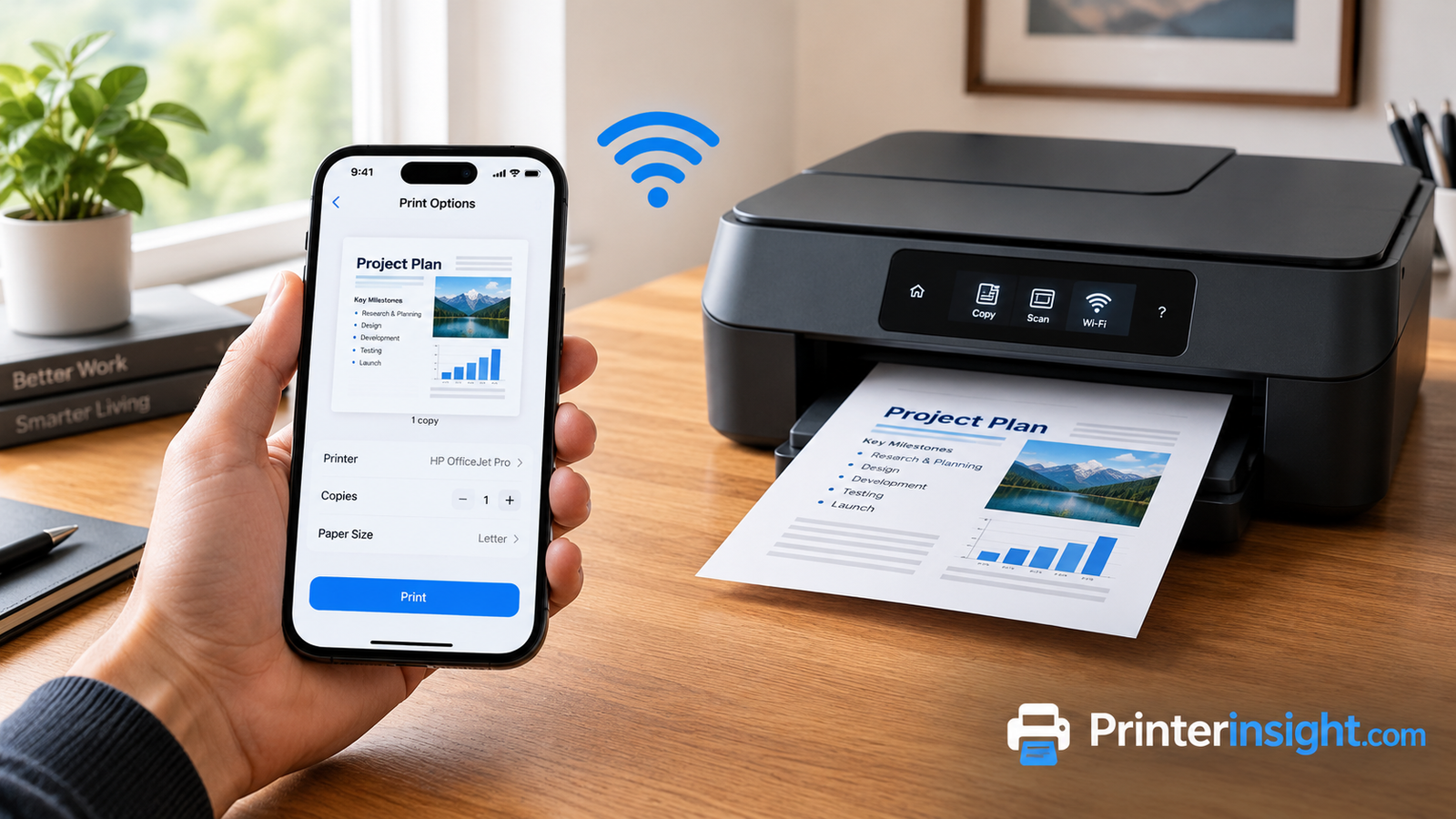
How to Print From iPhone: The Complete Step-by-Step Guide
Wireless printing, AirPrint, printer apps, and every fix for the moments when your iPhone just won’t find the printer.
You are standing at the counter with your phone in one hand. A boarding pass, a school form, a recipe, or a photo you want on the fridge is on the screen, and you need it on paper in the next two minutes. The good news is that printing from an iPhone is far simpler than most people think. You don’t need a cable, a laptop, or a special account. If your printer and your iPhone can talk to each other over Wi‑Fi, you are about four taps away from a finished page.
The catch is that printing sometimes works perfectly and sometimes fails for no obvious reason. One week your iPhone finds the printer instantly. The next week it says “No AirPrint Printers Found.” This guide walks you through the whole process from the very beginning, explains why things break, and shows you what to do about it. If you also use an Android phone around the house, our walkthrough on how to print from Android covers the other side of the family.
Below you will find six core steps, each with its own illustration, followed by app-by-app instructions, options for printers without AirPrint, a full troubleshooting playbook, quality tips, and advice on picking a printer that plays nicely with iPhones. If you are still shopping, our roundup of the best home printers worth buying right now is a good place to start.
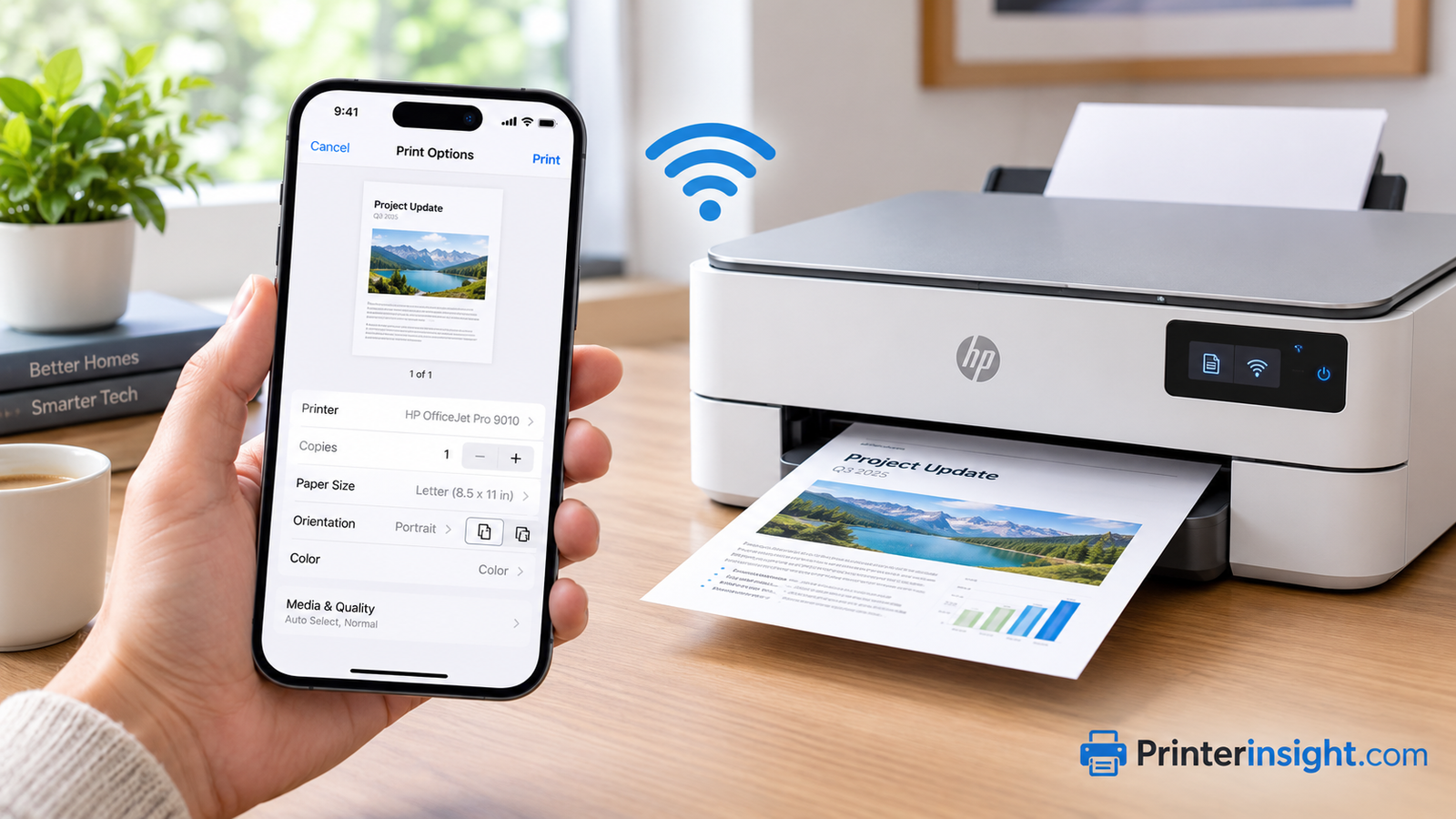
Watch: Printing From an iPhone in Under a Minute
If you prefer to see it before you read it, this short video from Apple Support shows the basic flow on a real phone. Watch it once, then come back for the detailed steps, the illustrated diagrams, and the fixes that the video doesn’t have time to cover.
Print from your iPhone | Apple Support
1. How Printing From an iPhone Really Works
Before you tap anything, it helps to understand what is happening behind the scenes, because every troubleshooting step later in this guide makes more sense once you do. Your iPhone does not need a driver, a download, or a cable to print. Instead, it relies on a built-in technology called AirPrint. AirPrint lets your phone discover nearby printers on your local network and send them a print job in a format they already understand. Nothing is installed, and nothing is paired the way a Bluetooth speaker is paired.
What AirPrint actually does
When you tap Print, your iPhone looks for printers that are announcing themselves on your Wi‑Fi network. Compatible printers broadcast a small message that says, in effect, “I’m here and I can accept jobs.” Your phone lists them, you pick one, and the document is sent directly across your home network. The data never has to travel to a cloud server, which is why AirPrint is fast and also why it stops working the moment your phone and printer are on different networks.
The three ways to print from an iPhone
| Method | Setup effort | Best for | Main limitation |
|---|---|---|---|
| AirPrint | None | Everyday documents, photos, web pages | Printer must support it |
| Manufacturer app | Low (install and add printer) | Older printers, scanning, ink levels | Extra app to maintain |
| Email or cloud print | Medium (register printer) | Printing while away from home | Slower, depends on internet |
The overwhelming majority of people will use the first method, and it is the one the six steps below are built around. If your printer is older and doesn’t support AirPrint, don’t worry. Section 9 covers every alternative.
What you need on hand
- An iPhone running a reasonably recent version of iOS.
- A printer with Wi‑Fi (wired-only printers can’t print wirelessly without extra hardware).
- A working Wi‑Fi network that both devices can join.
- Paper and ink or toner loaded, which sounds obvious but accounts for a surprising number of “it’s not working” moments.
If your printer isn’t yet on your Wi‑Fi, set that up first. Our guide to connecting a printer to Wi‑Fi covers the general process, and if you are shopping for a model that makes wireless setup painless, take a look at the best wireless printers for home use. The type of printer matters too, so if you haven’t decided between ink and toner, see how inkjet and laser printers compare for home use.
2. Check That Your Printer Supports AirPrint
This is the step people skip, and it is the reason many first attempts fail. AirPrint is not a feature of every printer. It is a certification, and the printer must carry it. Almost every wireless printer sold by the major brands over the last several years supports it, but older models and some budget machines do not.
Three quick ways to confirm support
- Look at the box or product page. Manufacturers display the AirPrint badge prominently because it sells printers.
- Check the specifications. Search the printer’s model number plus “AirPrint” and look for it on the official product page.
- Just try it. If your iPhone lists the printer when you tap Print (Step 5), you have your answer.
If your printer is one of the popular home brands
Good news: the major home printer families overwhelmingly support AirPrint on their current Wi‑Fi models. Our guides to the best HP printers for home use and the best Brother printers for home point out which models have especially reliable wireless behavior. If you want one machine that prints, scans, and copies, the best all-in-one printers for home are worth a look, and renters or anyone short on desk space may prefer the best compact home printers.
3. Connect Your iPhone and Printer to the Same Wi‑Fi Network
AirPrint works over your local network, so your phone and printer must be on the same one. This is the single most common cause of “printer not found” messages, and it is surprisingly easy to get wrong. Many routers broadcast two networks, one labeled for the faster band and one for the longer-range band, often with similar names. Your iPhone might be on one while your printer is on the other. On some routers, devices on different bands can’t see each other at all.
How to check which network your iPhone is on
Open Settings and tap Wi‑Fi. The network with a check mark beside it is the one your phone is using. Write down the exact name. Then confirm your printer is on that same network. Most printers show their network name on the built-in display, in the settings menu, or on a printed network configuration page that you can generate from the control panel.
If the printer isn’t on your Wi‑Fi yet
You will need to join the printer to the network first, using either its touchscreen, its companion app, or a WPS button push on the router. The process differs by brand. If you own an HP, our dedicated guide on connecting your HP printer to Wi‑Fi goes through it screen by screen. Other brands follow a similar pattern, which is covered in the general printer Wi‑Fi setup guide.
Common network mistakes to avoid
- Guest network confusion. Guest networks usually isolate devices from each other for security. If your iPhone is on the guest network and the printer is on the main network, they won’t see one another.
- VPN or iCloud Private Relay interference. A VPN can hide your phone from local devices. Turn it off temporarily while printing.
- Mobile data only. If Wi‑Fi is off, your phone is using cellular and can’t see the printer at all.
- Different routers or extenders. A Wi‑Fi extender that creates its own network name can split your devices apart.
4. Open the Document, Photo, or Web Page You Want to Print
AirPrint is built into the iOS share system, which means almost any app that can show you something can usually print it. Start by opening the item itself. It could be a photo in the Photos app, a PDF in Files, an email in Mail, a web page in Safari, a note in Notes, or a document in a third-party app such as a word processor or cloud storage app.
Check the content before you print it
Take ten seconds to look at what is on screen. A web page that looks fine on a phone may turn into five pages on paper because of ads, sidebars, and long footers. A photo might be cropped differently than you expect. If it is a document, scroll to the end to confirm it is the version you actually want. A quick check here saves paper and ink, and if you print often, the cost really adds up. Curious how much? See our explanation of why printer ink is so expensive.
Use Reader view for cleaner web printouts
In Safari, tap the page menu button in the address bar and choose Show Reader if it appears. Reader strips away navigation and ads, so the printout is just the article. Recipes, instructions, and long articles print far more neatly this way.
Students and office workers
If you print lecture slides, assignments, or contracts from your phone regularly, you will want a printer that handles volume without drama. Our recommendations for the best printers for students and the best printers for a home office focus on exactly those daily-use situations.
5. Tap Share, Then Choose Print
Now for the part that feels like a magic trick. Look for the Share button. It is the small square with an arrow pointing upward, and it usually sits at the bottom of the screen in Safari and Photos, or at the top or in a menu in other apps. Tap it and a sheet slides up from the bottom of the screen. That sheet has a row of people and apps at the top and a list of actions underneath.
If you don’t see Print right away
The action list is longer than it looks. Swipe up on the share sheet or scroll down within it, and Print will appear among the actions, often near the bottom. In some apps, Print is tucked inside a “More” or three-dot menu rather than the main share sheet. In Mail, for example, you tap the reply arrow and then scroll to find Print. In Notes and some third-party apps, look under the three-dot menu.
When Print is missing entirely
A few apps simply don’t support printing. If Print is nowhere to be found, try one of these workarounds:
- Save the content as a PDF or take a screenshot, then print that from Files or Photos.
- Use the Share sheet to send the item to the Files app, then print from there.
- Open the item in a different app, such as Safari for a web-based document.
If you work with more than one computer or print from a shared household device, you might also want to set a sensible default on your computer. Our guide on changing the default printer helps keep things tidy across all your devices.
6. Choose Your Printer and Adjust the Print Options
After you tap Print, the Printer Options screen appears. Everything you can control about the job lives here. At the top you will see “Printer,” which probably says “Select Printer” the first time. Tap it, wait a few seconds while your iPhone searches, and choose your printer from the list. After the first time, iOS remembers your choice for the next job.
The options explained
| Option | What it does | When to change it |
|---|---|---|
| Printer | Selects which AirPrint printer receives the job | First time, or when you have more than one printer |
| Copies | Sets how many copies print | Handouts, forms, multi-person documents |
| Range | Chooses which pages print | Printing only page 2, or skipping a cover sheet |
| Black & White | Prints grayscale using mostly black ink | Text-heavy documents, drafts, saving color ink |
| Two-Sided | Prints on both sides of the page | Long documents, saving paper (needs a duplex printer) |
| Paper size or tray | Appears for some printers and photo jobs | Photos, envelopes, labels, and non-standard paper |
Not every option appears for every printer. Options only show up if your printer advertises them. If you don’t see Two-Sided, your printer likely doesn’t have automatic duplex printing. Paper size is another good example of an option that appears only in certain situations, which is worth knowing if you ever wonder what size printer paper a job needs.
7. Tap Print, Then Track or Cancel the Job
With the printer and options chosen, tap Print in the top-right corner. Your iPhone sends the job across your network, and in most cases the printer begins warming up within a few seconds. Larger jobs, photos, and color-heavy pages take longer because they contain more data. Don’t lock your phone or leave the app immediately for the first few seconds. Give the job time to leave your device.
How to check on a print job
If nothing seems to be happening, you can see exactly what your iPhone thinks is going on. Open the App Switcher by swiping up from the bottom of the screen and pausing in the middle, or by double-pressing the Home button on older phones. A card called Print Center appears while a job is in progress. Tap it to view the job, see which printer it is waiting on, and watch the status.
How to cancel a print job
Realize you sent the wrong file? Open Print Center the same way, tap the job, and choose Cancel Printing. Cancel quickly, because once the printer has the data in its own memory, it may finish the page it is currently printing. You may also need to cancel from the printer’s control panel if a job has been fully transferred.
When the page comes out wrong
- Blank pages: Usually a clogged nozzle, an empty cartridge, or a protective tape left on a new cartridge. See why your printer prints blank pages.
- Streaks or faded lines: A cleaning cycle often helps. Our guide on cleaning printer heads shows the safe way to do it.
- Job stuck at “Waiting”: The printer is asleep, offline, or out of paper. Wake it and try again.
8. Printing From Photos, Safari, Mail, Files, and Notes
The six steps above work in nearly every app, but each app has little quirks. Here is how printing works in the places you are most likely to need it.
Printing photos from the Photos app
Open Photos, tap the picture you want, and tap Share, then Print. To print more than one photo, tap Select, choose several images, then Share and Print. In the Printer Options screen you can pick a paper size if your printer reports one. For borderless prints you will want photo paper loaded and the printer’s paper type set accordingly. If photo quality matters to you, our list of the best printers for photos at home explains which models deliver the best color and detail.
Printing from Safari
Tap the page-menu or Share button and choose Print. Reader view cleans up articles; the preview thumbnail shows you how many pages the result will be before you commit.
Printing from Mail
Open the message, tap the reply arrow at the bottom, scroll down the action list, and tap Print. To print an attachment, tap the attachment first so it opens in Quick Look, then use the Share button there. This keeps the printout limited to the file instead of the entire email thread.
Printing from Files
The Files app is your best friend for PDFs, scans, and downloaded documents. Press and hold a file and choose Print from the context menu, or open the file and tap Share. Boarding passes, receipts, and school forms usually end up here.
Printing from Notes and other apps
In Notes, tap the three-dot menu or Share button, then choose Print or Send a Copy followed by Print. Third-party apps such as Microsoft Word, Google Docs, and cloud storage apps generally include a Print option within their own share or file menus. When it is missing, export to PDF first.
Previewing before you print
On the Printer Options screen, you will see a small thumbnail of your document. Pinch outward on it, or tap it, to open a full-size preview. This is the fastest way to catch cut-off text or a stray blank page before it wastes ink.
Special jobs: envelopes, labels, and custom paper sizes
Some jobs need specific hardware. Printing addresses on envelopes or sheets of labels from your phone is possible, but your printer has to handle that media well. See our picks for the best printers for envelopes and the best printers for labels before you start feeding unusual paper through a machine that wasn’t built for it.
9. How to Print From iPhone Without AirPrint
Your printer might be older, or it might be a budget model that never earned the AirPrint badge. That doesn’t mean your iPhone is locked out. You have several workable alternatives, and each has its own advantages.
Method A: The manufacturer’s printing app
Every major printer brand publishes an iPhone app that handles printing, scanning, ink monitoring, and sometimes remote printing. The workflow is nearly identical across brands:
Look for the app by searching your printer brand’s name in the App Store. Popular examples include apps from HP, Epson, Canon, and Brother. Once installed, it will walk you through finding the printer on your network. Photos are usually the easiest thing to print this way, while documents often need to be opened from Files or cloud storage.
Method B: Email-to-print
Many printers have a unique email address. Send an attachment to that address and the printer prints it automatically. It works from anywhere with an internet connection, which is handy for sending documents to a family member’s home printer. The downside is that you have limited control over print options, and it can be slower.
Method C: Cloud print and remote services
Some brands provide cloud print features. You sign in to an account, link your printer, and print from anywhere. This is excellent for remote printing, but it requires an account and a printer that is online around the clock.
Method D: Print from a computer instead
If your iPhone can’t print directly, a computer connected to the printer can. Send the file to your computer using AirDrop, email, or cloud storage and print as usual. You may need to install drivers first, which our guide on installing printer drivers explains. Mac owners will find helpful hardware suggestions in our guide to the best home printers for Mac, and Chromebook users can check the best printers for Chromebook. If your printer also scans, you may find scanning from printer to computer useful too.
Which method should you choose?
Pros of manufacturer apps
- Works with printers lacking AirPrint
- Adds scanning and ink alerts
- Often supports remote printing
Cons of manufacturer apps
- Extra app to install and update
- Interfaces vary between brands
- May ask you to create an account
10. Troubleshooting: When Your iPhone Can’t Find the Printer
Printing is wonderfully simple when it works and maddening when it doesn’t. The good news is that nearly every iPhone printing failure comes down to one of a handful of causes. Work through the fixes below in order, starting with the quickest. Most people are back up and running before they reach the fourth item.
The quick-fix checklist
- Confirm the printer is on and awake. Many printers enter a deep sleep that drops them from the network. Press a button on the control panel to wake it, then try again.
- Check paper and ink. A printer that is out of paper, jammed, or showing an error won’t accept jobs. If you suspect a jam, our guide to fixing a printer jam shows how to clear it safely.
- Verify both devices are on the same Wi‑Fi. Return to Step 2 and compare network names exactly.
- Turn Wi‑Fi off and on again on your iPhone. It takes five seconds and clears many discovery hiccups.
- Restart the printer. Power it off, wait ten seconds, and turn it back on. Wait for the Wi‑Fi light to stop blinking before you try again.
- Restart the router. A router that has been running for weeks can develop quirks that block device discovery.
- Check Local Network access. When using a printer app, make sure it has permission to find devices on your network in Settings under the app’s name or under Privacy and Security.
- Turn off any VPN. Local discovery often fails while a VPN is active.
- Update iOS and the printer firmware. Bugs get fixed in updates, and compatibility improves over time.
Symptom-to-fix quick reference
| Symptom | Likely cause | Best fix |
|---|---|---|
| “No AirPrint Printers Found” | Different network or printer asleep | Match Wi‑Fi networks, wake printer, restart both |
| Printer appears, then goes missing | Weak signal or router band-steering | Move printer closer, use a stronger signal |
| Job stuck at “Waiting” | Printer offline or paused | Cancel job, power-cycle printer, resend |
| Printer says offline everywhere | IP address changed or Wi‑Fi dropped | Reconnect printer to Wi‑Fi, assign a stable address |
| Prints blank or faint pages | Dry nozzles or empty cartridge | Run a cleaning cycle, replace cartridge |
| Print option missing in app | App doesn’t support printing | Export to PDF and print from Files |
When the printer keeps disconnecting
If your printer goes offline repeatedly, the problem is probably the printer’s wireless link, not your iPhone. Our deep dive into why a printer keeps going offline covers permanent fixes, and the longer troubleshooting playbook on fixing a printer that isn’t responding goes through every cause one step at a time.
Preventing problems before they start
The printers that cause the least trouble are the ones that are used and maintained regularly. Inkjet printers in particular dislike sitting idle, because ink dries in the nozzles. Learn how to prevent an inkjet printer from drying out, and build a small routine from our home printer maintenance tips. A few minutes every month saves hours of frustration later.
11. Getting Better Print Quality From Your iPhone
Once printing works, you will probably want it to look good. Phone printing can produce excellent results, but a few details separate crisp, professional pages from disappointing ones.
Start with the source
A printout is only as good as the file behind it. Photos taken in good light at full resolution print beautifully. Screenshots and heavily compressed images shared through messaging apps often look soft on paper because the app shrinks them. When a photo matters, print the original from your Photos library rather than a copy sent through a chat.
Use the right paper
Plain office paper is fine for documents, but photos need photo paper. Matching the paper to the job makes a bigger difference than most people expect. Glossy paper makes colors pop, matte reduces glare, and heavier cardstock handles invitations and cards. Remember to set the paper type on the printer or in its app when it offers a choice, so it lays down the right amount of ink.
Choose the right quality mode
- Draft or economy: Fast, uses less ink, fine for internal documents and checklists.
- Standard: Good balance for everyday printing.
- Best or high quality: Slower and uses more ink, ideal for photos and important handouts.
Store consumables correctly
Ink that has dried or toner that has absorbed moisture produces poor results. Keep spare supplies in a cool, dry place away from sunlight, and see our practical guide on how to store printer cartridges for the details that most people get wrong. Paper matters too. Keep it sealed in its packaging until you need it, because paper that has absorbed humidity jams and curls.
Printing for creative projects
If you plan to print for scrapbooking, stickers, or other creative projects straight from your phone, your priorities shift toward color accuracy and media handling. Our recommendations for the best printers for crafting highlight machines that handle specialty paper well. And if you want to skip the home printer entirely for snapshots, a pocket-size model from the best portable photo printers list pairs nicely with an iPhone.
Do
- Preview before printing
- Use Black & White for drafts
- Match paper type to the job
- Print something regularly
Don’t
- Print low-resolution screenshots as photos
- Ignore low-ink warnings for weeks
- Leave the printer unused for months
- Force-pull jammed paper
12. Choosing a Printer That Works Smoothly With iPhone
If you are buying a printer mainly for use with your iPhone, a few features matter far more than the rest. A great iPhone printer isn’t necessarily the one with the most features. It is the one that connects once, stays connected, and costs little to feed.
Features that matter most
- AirPrint support: The headline feature. It removes apps and drivers from the equation.
- Reliable Wi‑Fi: Dual-band support and stable reconnection after sleep.
- Low running cost: Ink or toner cost over the printer’s life usually exceeds its purchase price.
- Duplex printing: Saves paper automatically.
- Mobile app: Even AirPrint printers benefit from an app that shows ink levels and firmware updates.
Inkjet, ink tank, or laser?
| Type | Upfront cost | Cost per page | Best for |
|---|---|---|---|
| Cartridge inkjet | Low | Higher | Occasional printing, color photos |
| Ink tank | Higher | Very low | Frequent printing, families, students |
| Laser | Moderate | Low (mono) | Text documents, home office, infrequent use |
Ink tank printers have become the favorite of heavy home users because they slash running costs. To decide whether they are right for you, read our honest look at whether ink tank printers are worth it and browse the best ink tank printers for home. If text is most of what you print, the best laser printers for home are hard to beat, and our comparison of the cost of ink versus toner shows the numbers.
Watching the budget
Sticker price is only part of the story. If you are unsure what to budget, see how much a printer costs, and if low running costs are your priority, our list of home printers with the cheapest ink narrows the field. Understanding why ink is expensive will also keep you from falling for the cheapest printer with the costliest cartridges.
Head-to-head brand comparisons
Brand matchups help when you are down to two finalists. Take a look at Brother versus HP for home use, Canon Pixma versus HP Envy, and Epson EcoTank versus HP Smart Tank. All of the major printers in these comparisons work well with iPhone, so the decision usually comes down to cost per page, size, and features.
Frequently Asked Questions About Printing From iPhone
Do I need to download an app to print from my iPhone?
No, not if your printer supports AirPrint. Printing is built into iOS, so you only need a compatible printer on the same Wi‑Fi network. Apps are only needed for printers without AirPrint or for extra features like scanning and ink monitoring.
What does “No AirPrint Printers Found” mean?
Your iPhone can’t see a compatible printer on its current network. The usual causes are being on a different Wi‑Fi network than the printer, a sleeping or offline printer, a VPN, or a printer that doesn’t support AirPrint. Check each in that order.
Can I print from my iPhone over cellular data?
Not with standard AirPrint, which needs a shared local network. To print while away from home, use email-to-print or a manufacturer’s cloud printing service that sends the job over the internet.
Can I print from an iPhone to a printer connected by USB?
Not directly. A USB-only printer must be connected to a computer or a network device, then shared. For direct phone printing, you need a printer with Wi‑Fi, ideally with AirPrint.
Why can’t I find the Print option in some apps?
Some apps don’t include printing. Try the three-dot menu, scroll further down the share sheet, or export the content as a PDF and print it from the Files app.
How do I print double-sided from my iPhone?
Turn on the Two-Sided option on the Printer Options screen. It only appears if your printer has automatic duplex printing. Otherwise you must flip the pages manually.
How do I cancel a print job from my iPhone?
Open the App Switcher, tap Print Center, tap the job, and choose Cancel Printing. If the printer has already received the whole job, you may also need to cancel from its control panel.
Can I print multiple photos at once?
Yes. In Photos, tap Select, choose the images, then tap Share and Print. Each photo prints as a separate page, and you can adjust copies and paper size when options are available.
Why does my iPhone print blank pages?
Blank pages typically come from empty or clogged cartridges, a protective strip left on a new cartridge, or a printer that needs a cleaning cycle. Run the printer’s cleaning routine and check ink levels before blaming the phone.
Do I need to be close to the printer to print?
You need to be within Wi‑Fi range of the same network, not necessarily in the same room. Standing beside the printer is helpful for checking the result, but the distance itself rarely matters on a healthy network.
Does printing from iPhone use more ink than printing from a computer?
No. Ink usage depends on the content, color settings, and quality mode, not on the device that sent the job. Choose Black & White and a lower quality mode for drafts to save ink.
Is it safe to print sensitive documents from my phone?
AirPrint jobs travel over your local network and don’t pass through a third-party server, which is good for privacy. Use a secured Wi‑Fi network with a strong password, avoid public networks, and collect sensitive printouts promptly.
Conclusion: Printing From an iPhone Is Easier Than You Think
Once you understand the pattern, printing from an iPhone takes about as long as sending a text. Confirm AirPrint support, put both devices on the same Wi‑Fi, open what you need, tap Share, choose Print, pick your printer, and send the job. When something goes wrong, the fix almost always lives in the network, the printer’s sleep state, or the paper and ink supply.
If your current printer keeps fighting you, the best long-term fix is a printer designed for wireless life. Pick one with solid AirPrint support, low running costs, and a good reputation for staying connected, and iPhone printing will quietly become one of those things that just works.
Find Your Perfect iPhone-Ready PrinterYou May Also Like
A close look at a high-capacity tank printer built for low-cost printing.
Real-world performance, running costs, and who this popular tank printer suits.
An affordable inkjet family examined for quality, speed, and wireless ease.
A compact mono laser printer reviewed for speed, cost, and reliability.
Dependable models for teams that print, scan, and copy every day.
Lightweight printers that fit in a bag and still deliver clean pages.
The right printers for transfer projects, mugs, and custom apparel.
Ink-free label printing for shipping, storage, and organization.
As an Amazon Associate, we earn from qualifying purchases at no extra cost to you.