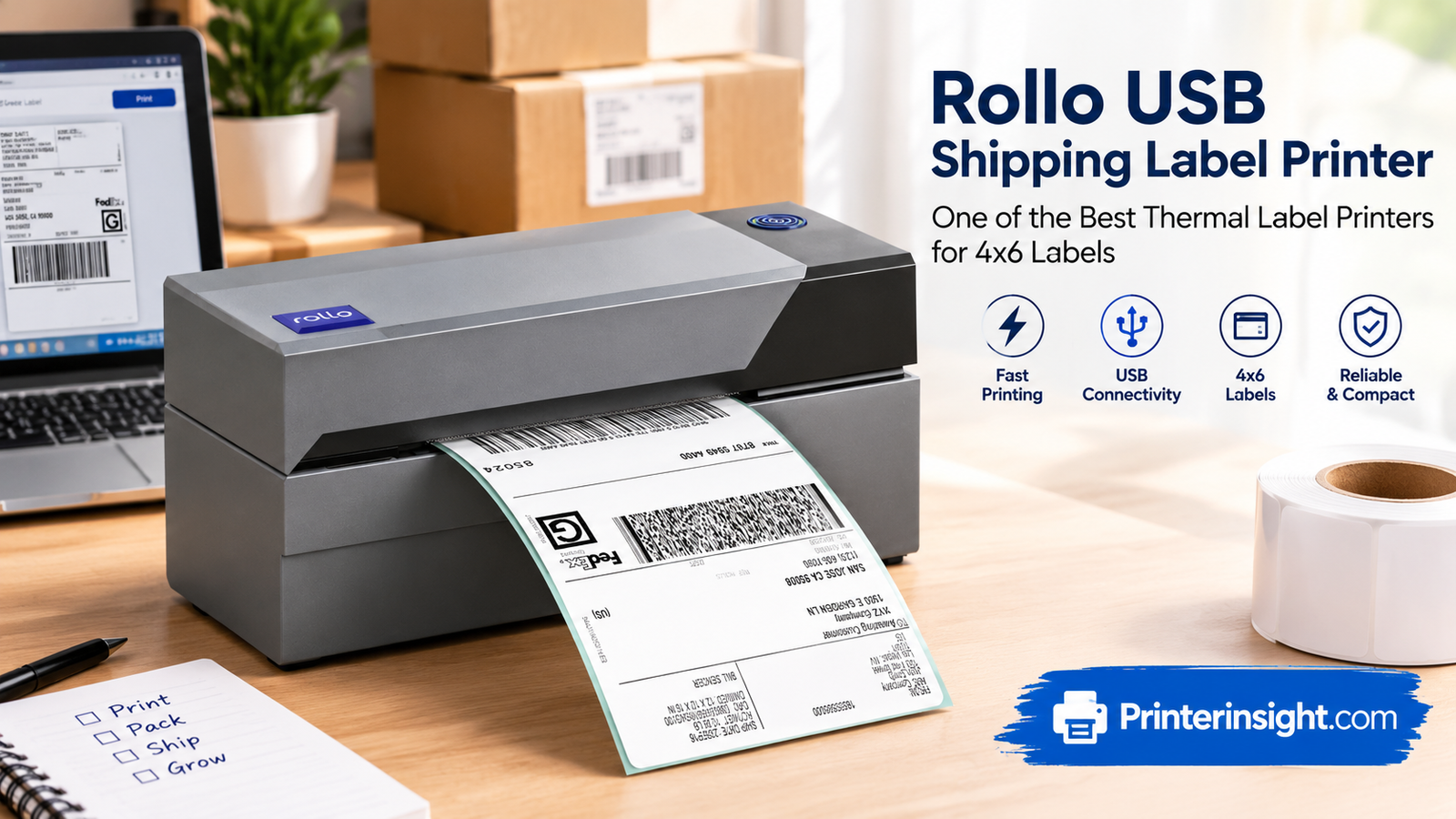
Best Thermal Label Printers: 11 Top Picks for Shipping, Barcodes and Small Business
No ink, no toner, no wasted afternoons. Here is a clear, honest look at the thermal label printers worth buying, who each one suits, and how to avoid the mistakes that make people return them.
Heads up: this guide contains Amazon affiliate links. If you buy through them we may earn a small commission at no extra cost to you. It never changes which printers we recommend.
If you have ever watched an inkjet printer slowly chew through a sheet of paper, then waited for you to cut and tape a shipping label onto a box, you already understand why thermal label printers have taken over small businesses, home offices, warehouses and kitchen tables. They are fast, quiet, and strangely satisfying. A label comes out finished, peels cleanly, and sticks where you put it.
But the category is also crowded. Search for a thermal label printer and you will find dozens of near-identical boxes at wildly different prices, with confusing talk of dots per inch, direct thermal versus thermal transfer, Bluetooth pairing and proprietary rolls. Some are perfect for a busy online shop. Some are better for labelling jars in the pantry. A few are great hardware that happen to be a headache to set up on certain computers.
This guide cuts through that. We looked at eleven popular models, from budget Bluetooth units to the kind of printer you see stacked in fulfillment rooms, and organised them by what they are genuinely good at. Along the way you will find plain-English explanations, comparison tables, pros and cons, and the practical tips that rarely make it into a spec sheet. If you only want the short version, jump to the quick picks table. If you want to make a confident decision, keep reading.
Short answer: for most sellers who ship packages, a 4×6 direct thermal printer such as the Rollo is the sweet spot. For mixed office labelling, address labels and badges, the Brother QL series is hard to beat. For phones, tablets and tight spaces, a Bluetooth model from JADENS, Phomemo or MUNBYN keeps things simple.
1. How Thermal Label Printers Work (and Why They Beat Ink and Toner)
A thermal label printer does not use ink or toner at all. Inside is a row of tiny heating elements called a print head. As the label material passes underneath, the elements heat up in precise patterns, and that heat does the printing. It sounds simple because it is, and that simplicity is exactly why these machines are so dependable.
Direct thermal printing
Most of the printers in this guide are direct thermal models. The label stock itself is coated with a heat-sensitive layer that darkens when the print head touches it. There is no ribbon, no cartridge and nothing to refill. You load a roll or a fan-fold stack, press print, and the text and barcodes appear in crisp black.
The trade-off is that direct thermal prints are not permanent in extreme conditions. Leave a label in a hot car window for weeks or scrub it against abrasive packaging and it may fade. For shipping labels that only need to survive a few days in transit, that is a non-issue. For labels that must last for years outdoors, you would look at thermal transfer printers, which use a ribbon.
Thermal transfer printing
Thermal transfer printers melt wax or resin from a ribbon onto the label. The result is far more durable, which is why they are used for asset tags, chemical labels and anything exposed to heat or sunlight. None of the printers reviewed here are ribbon-based, and for the vast majority of home and small business needs they are not required.
Why people switch from regular printers
- No consumables to buy: You pay for labels, not ink. If you have ever wondered why printer ink is so expensive, thermal printing is the escape hatch.
- Speed: Many 4×6 models print a full shipping label in a second or two.
- No smudging: Dry, heat-formed print does not bleed when it meets a damp hand or a rainy porch.
- Right-sized output: No more printing on a full sheet, trimming and taping. The label is the page.
- Lower running costs: Compare the per-page economics in our breakdown of the cost of printer ink versus toner, then remember a thermal printer skips both.
If you are still deciding between technologies for general document printing, our guide on inkjet versus laser printers for the home covers that debate. For labels specifically, thermal is the clear favourite.
Thermal versus the old way of labelling
Before thermal printers became affordable, sellers had three realistic options. They could print on plain paper and tape the page to the box, which looks untidy and sometimes causes scanning problems when the tape reflects light. They could buy sheet labels designed for inkjet or laser printers, which wastes half a sheet whenever a single label is needed. Or they could pay for labels at the carrier counter, which costs both money and time.
A thermal label printer replaces all three. The label arrives on a backing, ready to peel, with a barcode that scans cleanly under a warehouse scanner. Because the adhesive is built into the roll, there is no tape glare, and because each label prints on demand, there is no leftover sheet with one label missing. Over a year of regular shipping, the time saved quickly outweighs the purchase price.
Common myths worth clearing up
- “Thermal labels fade immediately.” Not for shipping. A label that lives on a parcel for a week or two stays perfectly readable. Fading only becomes a concern with long-term storage in heat or direct sun.
- “You need a special computer.” Most modern models work with ordinary Windows and Mac computers, and many with phones. Setup is usually a driver install and a paper size choice.
- “They only print black and white.” True for standard direct thermal models, but shipping labels and barcodes are black and white anyway, so nothing is lost.
- “Cheap ones are always worse.” Budget models are limited by speed and software, not necessarily print quality. For modest volume, an inexpensive Bluetooth printer can be perfectly adequate.
See what is currently popular in thermal label printers.
Shop Thermal Label Printers on Amazon2. Who Actually Needs a Thermal Label Printer?
It is tempting to assume thermal label printers are only for people running an online store. In reality, the audience is much wider, and knowing which group you belong to narrows the shortlist fast.
Online sellers and dropshippers
If you sell on marketplaces, Shopify, Etsy or your own site, you will print shipping labels constantly. Carriers and marketplaces generate labels in a 4×6 inch format, and a thermal printer is the natural fit. Even ten labels a week justifies the purchase once you count the paper, ink and time you save. If this is you, our broader guide to the best printer for labels is a good companion read.
Small business owners and home offices
Beyond shipping, small businesses print address labels, file folder labels, product stickers, barcodes and name badges. A narrower printer such as the Brother QL-800 handles those jobs brilliantly. Pair it with a good all-rounder from our list of the best printers for small business and the best printers for a home office and you can cover almost any paperwork task.
Warehouses and retail counters
When label volume reaches hundreds a day, build quality and reliability matter more than price. That is where industrial-leaning models like the Zebra ZP450 earn their reputation.
Makers, crafters and organisers
Jars, spice racks, storage bins, handmade product packaging, wedding favours: small Bluetooth label printers shine here. If crafting is your world, you may also want to browse our picks for the best printer for crafting.
Anyone who ships occasionally
Selling a few items a month on a resale app? A compact unit is plenty, and you can print labels at home instead of queueing at the counter. Travelling sellers who work from a laptop in different places might even pair a label printer with one of the best portable printers for travel.
Rule of thumb: if you print more than five labels a week, a thermal printer pays for itself quickly. If you print more than fifty, pick a faster, sturdier model and do not skimp on build quality.
Who might want to skip one
Thermal label printers are fantastic, but they are not for everyone. If you ship fewer than a couple of parcels a month, a trip to the carrier counter or a printed-at-the-store label may be cheaper than owning a machine. If you need full-colour labels for retail packaging, you will want a colour label printer rather than a direct thermal model. And if your labels must survive years of sun and weather, look at thermal transfer or a durable outdoor label system. Being honest about those limits saves money and frustration.
A simple payback calculation
Add up what you currently spend on printing shipping labels: ink, paper, tape and the value of the time you spend taping and trimming. Even a conservative estimate of a couple of minutes per parcel adds up quickly. Then compare that with the cost of a printer and a few rolls. A seller printing thirty labels a week often recovers the cost of a budget printer in a matter of months, and a seller printing a hundred a week does it far faster. Remember also that a printer is a one-time purchase, while ink is a recurring bill, the very problem we explore in our article on why printer ink is so expensive.
Find a label printer that fits your volume and budget.
Browse 4×6 Shipping Label Printers3. What to Look For Before You Buy a Thermal Label Printer
Spec sheets can be intimidating. These are the factors that actually change your day-to-day experience, ranked roughly by how often they matter.
Label size and print width
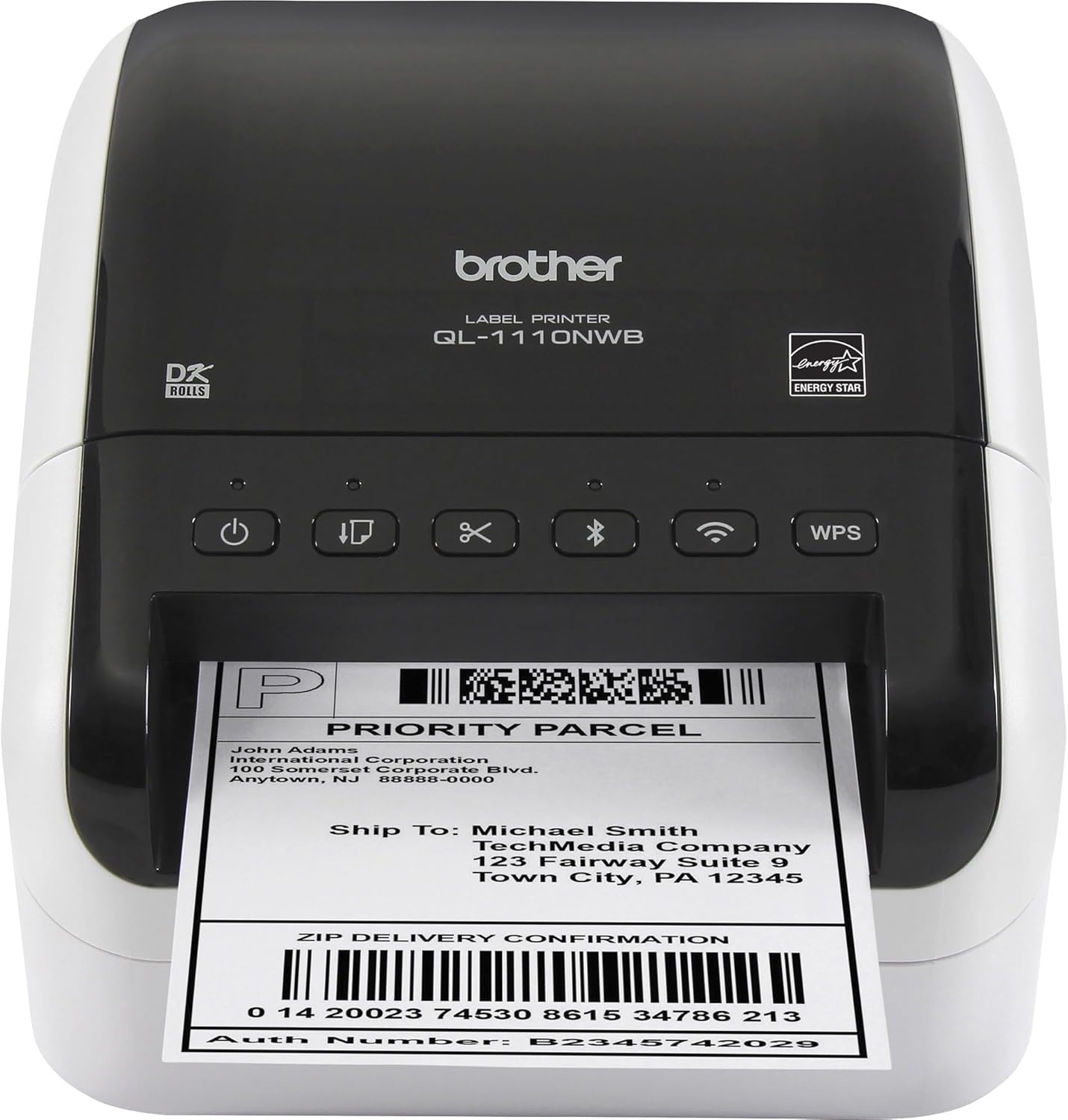
This is the first filter. The standard shipping label is 4 by 6 inches, and any printer you buy for shipping must support it. Narrower printers such as the Brother QL-800 top out at around 2.4 inches wide, which is perfect for addresses and barcodes but too small for full carrier labels unless you use special rolls. Wide-format models like the Brother QL-1110NWB print up to about four inches wide, ideal for shipping and large signage.
Connectivity: USB, Wi-Fi, Bluetooth or Ethernet
- USB is the most dependable. A cable rarely drops. Ideal for a fixed desk setup.
- Wi-Fi lets several people or devices share one printer. If setup is a struggle, our walkthrough on how to connect a printer to Wi-Fi will help, as will knowing how to find your printer’s IP address.
- Bluetooth is perfect for printing from a phone or tablet without a computer. It is convenient but usually limited to one device at a time and can be fussier on some desktops.
- Ethernet suits offices and warehouses that want a hard-wired, always-on connection.
Print speed
Speed is measured in millimetres or inches per second, or sometimes labels per minute. A casual seller will never notice the difference between a fast and a very fast printer. Someone shipping a hundred parcels a day absolutely will. Faster units shave minutes off every batch.
Resolution
Most shipping label printers print at 203 dots per inch (dpi), which is sharp enough for text and scannable barcodes. Printers at 300 dpi produce noticeably finer small text and logos, helpful for tiny product labels, ingredient lists and detailed graphics.
Software and compatibility
Check that the printer works with your operating system, your marketplace and your shipping software. Windows and Mac are well supported by the big names, but driver installs can be fiddly. If you use a Mac, see our guides on how to add a printer to a Mac and the best home printers for Mac. Chromebook owners should read the Chromebook printer roundup before assuming a driver will exist. And if the machine will not talk to your computer, installing the right printer drivers usually solves it.
Label compatibility and cost
Some printers accept any standard thermal label from any brand. Others, like many Brother models, are designed around their own roll format. Proprietary rolls can cost more per label, but they are consistent and trouble-free. Open-format printers let you buy generic rolls in bulk, which is usually cheaper.
Build quality and footprint
Think about where the printer will live. A compact Bluetooth box fits on a shelf. A wide industrial-style unit needs desk space and a clear spot for the label roll to feed. Metal-framed mechanisms generally survive daily abuse better than all-plastic ones.
Price
Thermal label printers span a surprising range. Budget Bluetooth models are often cheaper than a month of ink for a regular printer. Premium models cost more but bring faster printing, wider labels and better support. For context on general printer pricing, our article on how much a printer costs gives a useful baseline.
Five questions to ask yourself first
- How many labels will I print in a typical week? Under twenty points toward a compact budget model. Over a hundred points toward a faster, sturdier machine.
- Where will I print from? A desktop computer favours USB. A phone or tablet favours Bluetooth. A shared office favours Wi-Fi or Ethernet.
- Which label sizes do I need? Shipping labels demand 4×6 capability. Address labels and barcodes work on narrower printers.
- How much space do I have? Measure the shelf or desk spot, and leave room behind the printer for the label roll or fan-fold stack.
- Do I want to buy generic labels? If cost per label matters most, choose an open-format printer. If tidy convenience matters most, a Brother-style system may suit you better.
Platform and marketplace compatibility
Most major marketplaces and shipping platforms generate labels as PDFs sized for 4×6 thermal printers, and they let you choose that format in the print dialog. That means almost any 4×6 printer in this guide will work with them. Problems usually come from settings rather than hardware: the wrong paper size, scaling set to “fit,” or a default printer pointing at the wrong device. Spend ten minutes getting those right once, and you will rarely think about them again.
If you use shipping software that sends commands directly to the printer rather than printing a PDF, check that the printer supports the language that software uses. Zebra models are very widely supported in that area, and many other brands emulate similar standards, though it is worth confirming before you buy.
Print speed in real life
Manufacturers love to quote maximum print speeds, and the numbers can look dramatic. In practice, your total time per label also includes loading the shipping data, clicking print and peeling the label off the roll. A printer that is twice as fast might save you only a second or two per label, which only matters when you print in batches. Think about your workflow honestly. If you pack one order at a time, speed differences between mid-range models are almost irrelevant. If you print batches of fifty at the start of the day, a faster mechanism is a real benefit.
Compare current prices on top-rated thermal label printers.
Check Today’s Prices on Amazon4. Quick Picks: The Best Thermal Label Printers at a Glance
Short on time? This table matches each printer to the situation where it shines. Detailed reviews follow, and specifications can vary between listings and revisions, so always confirm the latest details on the product page before buying.
| Printer | Best For | Connection | Label Width |
|---|---|---|---|
| Rollo USB Shipping Label Printer | High-volume desk shipping | USB | 4×6 shipping labels |
| Rollo Wireless X1040 | Shared, cable-free shipping | Wi-Fi and USB | 4×6 shipping labels |
| JADENS Bluetooth | Phone-first sellers | Bluetooth and USB | 4×6 shipping labels |
| Phomemo 241BT | Compact, budget shipping | Bluetooth and USB | 4×6 shipping labels |
| MUNBYN ITPP130B | All-round value | Bluetooth and USB | 4×6 shipping labels |
| Rongta Bluetooth | Flexible, budget-friendly shipping | Bluetooth and USB | 4×6 shipping labels |
| Brother QL-1110NWB | Wide labels and networks | Wi-Fi, Bluetooth, Ethernet, USB | Up to about 4 in. |
| Brother QL-800 | Address labels, barcodes, badges | USB | Up to about 2.4 in. |
| NELKO Bluetooth | Home organising and small labels | Bluetooth | Small labels |
| KNAON Bluetooth | Light everyday labelling | Bluetooth | Compact labels |
| Zebra ZP450 | Industrial-style reliability | USB | 4×6 shipping labels |
Best overall for shipping
Rollo USB. It is fast, widely supported and does one thing extremely well.
Best wireless option
Rollo Wireless X1040. Wi-Fi sharing without giving up the speed.
Best for mobile users
JADENS or MUNBYN. Print straight from a phone or tablet without a computer.
Best for mixed office labelling
Brother QL-800. Compact, sharp and ideal for addresses and file labels.
Ready to pick? Start with the best-sellers.
View Best-Selling Label Printers5. Rollo USB and Rollo Wireless X1040: The Shipping Benchmarks
Ask any experienced online seller which thermal printer they own and a large share will say Rollo. The brand built its reputation on one idea: a straightforward 4×6 direct thermal printer that works with nearly every shipping platform and does not demand a degree in label software. Both models below follow that formula, with one key difference in how they connect.

Rollo USB Shipping Label Printer
- 4×6 labels
- Direct thermal
- USB
- Windows and Mac
The original Rollo is the printer many sellers graduate to after outgrowing an inkjet. It is built for speed, produces dark, crisp text and barcodes, and feeds standard fan-fold or roll labels without drama. It does not ship with fancy extras, and that is its strength.
What we like
Day-to-day, the most important quality in a shipping printer is that it simply works. Rollo labels scan reliably at the carrier counter, and the printer handles long print runs without overheating or jamming in normal use. Because it accepts generic labels, you are not locked into expensive proprietary rolls, and bulk purchases keep your cost per label very low. The printer’s compatibility with common marketplaces and shipping tools also means less time reading forum threads and more time packing boxes.
The wired USB connection is a feature, not a limitation. A cable gives you the most stable link, with no pairing failures, no dropped jobs and no waiting for Wi-Fi to reconnect after a router reboot. If you keep the printer on the same desk as your computer, USB is the lowest-maintenance option available.
What to watch
Setup can take a few minutes the first time, mostly because you need to choose the correct paper size (4×6) in your printer settings and calibrate the label sensor. If you have never done it, our guide to changing your default printer makes sure shipping software sends jobs to the right device. It is also USB only, so it cannot be shared wirelessly without a computer acting as a print server.
Pros
- Fast, dark, scannable output
- Works with generic 4×6 labels
- Rock-solid USB connection
- Well supported by shipping platforms
- Low long-term cost per label
Cons
- No wireless printing
- Needs a brief first-time setup
- Not suited to narrow labels without adjustment
Who should buy it: anyone who ships regularly from a desk and wants the most dependable, no-fuss workflow.
Check the latest price on the Rollo USB.
View Rollo USB on Amazon
Rollo Wireless Shipping Label Printer X1040
- 4×6 labels
- Direct thermal
- Wi-Fi and USB
- Multi-device
The X1040 takes everything people like about the standard Rollo and adds the freedom to print over Wi-Fi. If several people share a workspace, or you simply hate cable clutter, it is the more flexible choice.
What we like
A wireless thermal printer changes how a small shipping room functions. Instead of tethering one computer to the printer, anyone on the network can send a label. A teammate can print from a laptop in the next room, and a phone or tablet can join the fun too. That flexibility is a big deal in shared offices, home studios and garages where the printer sits on a shelf rather than next to a screen.
You still get the same dependable print quality and the same compatibility with ordinary 4×6 labels. Because it keeps a USB connection as a fallback, you can plug in directly whenever the network misbehaves, which is a smart safety net.
What to watch
Wireless printing is only as good as your Wi-Fi. If the printer shows as offline, our article on why a printer keeps going offline explains the usual culprits, from sleeping routers to changed IP addresses. Assigning the printer a fixed address in your router settings eliminates most of those problems.
Pros
- Cable-free printing from multiple devices
- USB fallback when you need it
- Same fast, crisp output as the USB model
- Accepts standard 4×6 labels
Cons
- Costs more than the USB-only version
- Network setup adds a few steps
- Wi-Fi dropouts can interrupt busy days
Who should buy it: shared workspaces, multi-device sellers and anyone who wants the printer out of the way.
See the wireless Rollo X1040 on Amazon.
View Rollo X1040 on AmazonUSB or wireless? If one person prints from one computer, the USB model is cheaper and slightly more foolproof. If more than one device needs access, the wireless version earns its premium within weeks.
6. JADENS and Phomemo 241BT: Bluetooth Printers Built for Phones
Not everyone ships from a desk. Plenty of sellers run their entire business from a phone, packing orders on a kitchen counter or a folding table. Bluetooth thermal printers were made for exactly that, and these two are among the most popular.

JADENS Bluetooth Thermal Shipping Label Printer
- 4×6 labels
- Direct thermal
- Bluetooth
- Phone and tablet friendly
JADENS aims at sellers who want a printer that pairs with a phone in minutes and still produces proper 4×6 shipping labels. It is a practical, no-frills option with a friendly price.
What we like
The biggest advantage is independence from a computer. Pair the printer with a phone or tablet, open your shipping app and print. For mobile sellers, market stall vendors and anyone who prefers a tablet to a desktop, that is a huge workflow win. The printer’s design is tidy and unfussy, and it handles standard thermal labels, which keeps running costs down.
For people just starting out, a Bluetooth printer is also the least intimidating route. There are fewer cables, fewer drivers, and fewer settings to wrestle with. If you do use a computer, USB support gives you a second way to connect when Bluetooth is not cooperating.
What to watch
Bluetooth printers are usually paired with one device at a time, so switching between a phone and a laptop means re-pairing. Make sure the shipping platform you use supports printing from mobile, and read the manufacturer’s notes for any app requirements. Print speed is perfectly respectable but not the fastest on the market, so very high-volume sellers may prefer a Rollo.
Pros
- Pairs with phones and tablets
- Prints standard 4×6 labels
- Affordable entry point
- Works with generic label rolls
Cons
- One paired device at a time
- Not built for heavy daily volume
- Bluetooth range and stability vary
Who should buy it: mobile-first sellers who want an inexpensive, simple route to proper shipping labels.
Check JADENS availability and pricing.
View JADENS on Amazon
Phomemo 241BT Bluetooth Thermal Label Printer
- 4×6 labels
- Direct thermal
- Bluetooth and USB
- Space-saving
Phomemo has built a loyal following by making small, affordable thermal printers that look good on a shelf. The 241BT brings that approach to shipping labels without a big price tag.
What we like
The Phomemo’s biggest selling point is how little room it demands. In a cramped apartment, a shared workspace or a spare corner of a closet, a small printer matters. It is easy to unbox, quick to configure, and approachable for anyone who has never touched a label printer before. Print output is clean, and 4×6 labels come out ready for the carrier.
It also suits side-hustle sellers who only ship a handful of parcels a week. You get the benefits of thermal printing, no ink, no tape and no wasted paper, without paying for features you will never use.
What to watch
Budget printers sometimes ask for a little patience with drivers and software, so budget a few minutes for setup. If you use a Mac, pairing and printer selection are covered in our Mac printer guide. Also, check the label roll size and core compatibility before ordering stock so the roll sits properly in the holder.
Pros
- Compact, tidy footprint
- Easy for beginners
- Bluetooth and wired connection
- Low upfront cost
Cons
- Not the quickest at high volume
- Driver setup can take patience
- Lighter-duty than Rollo or Zebra
Who should buy it: new sellers, small spaces and anyone who wants a capable printer without a big investment.
Compare the Phomemo 241BT with similar models.
View Phomemo 241BT on Amazon7. MUNBYN ITPP130B and Rongta: Value Shipping Printers With Flexibility
These two sit in the same price neighbourhood as the Bluetooth models above, but lean a little more toward all-purpose use. If you want one printer that can handle shipping labels, barcodes and the occasional product sticker without fuss, this pair deserves a look.

MUNBYN ITPP130B Bluetooth Thermal Label Printer
- 4×6 labels
- Direct thermal
- Bluetooth and USB
- Broad compatibility
MUNBYN is a familiar name in label printing, and the ITPP130B is among its most popular models. It balances price, features and ease of use better than many rivals.
What we like
The MUNBYN is a flexible choice. It prints 4×6 shipping labels but also handles other common sizes with the right setup, which makes it useful for sellers who occasionally need product labels, barcode stickers or warehouse tags. Bluetooth support means you can print from a phone or tablet, while USB provides a dependable connection for a computer.
Because it accepts widely available thermal label rolls, you can shop around for the best price per label. Over a year of regular shipping, that choice saves real money. Many owners also appreciate the straightforward design, which makes loading labels and clearing a rare jam painless. If a jam does strike, our walkthrough on how to fix a printer jam covers the general principles, even though thermal printers have far fewer moving parts than inkjets.
What to watch
Like most budget models, the ITPP130B benefits from a careful first-time calibration. Take a minute to run the label detection routine so the printer knows where each label begins and ends. Skipping that step is the number one cause of blank labels and misaligned printing. If you ever see an empty label come out, our explainer on why a printer prints blank pages will help you rule out the usual causes.
Pros
- Good balance of price and features
- Bluetooth plus USB
- Works with common label rolls
- Suits shipping and general labelling
Cons
- Needs careful label calibration
- Not as fast as premium models
- Software experience is functional rather than polished
Who should buy it: sellers who want an affordable, versatile printer for shipping and general labels.
See the MUNBYN ITPP130B on Amazon.
View MUNBYN ITPP130B on Amazon
Rongta Bluetooth Shipping Label Printer
- 4×6 labels
- Direct thermal
- Bluetooth and USB
- Low-cost
Rongta has long supplied thermal printing hardware to retail and food service businesses, and its shipping label printer brings that experience to home and small-business sellers.
What we like
Rongta’s strength is practicality. The printer is designed around the realities of a working counter: it loads easily, it prints at a pace that keeps up with a busy morning, and it connects to phones or computers without a long list of requirements. Output is sharp enough for carrier barcodes and small text, which is all most shipping labels need.
For sellers who want to trial thermal printing before committing to a pricier model, Rongta is a safe starting point. If your business grows, you can upgrade later and keep the spare as a backup printer, a smart move because every shop eventually needs one.
What to watch
As with all budget printers, check that the current software and drivers support your computer. If your operating system does not recognise the device, installing printer drivers manually is usually the fix. Product pages and revisions can change, so verify specifications and included accessories before you buy.
Pros
- Attractive price
- Reliable for light to medium use
- Bluetooth and wired options
- Backed by a long-standing thermal brand
Cons
- Fewer polished software features
- Documentation can be basic
- Check driver support for your system
Who should buy it: cost-conscious sellers and anyone who wants a backup printer on the shelf.
Check the Rongta printer’s price today.
View Rongta on Amazon8. Brother QL-1110NWB and QL-800: The Office Favourites
Brother takes a different approach from the 4×6 shipping specialists. Its QL series uses its own die-cut and continuous label rolls, which makes labels consistent, neat and very quick to swap. The trade-off is that you buy Brother-format rolls, but many users happily accept that for the reliability and the huge variety of label types.
Brother QL-1110NWB Wide Format Label Printer
- Wide labels (about 4 in.)
- Direct thermal
- Wi-Fi, Bluetooth, Ethernet, USB
- Brother DK labels
The QL-1110NWB is the Swiss Army knife of this list. It prints wide labels, including full-size shipping labels, and connects in every way a modern office could want.
What we like
Connectivity is the headline. Wi-Fi, Bluetooth, Ethernet and USB mean you can drop it into almost any environment, from a home studio to a shared office network. Wide label support lets it print shipping labels as well as large warehouse tags, signage and packaging inserts. Print quality is crisp and consistent, and the Brother software is mature, with templates for addresses, barcodes, badges and more.
Reliability is another reason offices love Brother. The machines are designed for long service lives, and the automatic cutter slices labels cleanly, which saves a surprising amount of time compared with tearing off rolls by hand. A network-ready printer also lets several staff members print without cabling, much like a shared office laser. If that sounds useful, our roundup of the best wireless printers for home shows how network printing compares.
What to watch
It costs more than a basic shipping printer, and Brother-format labels are priced higher per label than generic rolls. That makes sense for mixed office use but is harder to justify for pure high-volume shipping. It is also physically larger than the compact Bluetooth models.
Pros
- Wi-Fi, Bluetooth, Ethernet and USB
- Wide label support
- Clean automatic cutter
- Excellent software and templates
- Built for long service life
Cons
- Higher purchase price
- Proprietary label rolls cost more
- Larger footprint
Who should buy it: offices, shared workspaces and sellers who need maximum flexibility and are happy to pay for it.
Compare the QL-1110NWB with other wide-format printers.
View Brother QL-1110NWB on Amazon
Brother QL-800 Label Printer
- Narrow labels (about 2.4 in.)
- Direct thermal
- USB
- Fast, high resolution
The QL-800 is a compact, quick label printer that excels at everyday office tasks. It is not a 4×6 shipping printer, and that is perfectly fine if you do not need one.
What we like
Address labels, file folder tabs, name badges, barcode stickers and shelf labels all come out of the QL-800 sharp and straight. The higher print resolution makes small text easier to read than on many entry-level shipping printers, and speed is excellent for a unit this size. It also supports two-colour printing with the right label roll, which is a nice touch for highlighting priority labels.
For envelopes and mailers, a QL-style printer is wonderfully neat. If addressing envelopes is a regular chore for you, pair this with our advice on the best printers for envelopes and you will rarely feel the need to hand-write anything again.
What to watch
The narrow print width means full 4×6 carrier labels are off the table unless you use special workarounds, so buy this for office labelling, not as your sole shipping printer. USB only, so no wireless sharing.
Pros
- Sharp, high-resolution labels
- Very quick for its size
- Compact desktop footprint
- Huge variety of label types
Cons
- Cannot print full 4×6 shipping labels
- USB only
- Proprietary label rolls
Who should buy it: home offices, small businesses and anyone who prints addresses, badges and organisation labels more than parcels.
See the Brother QL-800 on Amazon.
View Brother QL-800 on Amazon9. NELKO and KNAON: Small Bluetooth Printers for Everyday Labelling
Not every label needs to be four inches across. If your goal is to tidy a pantry, tag cables, label storage bins or add price stickers at a craft fair, a compact Bluetooth printer is the friendliest tool you can buy. NELKO and KNAON both focus on this territory.

NELKO Bluetooth Thermal Label Printer
- Compact labels
- Direct thermal
- Bluetooth
- App-based design
The NELKO is a pocket-friendly label maker that turns your phone into a design studio. It is made for fast, tidy labels around the home, shop and workspace.
What we like
Using a phone app, you can type text, add icons, create barcodes and print within seconds. That makes the NELKO perfect for jar labels, drawer labels, cable tags, gift tags and handmade product stickers. It is small enough to toss in a drawer, and the thermal approach means there is no ink to dry out. If you have ever struggled with routine printer maintenance, you will appreciate how little this style of printer asks of you.
What to watch
This is a small-label printer, so it does not replace a 4×6 shipping printer. Check the supported label sizes and roll types before buying supplies, and confirm the app is available for your phone’s operating system.
Pros
- Very compact and portable
- Easy phone app design
- No ink or toner
- Great for home and craft use
Cons
- Not for 4×6 shipping labels
- Relies on a smartphone app
- Limited to supported label sizes
Who should buy it: organisers, crafters and market sellers who want small labels fast.
Check NELKO pricing and label options.
View NELKO on Amazon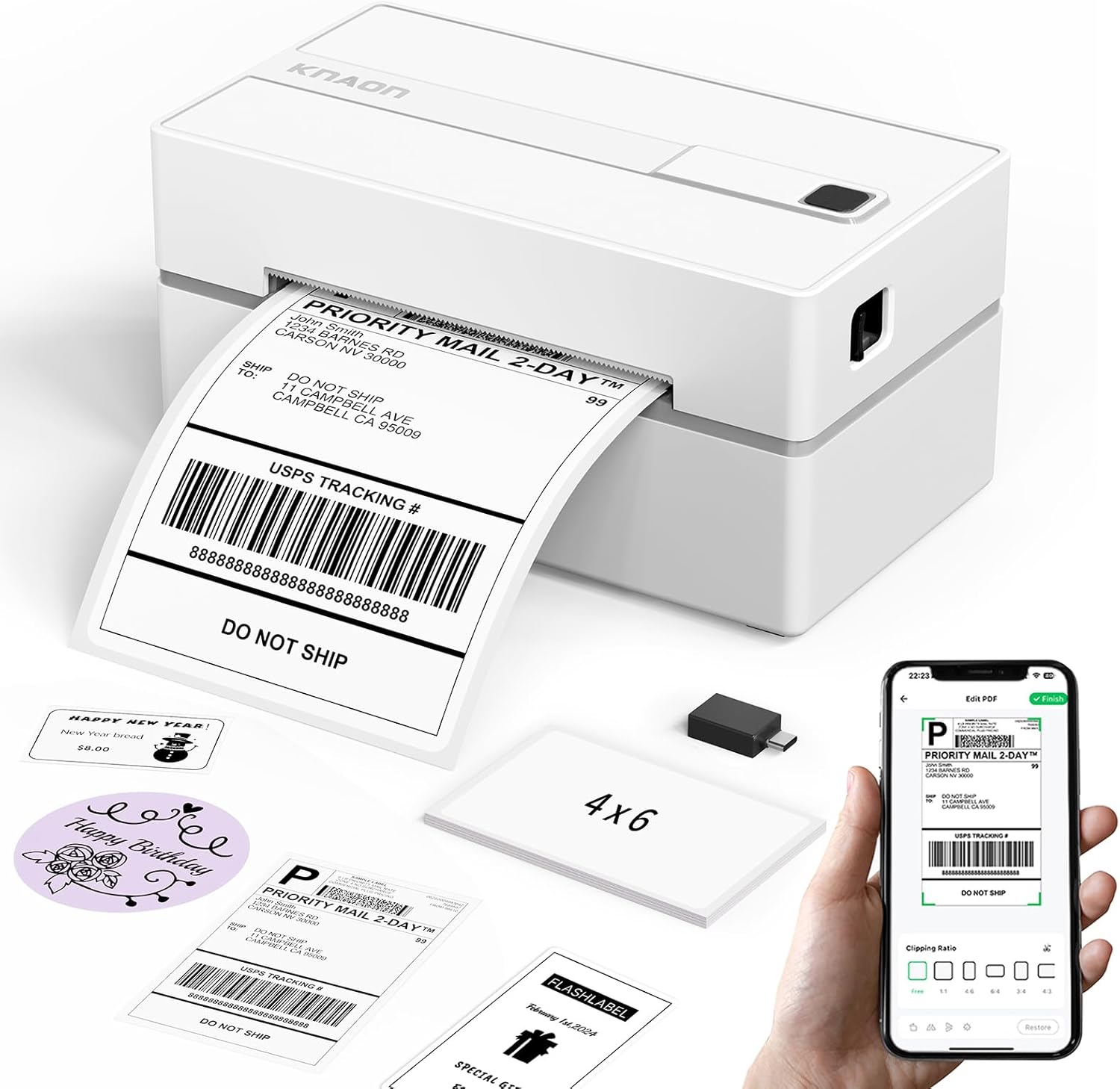
KNAON Bluetooth Thermal Label Printer
- Compact labels
- Direct thermal
- Bluetooth
- Lightweight
KNAON follows a similar philosophy to NELKO: a small, light, easy printer for everyday labels, with a simple pairing process and an approachable price.
What we like
The KNAON suits anyone who wants to start labelling now and not read a manual. Pair, design, print. It handles name tags, product stickers, storage labels and small business branding, and it is light enough to carry to a market stall or a classroom. Because it needs no ink, you only buy rolls, and those are inexpensive.
What to watch
Print width and label formats are limited compared with larger machines, so confirm the sizes you need before ordering. Phone app features and updates can differ between app stores, so check recent user feedback if app polish matters to you.
Pros
- Light and highly portable
- Simple Bluetooth setup
- Inexpensive to run
- Handy for small projects
Cons
- Small label sizes only
- App dependent
- Not intended for heavy business use
Who should buy it: casual users and small makers who want a simple, affordable label printer.
Take a look at the KNAON on Amazon.
View KNAON on AmazonSmall label printers versus shipping printers: these are different tools. A pocket label maker is wonderful for organising, but if your goal is to print carrier labels, choose one of the 4×6 models earlier in this guide.
10. Zebra ZP450: The Industrial-Style Workhorse
Zebra is the name you will find behind the counter at shipping depots, hospitals and warehouses. The company has spent decades building printers that simply keep running, and the ZP450 carries that DNA into a desktop form that small teams can afford.

Zebra ZP450 Direct Thermal Label Printer
- 4×6 labels
- Direct thermal
- USB
- Durable construction
If your label printer needs to work every day for years without complaint, the ZP450 is the sort of machine to consider. It is designed for businesses where downtime costs money.
What we like
Build quality is the headline. Zebra printers feel solid, label loading is logical, and the mechanism is built to handle long shifts. Support for the ZPL language means the printer slots neatly into existing warehouse and shipping software, a big plus for businesses that already use Zebra equipment. Output quality is dependable, with barcodes that scan the first time, every time.
Another advantage is stability over the long term. Zebra printers are widely used, so documentation, driver support and community knowledge are abundant. When something does go wrong, you are rarely the first person to see it, and answers are easy to find. Cleaning is also straightforward. Regular upkeep of the print head and platen roller keeps print dark and sharp, a habit worth building for any thermal printer, as we explain in the care section below.
What to watch
The ZP450 is an older, professionally oriented design, so it lacks the Bluetooth and Wi-Fi conveniences of newer consumer models, and the setup can feel more technical. It is also generally priced above entry-level shipping printers. Before buying, check what connection options your specific listing provides and whether it is compatible with your operating system. Network installs benefit from knowing your device’s address, so keep our guide on finding a printer’s IP address handy.
Pros
- Robust, long-lasting build
- Trusted by warehouses and carriers
- Excellent barcode reliability
- Wide software and driver support
Cons
- Fewer wireless conveniences
- Higher price than budget models
- Setup can feel technical
Who should buy it: busy shipping rooms, retail back offices and anyone who values durability over bells and whistles.
See current availability of the Zebra ZP450.
View Zebra ZP450 on Amazon11. Head-to-Head Comparison: Which Thermal Label Printer Wins Where?
Now that you have met each printer, here is how they stack up in the areas that matter most. Think of this as a decision aid, not a scoreboard. The best printer is the one that matches your workflow.
A few patterns stand out when the printers sit side by side. First, connectivity separates the field more than print quality does. Almost every model prints sharp, scannable 4×6 labels, so your decision is really about how you want to connect and how much volume you handle. Second, label cost becomes the biggest long-term expense, which is why open-format printers are so popular with high-volume sellers. Third, durability scales with price: the heavier, more expensive machines tend to shrug off constant use that would wear out a lightweight Bluetooth unit.
Finally, remember that the cheapest printer is not always the cheapest choice. If a budget printer jams, drops its connection or demands constant tinkering, the lost time soon exceeds the money saved. Match the machine to your volume, and you will rarely regret the purchase.
Feature comparison
| Printer | Connectivity | Ideal Volume | Label Cost | Setup Effort |
|---|---|---|---|---|
| Rollo USB | USB | Medium to high | Low (generic rolls) | Easy |
| Rollo X1040 | Wi-Fi, USB | Medium to high | Low (generic rolls) | Moderate |
| JADENS | Bluetooth, USB | Low to medium | Low | Easy |
| Phomemo 241BT | Bluetooth, USB | Low | Low | Easy |
| MUNBYN ITPP130B | Bluetooth, USB | Low to medium | Low | Moderate |
| Rongta | Bluetooth, USB | Low to medium | Low | Moderate |
| Brother QL-1110NWB | Wi-Fi, Bluetooth, Ethernet, USB | Medium | Higher (Brother rolls) | Moderate |
| Brother QL-800 | USB | Medium | Higher (Brother rolls) | Easy |
| NELKO | Bluetooth | Low | Low | Very easy |
| KNAON | Bluetooth | Low | Low | Very easy |
| Zebra ZP450 | USB (check listing) | High | Low (generic rolls) | More technical |
Choose by situation
| If you… | Choose | Why |
|---|---|---|
| Ship daily from one desk | Rollo USB | Fast, dependable and cheap to run |
| Share a printer between people | Rollo X1040 or Brother QL-1110NWB | Network printing from multiple devices |
| Work from a phone or tablet | JADENS, MUNBYN or Phomemo | Bluetooth without a computer |
| Print addresses, badges and barcodes | Brother QL-800 | Sharp, compact and quick |
| Label jars, bins and gifts | NELKO or KNAON | Pocket-sized and app-driven |
| Run a warehouse or counter | Zebra ZP450 | Built for constant use |
| Want a cheap backup | Rongta or Phomemo | Affordable insurance against downtime |
Three real-world scenarios
Scenario one: the weekend reseller
Maya sells thrifted clothing and ships about fifteen parcels a week from her spare room. She works mostly from her phone and does not want another cable on the desk. A Bluetooth model such as the Phomemo 241BT or JADENS fits her workflow perfectly. She buys a few rolls of generic 4×6 labels, pairs the printer once and prints orders between loads of laundry. The savings on tape, paper and ink pay for the printer in a couple of months.
Scenario two: the growing online shop
Daniel runs a small store with an assistant who packs orders. They print sixty to a hundred labels on busy days from two laptops. The Rollo Wireless X1040 lets both of them print from their own devices, and because it uses open-format labels, Daniel orders cases of rolls at a discount. When one of them leaves a cable unplugged, the printer keeps working, which is exactly why he chose a model with a wireless option.
Scenario three: the home-based office
Priya is a freelance consultant who mails invoices and contracts, prints file labels, and occasionally ships samples. She does not need 4×6 labels often, so she picks the Brother QL-800 for addresses and filing and pays the carrier counter for the occasional parcel. Her desk stays tidy, her envelopes look polished, and her labels print in seconds. If her shipping volume grows, she can add a 4×6 printer without replacing the Brother.
Pairing tip: many busy businesses end up owning two label printers, a 4×6 model for shipping and a smaller one for product and office labels. Each does its job better than one machine stretched across both.
The cost of ownership
The sticker price is only part of the story. Because thermal printers use no ink, your long-term spending is mostly labels. Generic 4×6 rolls and fan-fold stacks cost a fraction of what you would pay for ink cartridges and adhesive sheets. Brother-format rolls cost more per label but include conveniences like die-cut sizing and consistent quality. Do a quick calculation based on your monthly volume: multiply the labels you print by the price per label, then add the printer’s upfront cost spread over a year. For most sellers the numbers favour a generic-roll 4×6 printer. For office use, the Brother’s convenience often wins.
If you are weighing a thermal printer against a traditional printer for everything, remember that each tool excels at different work. A thermal label printer is a specialist, and general home printing still belongs on an all-rounder. Our inkjet versus laser comparison is a good place to start if you also need a document printer.
Narrow it down and compare prices side by side.
Compare Label Printers on Amazon12. Setup, Labels and Care: Getting the Most From Your Printer
Buying the right printer is half the job. Using it well is the other half. These habits prevent most of the complaints you see in reviews.
Set up the printer properly
- Install the right driver. Always download from the manufacturer or an official source. If your computer does not detect the printer, follow a guide on installing printer drivers.
- Set the paper size. For shipping, choose 4×6 inches in the printer preferences. Wrong sizes cause cut-off barcodes and wasted labels.
- Calibrate the label sensor. Most printers have a calibration button or routine. Run it every time you change to a new type of label.
- Make it your default. If shipping platforms keep printing to the wrong device, set the label printer as your default.
- Test with one label. Print a single label and scan the barcode with your phone before running a batch.
Choose the right labels
Direct thermal labels come in different grades. Standard labels work for most shipping, but if parcels may sit in warm vehicles or storage, consider a higher-quality stock. Always match the label size to your printer’s supported width and make sure the roll core fits the holder. Buying a small test pack before a large bulk order is a cheap way to avoid disappointment.
Keep the print head clean
Over time, dust and adhesive residue collect on the print head and platen roller. The result is faint print, vertical streaks or uneven darkness. Every few rolls, power the printer off, let it cool, and wipe the print head gently with a lint-free cloth or swab lightly dampened with isopropyl alcohol. Let it dry fully before printing again. Cleaning a thermal head is different from the nozzle cleaning described in our guide on cleaning printer heads, but the same patient, gentle approach applies. For broader habits, see our home printer maintenance tips.
Avoid common mistakes
- Printing at the wrong scale. Make sure “actual size” is selected rather than “fit to page.”
- Using the wrong label type. Thermal printers need thermal labels. Standard inkjet labels will not show print.
- Touching the print head. Skin oils degrade print quality over time.
- Ignoring storage. Keep label rolls cool, dry and out of sunlight so they do not darken before use.
- Skipping Wi-Fi hygiene. For wireless models, reserve a fixed IP address and keep the router firmware up to date.
- Over-buying. A 4×6 printer for occasional use is fine, but a premium network model for five labels a month is wasted money.
Build a smoother daily workflow
A reliable printer is only useful if your routine around it is smooth. Sellers who ship quickly tend to follow a few simple habits. First, they batch their printing. Instead of printing one label, packing one box and repeating, they print all of the day’s labels in one go, stack them in order, and pack the orders against the stack. That cuts the number of times they handle the printer and reduces mistakes.
Second, they keep supplies visible. A single roll of labels is easy to forget until it runs out in the middle of a rush. Keep a spare roll or fan-fold stack within arm’s reach, and reorder when you start the last one. Third, they keep a cheap backup. A second printer, even a small Bluetooth model, turns a breakdown from a crisis into a minor annoyance.
Storing labels and printers
Heat-sensitive labels darken when exposed to warmth, light and friction, so store rolls in their original packaging in a cool, dry drawer or cupboard. Do not leave a printer in a hot car or a sunny window with a roll loaded. If you will not use the printer for several weeks, remove the roll and cover the machine to keep dust away from the print head. These small steps keep print dark and prevent the occasional mystery streak.
Connection problems and how to solve them
Most wireless or Bluetooth complaints come down to a handful of causes. The printer may have gone to sleep, another device may already be paired with it, or the router may have given it a new address. Restarting the printer and the device is the quickest fix. For network printers, giving the device a fixed address stops it from drifting. When the printer is stubborn, switch to USB for the day and troubleshoot later, which keeps orders moving while you sort it out. Persistent drops are often explained in our article on fixing a printer that is not responding.
Environmental and cost benefits
Thermal printing quietly reduces waste. There are no empty cartridges to recycle, no toner dust and no wasted sheets. Since each label prints only when needed, waste is limited to the backing paper. Many sellers also appreciate that a thermal printer does not dry out, clog or need nozzle cleaning when it sits unused, a pain point that anyone who has owned an inkjet knows well.
Troubleshooting quick reference
| Problem | Likely cause | Fix |
|---|---|---|
| Blank labels | Wrong label type or missed calibration | Use direct thermal labels and recalibrate |
| Faint print | Dirty print head or low darkness setting | Clean the head and raise darkness |
| Label skips or feeds extra | Sensor not calibrated | Run the calibration routine |
| Printer shows offline | Wi-Fi or Bluetooth connection dropped | Reconnect or use USB |
| Cut-off barcode | Wrong page size | Set 4×6 and actual size |
| Label jam | Misloaded roll or sticky residue | Reload and clean the path |
Stock up on compatible thermal labels.
Shop Thermal Labels on AmazonFrequently Asked Questions About Thermal Label Printers
What is the best thermal label printer for shipping?
For most sellers, the Rollo USB is the best all-round choice thanks to its speed, reliability and low cost per label. If you want wireless sharing, the Rollo X1040 is the natural upgrade, and for very heavy use, a Zebra model is worth considering.
Do thermal label printers need ink or toner?
No. Direct thermal printers use heat-sensitive labels, so there are no cartridges, ribbons or refills. You only buy labels. That is a major reason running costs are so low.
What size are standard shipping labels?
The standard is 4 by 6 inches. Make sure the printer you pick supports that size, as narrower models like the Brother QL-800 do not print full carrier labels.
Can I print labels from my phone?
Yes. Bluetooth models such as JADENS, MUNBYN, Phomemo, NELKO and KNAON are designed for phones and tablets. Check that your shipping or label app is compatible with your device.
Are thermal labels permanent?
Direct thermal print is stable for normal shipping and storage but can fade with heat, sunlight or friction over a long time. For long-term outdoor labels, consider thermal transfer printing with a ribbon.
Is a thermal printer better than an inkjet for labels?
For labels, almost always yes. It is faster, cleaner and cheaper per label, with no smudging and no ink to dry out. An inkjet remains better for colour documents and photos.
Do I need special labels?
Yes. You need direct thermal labels for these printers. Regular paper or inkjet labels will not print. Brother models use their own roll format, while many 4×6 printers accept generic rolls and fan-fold stacks.
Will a thermal label printer work with my Mac or Chromebook?
Many do, but compatibility varies by model and software. Check the manufacturer’s support page and read our guides for Mac and Chromebook users before you buy.
Why is my thermal printer printing blank labels?
Usually the label type is wrong, the roll is loaded upside down, or the sensor needs calibrating. Confirm you are using direct thermal labels, reload the roll and run the calibration routine.
How often should I clean a thermal printer?
A light clean of the print head and platen roller every few rolls keeps output sharp. Clean more often in dusty environments or if you see streaks or faded patches.
Can I use one printer for shipping labels and small product labels?
You can, with the right setup. Many 4×6 printers handle smaller label sizes after adjusting settings, and the Brother QL-1110NWB covers a wide range. If you print lots of both, owning a shipping printer plus a small label maker is often simpler.
How much should I spend?
Budget Bluetooth models cost the least and suit occasional use. Mid-priced 4×6 printers are the sweet spot for regular sellers. Premium or industrial models make sense only when volume, durability or networking demands justify the cost.
Final Verdict: Which Thermal Label Printer Should You Buy?
Thermal label printing is one of the most satisfying upgrades a seller or small business can make. It saves time, removes the ink bill and makes every parcel look professional. The right model comes down to how you work.
- Best overall: Rollo USB, for dependable daily shipping.
- Best wireless: Rollo Wireless X1040, for shared workspaces.
- Best for phones: JADENS or MUNBYN, for Bluetooth convenience.
- Best compact budget buy: Phomemo 241BT, or Rongta for a low-cost backup.
- Best for the office: Brother QL-800 for addresses and badges, QL-1110NWB for wide labels and networks.
- Best for home organising: NELKO or KNAON.
- Best for heavy use: Zebra ZP450.
Whichever you choose, confirm the label size, check connectivity for your devices, and buy a small pack of labels to test before committing to bulk. Do that, and your new printer will quickly become the quiet hero of your workflow.
Ready to upgrade your labelling? See today’s best deals.
Shop Thermal Label Printers Now