Printer Buying Guides
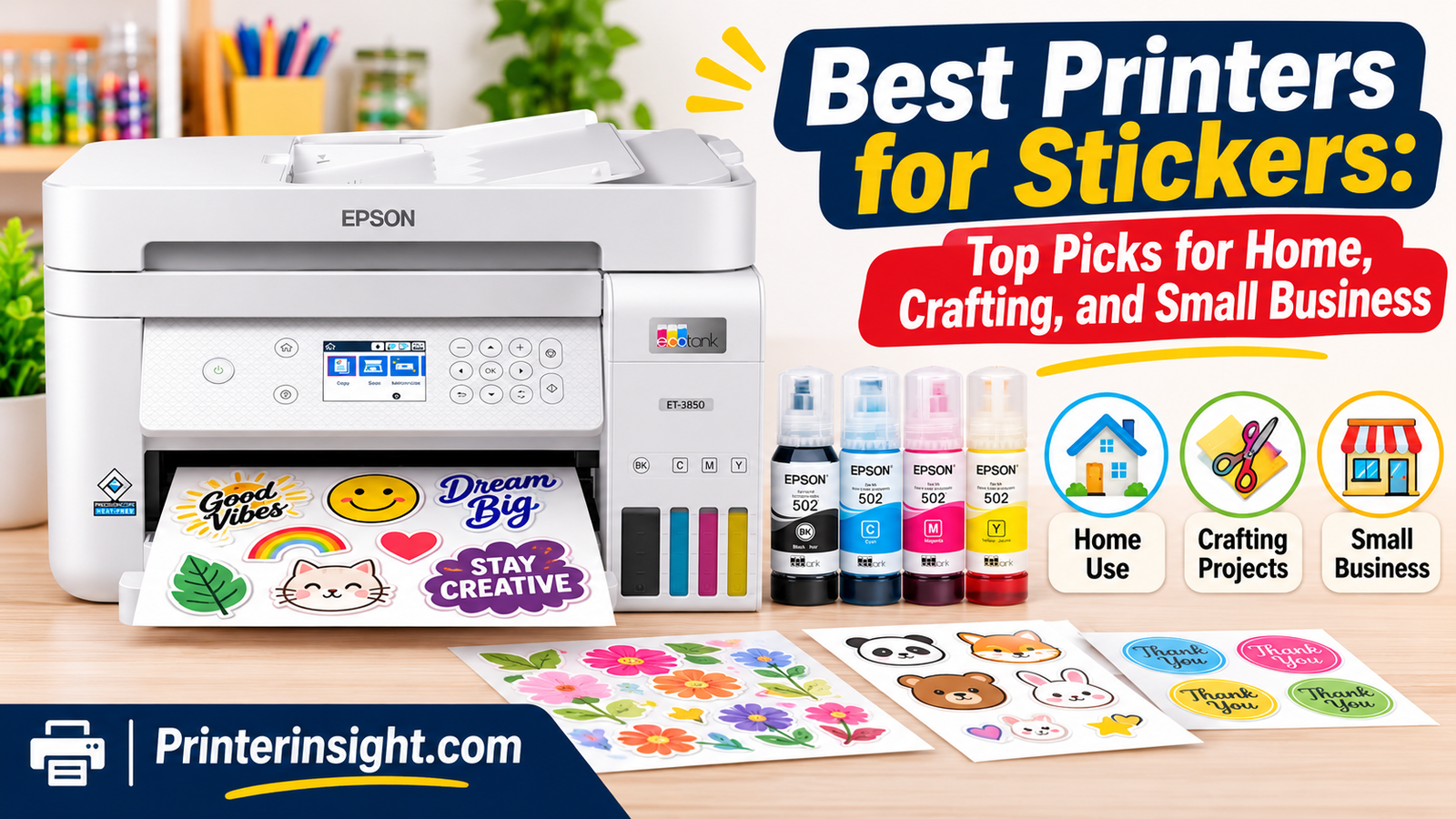
Best Printers for Stickers: Top Picks for Home, Crafting, and Small Business
Ten printers tested against the things that actually matter for stickers — colour vibrancy, smudge and water resistance, cutting options, and the real cost of every sheet you print.

Stickers look simple right up until you try to print one yourself. Then the questions start: will the colours pop on glossy vinyl, will the ink survive a water bottle, can I cut this without ruining it, and what is it actually costing me per sheet?
Getting sticker printing right is a three-part problem. First there is colour — a dull printer turns a bold, saturated design into something that looks like an office memo. Then there is durability — an uncoated inkjet sticker left in the rain is a short-lived sticker. And finally there is cutting and cost — because a beautiful print that you cannot cut cleanly, or that costs more than you can charge for it, is not a business.
The good news is that you do not need one magical machine. You need the right machine for your kind of sticker. Someone selling waterproof product labels has completely different needs from a hobbyist printing planner decals on a Sunday afternoon. That is why this guide covers three families of printers side by side:
- Inkjet all-in-ones — the versatile option. Full-colour sticker sheets, printable vinyl, clear decal paper, plus everyday documents. These are the best starting point for crafters and anyone who wants one machine that does everything. If you also make cards and paper crafts, our best printer for crafting guide goes deeper on thick media handling.
- Dedicated colour sticker and label printers — small machines built specifically for labels and stickers, some with built-in cutting. Ideal for product packaging and short-run labels, and a natural companion to our best printer for labels roundup.
- Thermal label printers — monochrome workhorses for shipping labels, barcodes, name labels, and organisation stickers. No ink, no cartridges, no drying time.
Every printer here earned its place the same way: it had to handle real sticker media without constant paper jams, produce output that holds up after cutting, connect reliably to the devices people actually use, and keep the cost per sticker in a range that makes sense for its category. We deliberately included budget-friendly thermal options, mid-range inkjet all-in-ones, and specialist label machines, because “best” is meaningless without knowing what you are printing for.
Below you will find the quick comparison, a buyer’s guide to the specs that matter, honest breakdowns of all ten printers, and answers to the questions we hear most often from sticker makers.
Best Printers for Stickers at a Glance
If you only read one part of this guide, make it this one.
Quick picks by use case
Different stickers demand different hardware. Here is the short version before we get into the detail.
Full-colour sticker sheets at home
An inkjet all-in-one with refillable tanks gives you the widest media support and the lowest cost per colourful page.
Check Price on AmazonPhoto-quality decals and art prints
A photo-focused inkjet with a multi-ink system renders gradients and skin tones more smoothly than a basic four-colour machine.
Check Price on AmazonPrint-and-cut stickers with no fuss
A dedicated colour sticker printer that handles printing and cutting in one workflow removes the most frustrating step.
Check Price on AmazonShipping and inventory labels
A thermal printer is unbeatable here: fast, ink-free, and consistently crisp on standard label rolls.
Check Price on AmazonComparison table of all 10 printers
The table below compares every printer in this guide across type, colour capability, ideal use, and connectivity. Each row links directly to the product listing.
Quick Comparison: Our Top Picks
| # | Image | Product | Key Specs | Verdict | Check Price |
|---|---|---|---|---|---|
| 1 |  |
Top PickEpson EcoTank ET-3850 All-in-One Cartridge-Free Supertank PrinterBest Overall |
|
Lowest running cost for colourful sticker sheets. | Check Price on Amazon |
| 2 |  |
Canon PIXMA G620 Wireless MegaTank Photo All-in-One PrinterBest for Photo Stickers |
|
Rich, smooth colour for art and photo decals. | Check Price on Amazon |
| 3 |  |
Brother MFC-J805DW INKvestment Tank Color Inkjet All-in-One PrinterBest Value Inkjet |
|
Dependable workhorse for mixed craft and office use. | Check Price on Amazon |
| 4 |  |
HP OfficeJet Pro 6978 All-in-One Wireless PrinterBest for Home Office |
|
Office-ready machine that still handles sticker sheets. | Check Price on Amazon |
| 5 | |
Liene PixCut S1 Color Sticker PrinterBest for Print-and-Cut |
|
Turns a design into a cut sticker in one pass. | Check Price on Amazon |
| 6 |  |
Primera LX500 Color Label PrinterBest for Product Labels |
|
Serious label output for real product packaging. | Check Price on Amazon |
| 7 |  |
Rollo X1040 Wireless Thermal Label PrinterBest Thermal Overall |
|
The shipping-label speed demon for busy sellers. | Check Price on Amazon |
| 8 |  |
MUNBYN Bluetooth Thermal Sticker PrinterBest for Small Sticker Labels |
|
Pocket-friendly labels for home organisation. | Check Price on Amazon |
| 9 |  |
HPRT SL42BT Thermal Label PrinterBest Compact Thermal |
|
Neat, quiet labeler that fits any desk corner. | Check Price on Amazon |
| 10 |  |
KNAON Bluetooth Thermal Shipping Label PrinterBest Budget Thermal |
|
Straightforward shipping labels without the fuss. | Check Price on Amazon |
Notice how the list splits cleanly into three groups: four versatile inkjet all-in-ones, two dedicated colour sticker and label printers, and four thermal label printers. That structure mirrors how sticker makers actually shop. You are not choosing between ten equivalent products; you are choosing between three workflows and then picking the best machine inside the one that fits you.
Short on time? If you want colourful, cuttable sticker sheets at the lowest ongoing cost, start with a refillable-tank inkjet. If you want finished product labels with a professional look, look at the dedicated colour label machines. If you are printing shipping, barcode, or organisation labels in black only, a thermal printer will save you money every single day.
See the full spec sheet for our top pick
Check current availability and bundle options for the EcoTank ET-3850.
Check Price on AmazonWhat to Look For in a Sticker Printer
Most printer spec sheets are written for office managers. Here is how to read one when you actually care about stickers.
Before you compare models, it helps to understand which specifications translate into better stickers and which are just marketing noise. The five areas below account for almost every difference you will notice in practice.
Print quality and colour accuracy
Resolution matters, but it is not the whole story. A printer with a high headline resolution can still produce flat, muddy colour if its ink set is limited or its dithering is coarse. What you are really looking for is smooth gradients, solid saturation in bright areas, and clean edges on fine text and line art.
Two things drive that. The first is the number of ink colours: a basic machine mixes everything from cyan, magenta, yellow, and black, while photo-oriented printers add extra inks to smooth out skin tones and deep blues. The second is the print head’s ability to lay down tiny, precisely placed droplets. In practice, the easiest test is to print the same colourful design on the same sticker paper on two machines and compare them side by side. Colour vibrancy and edge sharpness are immediately obvious.
Colour accuracy matters most if you are matching brand colours on product labels. For hobby stickers, vibrancy matters far more than lab-grade accuracy. If you plan to sell, calibrate expectations: most desktop printers reproduce brand colours closely enough for packaging but not perfectly, and a well-made colour profile closes most of the remaining gap.
Ink type: dye vs. pigment, and water resistance
This is the single most misunderstood topic in sticker printing.
- Dye-based inks soak into the coating of the paper or film. They produce the most vibrant, glossy colours and are the usual choice for photo stickers and decorative decals. Their weakness is water and light: unprotected dye prints will run when wet and fade faster in sunlight.
- Pigment-based inks sit on the surface as tiny particles. They are more resistant to water and fading and hold up better on matte and uncoated media. They can look slightly less saturated on glossy stock than dye, though modern pigment sets are very good.
- Thermal printing uses no ink at all. The image is created by heat on heat-sensitive media (direct thermal) or by melting a ribbon onto the label (thermal transfer). It is inherently smudge-proof and water-resistant in normal use, but monochrome.
Here is the part people miss: the paper matters as much as the ink. Dye ink on a waterproof, resin-coated printable vinyl is far more durable than pigment ink on plain uncoated paper. If water resistance is your priority, pair the right media with the right ink — and for anything that will live outdoors, add a laminate or spray sealer on top. We cover that in the tips section below.
Supported paper and sticker sheet sizes
Not every printer feeds sticker sheets gracefully. Sticker paper is thicker and slicker than plain paper, and some machines struggle with it, especially in the multipurpose or rear feed slot. Look for printers with a straight-through or rear paper path for heavier media; it reduces jams and protects the print surface.
Size support matters too. Most people start with standard sticker sheets, but many designs call for smaller labels, circles, or wider product labels. Printers that handle a broad range of media sizes give you far more design freedom. If you work with thicker stocks such as card or heavy printable vinyl, check our guide to the best printer for cardstock for machines built for heavier media.
Connectivity and software
Connectivity sounds boring until your printer refuses to talk to your laptop mid-project. Look for the connection method you will actually use: USB for a fixed desktop setup, Wi-Fi for sharing between devices, and Bluetooth or app-based printing for phone-first workflows. Wireless setup is a common sticking point, and our how to connect a printer to Wi-Fi walkthrough covers the usual fixes.
Software is the other half. A good companion app or design workflow saves hours — templates, sizing presets, and print-and-cut alignment all live here. If you want to print straight from your phone, check the mobile printing options before buying. For more on wireless setups, see our best wireless printers for home.
Running costs and refills
Sticker printing is volume printing. Even a modest hobbyist can go through dozens of sheets a month, and a small business can burn through hundreds. That makes running cost a headline feature, not a footnote.
Cartridge-based machines are convenient but expensive per page. Refillable tank systems flip the economics: you buy bottles of ink occasionally and print far more per refill. High-yield cartridge systems sit somewhere in the middle. Our detailed look at whether an ink tank printer is better than a laser breaks down the maths.
Thermal printers have the simplest cost picture of all: no ink, ever. You buy labels and that is it. For label-heavy workflows, that predictability is genuinely valuable.
Compare sticker printers side by side
Filter by connectivity, ink system, and media support in one place.
Check Price on AmazonInkjet vs. Thermal vs. Label Printers: Which Is Right for You?
Three technologies, three very different answers to the same question.
Choosing the wrong type is the most expensive mistake in sticker printing, because no amount of skill fixes a machine that physically cannot do what you need. Let us walk through each type honestly, including what it is bad at.
Inkjet printers for full-colour sticker sheets
Inkjet is the default choice for full-colour stickers, and for good reason. Modern inkjets produce wide colour gamuts, handle gradients beautifully, and print on an enormous range of media: glossy vinyl, matte paper, clear film, transparent decal sheets, and more. If your stickers involve illustration, photography, watercolour art, or brand colour, inkjet is almost certainly your answer.
The trade-offs are speed and durability. Inkjet output is slower than thermal, and dye-based prints need protection if they will get wet. Ink is also an ongoing cost unless you move to a tank-based system. For crafters printing stickers alongside cards, invitations, and photo prints, an inkjet all-in-one is the most useful machine on the desk. Our inkjet vs. laser for home comparison covers the wider trade-offs.
Dedicated sticker and label printers
These are small, specialised machines designed for one job: printing labels and stickers. Some print in colour, some include built-in cutting, and many use a roll-fed workflow that makes short production runs far more efficient than feeding sheets by hand.
They make the most sense when stickers are a product rather than a hobby. If you are labelling jars, bottles, boxes, or packaging and you need consistent, repeatable results, a dedicated machine removes friction. The limitation is flexibility: these machines are not going to print your family photos or your homework. If your needs are broader, look at our best printers for labels guide for more options across categories.
For those considering dye-sublimation transfers rather than stickers, the workflow is completely different — see our best printer for sublimation guide rather than forcing an inkjet into that role.
Thermal printers for monochrome labels
Thermal printers are the unsung heroes of small business. They print black on white (or black on coloured) labels using heat, which means no ink, no cartridges, no drying time, and no smudged output. They are fast, reliable, and extremely cheap to run at volume.
The obvious limitation is colour: thermal printers do not print in colour. Direct thermal labels can also darken over time with heat and light exposure, which matters for long-term storage labels. But for shipping labels, barcodes, name labels, address labels, organisation stickers, and inventory tags, thermal is unbeatable. Our dedicated best thermal label printers guide covers more models.
Type comparison table
| Type | Colour | Best For | Durability | Cost Per Sticker |
|---|---|---|---|---|
| Inkjet all-in-one | Full colour, wide gamut | Sticker sheets, decals, art prints | Good on coated media; needs sealing outdoors | Low with tank systems |
| Dedicated sticker/label printer | Full colour on label media | Product labels, packaging, short runs | Good, media-dependent | Moderate |
| Thermal label printer | Monochrome only | Shipping, barcodes, name and organisation labels | Excellent in normal use | Lowest |
| Laser printer | Colour or mono | Labels on laser-safe stock; office documents | Very high; toner is water-resistant | Low at high volume |
You will notice laser included in that table. Laser printers can produce excellent, water-resistant labels on laser-safe sticker stock, and they shine for text-heavy work. They are weaker on glossy photo media and vibrant colour. If you are weighing the two technologies for general home use, read our inkjet vs. laser printer for home comparison.
Shop the printer type that fits your workflow
Browse inkjet, label, and thermal sticker printers side by side.
Check Price on AmazonBest Inkjet All-in-One Printers for Stickers
Versatile machines that print colourful stickers today and your household documents tomorrow.
Inkjet all-in-ones are the sweet spot for most sticker makers. They handle printable vinyl and sticker sheets, they produce vibrant full-colour output, and they double as the household or studio workhorse. These four are the ones we keep coming back to.
Inkjet comparison at a glance
| Product | Ink System | Best For | Sticker Strength | Check Price |
|---|---|---|---|---|
| Epson EcoTank ET-3850Best Overall | Refillable tank | High-volume colourful sticker sheets | Low running cost, reliable feeding | Check Price |
| Canon PIXMA G620Best for Photo Stickers | Refillable MegaTank | Art prints, photo decals, gradients | Smooth, saturated colour | Check Price |
| Brother MFC-J805DWBest Value Inkjet | High-yield INKvestment | Mixed craft and office printing | Steady everyday reliability | Check Price |
| HP OfficeJet Pro 6978Best for Home Office | Cartridge | Documents plus occasional stickers | Strong text, capable colour | Check Price |
Epson EcoTank ET-3850 All-in-One Cartridge-Free Supertank Printer
For most sticker makers, the ET-3850 is the answer. It is a cartridge-free supertank, which means you fill it from bottles and print for a long time before thinking about ink again. That single design decision changes the economics of sticker printing completely — you can print test sheets, throw away misprints, and iterate on designs without watching the cost of every page.
As a sticker machine, its strengths are practical rather than glamorous: it feeds sticker sheets reliably, it produces clean, vibrant colour on coated media, and it handles the rest of your printing life too. If you want one machine that makes stickers and still prints homework, forms, and scanning jobs, this is the one we would buy first. Our full Epson EcoTank printer review covers the range in more detail.
Key features
- Cartridge-free refillable ink tank system with bottle refills
- Full-colour printing, scanning, and copying in one unit
- Wireless connectivity for printing from laptops, phones, and tablets
- Handles sticker sheets and standard paper sizes comfortably
- Designed for high-volume printing without constant ink swaps
Pros
- Extremely low cost per printed page
- Vibrant, consistent colour on coated sticker media
- Reliable sheet feeding for printable vinyl
- Doubles as the household all-in-one
Cons
- Not a photo-specialist ink set
- Requires periodic use to keep print heads healthy
Canon PIXMA G620 Wireless MegaTank Photo All-in-One Printer
If your stickers lean artistic — watercolour illustrations, photography, portraiture, soft gradients — the G620 is the pick. Canon’s MegaTank system gives you the low running cost of a refillable tank, and the print engine is tuned for photo output rather than office documents.
That translates into smoother transitions between colours, richer darks, and a general sense of depth that basic four-colour machines struggle to match. It is also a wireless all-in-one, so it fits into a normal home workflow without fuss. For sticker artists selling prints and decals, the colour quality is what customers notice first. Our Canon MegaTank all-in-one wireless inkjet printer review goes deeper on the range.
Key features
- Refillable MegaTank ink system for long printing runs
- Photo-focused colour reproduction for art and photography
- Wireless printing from computers and mobile devices
- All-in-one functionality for scanning and copying
- Strong performance on glossy and photo-style sticker media
Pros
- Excellent gradient and skin-tone handling
- Low running cost for a photo-capable printer
- Great results on glossy printable vinyl
Cons
- Slower for text-heavy office documents
- Glossy prints need protection if exposed to water
Brother MFC-J805DW INKvestment Tank Color Inkjet All-in-One Printer
Brother’s INKvestment approach sits between traditional cartridges and full tank systems, using high-yield ink to keep running costs sensible while keeping the familiar cartridge convenience. For sticker makers who also run a home office, it is a genuinely practical machine.
What stands out is consistency. It prints, scans, copies, and handles everyday jobs without drama, and that reliability matters when you are halfway through a sticker batch. Colour output is solid and saturated enough for craft stickers, decals, and labels. If you want one dependable machine at a sensible price rather than a specialist, this is a smart buy. See our best Brother printer for home guide for more from the brand.
Key features
- INKvestment high-yield ink system for lower running costs
- Colour printing, scanning, copying, and faxing
- Wireless and mobile printing support
- Dependable paper handling for mixed media
- Compact enough for a home desk or small studio
Pros
- Good balance of purchase price and running cost
- Handles mixed workloads without complaint
- Simple, familiar operation
Cons
- Colour is good rather than photo-specialist
- Ink is still a consumable you manage over time
HP OfficeJet Pro 6978 All-in-One Wireless Printer
The OfficeJet Pro 6978 is an office machine first, and that is precisely why it earns a place here. It produces crisp text and strong, business-ready colour, scans and copies, and connects wirelessly to everything in the house. If your stickers are part of a small business — product labels, promotional decals, branded packaging inserts — this is the kind of machine that earns its floor space.
Colour output is punchy and clean on coated sticker media, and the document performance means you never need a second printer. It is the sensible choice for anyone whose sticker printing is one part of a broader small-business workflow. Our HP OfficeJet Pro review covers its performance in more detail.
Key features
- Colour inkjet all-in-one with print, scan, and copy
- Sharp text and solid business colour output
- Wireless and mobile printing support
- Designed for regular, mixed-volume workloads
- Good fit for small business label and sticker printing
Pros
- Excellent document quality alongside sticker printing
- Strong wireless connectivity
- Professional-looking colour for branded labels
Cons
- Cartridge running costs add up at high volume
- Not tuned for fine-art photo output
Whichever inkjet you choose, the same advice applies: use the rear or straight-through feed for sticker sheets, select the correct media type in the print settings, and let prints dry fully before handling. For more tank-based options, see our best ink tank printers for home, and for photo-focused printing, our best printers for photos at home.
Ready to print your first sticker sheet?
Check the current price on our top inkjet pick.
Check Price on AmazonBest Dedicated Colour Sticker and Label Printers
Purpose-built machines for people whose stickers are a product, not a pastime.
When stickers become something you sell, the workflow starts to matter more than the machine’s versatility. Dedicated sticker and label printers are designed around that workflow: consistent output, repeatable results, and in some cases, built-in cutting that saves an entire step.
| Product | Focus | Best For | Check Price |
|---|---|---|---|
| Liene PixCut S1Best for Print-and-Cut | Colour stickers with cutting | Craft stickers, gifts, small runs | Check Price on Amazon |
| Primera LX500Best for Product Labels | Short-run colour label production | Product packaging and retail labels | Check Price on Amazon |
Liene PixCut S1 Color Sticker Printer
The PixCut S1 solves the problem that stops most beginners: cutting. It is built around a print-and-cut workflow, so you go from a design to a finished, cut sticker without scissors, craft knives, or a separate cutting machine.
That makes it a fantastic fit for hobbyists, gift makers, and small sellers who want finished stickers quickly and consistently. The app-driven workflow keeps things simple — pick a design, print, cut, peel. Colour output is bright and appealing on sticker media, and the compact footprint means it lives happily on a desk or craft table rather than taking over the room.
Key features
- Colour sticker printing with an integrated cutting workflow
- App-based design, sizing, and print control
- Compact body suited to desks and craft spaces
- Designed for print-and-cut stickers in a single process
- Beginner-friendly operation with minimal setup
Pros
- Removes the hardest manual step from sticker making
- Very approachable for beginners
- Consistent results across a batch
Cons
- Not a general-purpose household printer
- Best suited to its own supported media
Primera LX500 Color Label Printer
The LX500 is a step into professional label production. It is a dedicated colour label printer designed for short runs — exactly the situation most small food, beverage, cosmetic, and craft businesses find themselves in when they outsource printing is too expensive and home printing is too inconsistent.
Its roll-fed workflow keeps output consistent across a batch, which matters enormously when your labels sit side by side on a shelf. Optional cutting setups let you produce finished labels ready to apply. If your stickers are product labels and presentation is part of what you sell, this is the class of machine that changes how your products look.
Key features
- Dedicated colour label printing for short production runs
- Roll-fed workflow for consistent batch output
- Professional-looking results for packaging and retail
- Supports cutting options for finished labels
- Built for repeatable, business-oriented label work
Pros
- True label-production workflow
- Consistent colour across a run
- Genuinely professional shelf appeal
Cons
- Single-purpose: labels, not general printing
- Bigger commitment than a hobby machine
When a dedicated printer beats an all-in-one
The honest answer is that a dedicated printer wins when volume and consistency are the point. An all-in-one gives you flexibility; a dedicated label machine gives you repeatability. If you are printing one sticker sheet a week for fun, buy the all-in-one. If you are printing fifty product labels every week and every one has to look identical, a dedicated machine repays its cost in saved time and fewer wasted labels.
There is a middle path too. Many small businesses use both: an inkjet all-in-one for design proofs, marketing stickers, and general work, plus a thermal or label printer for the repetitive production jobs. That combination is often the most efficient setup of all.
Explore dedicated label printers
See more machines built specifically for short-run label production.
Check Price on AmazonBest Thermal Sticker and Label Printers
No ink, no cartridges, no smudges — just fast, crisp labels every time.
Thermal printers are the practical choice when your stickers are monochrome: shipping labels, barcodes, address labels, name labels, storage organisation, and inventory tags. Their running cost is essentially just the labels, and the output is instantly dry and smudge-proof.
| Product | Connectivity | Best For | Check Price |
|---|---|---|---|
| Rollo X1040Best Thermal Overall | Wireless | High-volume shipping labels | Check Price on Amazon |
| MUNBYN Bluetooth ThermalBest for Small Labels | Bluetooth | Home organisation and small labels | Check Price on Amazon |
| HPRT SL42BTBest Compact Thermal | Bluetooth and wired | Small desks and shared spaces | Check Price on Amazon |
| KNAON Bluetooth ThermalBest Budget Thermal | Bluetooth | Budget shipping label printing | Check Price on Amazon |
Rollo X1040 Wireless Thermal Label Printer
If you ship orders, the X1040 is the upgrade that makes the packing station feel professional. It is a wireless thermal label printer built for speed and volume, and it handles the wide range of label sizes that shipping, warehouse, and inventory work demands.
Wireless connectivity means you can print from wherever you are working rather than being tied to a cable. Output is crisp and instantly dry, so labels go straight onto parcels without smearing. For anyone printing labels daily, the absence of ink is not a gimmick — it is a genuine operational advantage.
Key features
- Ink-free thermal printing with no cartridges to replace
- Wireless connectivity for flexible placement
- Fast output suited to daily shipping and inventory work
- Supports a broad range of label sizes
- Instantly dry, smudge-resistant labels
Pros
- Extremely low running cost at volume
- Fast, consistent label output
- No ink to dry out or run out mid-batch
Cons
- Monochrome only
- Label media is an ongoing purchase
MUNBYN Bluetooth Thermal Sticker Printer
Not every label printer needs to handle shipping parcels. The MUNBYN is a compact Bluetooth thermal printer aimed at the small stuff: pantry labels, storage bins, cables, jars, name labels, and classroom organisation. It pairs with a phone and prints quickly from an app, which makes it ideal for quick, on-the-spot labelling.
It is a genuinely satisfying tool for organising a home, a craft room, or a small stockroom. The small footprint means it can live in a drawer between uses, and the ink-free operation means you never worry about clogged heads or dried cartridges.
Key features
- Bluetooth thermal printing from mobile devices
- Compact, portable body for home and small spaces
- Monochrome label output with instant drying
- App-based label design with templates
- No ink or toner required
Pros
- Extremely convenient for quick labels
- Takes up almost no space
- Very low ongoing cost
Cons
- Monochrome output only
- Not intended for large shipping labels
HPRT SL42BT Thermal Label Printer
The SL42BT is for anyone short on desk space who still wants proper label output. It is a neat, compact thermal printer with Bluetooth and wired connectivity options, which makes it easy to slot into an existing setup without rearranging the room.
Setup is straightforward and media loading is simple, so it suits people who print labels occasionally rather than constantly. It handles the everyday label work — addresses, storage, inventory, small business packaging — with the clean, high-contrast output thermal printing is known for.
Key features
- Thermal monochrome printing with no ink required
- Bluetooth and wired connectivity options
- Small desktop footprint for tight spaces
- Simple, quick media loading
- Crisp, high-contrast label output
Pros
- Fits almost any desk or shelf
- Flexible connection options
- Easy for occasional users to pick up
Cons
- Monochrome only
- Better for lighter label volumes
KNAON Bluetooth Thermal Shipping Label Printer
If you want the economics of thermal printing without a large outlay, the KNAON is a sensible entry point. It is a Bluetooth thermal printer focused squarely on shipping labels, which means it does the job that most small sellers need and skips the extras that inflate the price.
Connect to your phone or computer, load labels, and print. The output is sharp enough for barcodes and addresses, and because there are no cartridges to buy, your cost per label stays low from day one. For a first label printer, it is an easy recommendation.
Key features
- Thermal monochrome printing with no ink or toner
- Bluetooth connectivity for flexible printing
- Focused on shipping and address labels
- Low, predictable running cost per label
- Straightforward setup for first-time users
Pros
- Affordable entry into thermal printing
- Very low running costs
- Simple, focused feature set
Cons
- Monochrome output only
- Designed for labels rather than general printing
Thermal printing is one of those technologies that feels unremarkable until you use it daily and realise how much time and money it saves. If labels are part of your routine, our best thermal label printers guide covers even more options.
Cut your label costs to almost nothing
Compare thermal label printers and see current pricing.
Check Price on AmazonBest Printer by Sticker Goal
Skip the spec sheets — just find your goal and take the matching pick.
Sometimes the fastest way to choose is to start from the outcome you want. Each goal below has one clear winner from this guide, with a link straight to it.
Best overall
For most people printing colourful sticker sheets at home or in a small studio, the Epson EcoTank ET-3850 is the best all-round choice. It combines vibrant colour, dependable sticker sheet handling, and a refillable ink system that keeps the cost per sticker low. It also handles every other printing task you will ever have.
Check Price on AmazonBest for full-colour sticker sheets
When the design is the product — illustration, photography, rich gradients — the Canon PIXMA G620 delivers the colour depth and smoothness that makes stickers look premium. Combined with glossy printable vinyl, it produces genuinely impressive results.
Check Price on AmazonBest for print-and-cut stickers
If cutting is the step you dread, the Liene PixCut S1 removes it from the equation. Print and cut in one workflow means finished stickers come out ready to use or sell, with consistent shapes across a batch.
Check Price on AmazonBest for small business labels
For product labels that need to look professional on a shelf, the Primera LX500 is purpose-built for the job. Short-run label production with consistent output is exactly what growing product businesses need. For more business-focused options, see our best printers for small business.
Check Price on AmazonBest for shipping labels
For daily shipping work, the Rollo X1040 is the pick. Wireless, fast, ink-free, and comfortable with a range of label sizes, it turns the packing station into a streamlined operation. If you need a printer you can take on the road instead, our best portable printers for travel covers compact options.
Check Price on AmazonBest budget option
For the lowest cost of entry with the lowest running cost, the KNAON Bluetooth Thermal Shipping Label Printer is hard to beat. It does one job well and costs almost nothing to keep going, which makes it ideal for new sellers testing the waters.
Check Price on AmazonNot sure which goal fits you?
Start with the master comparison table and match type to your sticker needs.
Check Price on AmazonSticker Paper and Materials
The paper you choose changes the finished sticker more than the printer does.
This is the section that surprises people. You can spend a lot on a printer and still end up with disappointing stickers if the media is wrong. Conversely, good sticker paper can make a modest printer produce genuinely lovely results.
Vinyl, matte, glossy, and clear
- Glossy vinyl — the classic sticker look. Deep, vibrant colour with a shine that suits product stickers, decals, and promotional work. It shows fingerprints more easily and needs protection for outdoor use.
- Matte vinyl — a softer, more sophisticated finish that hides fingerprints and glare. Excellent for planner stickers, address labels, and designs with fine text.
- Clear film — creates that floating, professional look where only the printed design is visible. It works best on light backgrounds and is popular for product packaging and window decals.
- Paper sticker stock — the affordable option for indoor use, journaling, scrapbooking, and short-term applications. It takes ink beautifully but is not waterproof.
- Kraft and specialty stocks — for a handmade, artisanal look. These tend to be less colour-saturated but more distinctive.
Waterproof and durable options
For stickers that will get wet or live outdoors, start with a waterproof base: printable vinyl with a water-resistant coating is the standard choice. Add a clear laminate sheet over the top, and you have a sticker that handles rain, washing, and daily wear far better.
Two factors decide durability: the ink and the top coating. Dye inks benefit enormously from lamination. Pigment inks resist water better from the start but still benefit from UV protection outdoors. If you are making labels for bottles, food packaging, or anything that gets handled constantly, laminate is not optional — it is the difference between a sticker that lasts weeks and one that lasts years.
Matching paper to printer type
This is critical and frequently overlooked. Inkjet sticker paper is coated to receive liquid ink; putting it through a laser printer can melt the coating and damage the machine. Laser-safe label stock is formulated to handle toner fusing temperatures. Thermal printers need their own compatible direct thermal or thermal transfer media.
Always check that the media matches your printer technology before buying in bulk. And if you are using thick printable vinyl, feed it through the rear or manual slot rather than a standard cassette to reduce jams and protect the print surface. Our best printer for cardstock guide is useful if you work with heavy media, and what is the size of printer paper covers standard media dimensions.
Materials comparison table
| Material | Finish | Durability | Best For | Printer Type |
|---|---|---|---|---|
| Glossy vinyl | High shine, vibrant colour | High with lamination | Product stickers, decals, branding | Inkjet |
| Matte vinyl | Soft, non-reflective | High with lamination | Planner stickers, labels with text | Inkjet |
| Clear film | Transparent | Moderate to high | Packaging, window decals | Inkjet |
| Paper sticker stock | Matte or satin | Low; indoor use | Journals, scrapbooks, short-term labels | Inkjet or laser (correct stock) |
| Direct thermal labels | Matte, monochrome | Good; can darken with heat | Shipping, barcodes, organisation | Thermal |
| Kraft / specialty | Textured, natural | Moderate | Artisanal packaging, gifts | Inkjet |
Stock up on sticker paper
Browse printable vinyl, matte, glossy, and clear sticker sheets.
Check Price on AmazonCutting Your Stickers
Printing is half the job. Cutting is what turns a printed sheet into a finished sticker.
There is no single right way to cut stickers — the best method depends on your volume, budget, and how precise your shapes need to be.
Built-in cutting vs. separate cutters
Some dedicated sticker printers, such as the PixCut S1, handle cutting as part of the print workflow. That is the simplest route: one machine, one process, consistent results. The trade-off is flexibility, since you are working within that machine’s supported media and shapes.
A separate cutting machine gives you far more control over shapes, sizes, and cut styles, and it can handle far more complex designs. It is the better investment if stickers are a core part of your business, but it does mean learning additional software and keeping two devices in sync. Many serious sticker sellers eventually move to this setup.
Kiss-cut vs. die-cut
- Kiss-cut means the blade cuts through the sticker layer but leaves the backing sheet intact. This is what produces sticker sheets where you peel individual stickers off a larger page — ideal for planner stickers, sample packs, and retail sticker sheets.
- Die-cut means the blade cuts all the way through, following the shape of the design. The result is an individual sticker shaped exactly like your artwork, which looks premium and is perfect for single logo stickers and product decals.
Most cutting tools can do both; the difference is in the settings and the blade depth. Getting a clean kiss-cut takes a bit of practice, and it is worth testing on a spare sheet before committing to a full run.
Hand-cutting and sticker sheets
Do not overlook scissors. For low volumes, hand-cutting with a pair of sharp scissors or a craft knife and cutting mat is entirely viable, especially if you design your stickers with a generous white border around the artwork. That border gives you room for small cutting errors and is a popular design style in its own right.
For rectangular labels, a paper trimmer or guillotine gives perfectly straight edges in seconds. For circles, a circle cutter is inexpensive and produces clean results. Hand-cutting will not scale to hundreds of stickers a week, but for hobbyists and small batches it is genuinely fine.
Tip: If you are hand-cutting, leave at least a small bleed around your design so tiny cutting imperfections do not clip the artwork. It instantly makes hand-cut stickers look more professional.
Find a cutter for your sticker workflow
Compare cutting tools and print-and-cut machines for cleaner finishes.
Check Price on AmazonCost Per Sticker and Running Costs
The purchase price is the number you see. The running cost is the number you feel.
Sticker printing is a volume activity, and volume exposes cost structures quickly. A machine that seems cheap can become the expensive option within months, and vice versa. Here is how to think about it.
Ink tank vs. cartridge vs. thermal costs
- Cartridge printers have the lowest entry price and the highest cost per page. Convenient, but each sticker carries a noticeable ink cost, and running out mid-project is frustrating.
- Ink tank printers cost more upfront but dramatically less per page. Bottles of ink last far longer than cartridges, which makes them the best choice for anyone printing sticker sheets regularly. Our guide on whether ink tank printers are worth it works through the maths in detail.
- High-yield cartridge systems sit in the middle — better than standard cartridges, still behind tanks at high volumes.
- Thermal printers have no ink cost at all. You buy labels and nothing else, which makes costs completely predictable.
For a wider look at the underlying economics, our comparison of the cost of printer ink vs. toner is useful background.
Paper and label costs
Media is often the larger cost than people expect. Printable vinyl costs more than plain paper, specialty films cost more again, and laminating sheets add to the total. For thermal printing, label rolls are the entire consumable budget.
The right approach is to calculate your true cost per finished sticker: media cost plus ink cost plus any laminating or cutting waste. Divide the cost of a media pack by the number of stickers you get from it and add the ink. That single number tells you whether your pricing works and whether a more efficient printer would pay for itself.
If ink costs are your main concern, our guide to home printers with the cheapest ink will save you money, and so will understanding why printer ink is so expensive. If you are on a subscription plan, our look at whether HP Instant Ink is worth it is worth reading before you commit.
Cost comparison table
| Printer Type | Upfront Cost | Ink / Toner Cost | Media Cost | Best Volume |
|---|---|---|---|---|
| Cartridge inkjet | Low | High per page | Moderate | Occasional printing |
| Ink tank inkjet | Higher | Very low per page | Moderate | Regular to high volume |
| High-yield cartridge | Low to moderate | Moderate per page | Moderate | Regular volume |
| Dedicated label printer | Moderate to high | Moderate | Label-specific | Short-run production |
| Thermal label printer | Low | None | Label rolls only | High-volume labels |
Lower your cost per sticker
Compare refillable tank printers built for high-volume printing.
Check Price on AmazonTips for Better Sticker Prints
Small adjustments that separate amateur-looking stickers from professional ones.
Most disappointing sticker prints come down to settings, file preparation, or protection rather than the printer itself. These fixes are free and take minutes.
Printer settings and colour profiles
The most common mistake is printing sticker paper using plain paper settings. The printer lays down the wrong amount of ink for the media, resulting in colours that look washed out or, worse, ink that pools and smears. Always select the closest media type: glossy photo, matte photo, or thick paper, depending on your stock.
Set the quality to high for stickers even if you normally print drafts. Turn off any economy or draft modes. If your printer allows custom colour profiles, using the profile supplied by your sticker paper manufacturer produces noticeably better colour accuracy.
Resolution and design file tips
- Design at 300 DPI for anything you intend to print. Screen-resolution artwork will look soft and blurry at sticker size.
- Use vector formats for logos and text-based designs — they scale without quality loss and produce razor-sharp edges.
- Add a bleed around the edge of your design so cutting never clips the artwork.
- Keep important elements away from the trim edge, and build in a margin for hand-cutting.
- Rich black builds (a mix of colours rather than pure black) give deeper, more professional-looking dark areas on sticker media.
Protecting stickers (laminate and sealing)
Lamination is the single most effective durability upgrade. A clear self-adhesive laminate sheet over a printed sticker protects against water, scratches, UV fading, and general wear. For anything going outdoors or onto products that get handled, it is essential.
A clear acrylic sealer spray is a simpler alternative for hobbyists and works well for stickers that need light protection. Apply thin, even coats and allow full drying time. For indoor stickers on journals and planners, lamination is optional and often skipped — the sticker simply looks and feels nicer with it.
Avoiding smudges and jams
Smudges come from three sources: wrong media settings, handling prints before the ink is fully dry, and touching the print surface with wet or oily hands. Give inkjet prints a few minutes to cure before handling, and consider a longer drying period before laminating.
Jams usually come from feeding sticker sheets through the wrong slot or stacking too many thick sheets at once. Use the rear or manual feed, load small batches, and fan the sheets before loading to separate them. If your printer is producing streaky output or lines across prints, our guide to why your printer is printing lines and how to clean printer heads will fix most cases.
Regular maintenance prevents most problems before they start. Aligning cartridges keeps output sharp, so see how to align printer cartridges, and if a sheet does get stuck, how to fix a printer jam covers safe removal. Longer term, our home printer maintenance tips and guide to how to store printer cartridges keep everything in good order, and how to prevent an inkjet printer from drying out is essential reading if you print occasionally.
Get sharper, more durable sticker prints
Pair quality sticker media with the right printer settings from day one.
Check Price on AmazonHow to Choose the Right Sticker Printer: A Simple Decision Guide
Four questions is all it takes to narrow ten printers down to one.
Buying guides can leave you with more options than you started with. This section is designed to do the opposite.
Questions to ask before buying
- Do my stickers need colour? If no, a thermal printer is the obvious answer — cheaper, faster, and simpler. If yes, you are in inkjet or dedicated colour label territory.
- What volume will I print? Occasional sheets suit a cartridge all-in-one. Regular printing makes a refillable tank system cheaper over time. Daily label printing makes thermal almost mandatory.
- Do I need to cut the stickers myself? If cutting is a barrier, prioritise a print-and-cut machine or budget for a separate cutter.
- What will the stickers be used for? Indoor journals need nothing special. Product labels need consistency and a professional finish. Outdoor stickers need waterproof media and protection.
Hobby vs. small business needs
Hobby users optimise for fun, flexibility, and low commitment. A versatile inkjet all-in-one is perfect — it does stickers, cards, photos, and documents, and nothing is wasted if you print occasionally.
Small businesses optimise for consistency, throughput, and cost control. That usually means a two-machine setup: an inkjet for design work and colourful sheets, plus a thermal or dedicated label printer for repetitive production. It also means thinking about media stock levels, maintenance schedules, and per-unit costs. Our best printers for small business guide covers the broader setup.
Decision table
| Your Goal | Printer Type | Recommended Model | Check Price |
|---|---|---|---|
| Colourful sticker sheets at home | Ink tank inkjet | Epson EcoTank ET-3850 | Check Price |
| Art and photo stickers | Photo inkjet | Canon PIXMA G620 | Check Price |
| Finished cut stickers fast | Print-and-cut | Liene PixCut S1 | Check Price |
| Professional product labels | Dedicated label printer | Primera LX500 | Check Price |
| Daily shipping labels | Thermal | Rollo X1040 | Check Price |
| Home organisation labels | Compact thermal | MUNBYN Bluetooth Thermal | Check Price |
| Lowest budget entry | Budget thermal | KNAON Bluetooth Thermal | Check Price |
Once you have your printer, remember that the rest of the setup matters just as much: reliable wireless connectivity, sensible media choices, and a maintenance habit. Our small business printer guide and best wireless printers for home cover the wider picture.
Make your decision with confidence
Compare the printers that match your goal and check current pricing.
Check Price on AmazonFrequently Asked Questions
Straight answers to the questions sticker makers ask most.
What is the best printer for making stickers?
For most people, an inkjet all-in-one with a refillable ink tank system is the best all-round choice. It prints vibrant full-colour stickers on printable vinyl, glossy, matte, and clear media, and it handles everyday printing too. If your stickers are monochrome labels, a thermal printer is better. If you need finished cut stickers with minimal effort, a print-and-cut machine is the answer.
Can I make stickers with a regular inkjet printer?
Yes, absolutely. Any standard inkjet printer can produce good stickers as long as you use proper sticker paper and select the right media setting in the print dialog. Choose glossy or matte photo settings for coated vinyl, print at high quality, and let prints dry before cutting. The main limitation is running cost — cartridge-based printers become expensive if you print high volumes.
Do I need a special printer to print stickers?
No. You do not need a dedicated sticker printer for most sticker projects. What you do need is compatible media: inkjet sticker paper for inkjet printers, laser-safe label stock for laser printers, and specific label rolls for thermal printers. A special machine becomes worthwhile when you need built-in cutting, professional short-run label production, or very high label volume.
What is the best printer for selling stickers?
It depends on what you sell. Art stickers and decorative sticker sheets sell best when the colour is rich and the finish looks premium, so a photo-capable inkjet with good sticker media is ideal. Product labels for packaging benefit from a dedicated label printer for consistency across a batch. If you also ship orders, add a thermal printer for shipping labels — it will pay for itself quickly.
Are thermal printers good for stickers?
Excellent for monochrome stickers and labels. Thermal printing is fast, ink-free, instantly dry, and very cheap per label. It is perfect for shipping labels, barcodes, address labels, name labels, and organisation stickers. The limitation is colour: thermal printers cannot print full-colour designs, so they are not suitable for artwork stickers.
Can thermal printers print in colour?
Standard thermal printers print in a single colour, usually black. Some label stocks are coloured, so you can print black designs on coloured labels for a two-tone effect, but thermal technology does not produce full-colour images. For colour stickers, you need an inkjet or a dedicated colour label printer.
What paper do I use to print stickers?
Use sticker paper designed for your printer type. For inkjets, that means inkjet printable vinyl or inkjet sticker paper in glossy, matte, or clear finishes. For lasers, use laser-safe label stock — inkjet paper can melt and damage a laser printer. For thermal printers, use the correct direct thermal or thermal transfer labels. Always match the media to the machine before buying in bulk.
Are printed stickers waterproof?
Not automatically. Dye-based inkjet prints will run when wet unless protected. Pigment inks resist water better but still benefit from protection. For waterproof stickers, print on waterproof printable vinyl and add a clear laminate layer or a clear acrylic sealer spray. Thermal labels resist water well in normal conditions but can darken with prolonged heat and light exposure.
Do I need a cutting machine for stickers?
Only if you need precise, repeatable shapes at volume. For small batches, sharp scissors, a craft knife with a cutting mat, or a paper trimmer works perfectly well, especially if you design stickers with a white border. For kiss-cut sticker sheets or complex shapes produced in quantity, a cutting machine or a print-and-cut sticker printer saves significant time.
What is the cheapest way to print stickers?
The cheapest approach is an inkjet printer you already own, combined with affordable inkjet sticker paper and draft-quality settings where suitable. The cheapest long-term approach for volume is a refillable ink tank printer, which slashes the cost per page. For black-only labels, a thermal printer is unbeatable — there is no ink to buy at all. See our guide to home printers with the cheapest ink for more ways to cut costs.
Is inkjet or laser better for stickers?
Inkjet is better for full-colour, glossy, and photo stickers because it produces richer colour and handles a wider range of sticker media. Laser is better for text-heavy labels on laser-safe stock — the toner is water-resistant and smudge-proof, and it prints fast. For most sticker makers, inkjet is the right choice. For labels and address stickers, laser is excellent. Our inkjet vs. laser for home comparison covers the full trade-off.
Can I print stickers from my phone?
Yes. Most modern printers support mobile printing over Wi-Fi or Bluetooth, and many sticker and label printers are designed around a phone app. You can design in a mobile app or design tool, then print directly from your device. For step-by-step help, see our guides to how to print from an iPhone and how to print from Android.
Still deciding between printer types?
Browse all sticker printers and compare features in one place.
Check Price on AmazonConclusion: Choosing Your Sticker Printer
The sticker printer market looks complicated until you realise it splits into three clean categories. Inkjet all-in-ones give you colour, versatility, and the lowest cost per colourful sheet — the Epson EcoTank ET-3850 is the standout for most people. Dedicated colour sticker and label printers such as the Liene PixCut S1 and Primera LX500 deliver finished, professional output when stickers are your product. Thermal printers like the Rollo X1040 and KNAON are the smart, cheap choice whenever your labels are monochrome.
The key idea is simple: choose by colour versus monochrome, by whether you need built-in cutting, and by your real cost per sticker. Get those three right and you will not waste money on the wrong machine.
Before you buy anything, do this one thing: decide what you are actually printing and how often. Write down your sticker type, your weekly volume, and whether colour or cutting matters more. That single decision narrows the field from ten printers to one, and it takes five minutes.
Start with our top sticker printer picks
Check current prices and find the printer that matches your sticker goals.
Check Price on AmazonYou May Also Like
More printer guides, reviews, and troubleshooting walkthroughs from our library.